

How do I enable time line and expense approval features?
In « Configuration > General options », “Time and expense control” tab, when you check the box “Possible locking of time lines by collaborators with “approval rights”, this has the effect of:
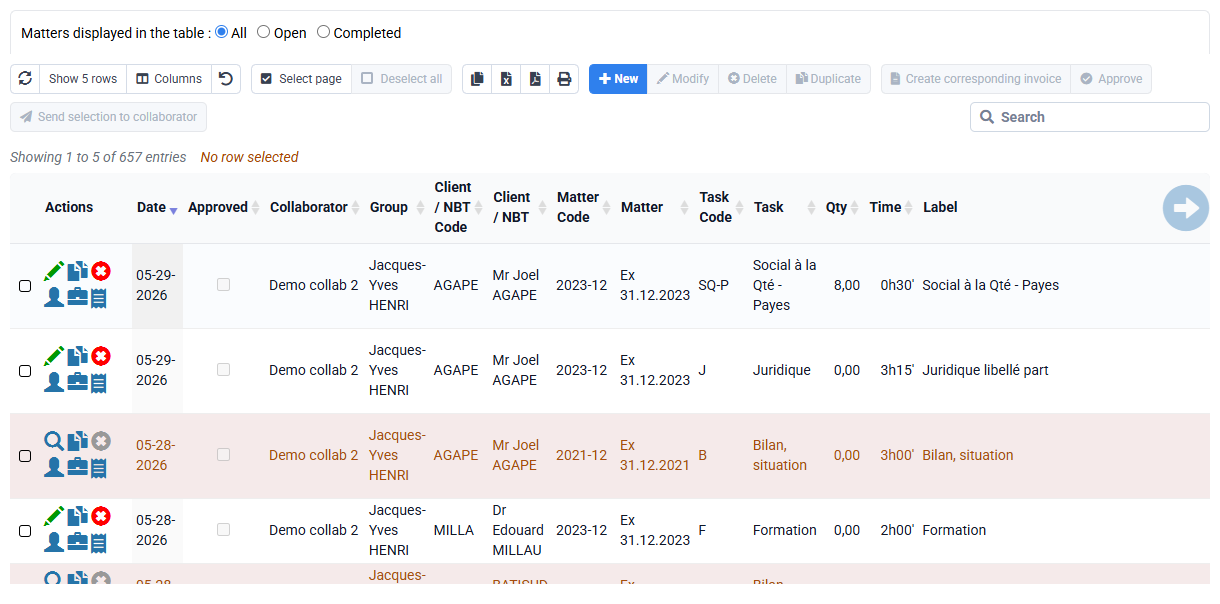
- add an “Approved” column in the list of times and expenses,
- add an “approved” checkbox in the time and expense editing form,
- add an “Approve” button above the list of times and expenses,
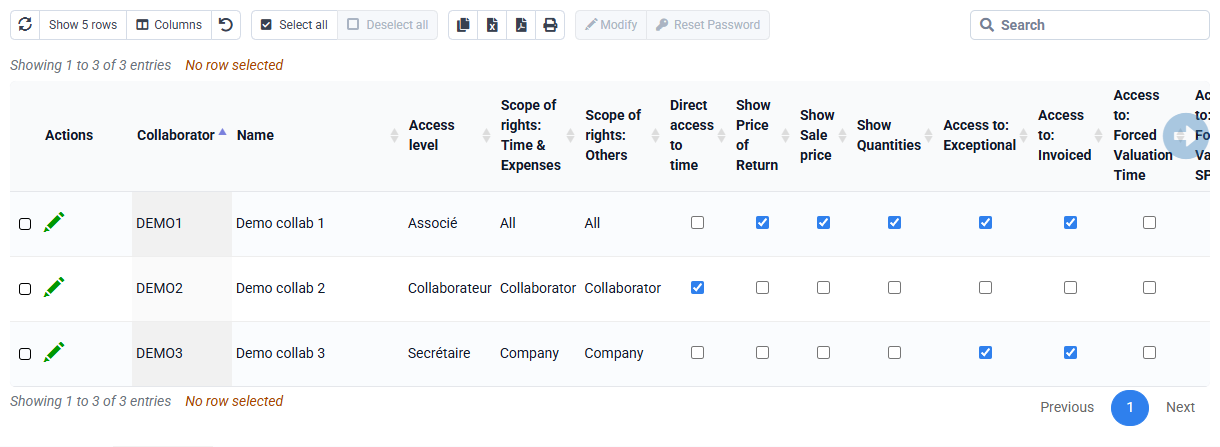
- add an additional setting in Collaborators > Login and collaborator rights.

You can give this or that employee the right of approval (and the administrator also has this right), which allows you to approve times and expenses:
- either by editing a time or expense line, and checking “Approved”
- either by selecting N lines and clicking on the "Approve" button above the table => this allows you to approve all the times from such and such a date.
When a line is approved, it can no longer be modified or deleted by a person who does not have approval rights. This person can, however, make other additional entries that may have been forgotten.