

Prepare PA/eReporting flows and monitor statuses
Objective. Classify electronic-invoicing objects, check their source data and read available statuses without treating an empty history as a successful transmission.
Before you start: select the invoice to qualify
In your subscription, select an issued invoice you may view whose customer has a verifiable country, legal identity, billing address and tax identifiers. If a payment is linked, record its reference, date and status. Confirm access to cockpit and histories, but trigger no transmission during the training.
Route to prepare
Use the customer, optional matter, invoice and any linked payment or rejection that you selected. First determine the intended B2B, eReporting and payment routes from country, identifiers, VAT and transaction context. Read the PA/eReporting histories for the selected scope. An empty table only means that no row matches the current filters; it gives no external status.
Prerequisites
- Your issuing company, platform and period are selected in your subscription.
- The selected customer’s legal identity, address, country, SIRET and VAT data are reviewed.
- No real submission is triggered. Each history is reported exactly as observed.
70-minute schedule
- 8 min: classify objects.
- 12 min: inspect company, client and period.
- 15 min: prepare the invoice route.
- 15 min: review eReporting criteria.
- 12 min: inspect payment and the selected SEPA rejection.
- 8 min: check the filters when a history is empty.
Understand the lifecycle
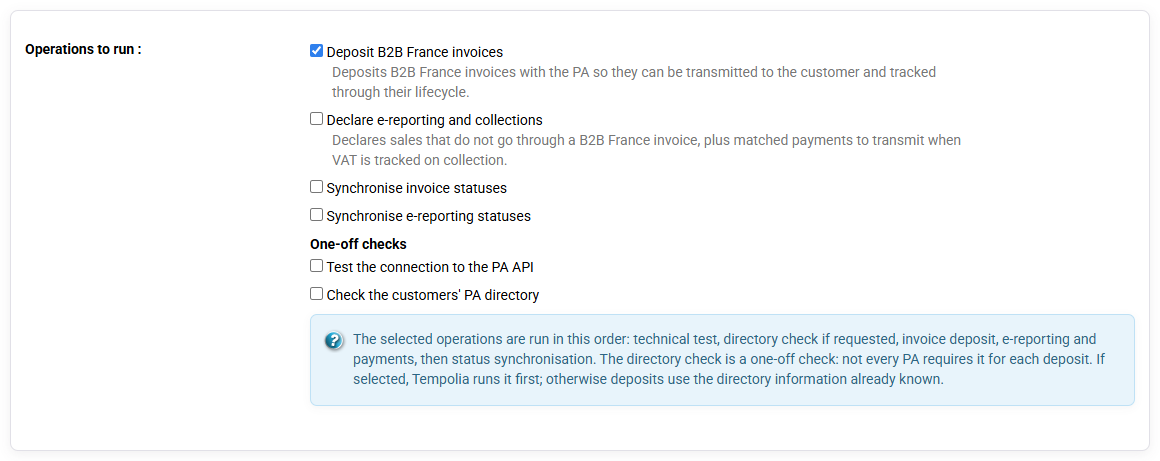
The cockpit lists available actions; the history contains acknowledgements and status changes. A PDF, selected population or clicked button is not a platform response. Keep preparation, submission, technical acknowledgement, acceptance, rejection, correction and resubmission distinct. Correct client, company, VAT, invoice or payment source data rather than hiding a structured error in wording.
1. Verify routing data and population
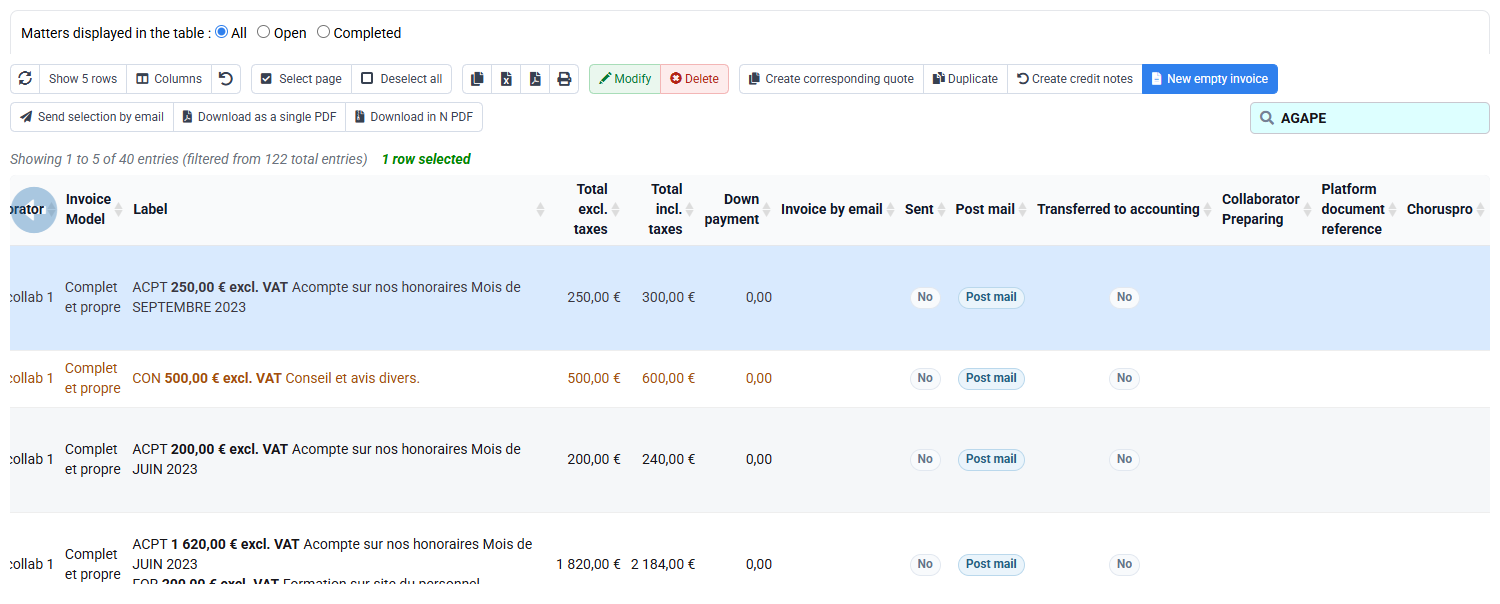
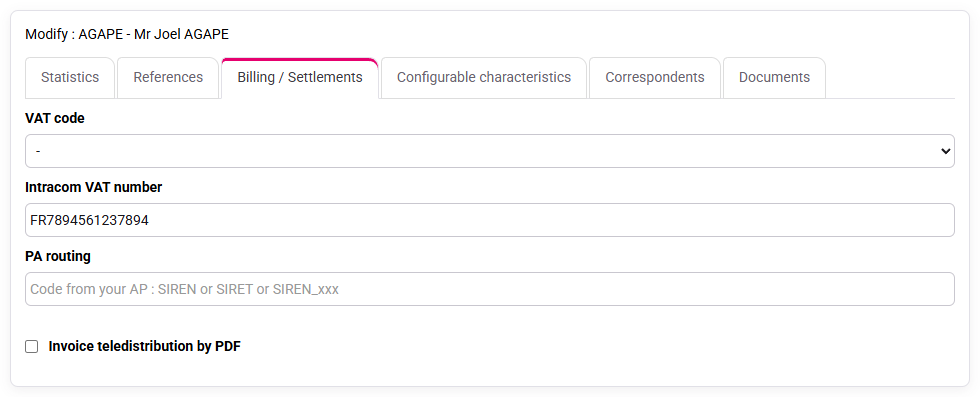
Find the selected invoice in the sales journal and verify the selected customer, the selected matter, the actual gross amount, company and issued status. Inspect client identification and PA/eReporting tabs, then platform and period options. The issued invoice supplies the source values. An empty PA history simply contains no matching status.

2. Read the cockpit and histories in order
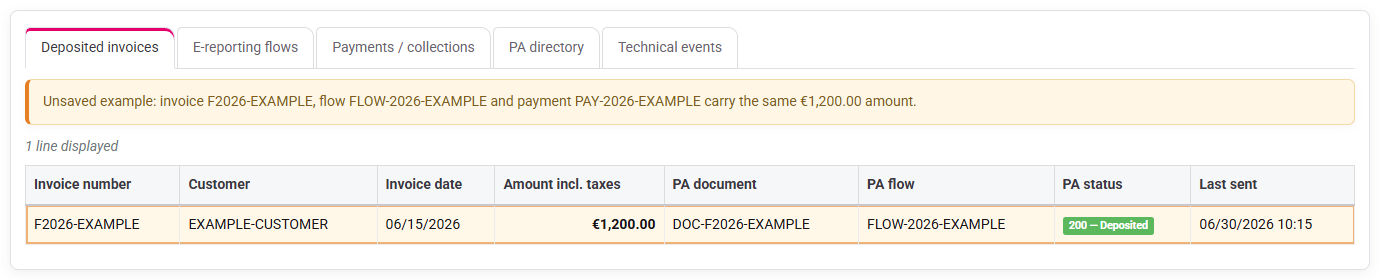
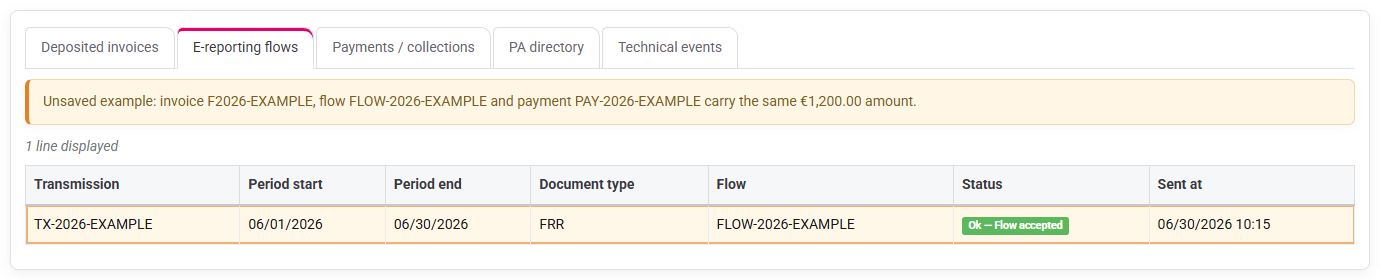
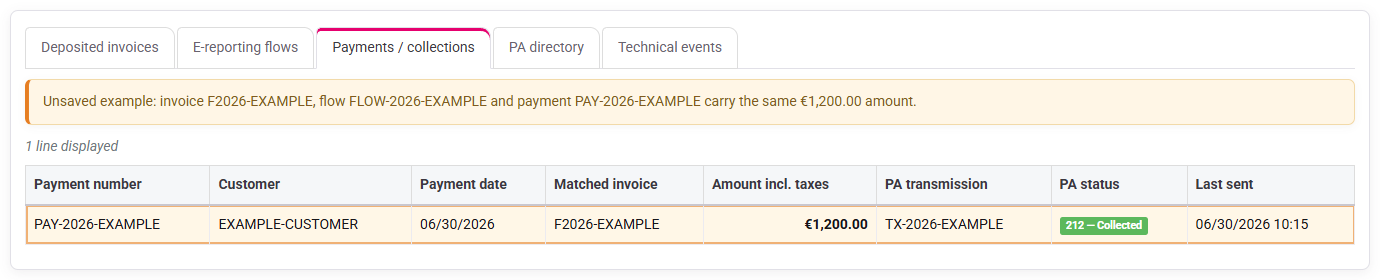
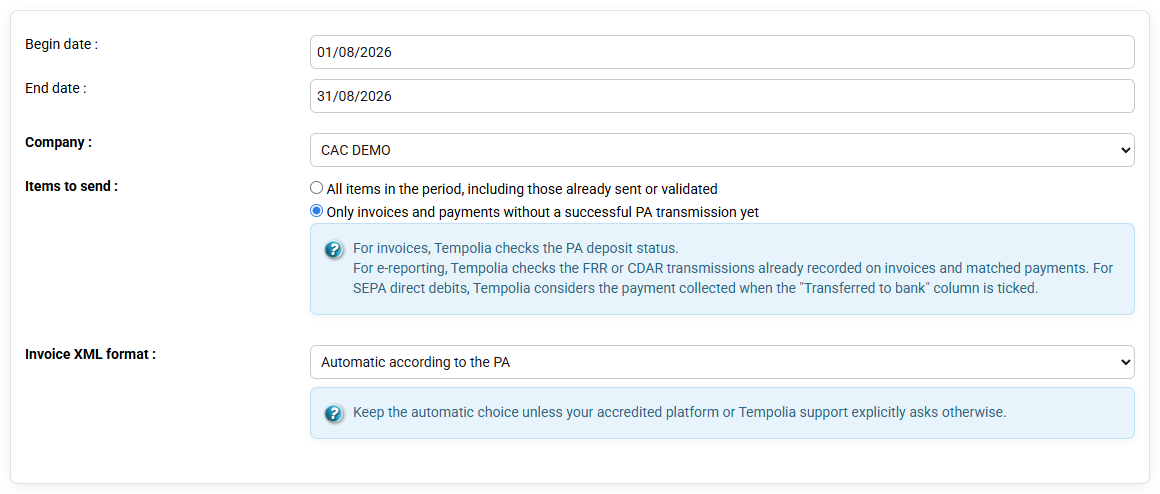
Review the cockpit population and period without sending. Open invoice, eReporting and payment histories. If they contain no rows, check company, period, platform and reference, then continue without assigning an external status. If a payment rejection exists, connect its actual code to the original mandate and payment, then record the chosen correction. If none exists, record the payment’s actual status.
Exercise recap
- 1. Qualify the selected invoice from source data.
- 2. Inspect the three histories without submission.
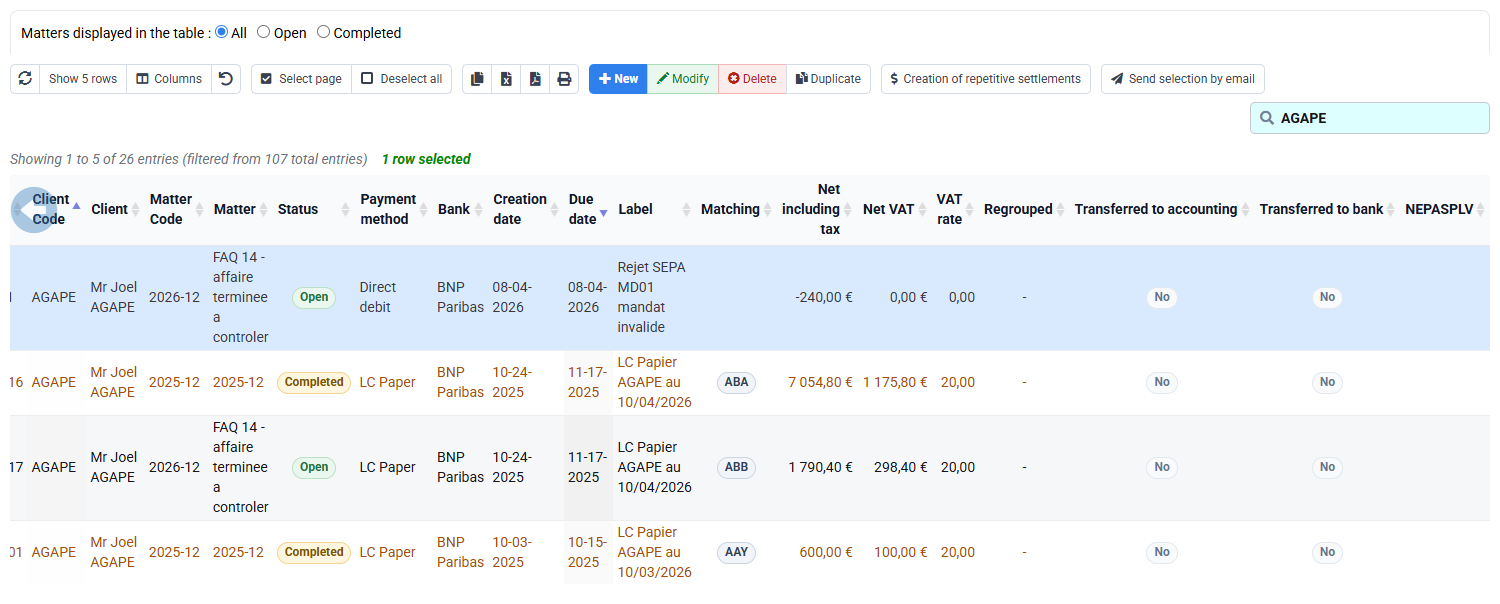
- 3. Link the selected SEPA rejection to its payment context and write the next authorised action.
- The invoice, customer, amount and intended route are listed.
- Read each history from its actual rows; an empty result simply means that no row matches the filter.
- No object is resent without reading a real return.
If the selected invoice is absent, check company, period and issued state. If history is empty, verify platform configuration and test data; do not infer success. If an observed payment rejection is unclear, inspect mandate, rejection and original payment before deciding.
Build the qualification sheet before opening the cockpit
Create one line per object with source reference, seller, buyer, country, B2B/B2C status, totals, VAT treatment, issue date, payment basis and expected route. For the selected invoice, copy values from the issued invoice and selected customer record. Add expected action, prerequisite, history searched, row found, returned status and next authorised decision. The sheet prevents sending first and understanding later.
Qualification is a business decision supported by data. French B2B, B2C, international and cash-basis payment objects need not share a route. Country or VAT number alone is insufficient: inspect customer type and context. When a source value is missing, identify the field to complete before transmission.
Concrete exercise
- Copy the selected invoice, the actual gross amount, the selected customer and the selected matter.
- Read seller and buyer identifiers at source.
- Write the expected route before opening the cockpit.
- Search all three histories using one company, period and reference.
- Record zero rows as the search result, not an accepted status.
Read statuses as a chronology
Read the stages in order: source data, eligibility, preparation, submission, acknowledgement, platform processing, acceptance or rejection, correction and payment. A cockpit “to do” line comes before submission. A local sent flag is not a platform acknowledgement, and a rejection does not erase the original invoice.
For a real return, reconcile identifier, company, amount and date before interpreting it. Read the detailed message, then locate the source: customer identity, seller, VAT, line, payment, routing or connection. Apply only the authorised correction, retain the earlier return and explain why one new attempt is permitted.
Empty-history diagnosis
- Confirm database, company and access rights.
- Expand dates while keeping the unique reference.
- Verify platform configuration.
- Confirm whether an authorised submission actually occurred.
- If none occurred, define a prepared future test.
Treat any payment rejection as a separate exception
A SEPA rejection remains connected to mandate, RUM, collection reference, due date, bank, expected payment and customer account. Use the actual rejection code as an event identifier, not as a universal accounting conclusion. Read the actual code and reason, then decide through the authorised process whether to represent, correct mandate data or request another method.
Do not mark the selected invoice paid because a debit was prepared. Expected collection, bank file, acceptance, rejection, payment entry and matching are distinct. If an entry exists despite rejection, reconcile customer movements before payment reporting. Preserve rejection date and link.
What to check for a SEPA rejection
- Customer, mandate and collection reference.
- Actual rejection code and date.
- Effect on the customer balance and matching.
- Whether to represent the debit, correct the mandate or request another payment method.
Prepare the future authorised end-to-end test
If a history is empty, first check the selected invoice, customer data, company, platform and period. Do not create or transmit anything during the training. When your normal process later supplies a genuine identifier and return, use them to complete the status and compare the amount.
For a final check, start again at the invoice, follow its route, locate any acknowledgement, interpret each transition and verify that no duplicate was created. A test without remote response validates only preparation; a remote response not reconciled to its source validates only transport.
Daily controls and mistakes
- Do not choose an operation only because its button is available.
- Keep the original company, period and reference while investigating a missing row.
- Do not present empty history as “no errors” or “everything sent”.
- Do not correct visible wording when structured source data caused rejection.
- Do not resubmit before reading the previous return.
- Do not confuse PA history, accounting export and customer matching.
- Do not treat a rejected debit as receipt.
Review unresolved objects by age and status, assign owners, and reconcile cockpit population, submitted, acknowledged, rejected and awaiting-decision counts. This detects silent gaps before month-end.
Reconcile the populations before period close
Use one row per invoice or payment with its Tempolia reference, expected route, external identifier when present and latest actual status. Compare the three histories separately. An empty history contains no external event; it is never a list of successful events.
Apply the same discipline separately to invoice, eReporting and payment histories. Do not copy a status between them. Keep the selected customer, matter and actual gross amount as the starting point. Leave external status columns blank until an authorised submission returns an identifier and response. If a payment rejection is visible, place it in the payment chronology only and link it to the original mandate and debit. It does not populate the invoice-rejection column.
Choose the next action
If a history is empty, check company, period, platform and reference. If no row appears, simply note that no external status is available for the selected object. Do not describe a platform fault or a successful transmission without an actual return.
Repeat the filters and source checks without the direct links. Make sure that a cockpit action is not read as an acknowledgement and that a rejected SEPA debit is not read as a rejected invoice. Leave missing external statuses blank and do not resubmit before reading the genuine return.
Before you finish
Keep the source values and the actual external statuses in separate columns. This makes it clear whether the invoice is merely ready, has been submitted or has received a response.
Step back
Good follow-up means choosing the right route, sending only once and reading the returned status before retrying. Automation can collect statuses; a person still needs to interpret a rejection and decide whether the source must be corrected before resubmission.