


How do I configure my alerts, and why are some boxes mandatory?
Alerts combine company rules with each employee’s preferences. A company requirement remains enabled; employees can add the personal alerts available to them.
Open the appropriate settings
For company rules, an authorised user opens Configuration > General options, then Alerts. For one person, open their record in Employees > Employee login and access rights, then Alerts. This tab also exists in the Employee record, depending on your rights. Select one existing person.
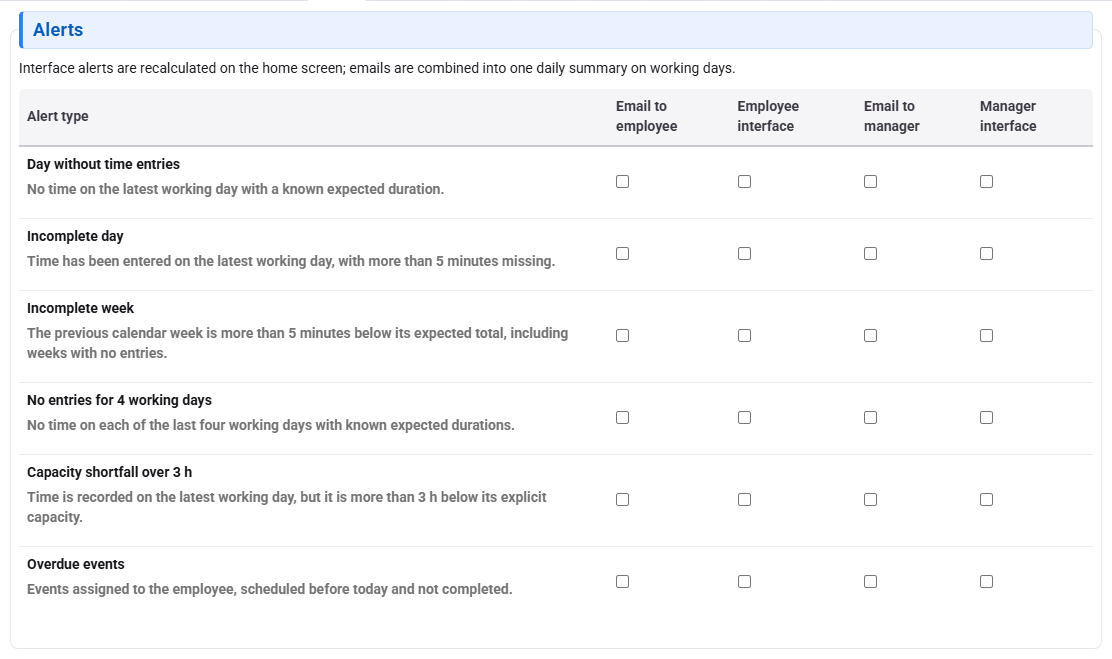
Choose alerts and recipients
Read each row’s description and the delivery channel columns. A box required by General options is checked and locked in personal settings. An additional personal choice can be removed without disabling the company requirement. Where permitted, the recipient manager can be selected automatically or specified in personal settings; choosing no manager is different from automatic selection.
After making a change, wait for the save confirmation, then reopen the same record to check the stored values. If another person has changed the settings, reload them before choosing again.
Investigate an absent or mandatory alert
- Locked box: ask the person responsible for General options to review the company rule.
- Missing tab: check that you selected one existing person and have access.
- Alert not received: check the effective rule, channel, recipient and scope. Saving a preference does not confirm message delivery.
See also employee access rights and time and expense approval.