

Help - Questions / Answers
Getting started
- What preparation should be carried out before setting up the basic configuration to work?
- What are the main settings to be made?
- What are billable and non-billable tasks, and how are they defined?
- What are sales codes, expense codes and task codes used for?
- How should invoices, payments and client reminders be organized?
- What must be configured before being able to issue an invoice?
- How to configure the sending of emails?
- How do I add / modify my logo on my invoice template?
- What customization options are available to meet my company’s specific needs?
The reflection on the initial configuration of Tempolia should focus in particular on:
- the choice of task, expense, and sales codes: make a list of the types of tasks on which employees work, the nature of the expenses entered (kilometers by car, restaurant, etc.), and sales codes (at associate with the accounts defined in accounting)
- the use of the concepts of group of collaborators, activities and client families: you will be able to find your clients better by categorizing them by activity and by family. This categorization is free, you define the lists as you wish
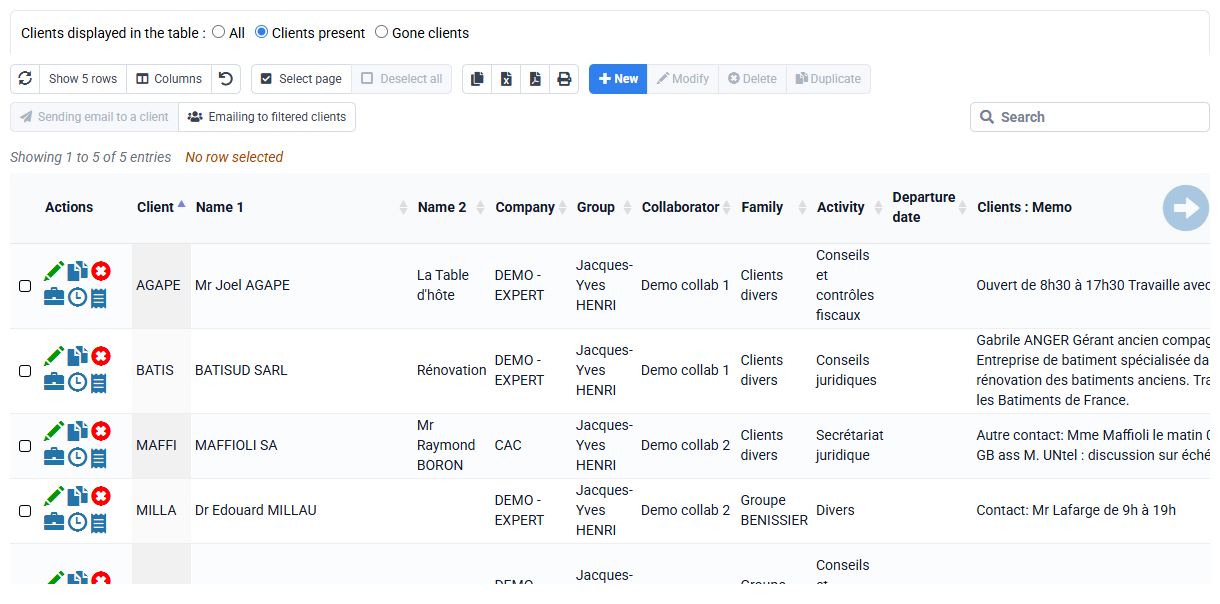
- the method of coding clients and matters: it is interesting to have internal rules, to use identical codifications between your different software, ...
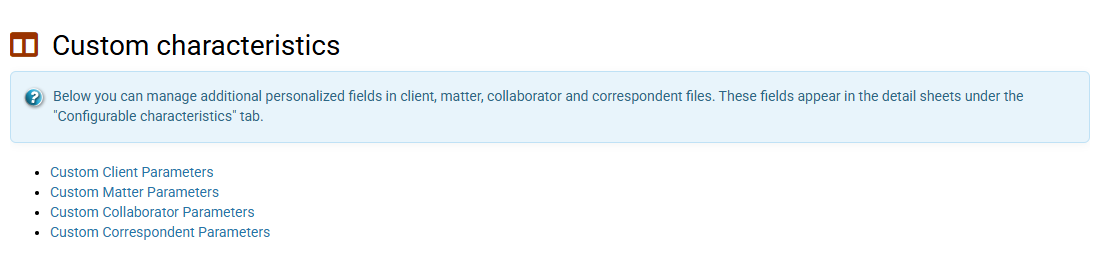
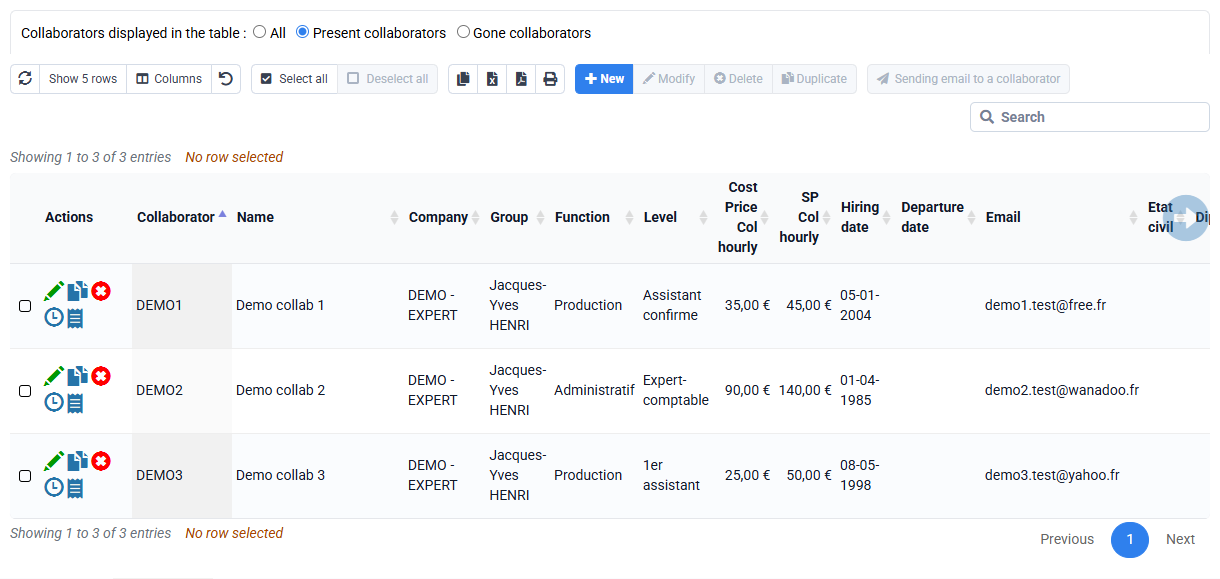
- setting up collaborator, client and matter characteristics: you can create personalized characteristics, which are boxes in the database that you can then use freely
- the billing methods that will be used: fixed price, time spent, quantity
- properly configure the billable task codes. Time spent invoicing uses the notion of Exceptional time, and billable task codes may have this option enabled by default to simplify the entry of time spent. In addition, if certain tasks must be invoiced based on quantities, it is necessary to set up the corresponding task code accordingly.
The "Configuration" menu allows you to define the settings adapted to your activity:
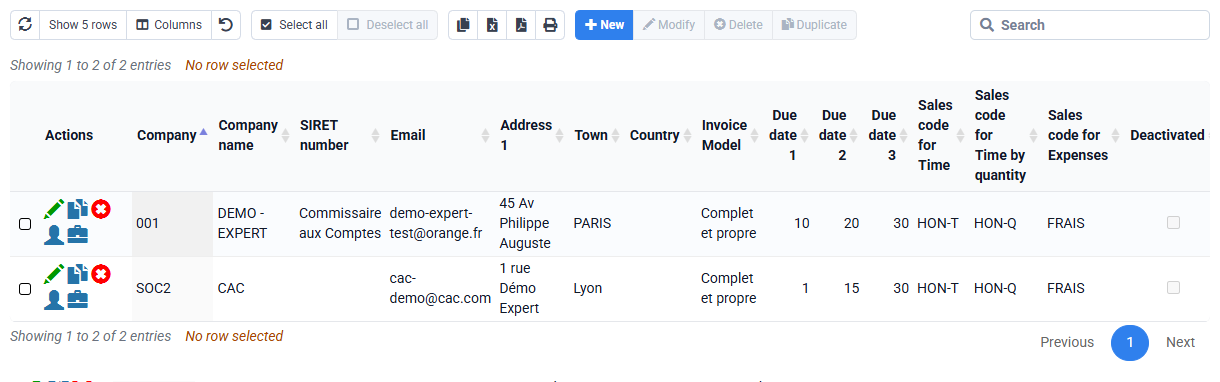
- the references of your (or your) company (ies): identification, bank details. Tempolia can simultaneously manage several companies. Each case will be associated with one of your companies, which will impact the invoicing mechanism.
- the activities that define the nature of your business. The attachment of clients and matters to an activity allows sorting and profitability analyzes on this criterion.
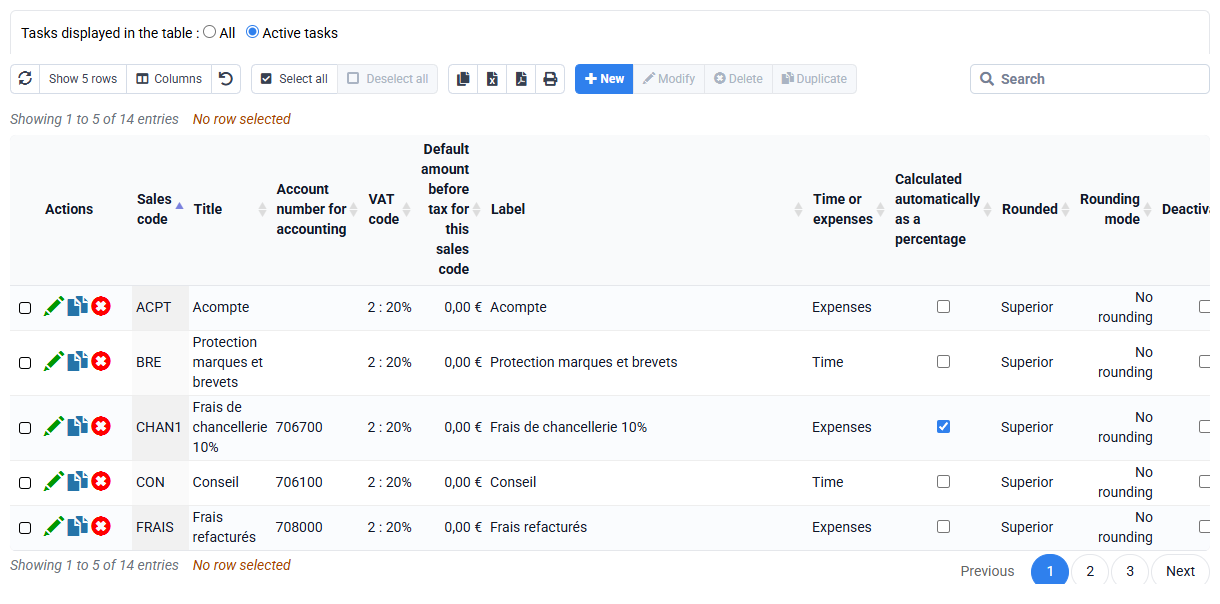
- the sales codes which determine the posting in the accounts of the invoiced amounts excluding tax. Each line of an invoice is associated with a sales code. Each sales code can be associated with a default price, a standard label or a calculation formula for invoicing.
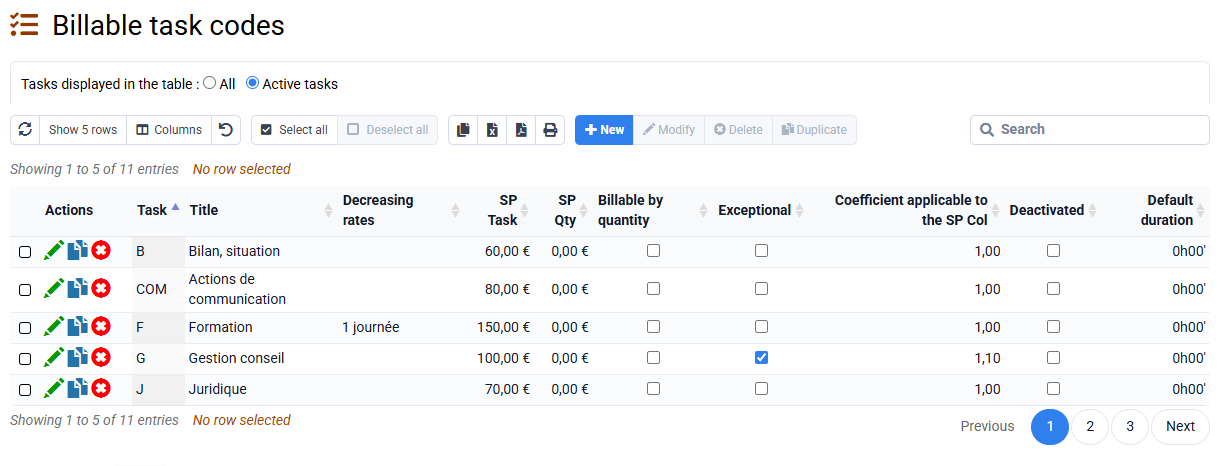
- the task codes or nature of the work carried out by employees. Task codes are used for entering time spent or budgeted. Some tasks with a price per quantity allow invoicing on the basis of quantities. A billable task can be associated with an hourly selling price per task (Task PV), which allows an alternative valuation of times to that based on the hourly rates of employees (Collaborator PV).
- the "Quantity selling price per case" page allows entry of quantity selling prices specific to each case.
- non-billable tasks allow you to track time not allocated to client matters (internal activities, absences, recovery time, etc.)
- Expense codes will allow you to enter expenses, such as restaurant bills, or car kilometers. Each cost code can be associated with unit cost and sales prices which allow their automatic re-invoicing.
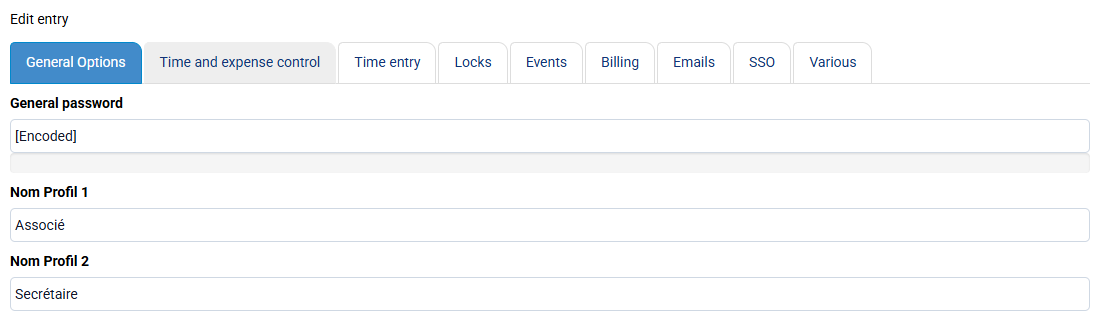
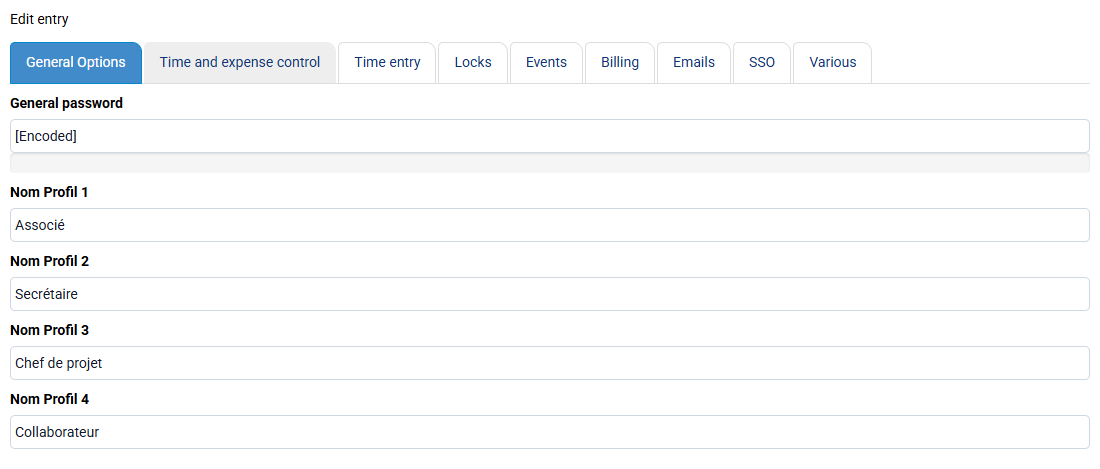
The « Configuration > General options » page allows you to :
- define the controls associated with the input: for example, warn or block beyond a certain threshold of hours,
- lock previous periods,
- decide whether the time spent should be valued at current or historical rates.
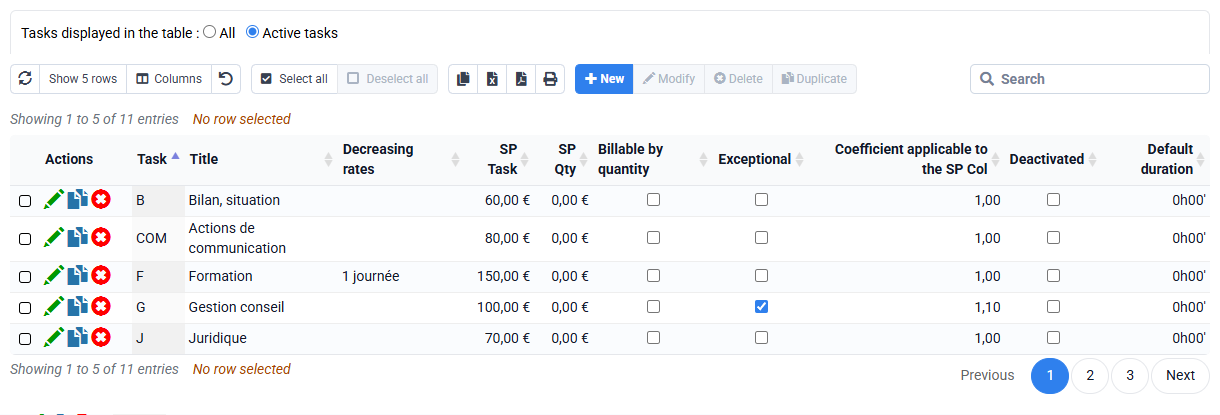
Billable tasks represent activities for which the time spent by employees can be billed to clients. A task can be "Billable by quantity" if you want to re-invoice according to the quantity produced and not the time spent, and the notion of "Exceptional" makes it possible to automatically propose for invoicing the time spent on this task.
Non-billable tasks are on the contrary:
- absences, such as paid leave,
- or internal activities (Presence) not directly linked to customers, such as administration or internal meetings. These tasks help manage and allocate non-billable time, essential for controlling overhead and assessing internal costs.
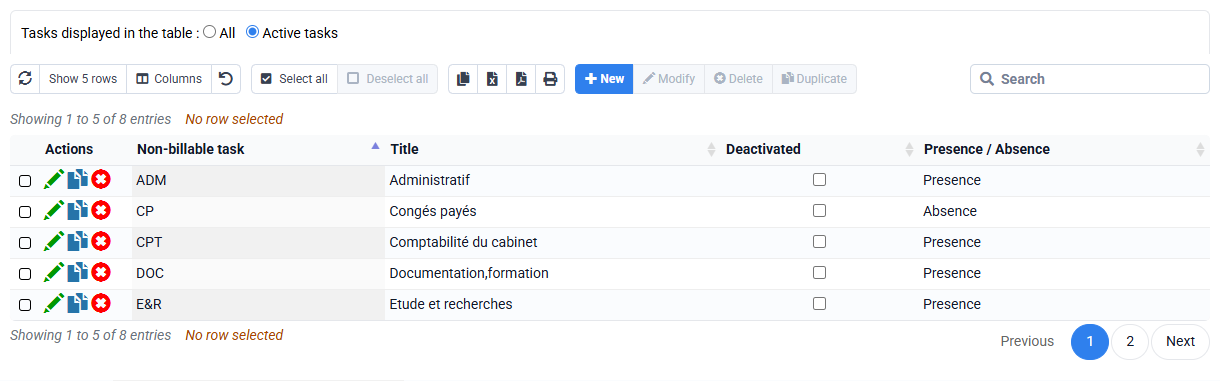
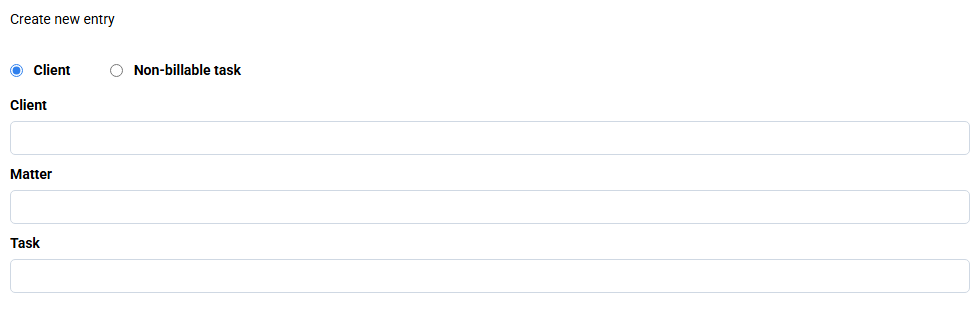
For each task, you must enter a unique 5-character code, and a wording which will be used by default when entering times. You can also use the NLU (No Longer Use) box which prevents new entries under an old code while retaining historical data.
Thus, billable and non-billable tasks allow complete and differentiated management of time spent, facilitating both invoicing to clients and monitoring of internal non-billable activities.
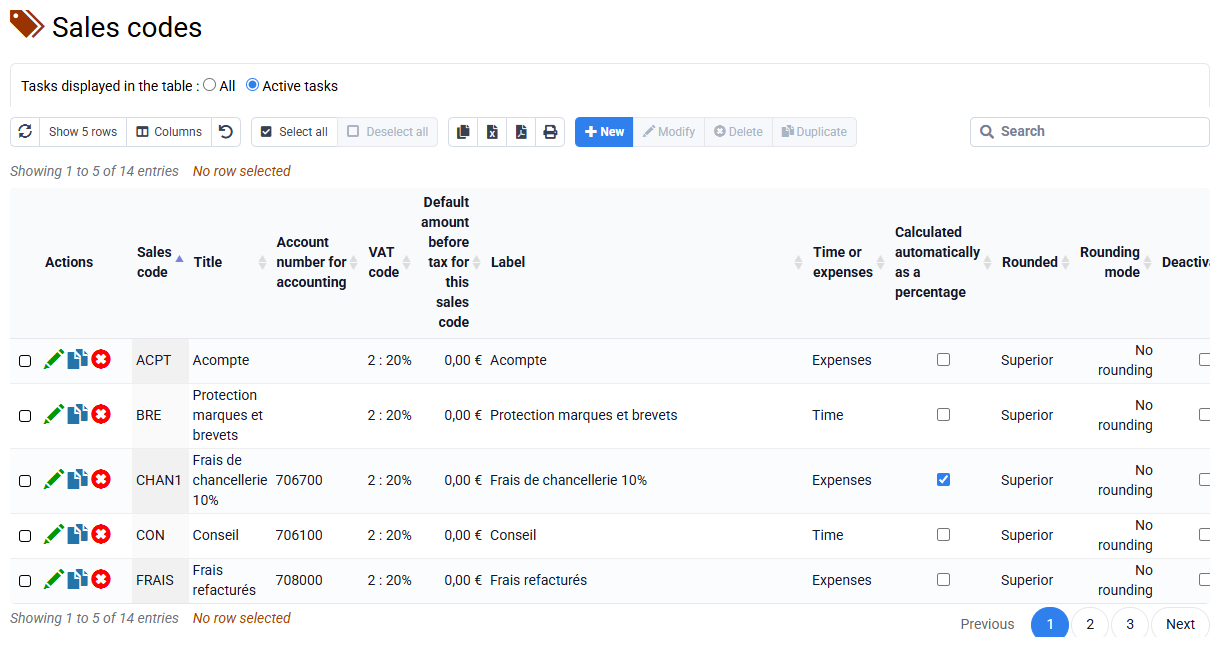
Sales codes correspond to the nature of the billed service and determine the accounting allocation of each invoice line. You can create one sales code per type of billed service. Tempolia lets you enter a specific billing label for each matter. The label text can include wildcard characters that are automatically replaced with information such as the month, quarter or an order number.
Expense codes are used to enter expenses incurred or to be incurred, and provide a complete view of the cost of client matters. Each expense code can be associated with unit cost and sales prices, making expense entry easier.
Billable task codes correspond to the nature of the work performed by an employee and are used to enter planned and actual time. They also make it possible to value planned or actual time.
Non-billable task codes are used to allocate non-billable time and expenses. This detailed code management lets you accurately track all costs and revenue related to your activity.
Invoices can be budgeted to ensure fast monthly issuing, avoid omissions and reduce your working capital requirement. If you invoice based on actual work, billing can also be automated using exceptional time and expense entries, which are pulled into billing with their valuation.
You can track collections: automatically retrieve incoming bank transfers, enter cheques, and prepare direct debits automatically when preparing the invoice. You can then submit your direct debits to the bank with SEPA direct debit XML file generation.
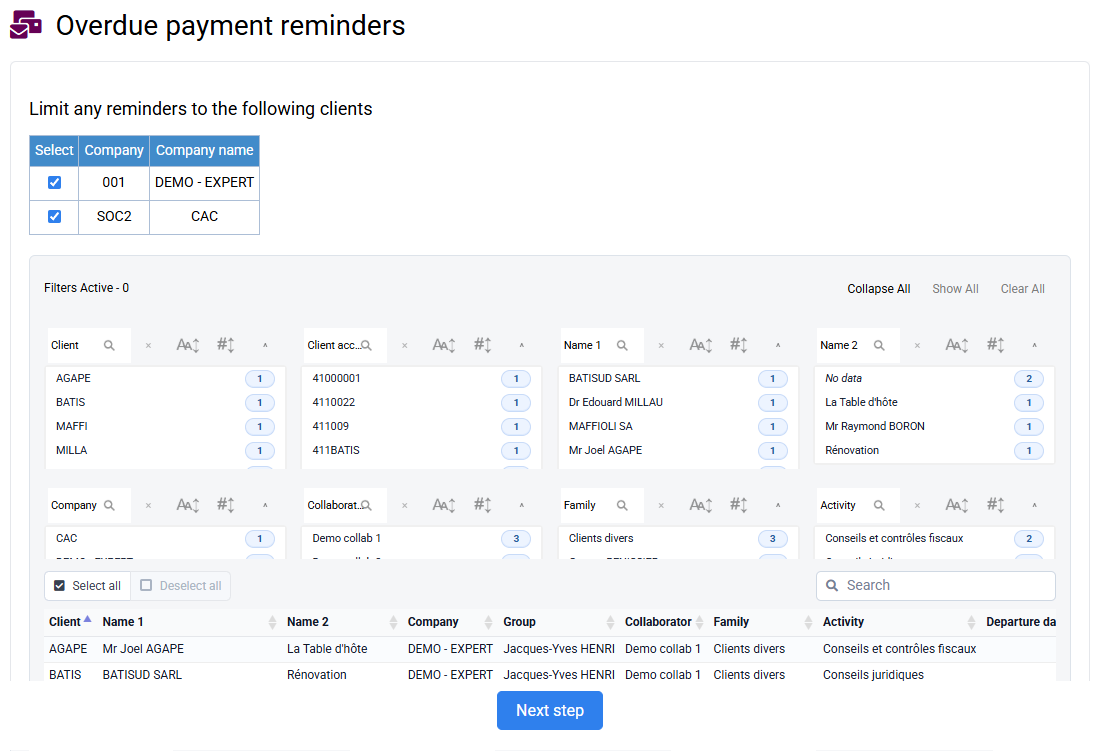
Tempolia offers customizable client reminders that include the balance details. Client reminders can use different wording depending on the age of the balance, helping you manage overdue amounts.
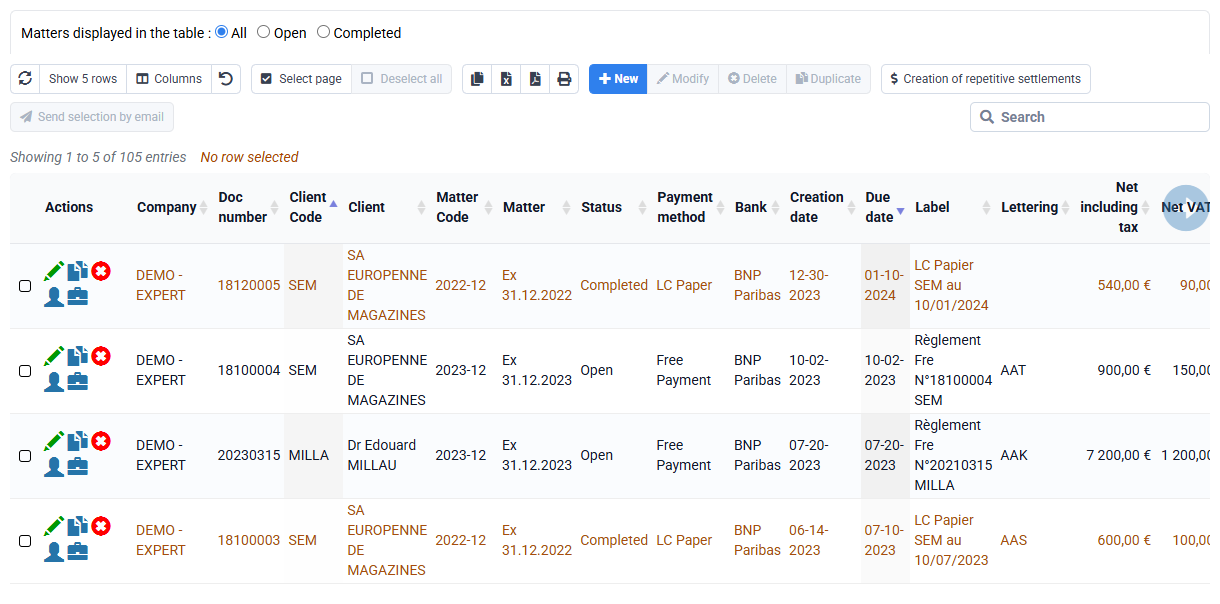
Invoices can be saved as PDFs, sent by email and exported to your accounting system. A matching system links each payment to the corresponding invoice. An aged balance report lets you know where you stand with collections at any time.
The issuance of invoices requires prior configuration:
- Invoice template: the invoice template(s) must be configured, contact our support for implementation.
The default model associated with each of your issuing companies can be specified for a particular matter or modified for a particular individual invoice.
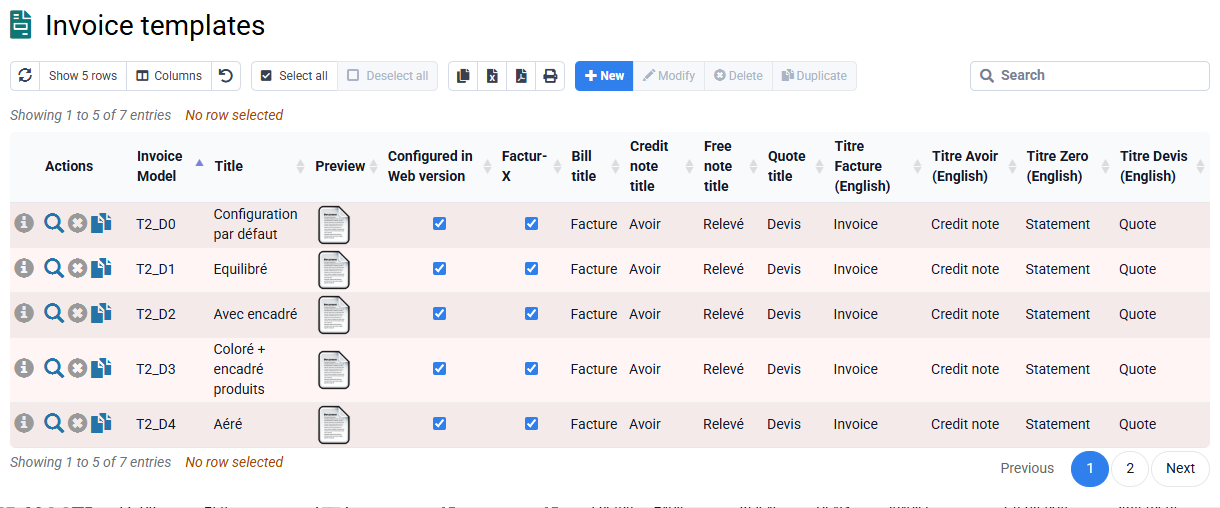
- Company: contact details and default invoice template for the company
- VAT: codes, rates, account numbers and comments
- Sales codes, with their account number, VAT code, billing label and possibly, associated standard price and calculation formula.
The billing labels for standard sales codes and by case may in particular include coded formulas to automatically obtain the month, quarter or number of the deposit during the actual preparation of invoices.
The lines of the same invoice are classified in the order of their entry or in the alphabetical order of the sales codes according to the option selected in the entry configuration. We can therefore have codified the sales codes to force the classification of invoice lines according to the type of service.
- Clients: enter the billing address, payment terms.
Unless otherwise configured, the invoice models offered by Tempolia provide that invoices are sent to the invoicing address of the case. This normally corresponds to that of the client.
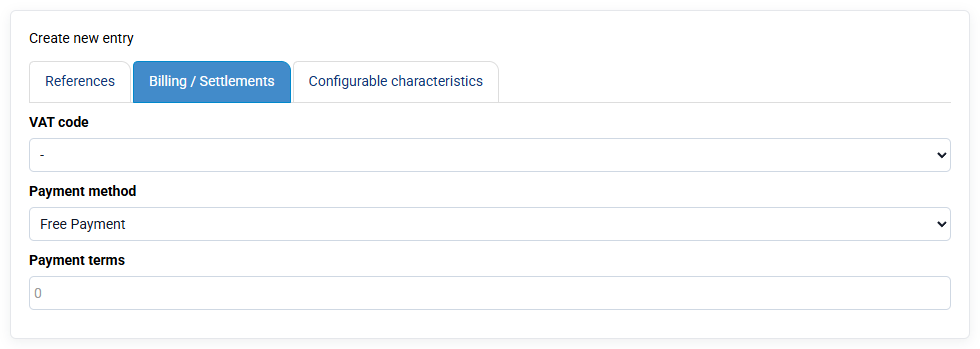
It is possible to enter in the client's file a billing address distinct from his main address. A billing address can also be specified at the level of the client's relevant matter.
The client also determines the account assignment customer account.
- Matters: entry of sales codes for automatic re-invoicing of times and unallocated costs, of a possible specific invoicing address, of the invoice model and of the invoicing unit of the time spent by default of the case.
- and possibly account numbers (clients, sales and VAT) to allow the transfer of the invoices to your accounting software.
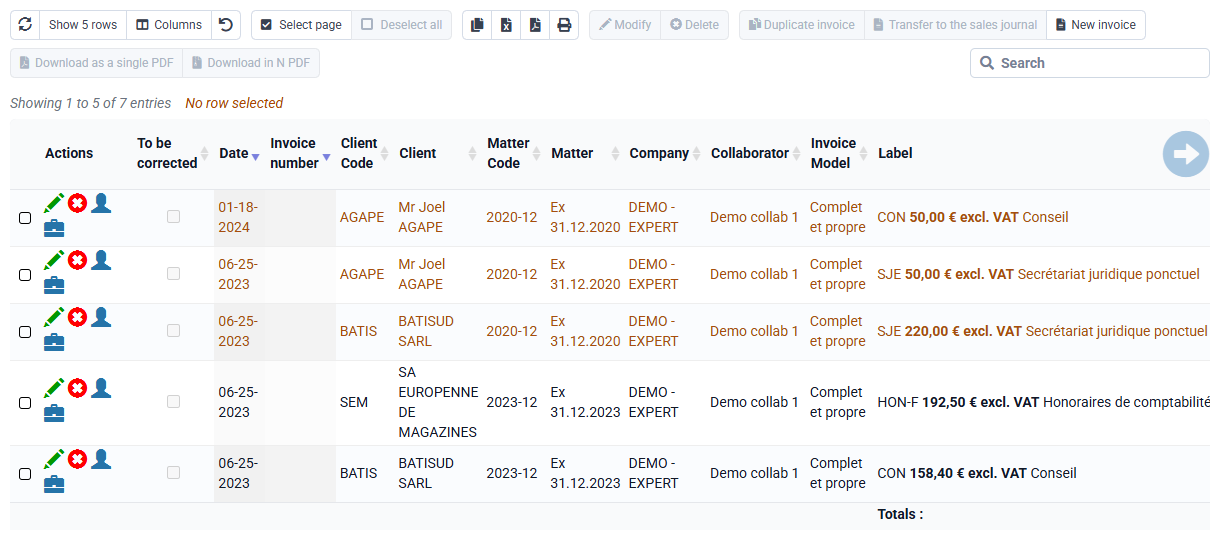
You can send emails with Tempolia, for example invoice emails to your clients.
Emails will come from your email server to avoid any spam issues. You can send us an existing address, or create an email address specifically for Tempolia.
It is important that you regularly check for emails to this address, for example to click on links from antispam platforms asking you for a captcha.
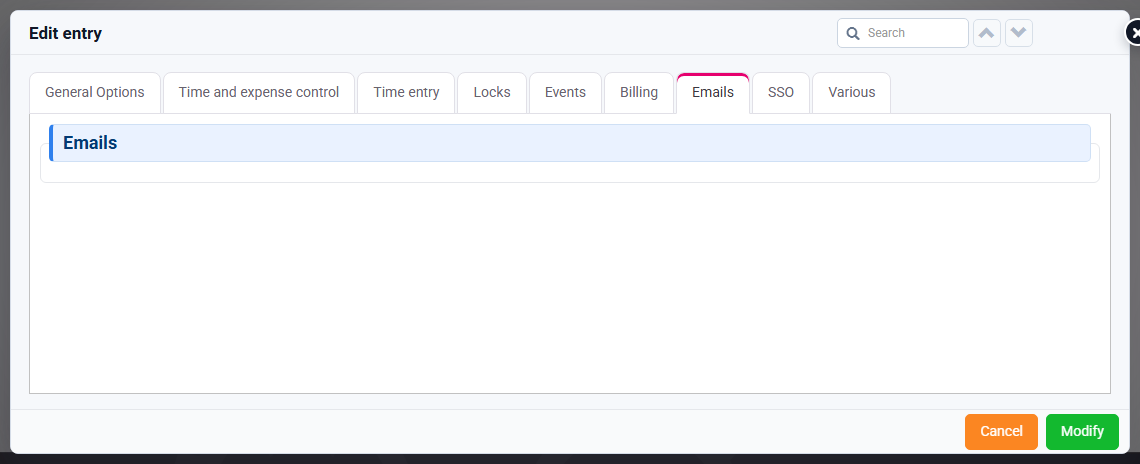
The necessary information is: SMTP server (example: smtp.gmail.com), email address, password, port (25, 465 or 587), name to display.
If you have multiple companies, by default a single SMTP account can be used, and you can also duplicate configurations per company.
You can configure yourself by being logged in as an administrator and going to « Configuration > [ADMIN] Configuration Variables »: search for "email_configuration" to find the variables configuration concerned.
For example, you can enter:
- nom_expediteur_forced (name to display): Name of person, or Billing Department for example
- mail_smtp (SMTP server): smtp.yyy.zz
- default_email_from (email address): xxx@yyy.zz
- mail_smtp_username (SMTP login, often identical to email): xxx
- mail_smtp_password (password): .......
- mail_smtp_port (SMTP port): 587
- mail_smtp_auth: true
- forced_sender_email: true
To test your configuration, in « Collaborators > Send email to a collaborator »
- Select a collaborator, a priori yourself
- Choose an email template and/or fill in a message
- Modify the recipient email if necessary
- Validate by clicking on "Send"
- Check your email that your email has been received correctly
In the event of an error message, read what is written in English in red: this is what is returned by your email server, and allows you to know what to correct in your configuration.
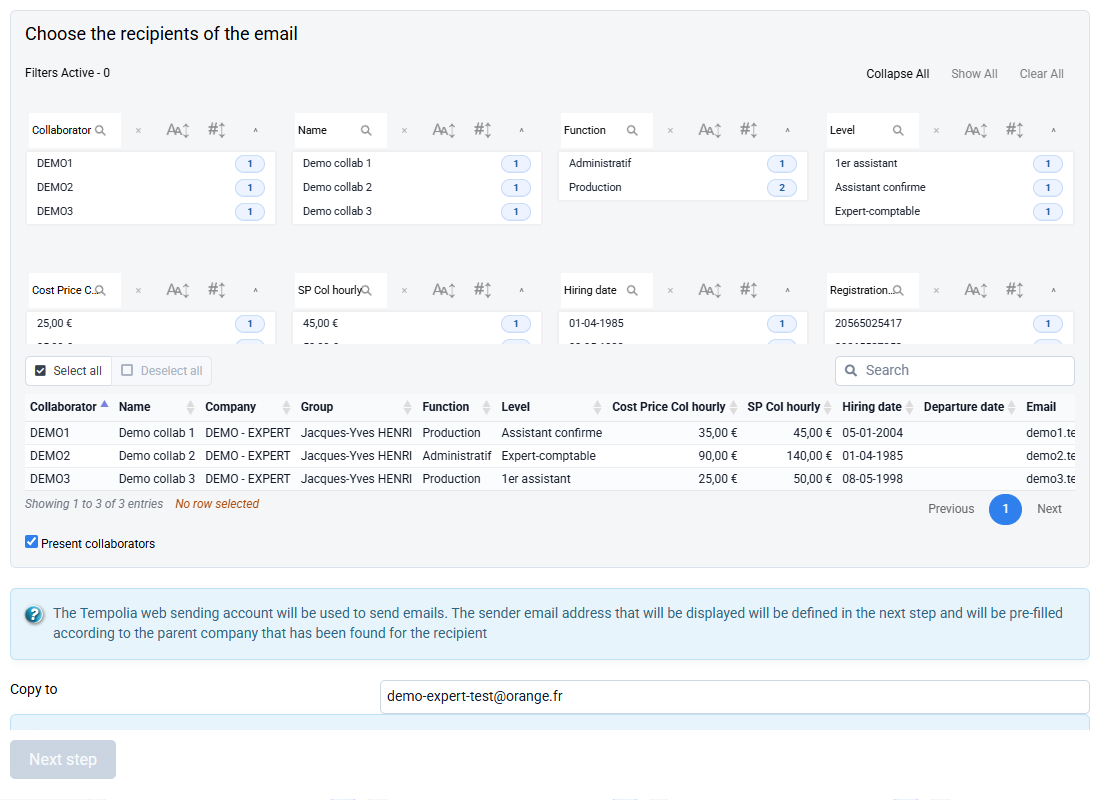
To add / modify your logo on your billing model:
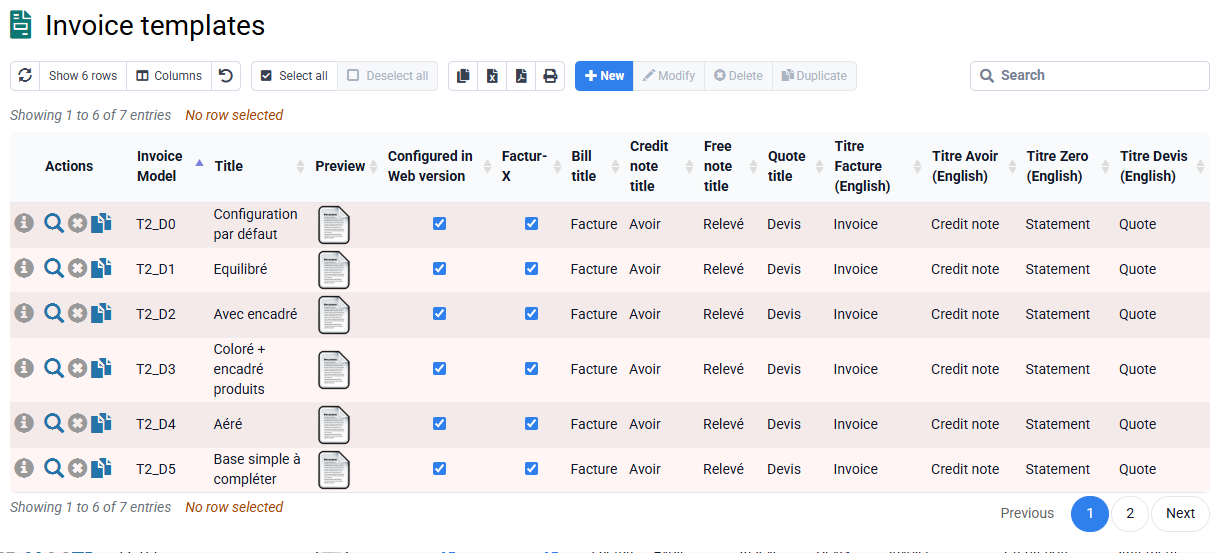
- In the « Tools > Managing Server Files » you can upload your logo. The filename is automatically appended with a suffix to make the filename absolutely unique on the server.
- Go to « Setup > Billing Model », and click on the blue gear icon in the « action » for the model line you are interested in.
- In the « back to top » then “ Header », in “Header or Logo Image File” you can select your file name from the images you uploaded to the server.
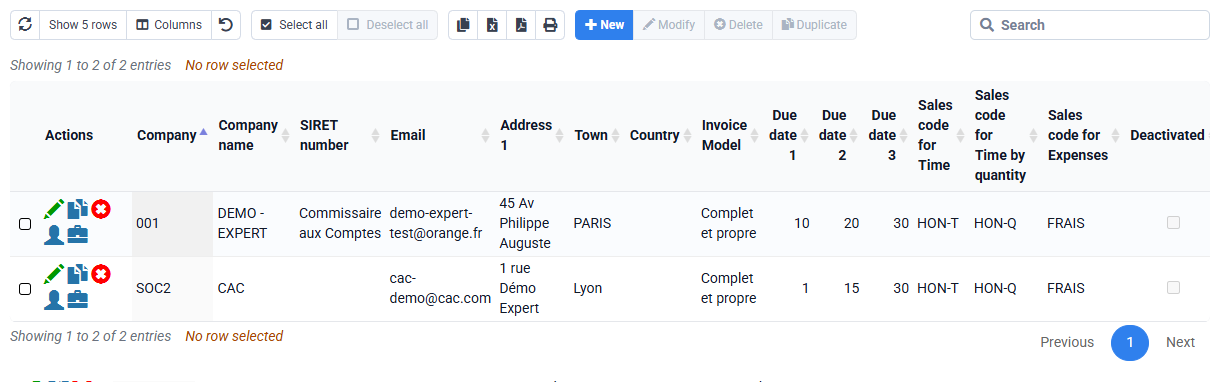
You can then adjust the position of your logo at any time. the horizontal (X) and/or at the vertical (Y) but also in width and height. Finally, click on « Send » to save your changes.
Tempolia is designed to adapt to the processes of your business area. You can customize many parts of the software, such as document templates, user access rights and entry settings. It is also possible to create custom additional fields in client, matter, employee and contact records. These fields appear in the detail records under the "Customizable characteristics" tab.
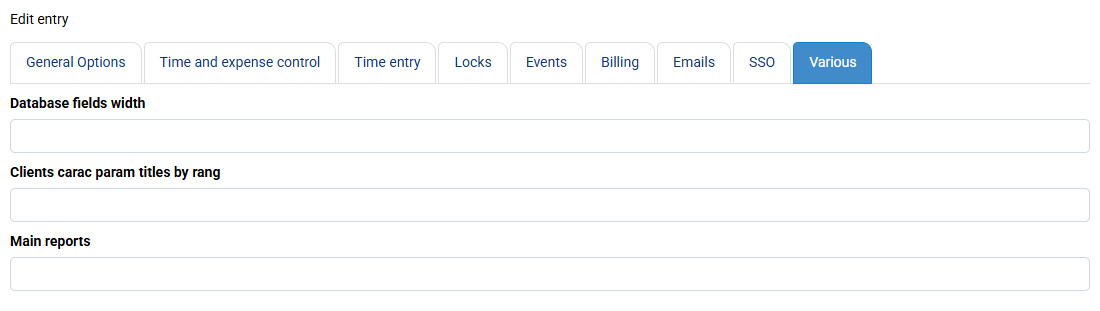
For many topics, we can activate custom settings for you as part of support so that the tool works the way you need. We can also provide specific developments for your own requirements, based on a quotation.