

Help - Questions / Answers
Integrations & API
- What accounting integration options are available?
- How do I import Silae payroll production?
- How to manage rejections from Chorus Pro?
- How can I view an employee’s calendar in Office 365 or Google Calendar?
- How do I have quotes, engagement letters and other commercial documents signed via jesignexpert.com?
- How do I use the Tempolia MCP server with my own AI, such as Claude, ChatGPT, Gemini or Grok?
- What actions are possible with the Tempolia MCP server, through Tempolia AI or my own AI?
Tempolia offers several solutions for integration with your accounting software, all grouped under « Tools > Export invoices to accounting ». You choose your software and Tempolia selects the appropriate format.
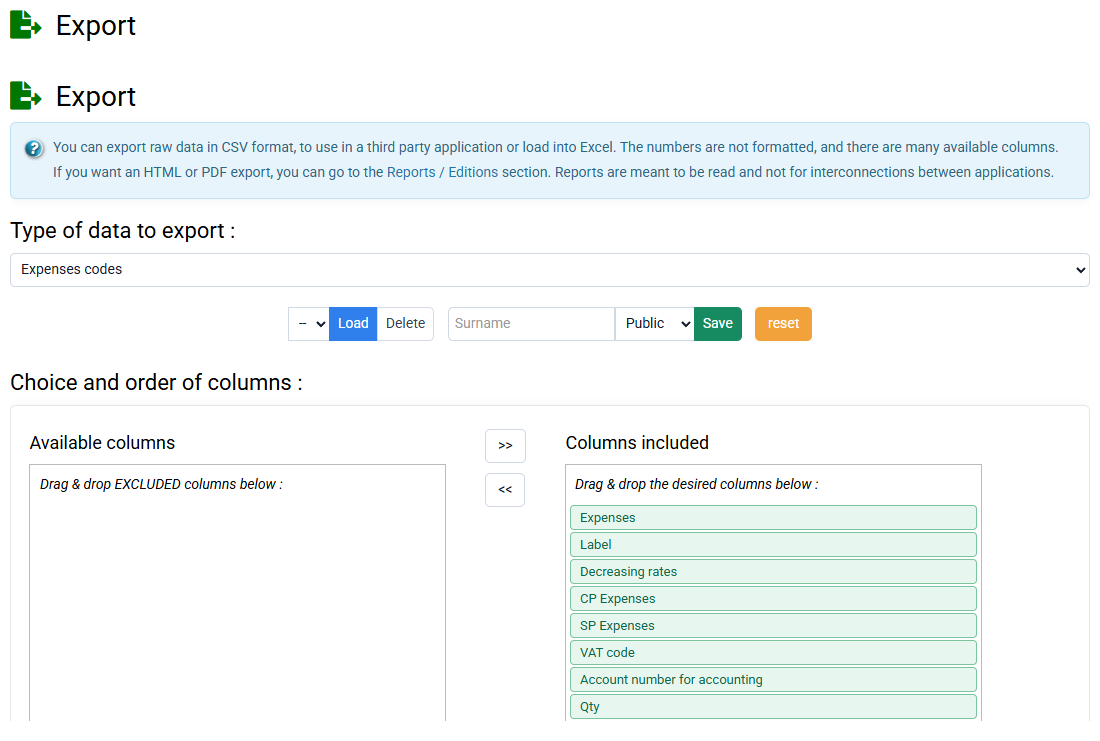
The standard method is file export, CSV or TXT, containing accounting entries such as client accounts 411, revenue accounts 7xx and VAT, which you can then import into your accounting system.
Tempolia is also actively developing API integrations with the main French accounting software packages, including Fulll, Cegid Loop, ACD, Sage, Pennylane, MyUnisoft and Inqom. APIs allow automatic transfer of entries, invoices, payments and expenses, to your accounting software as soon as invoices are issued, significantly reducing manual workload. Some APIs even allow data such as clients and employees to be retrieved from your accounting software overnight. Although APIs are generally more efficient, some may sometimes be rather slow.
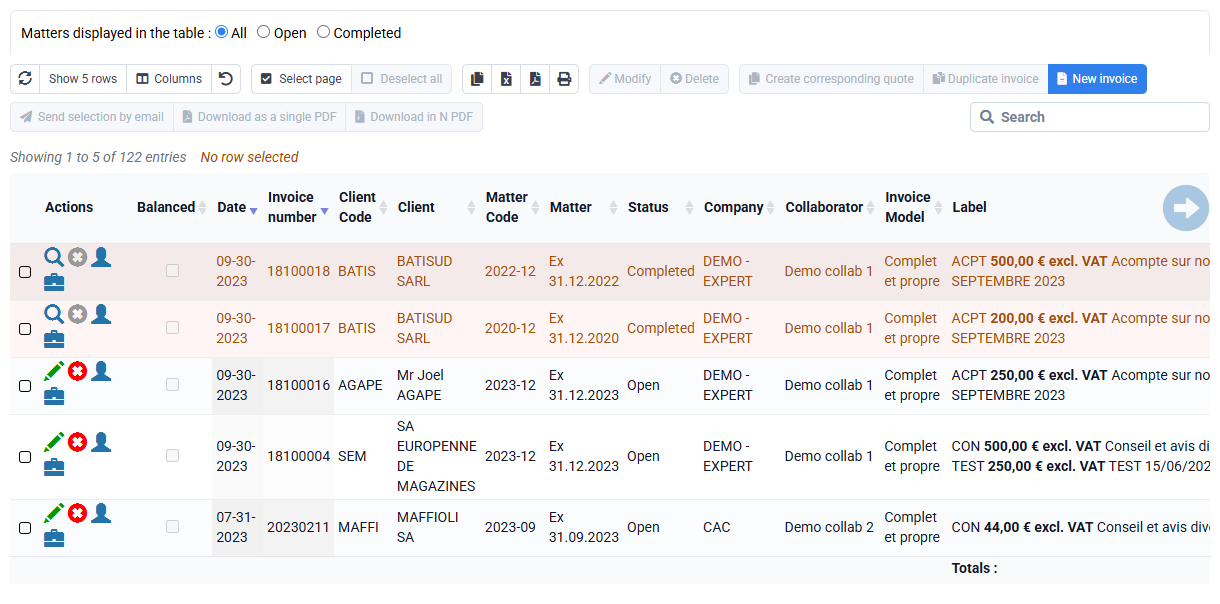
The Tempolia Enterprise offer includes our interconnections with accounting software APIs.
To use the Fulll API, you simply need to contact Fulll to activate your Fulll API. You can then connect from Tempolia with your usual Fulll credentials and perform your exports without any further configuration. For other accounting export APIs, you usually need to follow your accounting software publisher’s instructions to create an API key and password so that we can configure access. You can then use the API for accounting export.
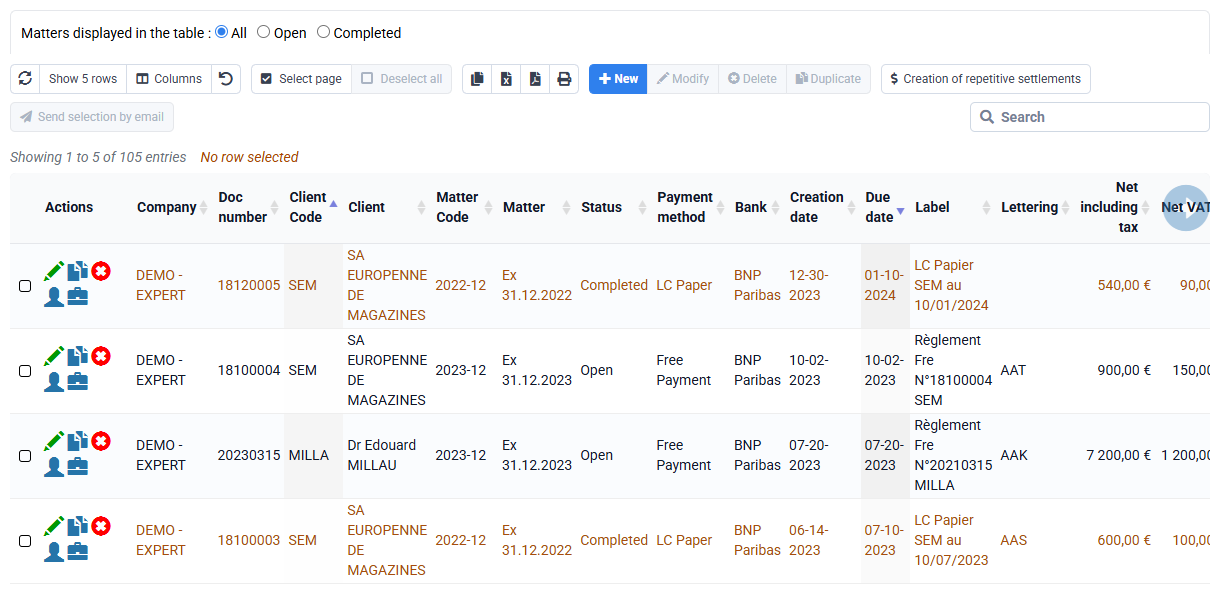
You can automatically retrieve payroll production from the Silae payroll software as part of the Enterprise offer.
Regarding the Silae API, you can subscribe to their REST API for firms. You must contact Silae to obtain your API login credentials and send them to us so we can integrate them into our system. Note: access to their API may be billed by Silae separately, but according to our information the firm API is not billed for our use, namely level 1 according to their codification. For information, Silae API documentation is available at https://silae-api.document360.io/docs
On our side, we call their API features to retrieve the production of your payroll department, in order to know what you want to invoice, typically payslips issued, entries and exits. Then we match this with the tasks you have defined in Tempolia and for which you have configured your sales rates.
During import, matching Silae files with Tempolia clients is done:
- automatically if the client code in Tempolia is identical to the file code in Silae
- through the "SILAE Code" field. This field is filled in the "Customizable characteristics" tab of Tempolia client records to indicate a specific file code in Silae. It can be filled manually or by importing a two-column CSV file: client code in Tempolia and file code in Silae.
To perform the import:
Go to « Tools > Import Silae payroll production » and enter the date range for which you want to retrieve Silae production, as well as an employee to whom the created lines will be fictitiously attached.
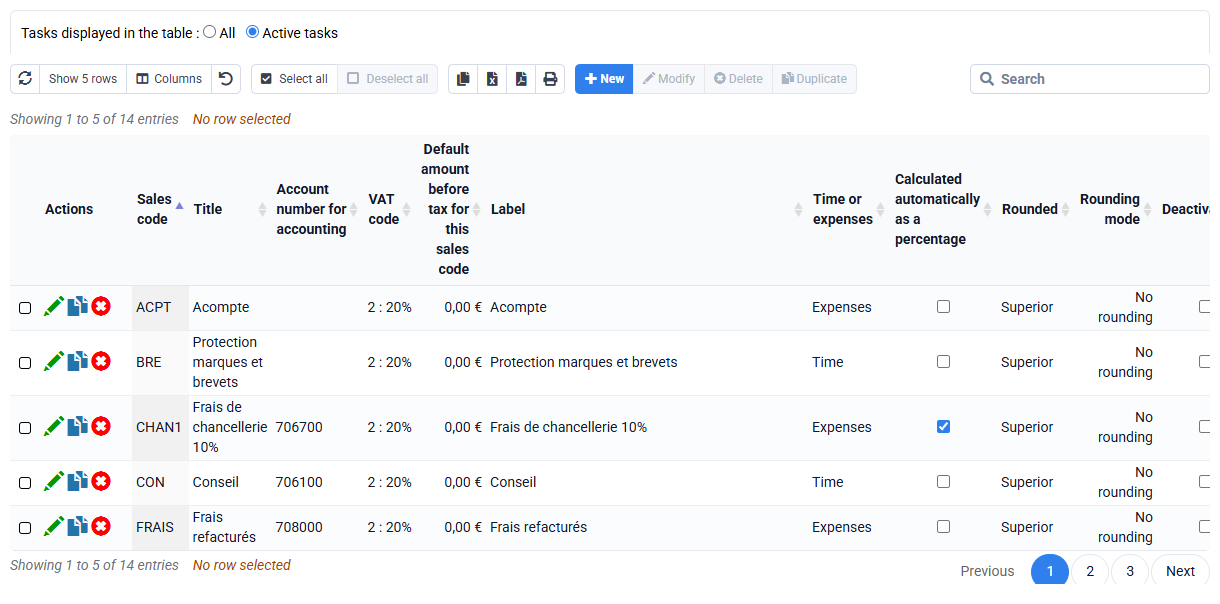
Chorus Pro may reject a Factur-X invoice because data is missing in Tempolia or because the recent Factur-X format differs from the legacy B2G format still expected for some payment requests. Start by reading the complete message to identify the situation.
Identify the rejection in Tempolia
Open the rejection directly in Chorus Pro and record its complete message. The XML field path shown there generally identifies the source data that must be corrected in Tempolia.
Correct mandatory or unrecognized data
The legal commitment number and service code may be mandatory for the public-sector entity being invoiced. Enter them under “Clients / Matters > Matters” > “Configurable characteristics” for the relevant matter.
Correction: enter the matter service code.
Correction: enter the matter legal commitment number.
Correction: enter the customer SIRET.
Correction: check all 14 SIRET digits in the customer record. If a 9-digit SIREN was entered, replace it with the SIRET of the recipient public-sector establishment. Contact the customer if you do not know which establishment to select.
For joint contracting, also create the lead contractor as a Tempolia customer even when it is not the invoiced customer. Enter its SIRET, address and email address, then select this lead contractor in the “Configurable characteristics” tab of each relevant matter.
Correct a rejection caused by the Factur-X format
Two messages may be returned even though the company and customer data are complete:
Explanation: for a service invoice, the recent Factur-X profile uses code S1, whereas the legacy Chorus Pro B2G channel still expects A1.
Explanation: the recent profile may put the 9-digit SIREN in
SpecifiedLegalOrganization/IDwithschemeID 0002and the 14-digit SIRET inGlobalIDwithschemeID 0009. The legacy Chorus Pro channel instead treatsSpecifiedLegalOrganization/IDas a SIRET and therefore requires 14 digits.
The recent format distinguishes the legal entity, identified by its SIREN, from the establishment, identified by its SIRET. The legacy Chorus Pro B2G deposit process is primarily based on Chorus Pro structures and expects the SIRET in the legal identifier of both supplier and debtor.
Tempolia generates the recent format by default to follow the AFNOR profile changes associated with the electronic-invoicing reform and to remain compatible with platforms that now reject the old Chorus Pro-specific format. The setting below is therefore a targeted exception for the legacy B2G channel.
Two ways to generate the Chorus Pro format
One-off method in a ZIP download: under “Billing > Invoices”, select the invoices to download as a ZIP file. In the popup where you choose the filename format, select “Generate invoices in Chorus Pro format”. The Factur-X files placed in that ZIP then use the Chorus Pro format without changing the general setting for other invoices.
Global method in General options: with an administrator account, open “Configuration > General options”. Search for chorus in the small search bar at the top of the form, then enable “Legacy Chorus Pro B2G mode”. Every Factur-X generated uses this format until the option is disabled.
This compatibility variant has been available since 30 June 2026. Whichever method you use, check that the issuing-company SIRET and customer SIRET each contain 14 digits. The Chorus Pro format adapts the XML but cannot complete a missing or incorrect SIRET.
Important: always use one of these two methods when generating an invoice intended for Chorus Pro. Keep normal Factur-X format for other platforms, as they may reject the old Chorus Pro format. If you used the global setting, disable it after generating the Chorus Pro document. This compatibility option may become unnecessary when Chorus Pro accepts the recent format on this channel.
Regenerate and resubmit the invoice
- Correct the source data in the company, customer or matter according to the rejection message.
- Select the Chorus Pro format either for this ZIP download in its popup or globally in General options.
- Generate or download the invoice PDF again so that Tempolia recreates its embedded Factur-X XML.
- Submit the new file to Chorus Pro, then check its status and the detailed new response directly in Chorus Pro.
- If you used the global setting, disable it in General options to return to normal Factur-X mode.
Tempolia exposes an employee’s actual or budgeted time through a read-only ICS calendar sharing link. The ICS format, also called iCal and governed by RFC 5545, is an international format that lets calendars exchange information; it should not be confused with ICS, the SEPA Creditor Identifier, which identifies a company issuing direct debits.
To retrieve the ICS URL and add it to your calendar: go to « Employees > Employees », edit an employee and open the "Calendar" tab. You will find two links: "ICS calendar of actual time" and "ICS calendar of budgeted time". You can copy these links and use them in Office 365 or Google Calendar with features typically called "Subscribe from web" or "Other calendars > From URL".
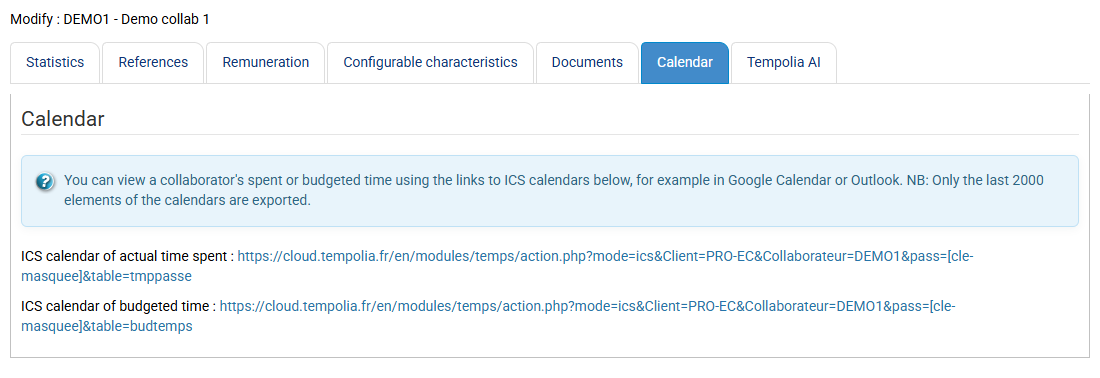
The feed is read-only: changes must be made in Tempolia only. Refresh frequency depends on Outlook / Google and is not instantaneous.
Note: the reverse is not possible, meaning viewing Office 365 or Google Calendar data in Tempolia, because those calendars do not have all the fields needed to populate the data expected in Tempolia.
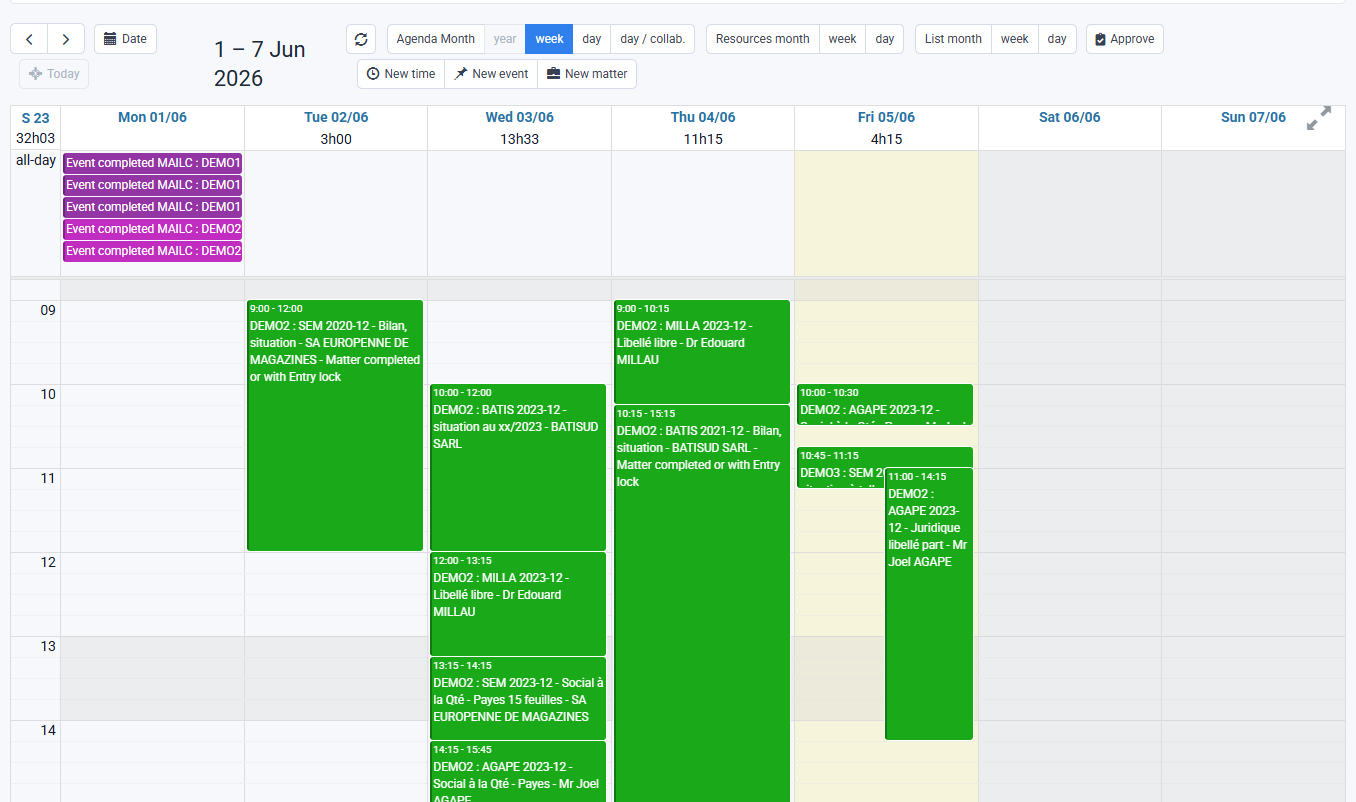
How do I have quotes, engagement letters and other commercial documents signed via jesignexpert.com?
Tempolia has a partnership with the electronic signature service jesignexpert.com, intended for accounting firms in France only. If you are eligible, have opened an account with them and use Tempolia Enterprise, you can have PDF documents signed via jesignexpert.com while staying in the Tempolia interface. For setup, send Tempolia support the shortcut and secret for your Jesignexpert API, received after creating your jesignexpert.com account.
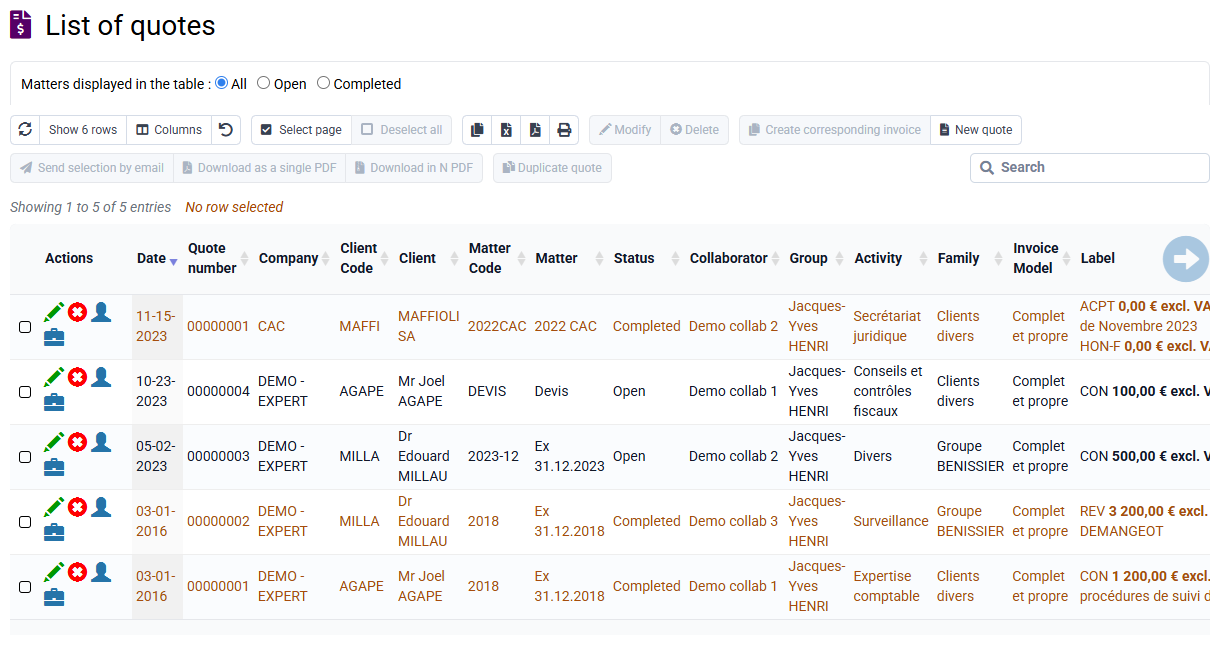
Once the interconnection is activated, go to « Tools > Document signature ». Upload your PDF document, for example a quote, engagement letter or contract, and enter the signer’s information: last name, first name, email address and mobile phone number. You can specify up to five signers, and the mobile phone number is required for each signer because it is used in the signature procedure.
Each signer then receives a notification from jesignexpert.com containing a secure link to access the document, review it and sign it electronically, without creating an account. Once signed, the document is timestamped and certified. You receive an email notification confirming the signature, and the signed document is automatically archived in your space.
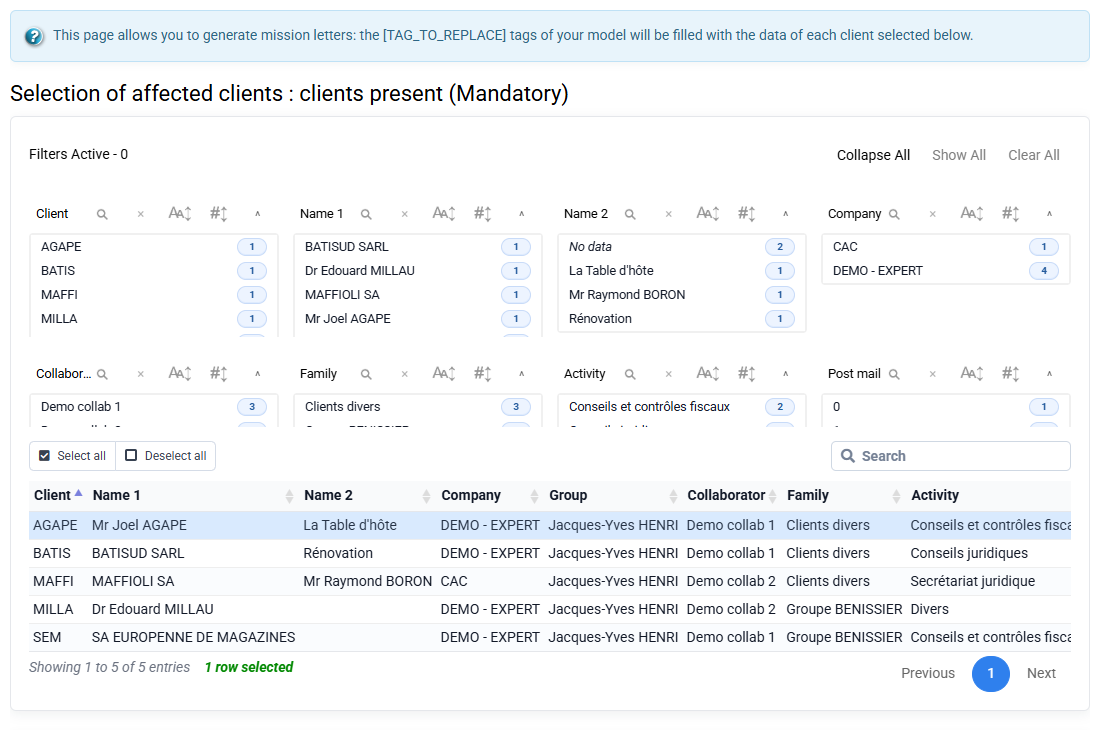
You can also monitor the progress of signature requests at any time from the Tempolia interface, for example to know whether a document is pending, being signed, refused or completed.
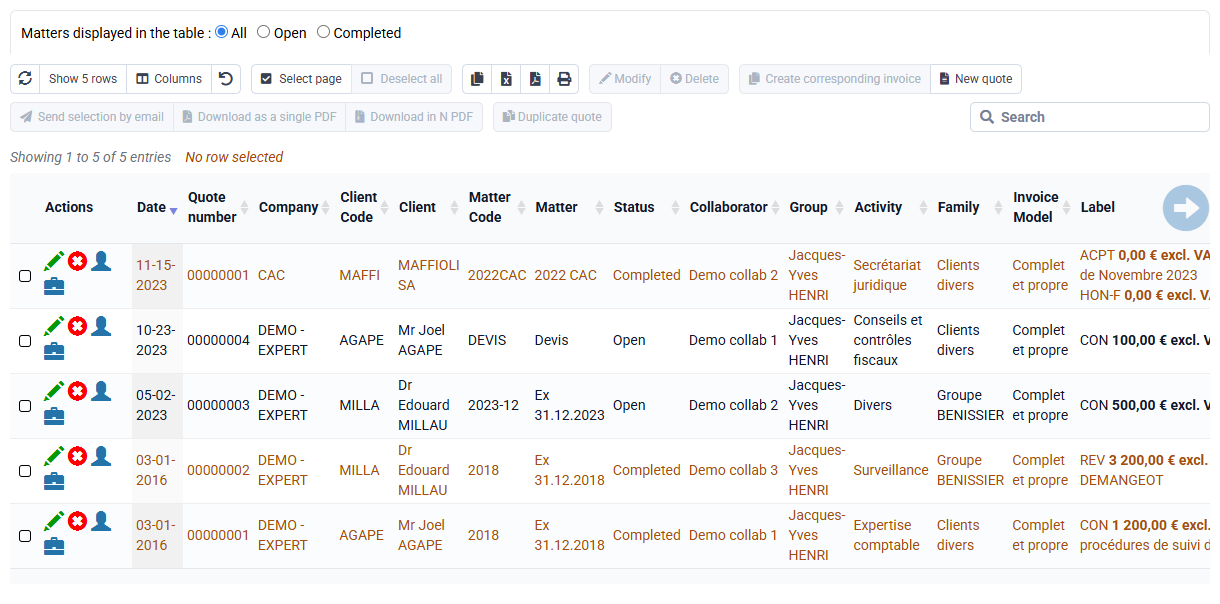
The electronic signature is fully paperless and has recognized legal value. Signatures will be written at the bottom of the last page of the PDF; make sure to keep free space for that text to be applied. What serves as proof is the justification by jesignexpert.com of the signature process, not just the simple addition of signature text on the PDF.
The Tempolia MCP server, Model Context Protocol, allows an external AI, such as Claude, ChatGPT, Gemini, Grok or any other MCP-compatible agent, to interact directly with your Tempolia database to read or perform actions, such as creation or modification. The use of a robot, automated agent or web-interface scraping is not authorized. For any automated or AI-driven use of the data present in Tempolia, it is appropriate to use MCP, which is the official interface allowing your AI to manipulate your data and perform actions. However, to interact with your Tempolia data through third-party software other than an AI engine, our API is appropriate and requires development work.
Using MCP is independent from Tempolia AI: you can connect any MCP-compatible AI to your Tempolia server to automate actions, query your data or integrate Tempolia into your intelligent agents.
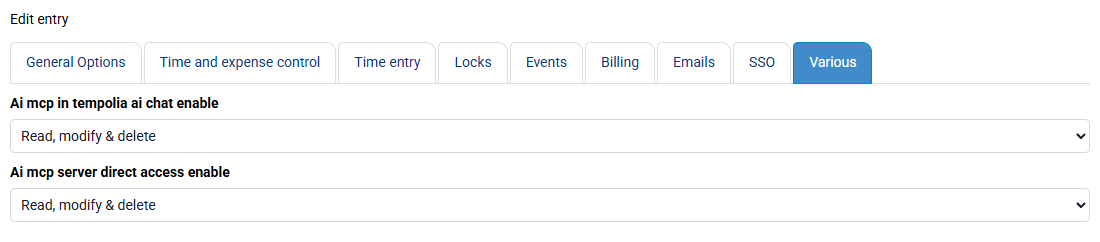
To use the Tempolia MCP server, you must first activate it at no additional cost: « Configuration > General options », “Miscellaneous” tab. Once activated, MCP server access is available for each employee.
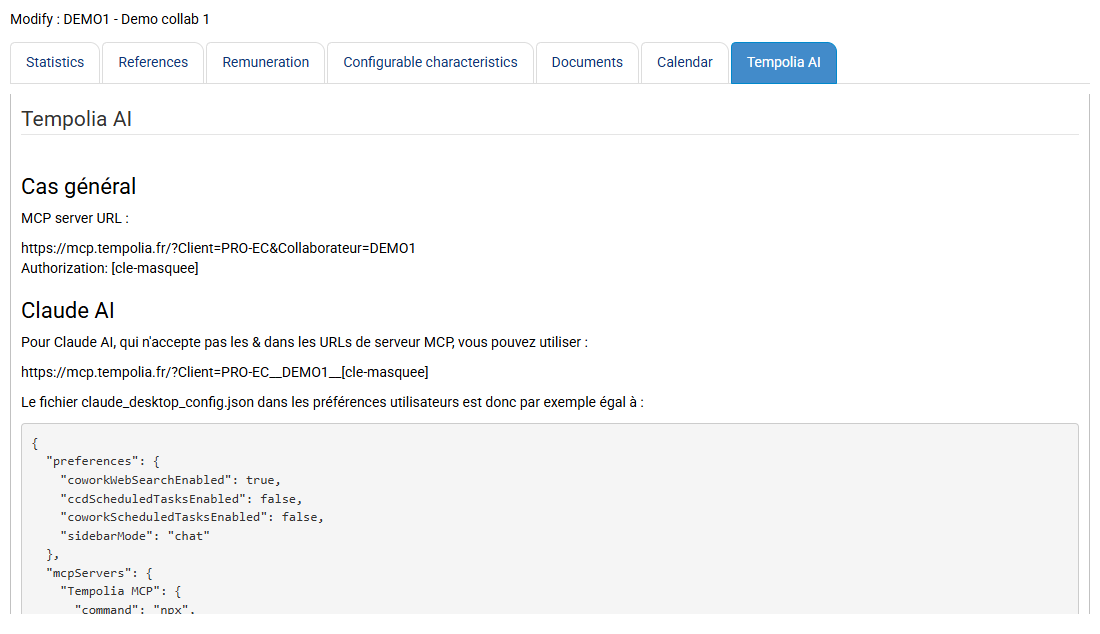
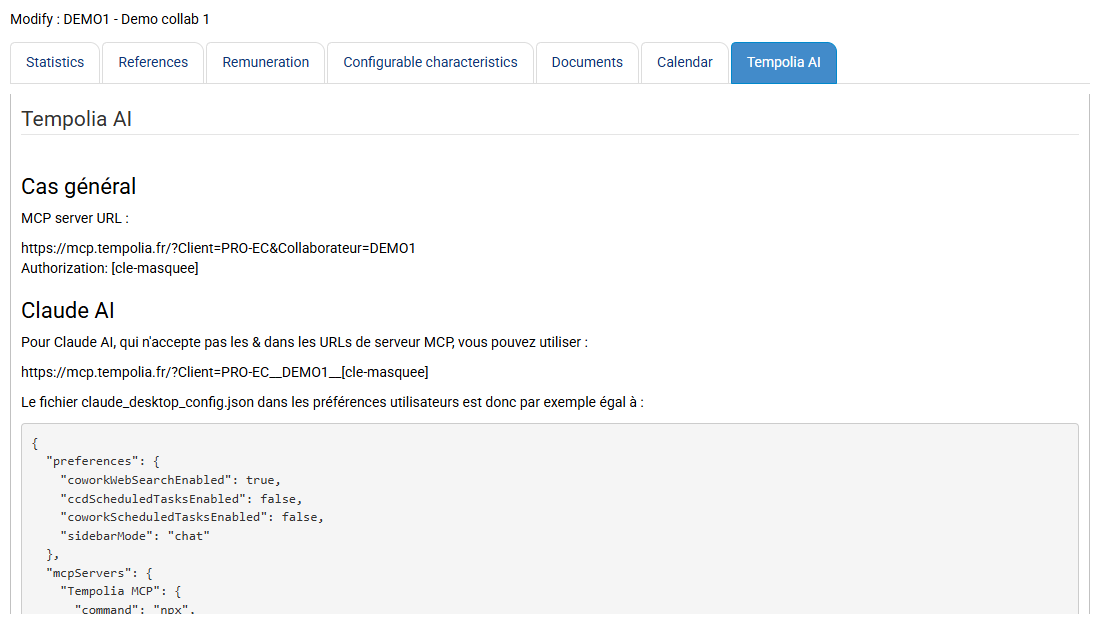
In the employee record, a new "Tempolia AI" tab appears on the « Employees > Employees », employee record, “Tempolia AI” tab page.
This tab shows:
- the customized MCP server URL
- the authentication key
- explanatory information
A specific section for use with Claude is also present.
Each MCP server is associated with an employee and their rights. The AI therefore acts exactly like that user in Tempolia: all business rules and access restrictions apply in the same way as in the web interface.
To connect your AI, simply declare this MCP server in your AI tool by providing the URL and authentication key, according to the procedure expected by the LLM being used. Once connected, the AI automatically queries the MCP server to discover the available features, tools, parameters and data formats. This autodiscovery is part of the MCP standard and depends on the rights of the employee being used.
MCP lets you interact with your Tempolia database as if you were logged in as a given employee: the rights, restrictions and business rules applied in the interface also apply through MCP. You must therefore pay attention to the rights of the profile being used.
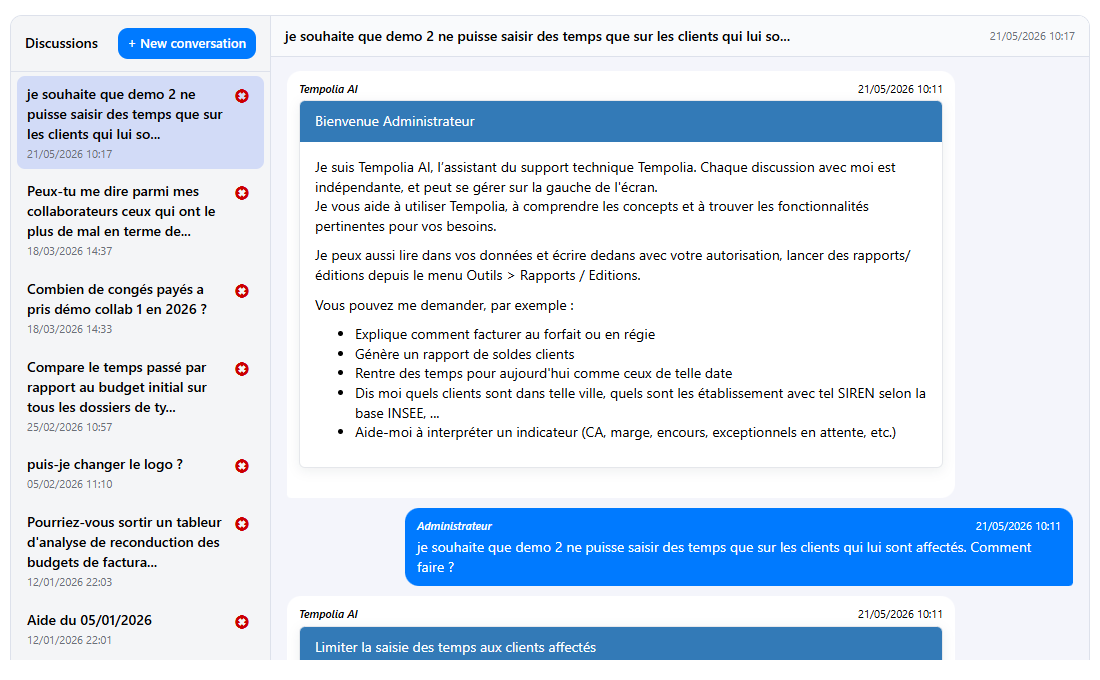
Read actions can be performed directly. Actions that modify the database, creation, modification or deletion, require confirmation before execution when called by Tempolia AI.
If you use the MCP server through your own AI, you must instruct your AI to request your confirmation and limit the operations you want it to perform.
| Domain | Operations possible through MCP | Usage examples |
|---|---|---|
| Companies | Search, read, create, modify, delete | Update an address, IBAN or status |
| Clients | Search, read, create, modify, delete | Correct an address, enter a billing email, modify settings |
| Matters | Search, read, create, modify, delete | Create a matter, change its status or settings |
| Employees | Search, read, create, modify, delete | Update group, function or associated information |
| Reference data | Search, read, create, modify, delete | Manage client families, groups, sectors or activities |
| Codes | Search and read | Find a sales code or a billable or non-billable task |
| Time | Search, read, create, modify, delete | Consult, correct or enter actual or budgeted time |
| Expenses | Search, read, create, modify, delete | Consult or enter incurred or budgeted expenses |
| Billing | Search and read | Consult issued invoices and invoice lines |
| Invoices to validate | Search, read, create, modify, delete | Prepare or modify invoices before validation |
| Quotes | Search, read, create, modify, delete | Consult or manage quotes and quote lines |
| Payments | Read | Consult certain payment-related information |
| Reports | Read | Run printouts such as aged balance, client balances or sales journal |
| SIRET / SIREN search | Read | Retrieve a company name and address |
MCP is the official interface for interacting with Tempolia from an AI. For any request, simply indicate the employee concerned and the desired action.