

Help - Questions / Answers
Technical aspects
To send emails from Tempolia, configuring your SMTP server is mandatory.
Thus, Tempolia will transmit to your mail server the content of your emails to be sent, and the emails actually go from your email server to your correspondent. These settings are managed in "Configuration > General options", Emails tab.
When Tempolia displays an error message related to sending, it is because this message was sent by your mail server. You must read carefully to understand the message and resolve the problem with the person who manages your email server.

For example, if this message indicates in particular "user password has expired" this means that the password of the email account used for sending has expired:
- you must modify it on your mail server.
- and you must update the "SMTP password" field in Tempolia, in "Configuration > General options", Emails tab; see How to configure the sending of emails?
Tempolia stores display preferences in your browser for each table: visible columns, their order, and the number of rows displayed.
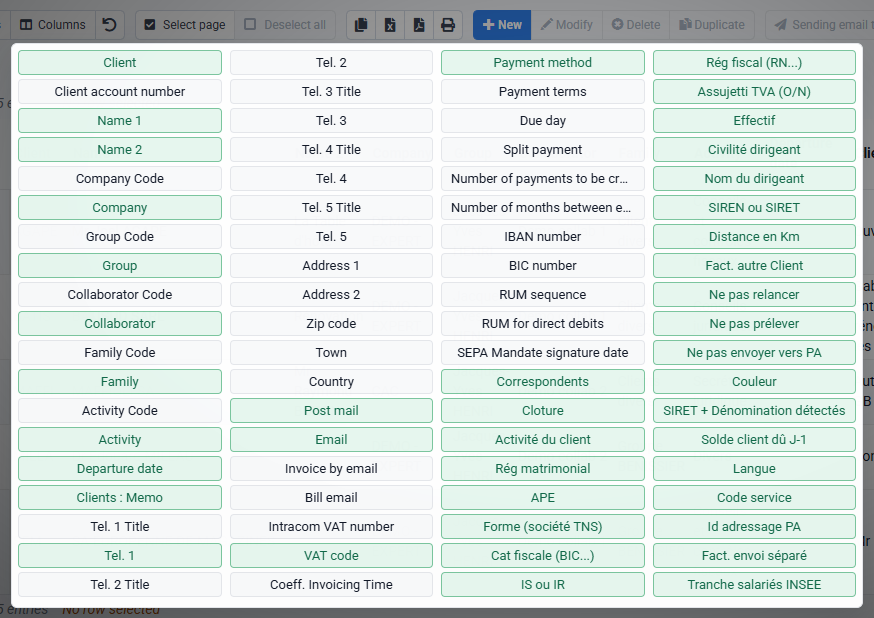
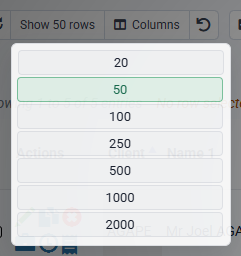
These settings are stored locally by the browser, for your user and workstation. If the same columns or row count keep returning to their default values, check privacy settings, cookies, and whether private browsing is being used.
You can check an email send from two complementary places: the event history and the issued invoice list.
What you can check
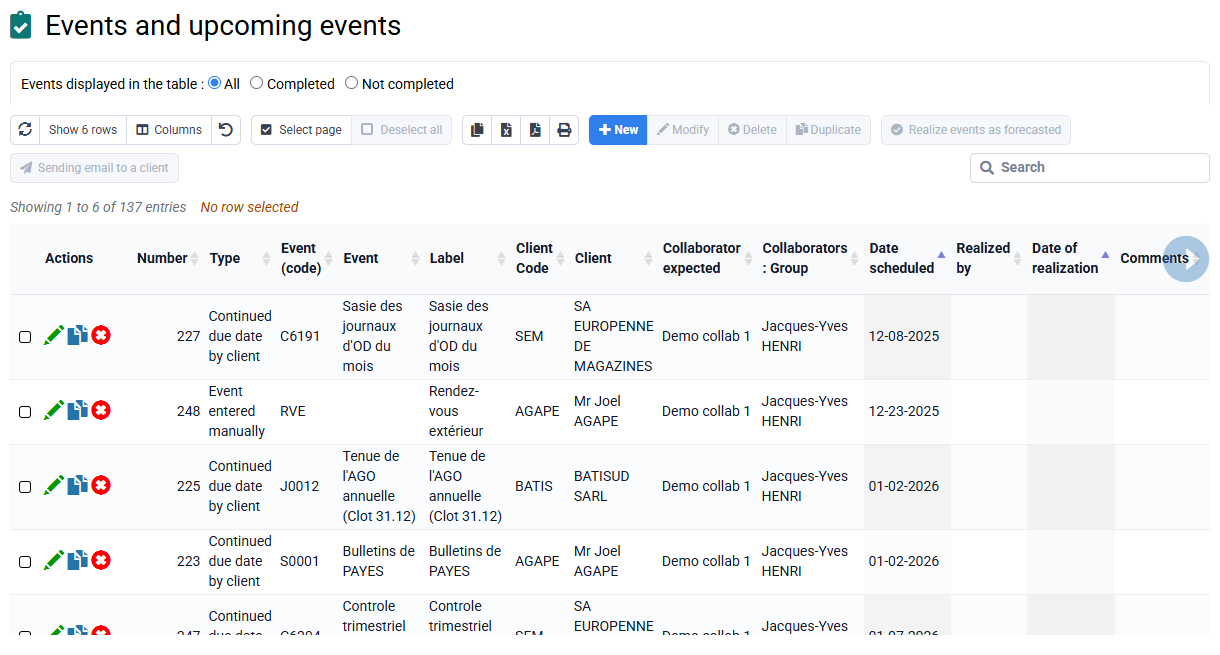
- The events recorded for each send, available from Events > Completed and upcoming events.
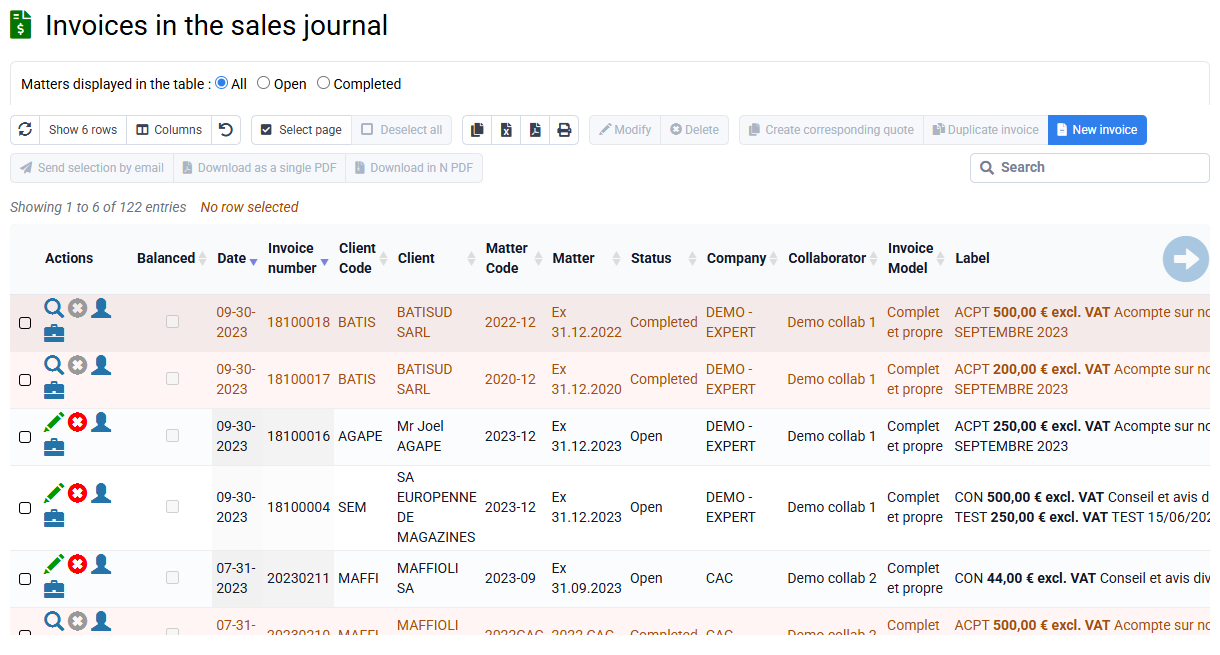
- The issued invoices: the email send column or indicator lets you check that the invoice email was transmitted.
- Your own mailbox, because Tempolia offers by default to copy you on sent emails.
Check the sending history
Use client events to find the send date, recipient, status and context.
Check the issued invoice
In the invoice list, the email send indicator confirms that the invoice was transmitted from Tempolia.
Compare this information with the copy received in your mailbox. You can see exactly what was sent, to whom, and when.
Double authentication is protection with a code sent by email, either each time, or if the connection IP is unknown at the level of the employee or the global account, as desired.
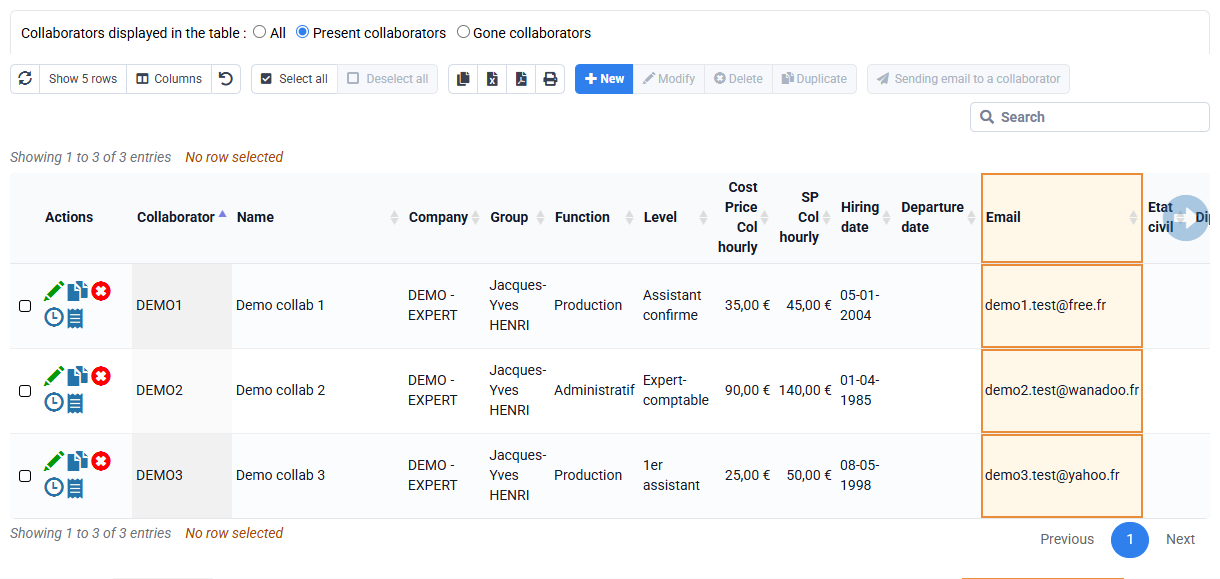
1st step: fill in all the email addresses in “Collaborates > Collaborators” as this is necessary to send them the connection code.
2nd step: you can have double authentication with several settings:
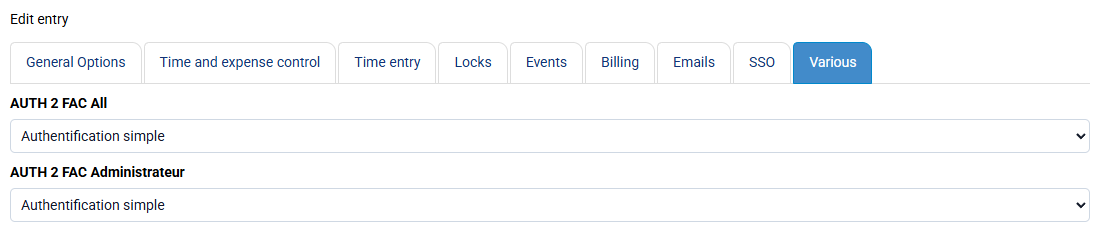
- is forced across your entire account, so that it applies without any exemptions. This settings can be made by the Administrator only in “Configuration > Configuration variables”, find the line “AUTH2FAC_All” and follow the explanation to know what value to put.
- either with a setting per employee: in “Collaborates > Collaborators” > edition of a collaborator > Configurable characteristics tab > “Double authentication” field, you have a possible setting per employee. You can select your collaborators and click on the Edit button, and set your setting for all these selected collaborators.
- either for the Administrator account. These settings can be made by the Administrator only in “Configuration > Configuration variables”, find the line “AUTH2FAC_Administrator” and follow the explanation to know what value to put.
