

Help - Questions / Answers
Billing
- How to renew budgets?
- How to create a billing plan?
- What billing management options are available?
- How can I automate my invoicing?
- In invoices and quotes, how do I add a free-text line without a price, and how do I add a subtotal?
- Why do some times go up in my invoices and not others?
- How to automatically invoice times or budgets to another client and/or another matter?
- How can I automatically define a due date in my invoices taking into account the payment deadline that I wish to apply to my customer?
- How does progress billing work in Tempolia?
- How to manage the reduced VAT rate, the reverse charge of VAT for EU export, or the VAT exemption for export outside the EU?
- How to manage deposits or provisions?
- How do I issue a credit note for a customer?
- How to comply with electronic invoicing standards?
- How is an invoice template assigned to an invoice?
- How does invoice numbering work?
- I prepared an invoice, so why do my client’s margin and bonus/loss not take it into account?
- How do quotes and billing budgets work?
A collaborator is required for time and expenses
Every actual or budgeted time or expense line must be linked to a collaborator who already exists in Tempolia and is present on the line date, meaning between their hire date and departure date, inclusive. A time or expense budget therefore cannot be created without a designated collaborator or linked to someone who will only be created later. A generic code such as “UNASSIGNED” would itself be a real collaborator: while present, it automatically appears under “Collaborators > Collaborator logins and rights” and is counted as a present collaborator for the subscription, regardless of its password or access rights.
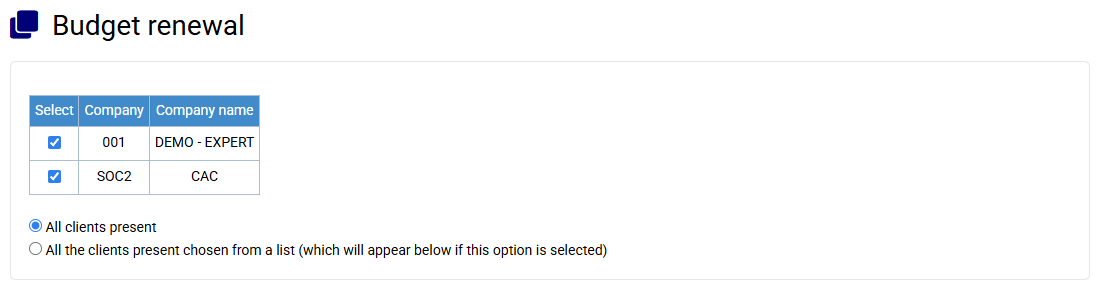
After creating your matters, in the menu « Clients / Matters > Budget renewal »:
- Select the companies concerned, and the clients for which you want to renew budgets
- Select the matter code to renew, then the destination matter code
- Define the origin of this creation (budgets / realized), the data to be created (times / costs / invoicing), and any increases in the amounts of the invoicing budgets to be created
- If necessary, restrict the period of the data to be renewed
- Indicate the offset in months to be applied during the renewal. A 12-month shift allows budgets to be copied from one year to another. PS: You can also renew billing budgets on themselves (source matter = target matter) by indicating a shift of 0 months, in order to increase them without further modification.
- Then click on "Send".
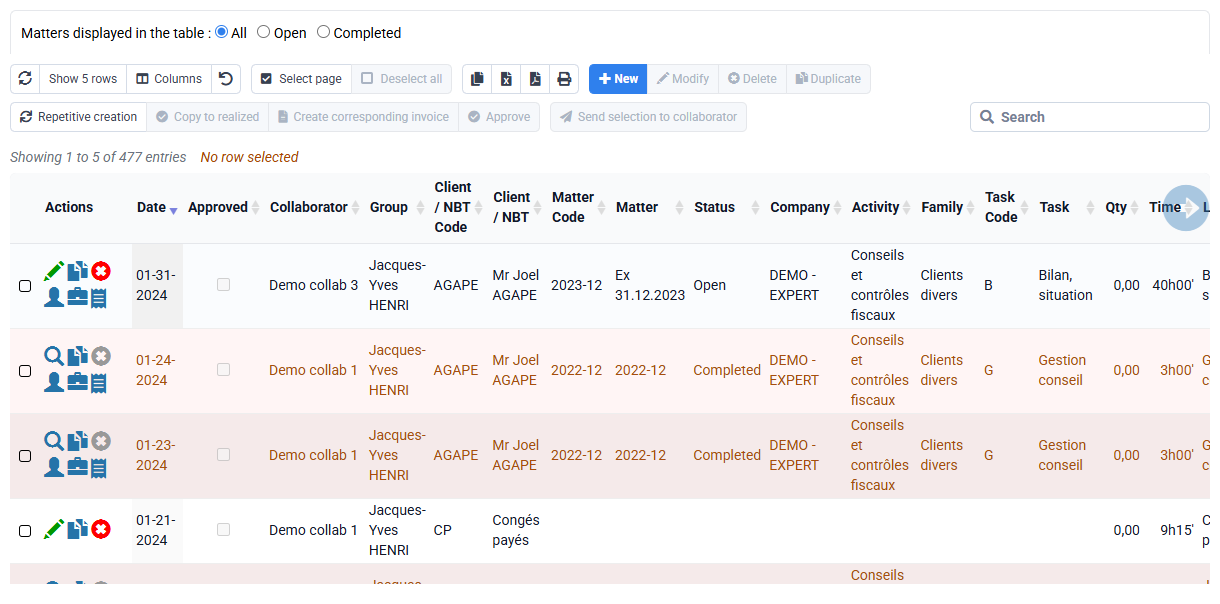
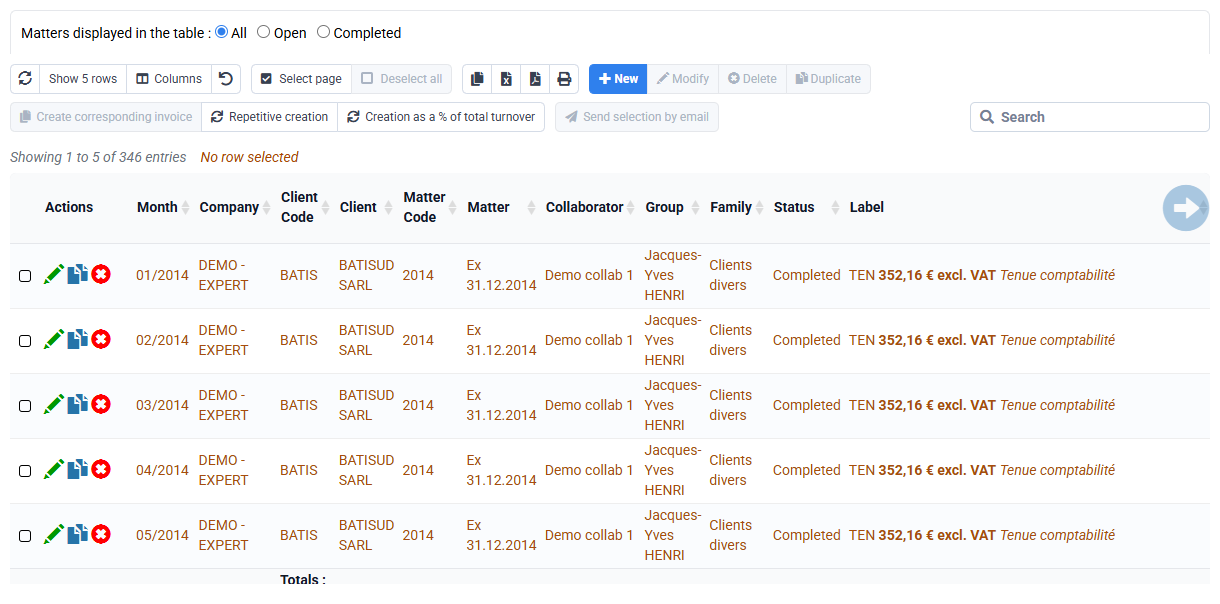
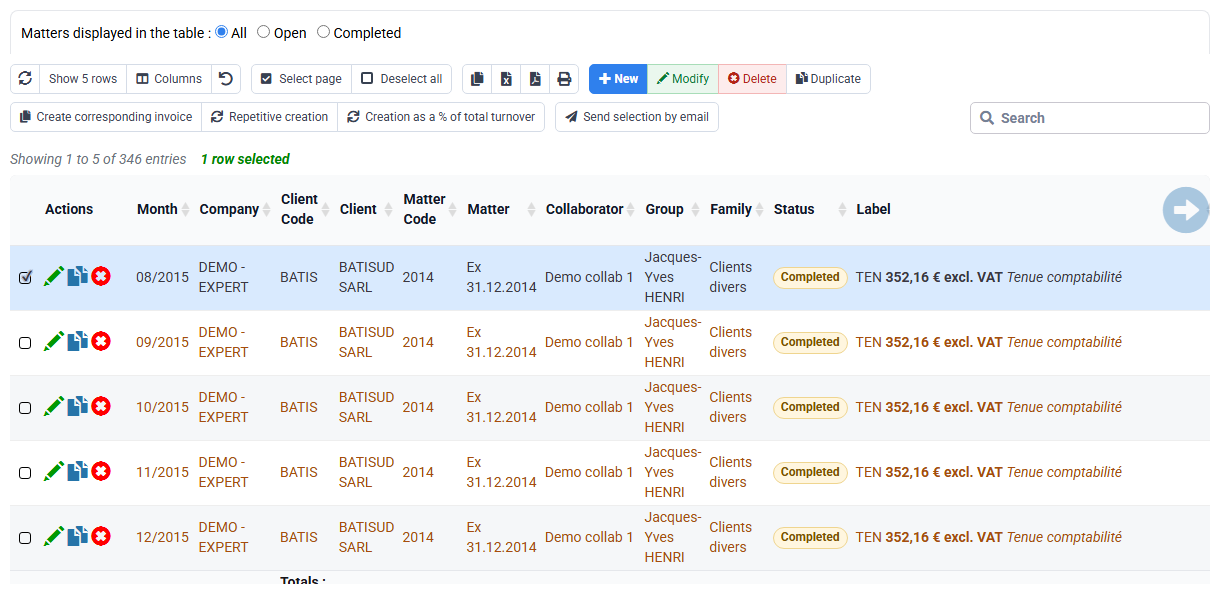
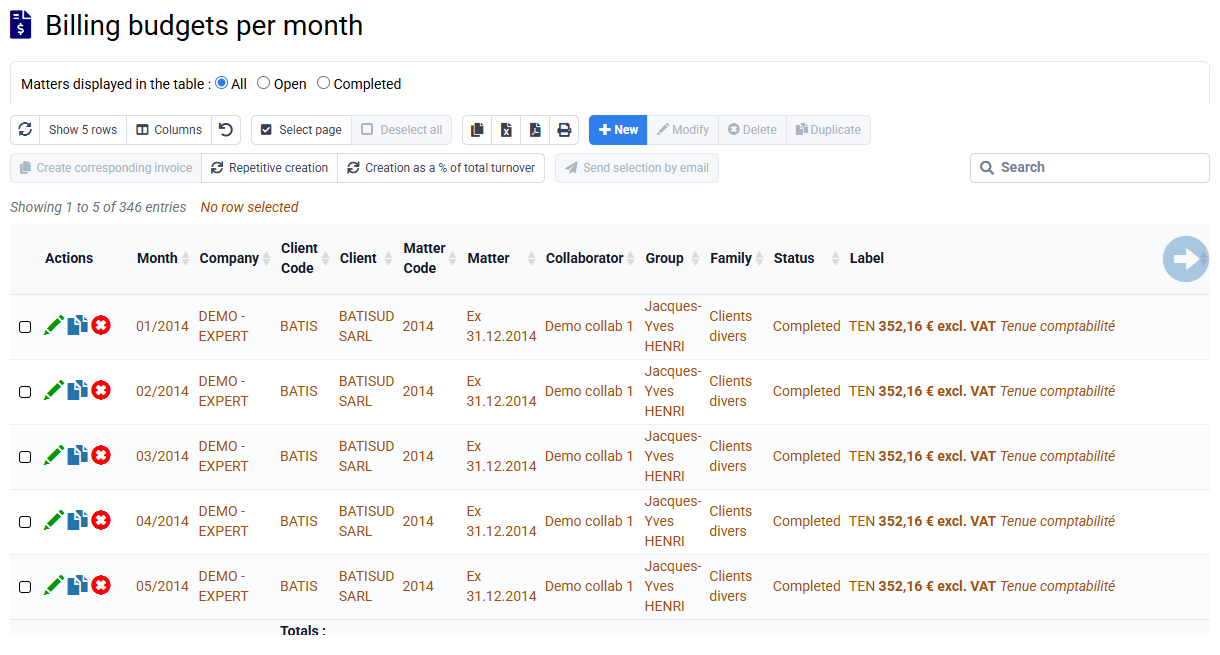
You can create your billing plan by going through « Clients / Matters > Budgets by matter and by client » or « Billing > Invoicing budgets per month ».
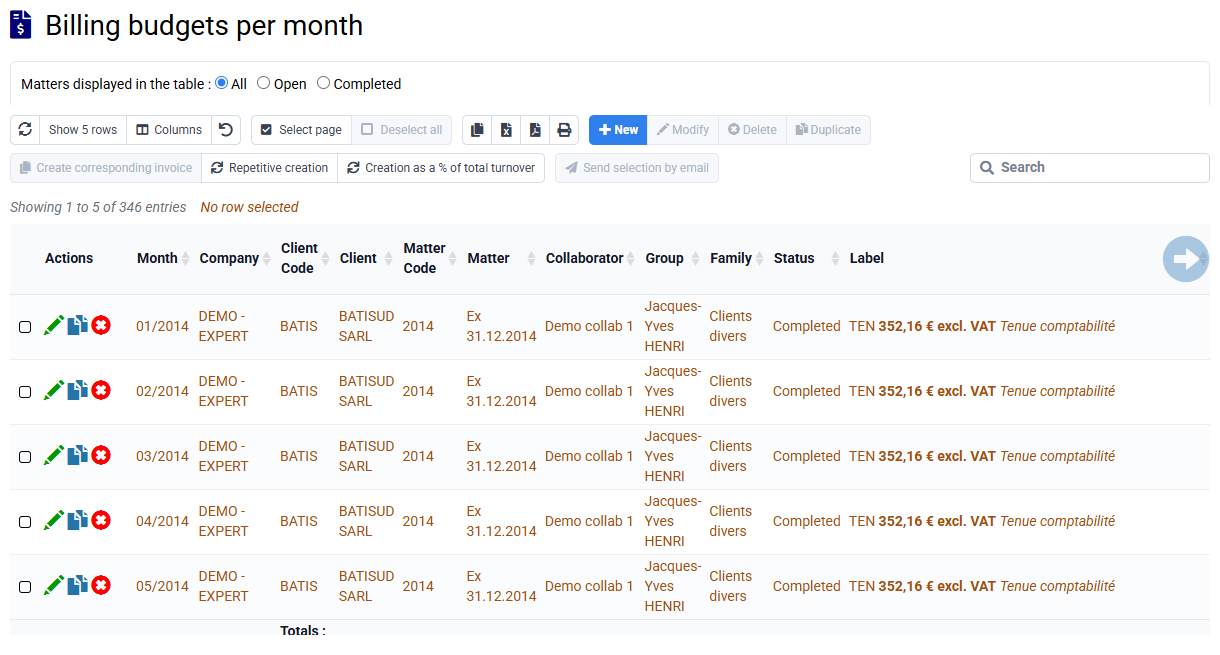
In "Budgets by matter and by client", you can search line corresponding to the right matter, and then click in the column "Billing Budget" and on the button "Repetitive creation".
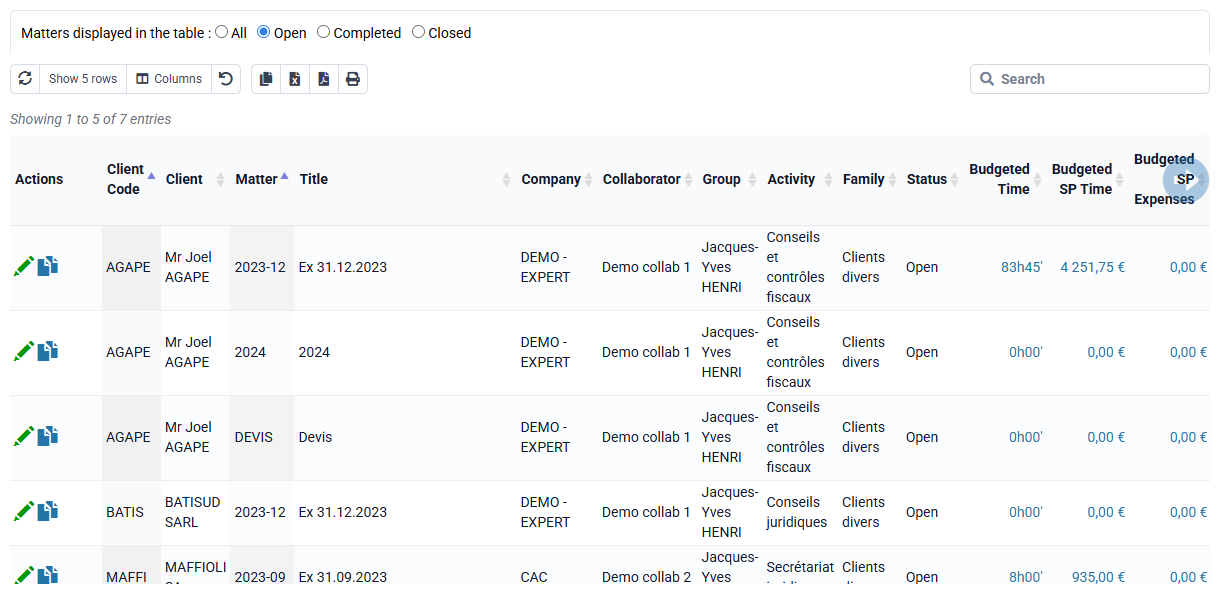
This button allows you to add: your sales codes (which will be your invoice lines) with the bouton "new", client, matter, month of the first invoicing budget, number of months between each budget and the number of budget to create.
You can then choose "yes" to set up the automatic recovery of budgets in the preparation of invoices.
On the "Billing budgets per month" page, the "Repetitive creation" button is directly offered.
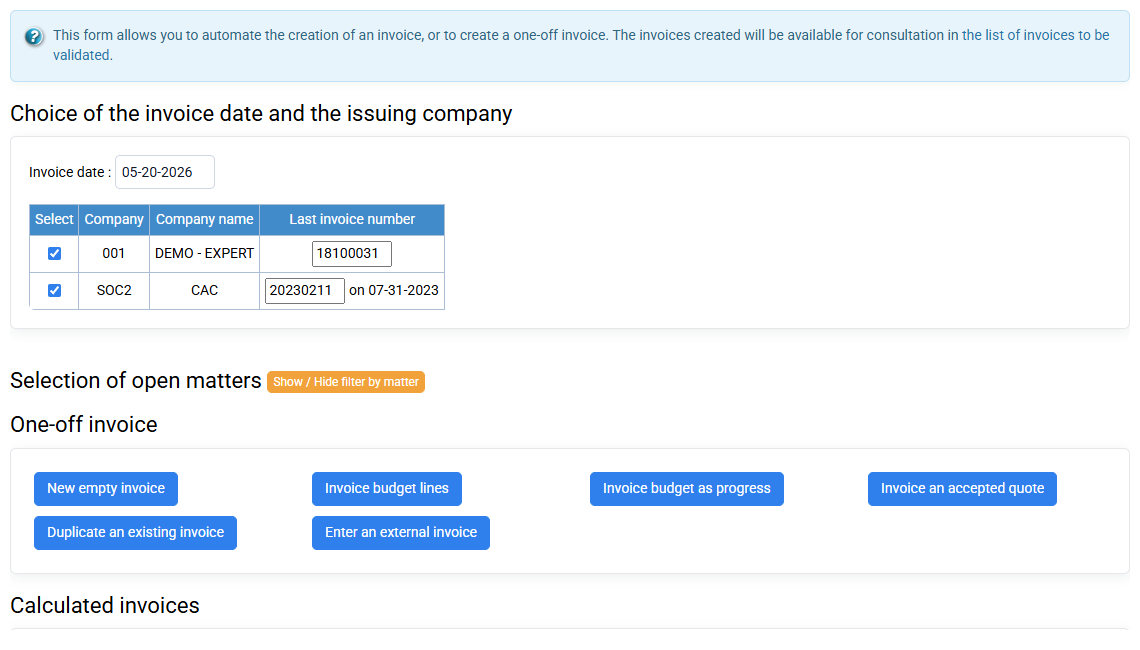
Tempolia lets you automate or manually manage invoice creation using several billing methods adapted to your needs:
- Fixed-fee billing, subscription billing with automatic creation and renewal mechanisms;
- Time-and-materials billing, based on time spent and possibly valued at rates specific to each matter;
- Billing based on produced quantities: number of payslips, billing units, etc.;
- Billing based on expenses and re-billable disbursements, with VAT applied or not;
- Calculation formulas based on the content of the current invoice or previous invoices;
- Manual billing, as with any invoicing software.
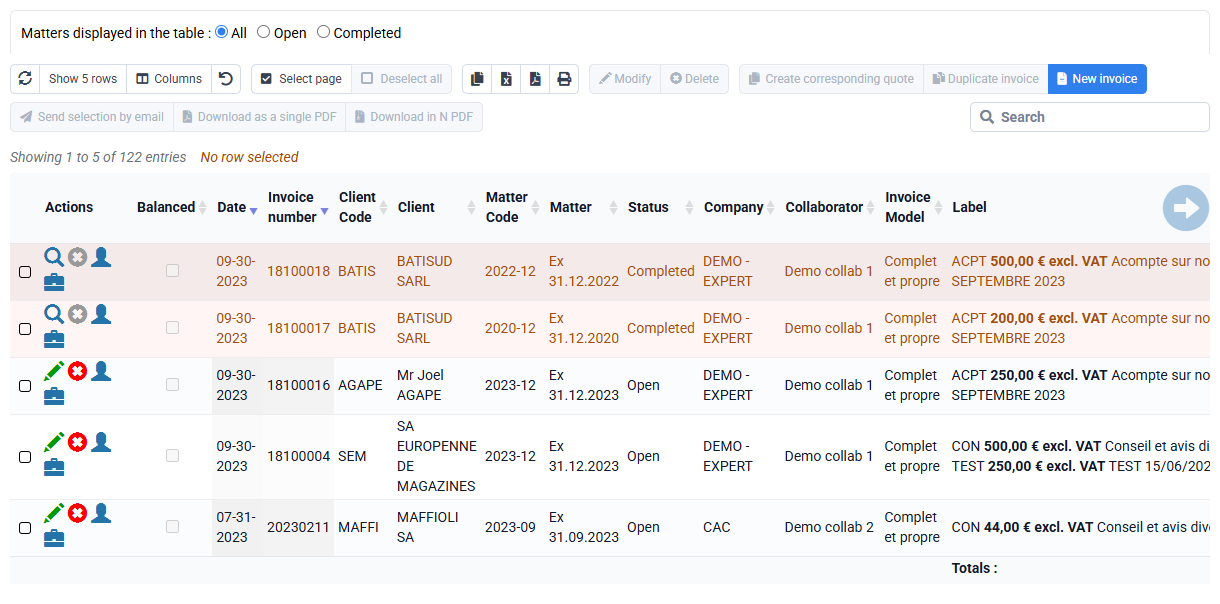
You can also import invoices created with another software package as "external invoices" in « Billing > Invoice preparation », action « Enter an external invoice », or by importing a file of invoice lines. This is possible in all versions of Tempolia, even when billing is not included, so you can always analyze your margins and bonus / loss. External invoices cannot be displayed as PDFs, cannot be sent by email by Tempolia and cannot be exported to accounting. They are directly integrated into Tempolia’s sales journal; there is no validation concept for them.
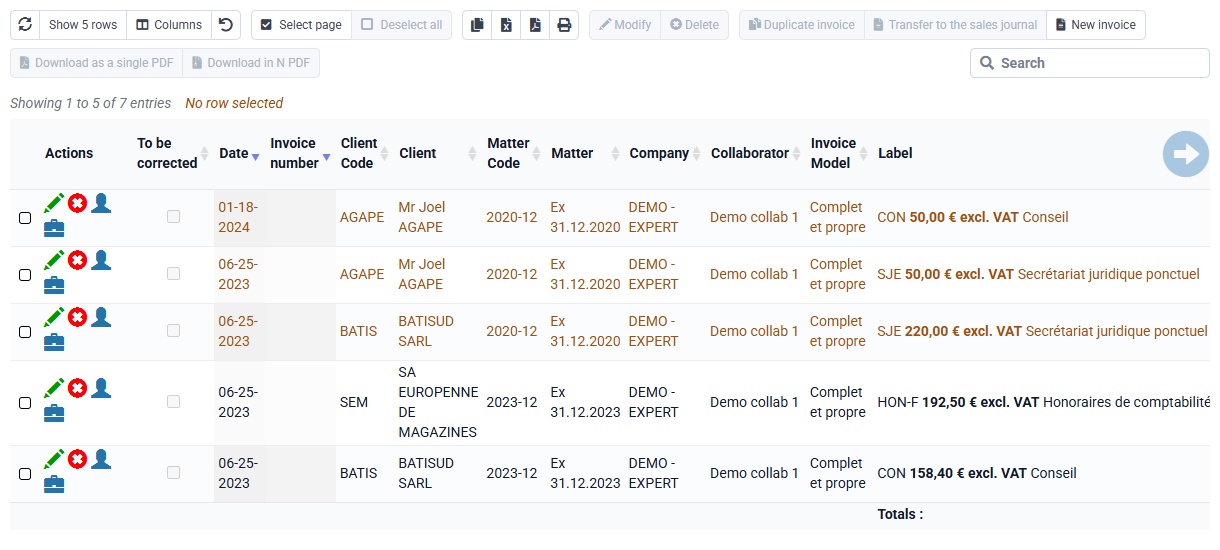
With payment management features, you can track payment history, automatically match collections, and access an aged balance report showing invoices awaiting payment, classified by age, for example 30, 60 or 90 days.
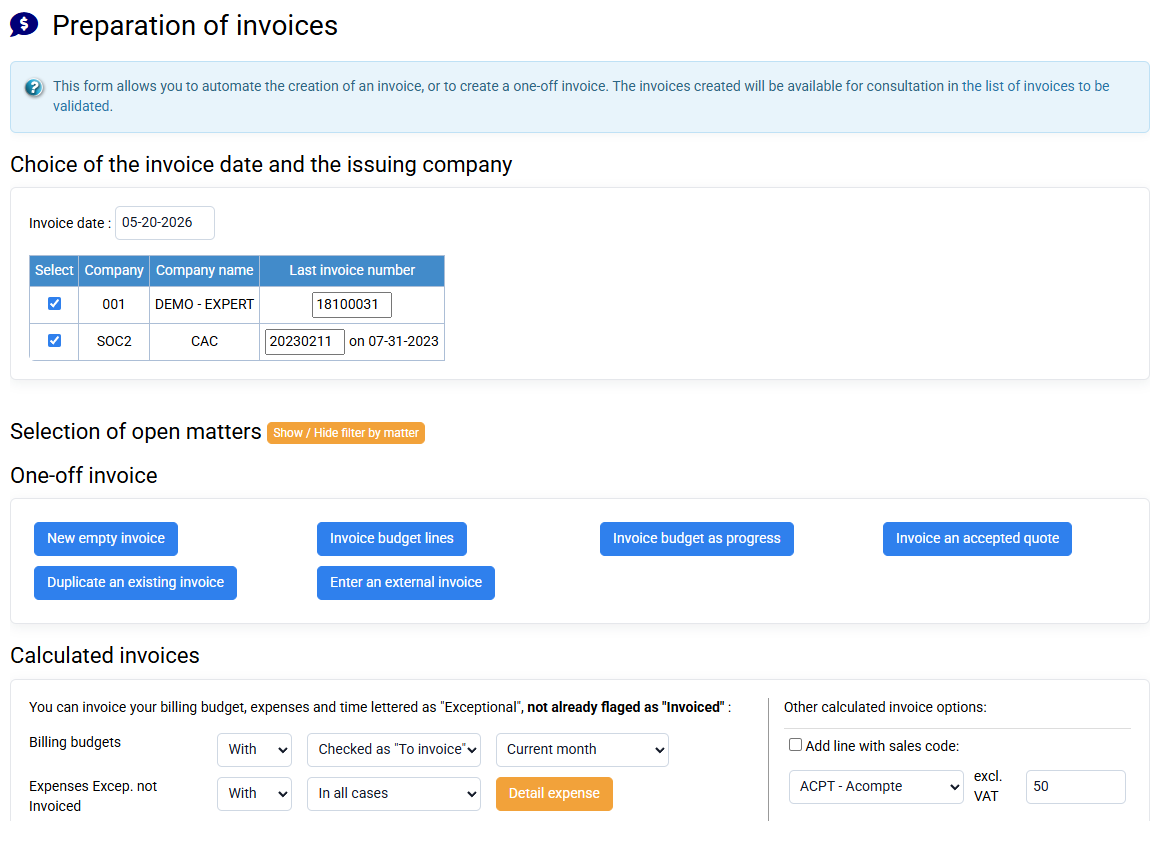
On the “Billing > Preparationof Invoices”, you have a calculated invoices section, which allows you to automatically invoice:
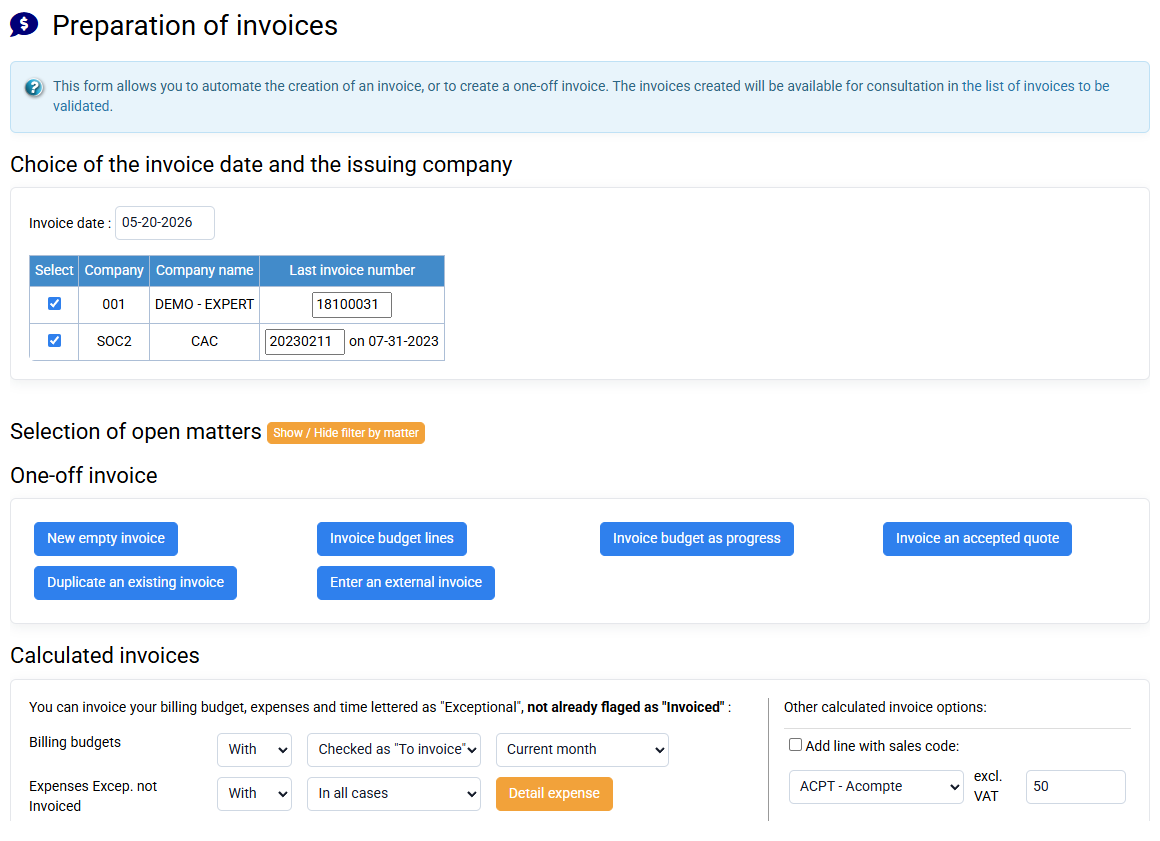
- Flat-rate services thanks to invoicing budgets. You can program your budgets by indicating them as "To be invoiced" so that they are retrieved as "automatic" budgets. In addition, when you retrieve your budget to invoice it by indicating "With", you select your budgets relating to the current month corresponding to the invoicing date chosen at the top left of the form, i.e. on the current and previous months.
- Exceptional times to time spent, Exceptional times to quantity, and Exceptional expenses.
There is a different level of abstraction between time and expenses on the one hand, and invoice lines on the other hand, so that the detail does not constitute the structure of the invoice, but simple additional information.
To aggregate them on 3 distinct sales codes, which will constitute the lines of the invoice, and we generate or not the detail of the lines of time or costs re-invoiced, which will be able to be presented under the labels of the sales codes or in an appendix.
The definition of these 3 sales codes is done in the matter, Invoicing tab. When creating a matter, these codes are pre-filled with the 3 sales codes indicated in the company sheet.
Some specific sales codes are provided to trigger special display behavior in quote and invoice PDFs:
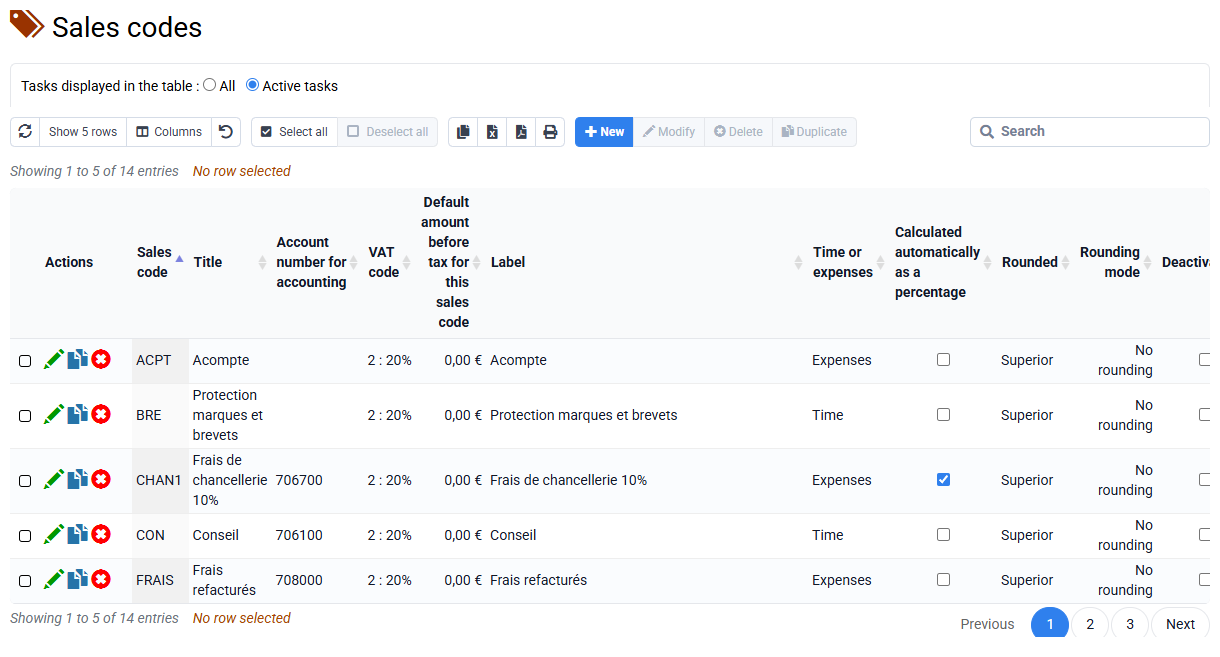
- The sales code "TOTAL" is a specific sales code that automatically displays a subtotal corresponding to the lines above it in a quote or invoice. It lets you structure your documents by grouping several service lines, giving your client a clear and professional presentation.
You can create a "TOTAL" sales code with the label of your choice, for example: Subtotal Phase 1, Total Lot 1, Services of this type, and so on. If you modify previous lines, prices, quantities, additions or deletions, the subtotal updates automatically. - If you want to display a line without an amount in the excluding-tax column, you can use a sales code of type LIBEL or TEXTx, with the last character of the code chosen by you, and an amount of EUR 0. These sales codes have special behavior: the line text is displayed, but no amount appears. This makes it easy to insert a heading, comment or presentation text into the document without impacting the total. LIBEL and TEXTx sales codes work the same way on this point.
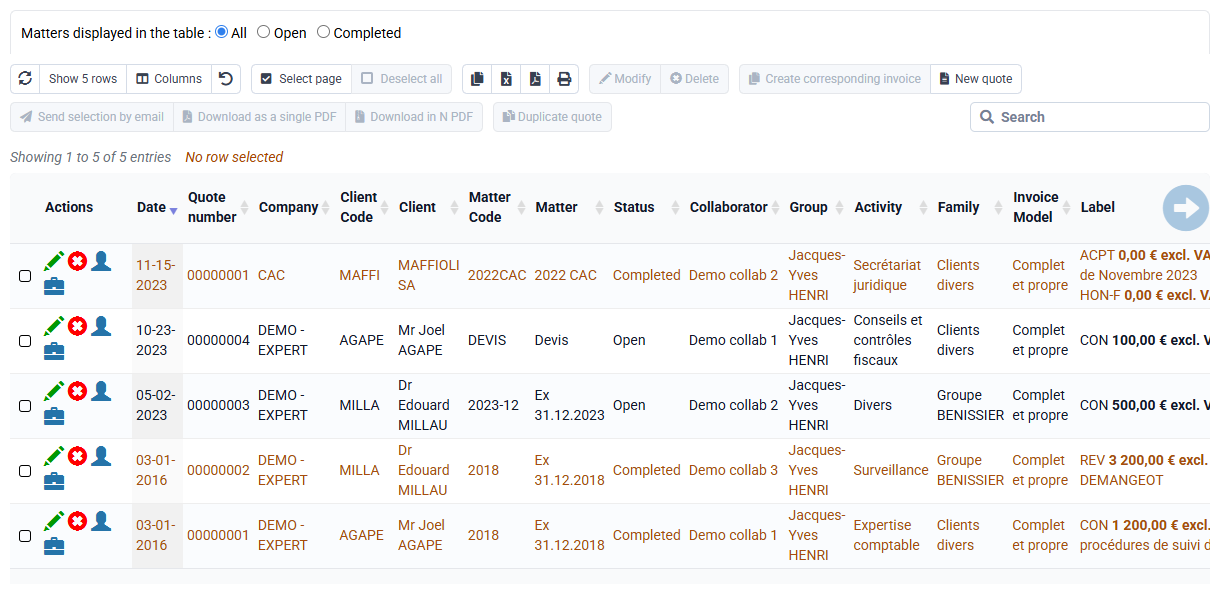
On the "Billing > Preparation of invoices", you can re-invoice the costs incurred and time spent labeled "Exceptional" not indicated as already "Invoiced ".
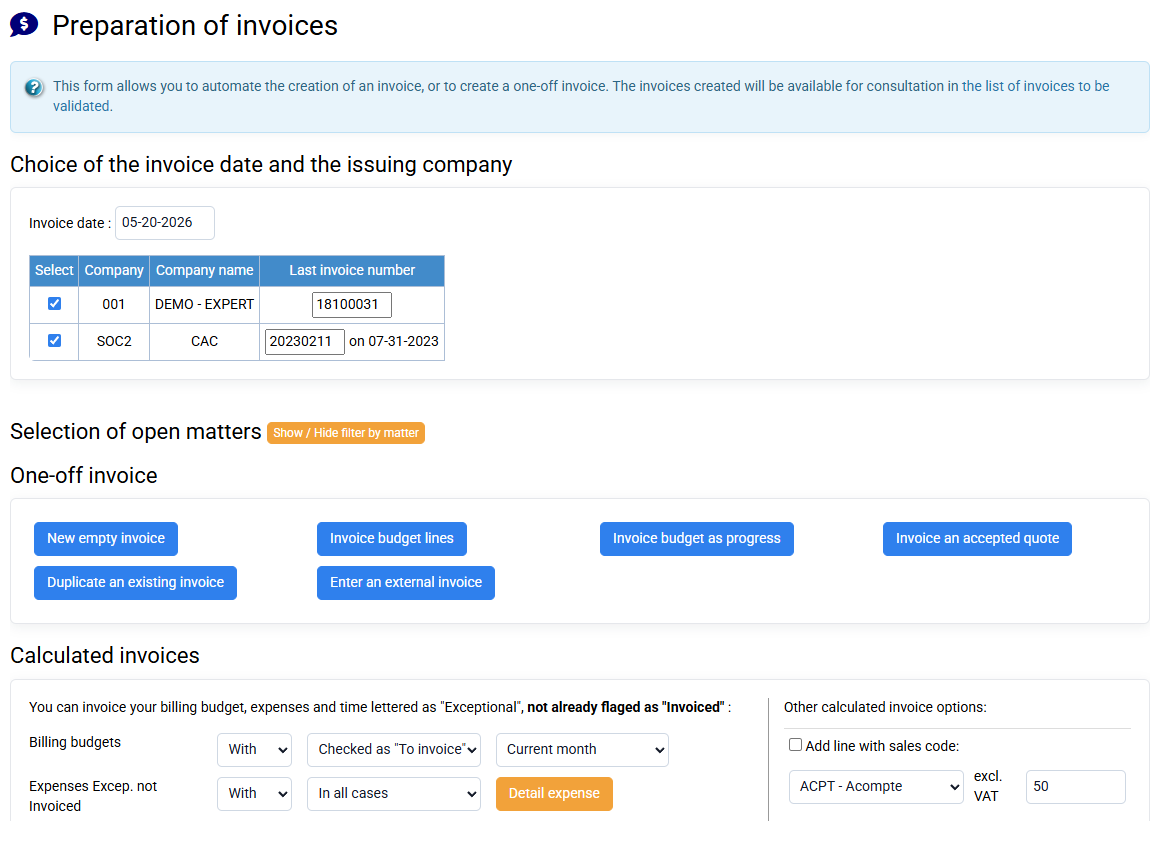
If a time line is not taken during automatic invoice preparation, check the following information in "Time / Expenses > Time spent details":
- - the line is correctly indicated as "Exceptional", and it is not indicated as "Invoiced" or "Do not invoice",
- the date is less than or equal to the invoice preparation date (which becomes the date of the invoice), because we do not invoice time spent after the invoice is issued.
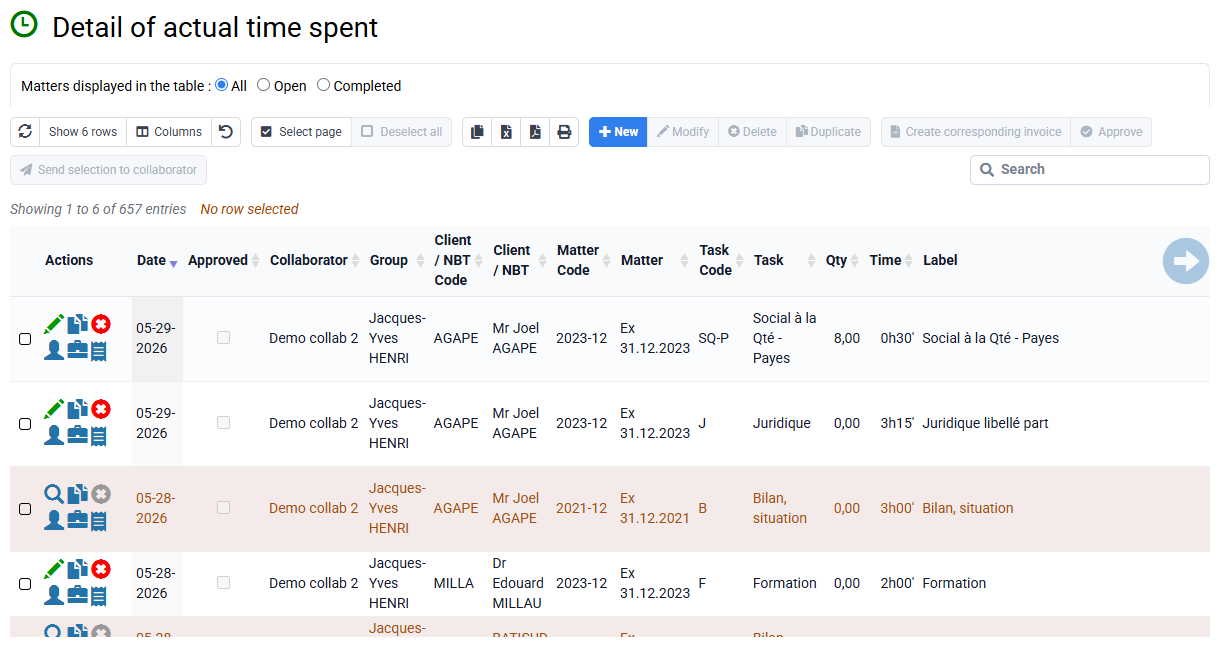
You can have automatically generated invoice lines put into invoices issued on behalf of another client and/or another matter.
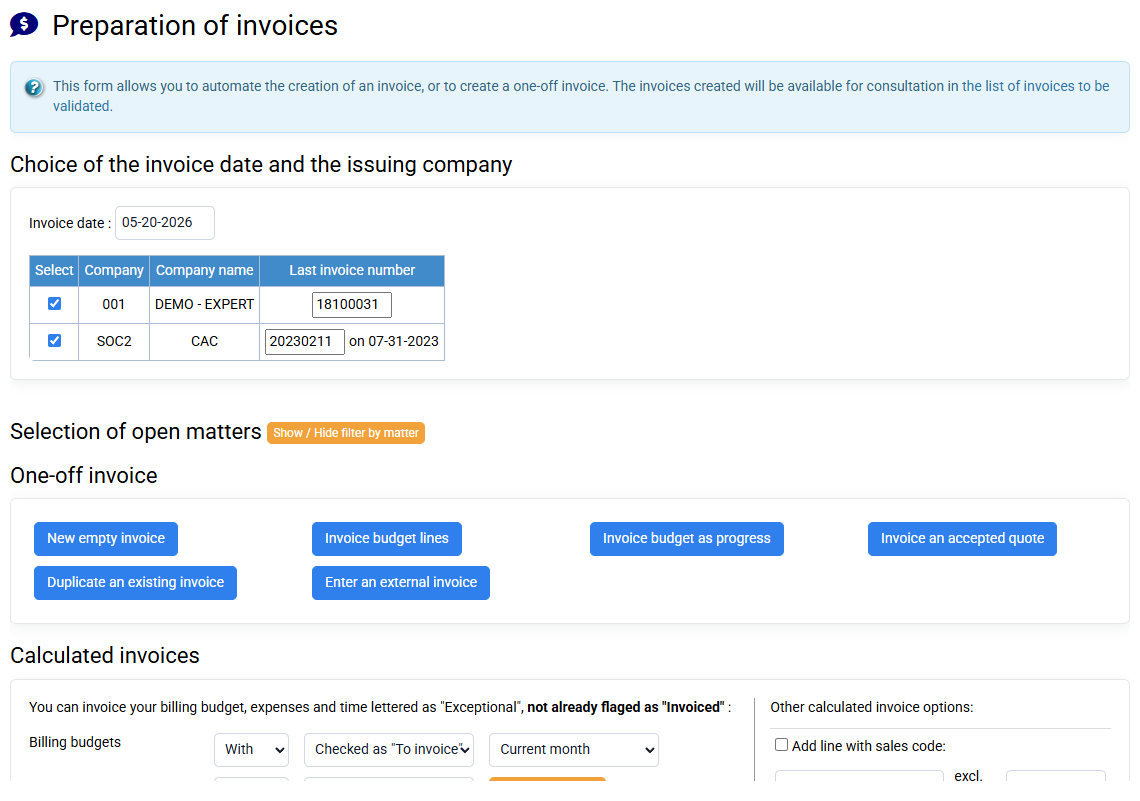
Let's imagine that you have Exceptional times to re-invoice, or invoicing budgets, which are related to case S2024-12 of client X.
- In the configurable characteristics of the client file X, you can fill in "Invoice other client" to specify the client code Y which must serve as the recipient of invoices generated within the framework of X's matters.
You can also put in this field: Y/AFFY (= client code followed by slash followed by the account code) if you want the AFFY matter to be used to do this. Otherwise, Y must have a case S2024-12 (i.e. with the same name as that of X which contains the budget, time and/or costs to be invoiced).
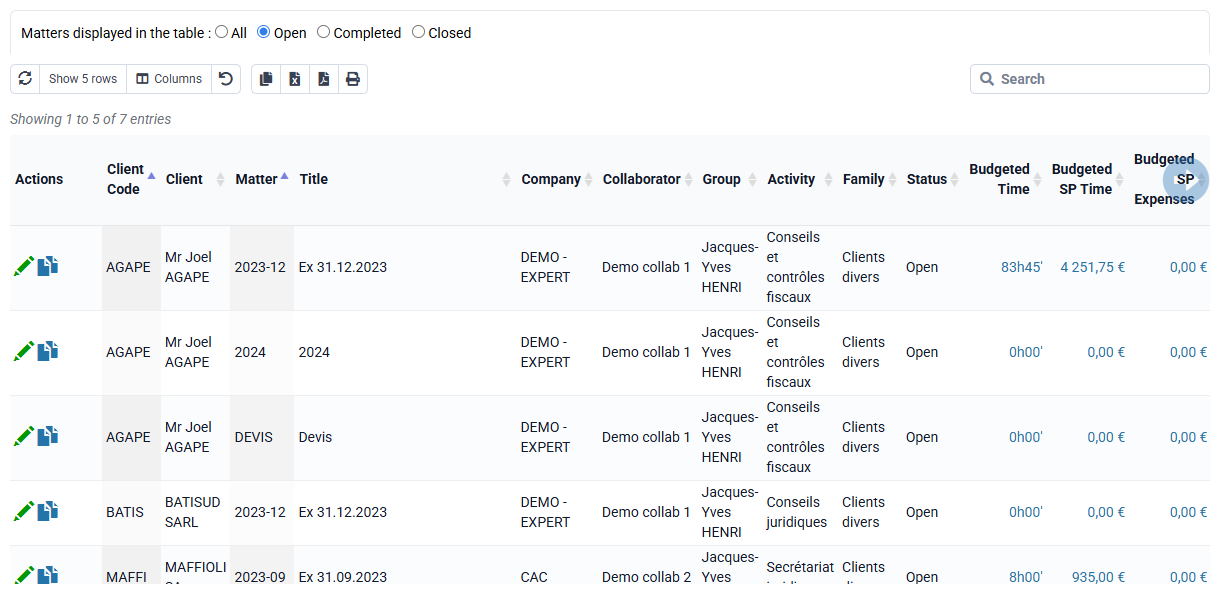
- In the configurable characteristics of client X's S2024-12 case sheet, you can fill in "Other Case Invoice" to specify the AFFX case code that will be used to invoice all times and costs relating to S2024-12.
Concrete examples:
- For an accounting firm: If you have a 2024-12 case for account maintenance, and an S2024-12 case which contains the social, you can put in the S2024-12 case sheet in "Other bill. Deal” value “2024-12”, so social and account maintenance will be charged together within Deal 2024-12. The social invoice lines will be indicated with a subtitle in the invoice, and in addition the profitability analysis will take into account in the social matter that invoice lines have been issued.
Indeed, the invoice is associated with 2024-12, but the invoicing lines allowing the analyzes of the realized are assigned to the matter of origin
- To invoice a reseller: If you work for clients CLIENT1, CLIENT2, ... of a reseller RESELLER, and you want to issue a single invoice each month that contains everything that is billable and associated with each end client CLIENTN, on the FACT_ALL matter, you can edit all the CLIENTN end client files to put in the configurable characteristics "Invoice other client" with the value "RESELLER/FACT_ALL".
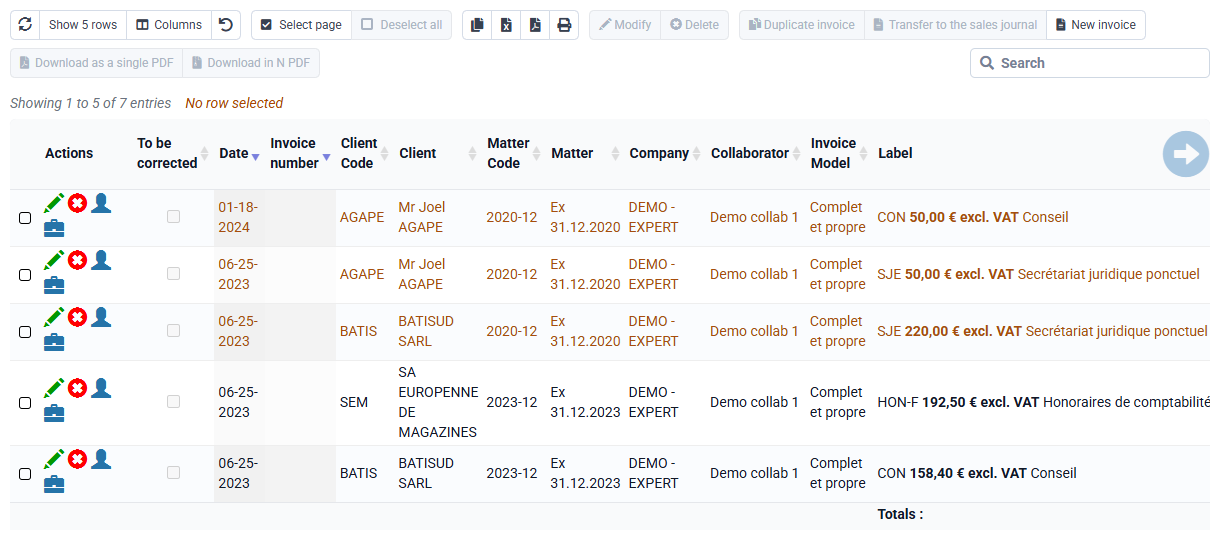
The due date of an invoice is automatically pre-filled when creating an invoice, using the payment terms specified in the invoiced customer file.
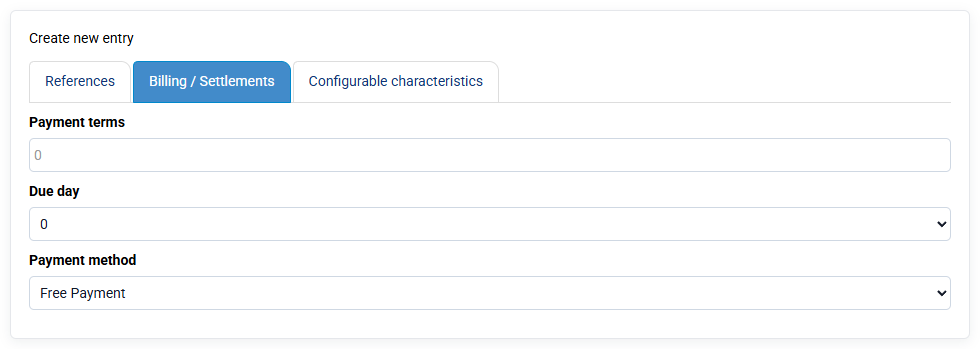
These payment terms specified in the Billing tab of the customer file mention:
- A payment deadline in days (for example 30 days, or 0 days)
- A desired due date. It is possible to select 3 due days, which are configurable per company in « Configuration > Companies ».
And to these 3 days is automatically added the 0 which means: no alignment on a day of the month.
Furthermore, 30 means: end of month, and automatically adjusts according to the length of a month: 28, 29, 30 or 31.
You can modify the due date of an invoice after its preparation, either in the invoice edit form, or via a bulk modification of several invoice lines at the same time.
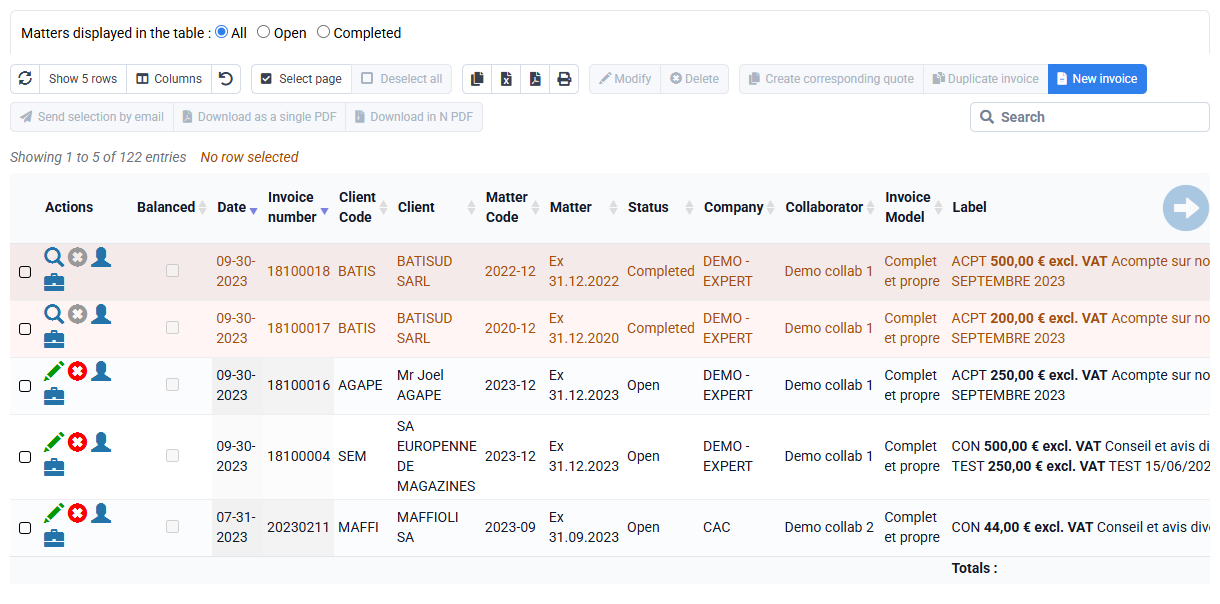
Progress billing lets you invoice according to the completion percentage of each phase. Invoices can be issued based on the percentage completed for each phase. The invoice automatically recalls the total billing budget by sales code, as well as the invoices already issued, which are mentioned automatically at the bottom of the invoice. You can define specific labels by matter for each phase in the billing budgets.

If you first issue a quote and then convert it into a billing budget, your specific labels are kept and can then feed progress billing automatically.
To generate a progress invoice, go to « Billing > Invoice preparation », action « Progress invoice » and select the relevant Client and Matter. A form is displayed with the budget lines, a reminder of what has already been invoiced, and fields where you can enter the percentage completed for each phase. Validate to create the invoice calculated pro rata to the percentages or according to the amounts entered.
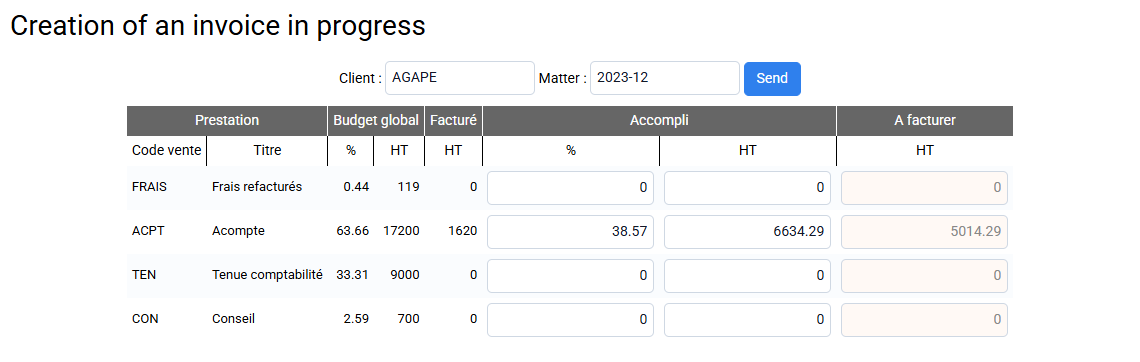
If the progress you enter is lower than the progress previously entered during the earlier progress billing, the remaining "To invoice" amount will be negative. You will therefore issue a partial credit note based on the progress difference. This credit note is handled in the same way as a standard progress invoice, but its title will be Credit note.
In the configuration of your invoice template, you can define whether the columns shown in the invoice PDF are displayed, and set their width. Available columns are: Reference, Service, Service price, Already invoiced, Progress, To invoice.
To adjust the generated columns, several options are available in « Configuration > General options », “Miscellaneous” tab:
- Disable the EUR amount of progress in progress invoice PDFs
- Disable the progress percentage in progress invoice PDFs
- Disable the allocation of the service amount by percentages in progress invoice PDFs
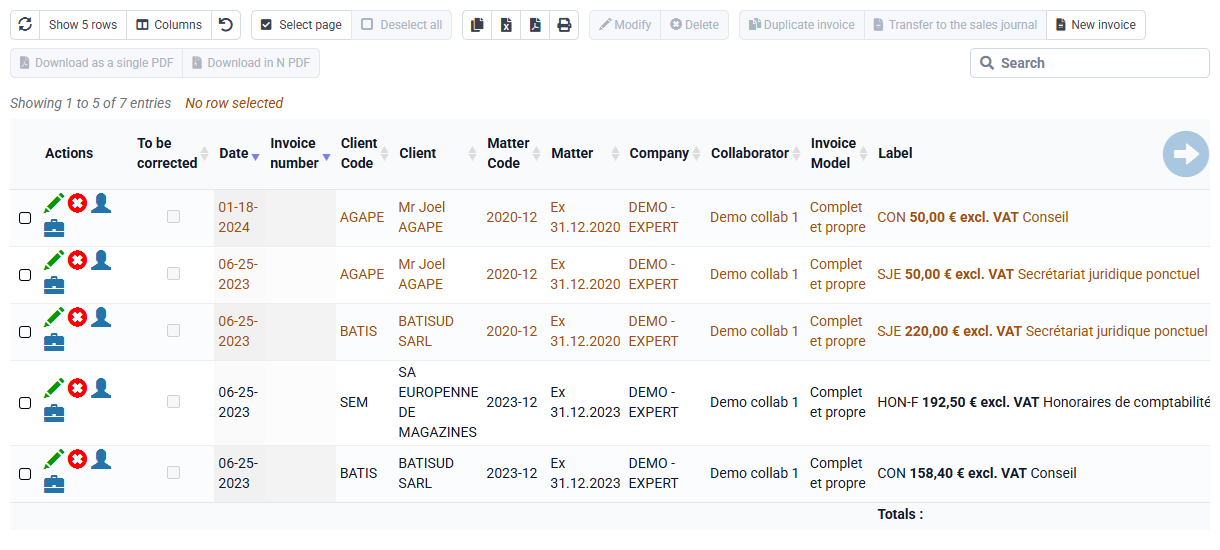
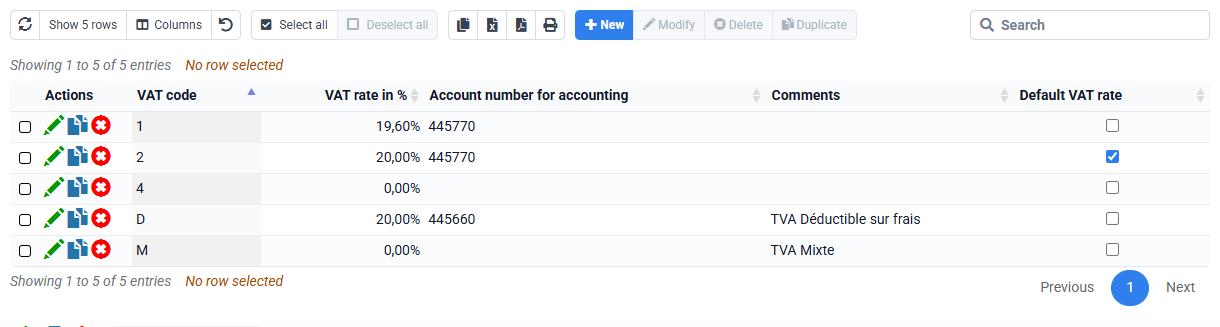
By default, the VAT rate proposed for an invoice line is the one configured by default in the sales code used for this line.
However, on a customer file in the "Invoicing / Payments" tab, it is also possible to define a rate specific to a customer, which will be used if it is lower than that configured for the sales code. Thus, if the rate for the customer is 8.5%, it will be applied instead of the 20% rates configured in the sales codes. But if a disbursement sale code is set to 0%, 0% will be applied.
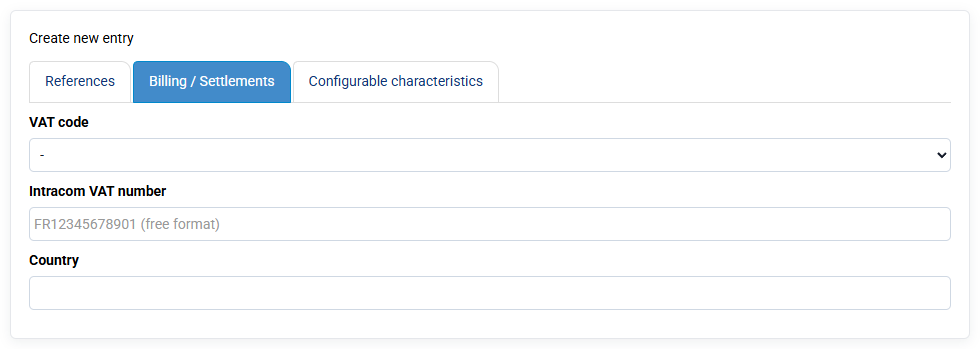
In any case, you can change the VAT rate applied to a particular line of your invoice, unless you have checked the option "Prohibit modification of VAT code in invoice lines" in « Configuration > General Options », onglet « Billing »
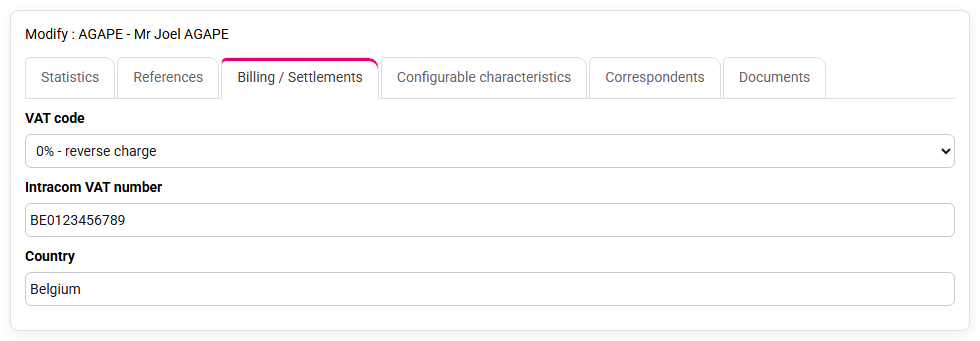
If you have set a rate of 0% for a customer, then an automatic generation of legal notice will be done in the PDF invoices generated for this customer:
- If an intra-community VAT code is filled in, then the legal notice "Auto-liquidation TVA due par le lessee CGI art 283-2" will be added to the invoice
- Otherwise, the words "VAT not applicable - art.259-1 of the CGI" for extra-community exports will be added automatically.
The terms of deposit and provision cover several concepts:
- A notion of intermediate invoice, in which we speak of a deposit or provision: it is an invoice like any invoice, which impacts the overall calculation of the company's turnover, with VAT management and an amount to be paid by the customer
- Collect a provision or deposit, without having issued an invoice at this stage:
In Tempolia, you can create a payment associated with the customer in « Billing > Payments » to take this payment into account in the customer balance.
Then when we subsequently make an invoice, we can indicate in the field "Deposit including tax to be deducted from the net to be paid (amount already collected, no relation with a deposit invoicing):" the amount already collected, and the Net to pay of the invoice will be reduced by this amount. This field will have an impact on the presentation of the invoice, and no other impact otherwise.
NB: the invoice must be issued quickly after receipt of the provision or deposit for a correct VAT declaration.
When you want to issue a balance invoice after issuing advance payments (i.e. interim invoices), you can issue a balance invoice with a final billing complement line, or you can issue a balance invoice invoice with two lines: a deposit recovery line which provides a credit on the deposits issued, and a line for the total amount of the service.
To make a deposit reversal, you can manually enter a negative amount corresponding to the sum of the invoiced deposits, or use a "Deposit reversal" sales code which will be calculated automatically with a configuration in "Calculated sales codes" for a value of -100% of all deposit sales codes from -36 months for example until now (this is explained on the calculated sales codes configuration page).
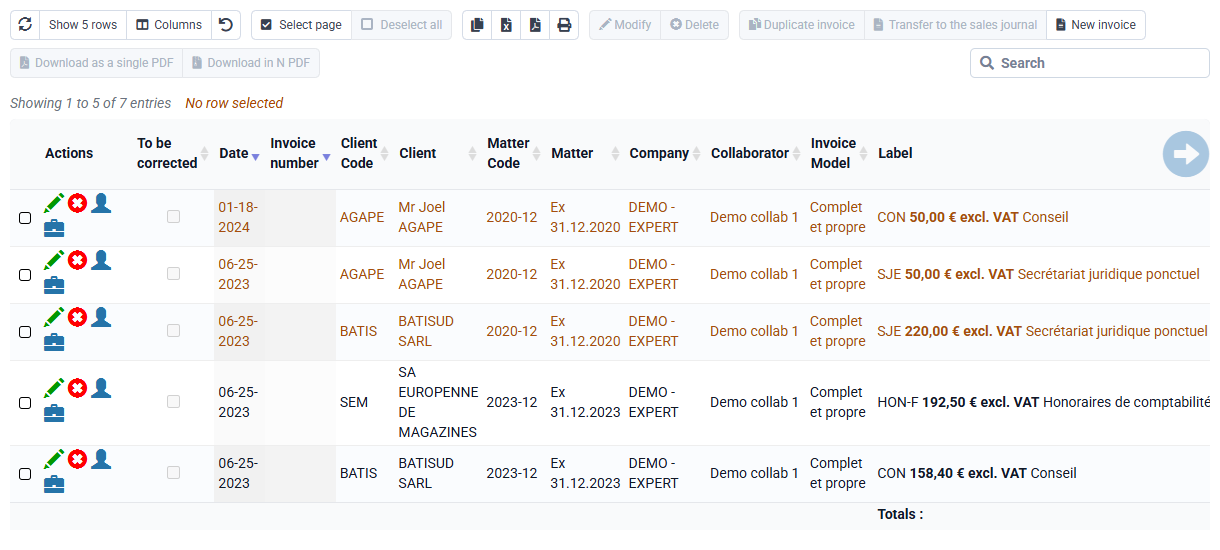
Additional note: in the European sense, there is a notion of a deposit invoice which is not an invoice, but a document which allows VAT to be declared upon collection. This accounting document is not an invoice, and as it is a source of confusion and complexity for everyone, it is usual not to use this concept but to make real invoices, with a line indicating "deposit" or “provision” or “interim invoice”.
A credit note (= credit note invoice) in Tempolia is prepared like any invoice, but with a negative total amount.
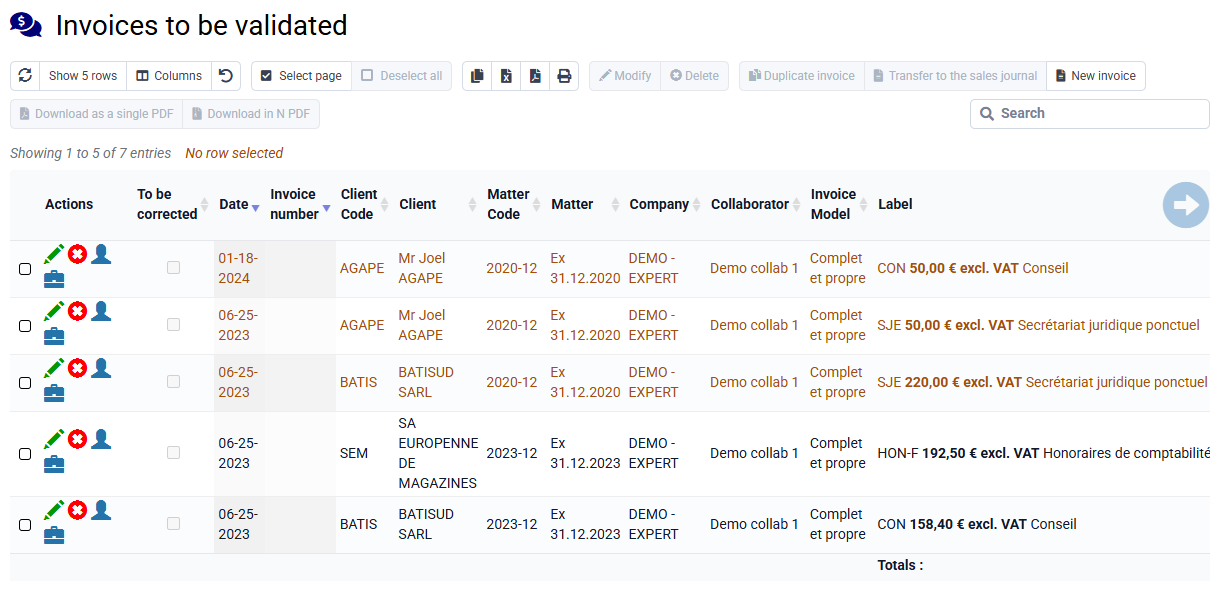
To issue a complete credit note for an existing invoice, open « Invoicing > Invoices » or « Invoicing > Invoices to validate », then use the row action « Create a credit note ». To create several credit notes, select the relevant invoices and use the « Create credit notes » button above the table, next to « Duplicate ». Tempolia asks for confirmation before creating the credit note in the pending invoices section. You can then review it, adjust it if needed, and validate it for issue.
For a partial credit note, create the credit note from the original invoice, then edit the lines in the pending invoice before issuing it.
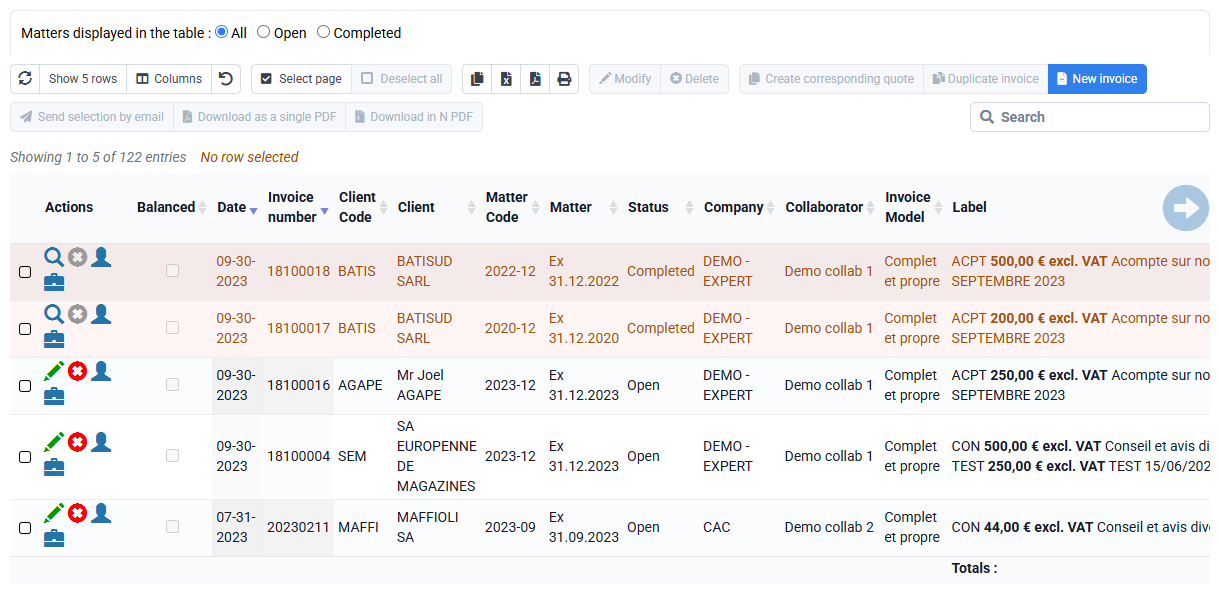
In « Configuration > Invoice templates », the title displayed when the invoice total is negative is defined in the template; usually "Credit note".
The electronic invoice covers several aspects:
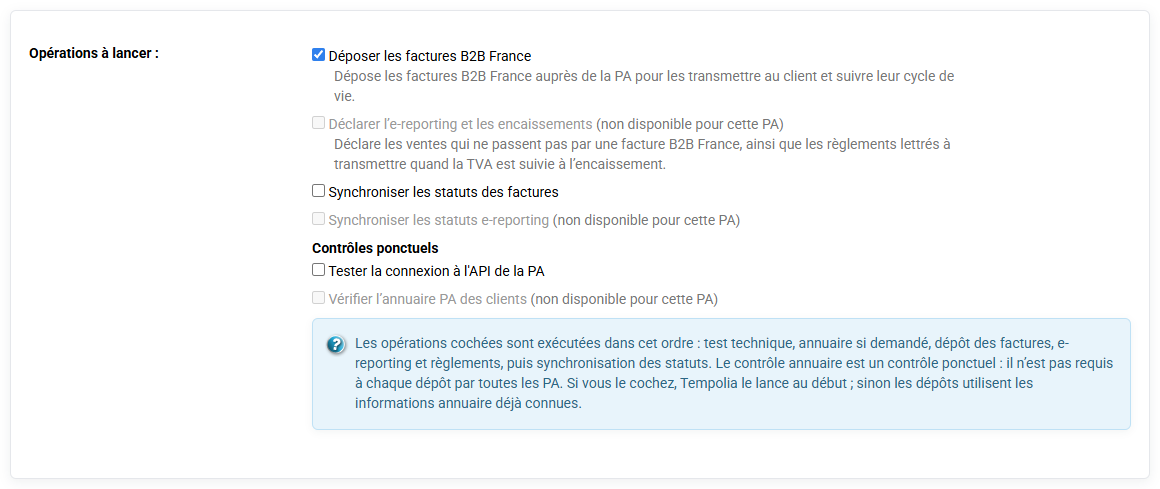
- The generation of PDF document for dematerialized sending, by email or deposit on computer interfaces. You can send your invoices via the "Send by email" button on the « Invoicing > Invoices »
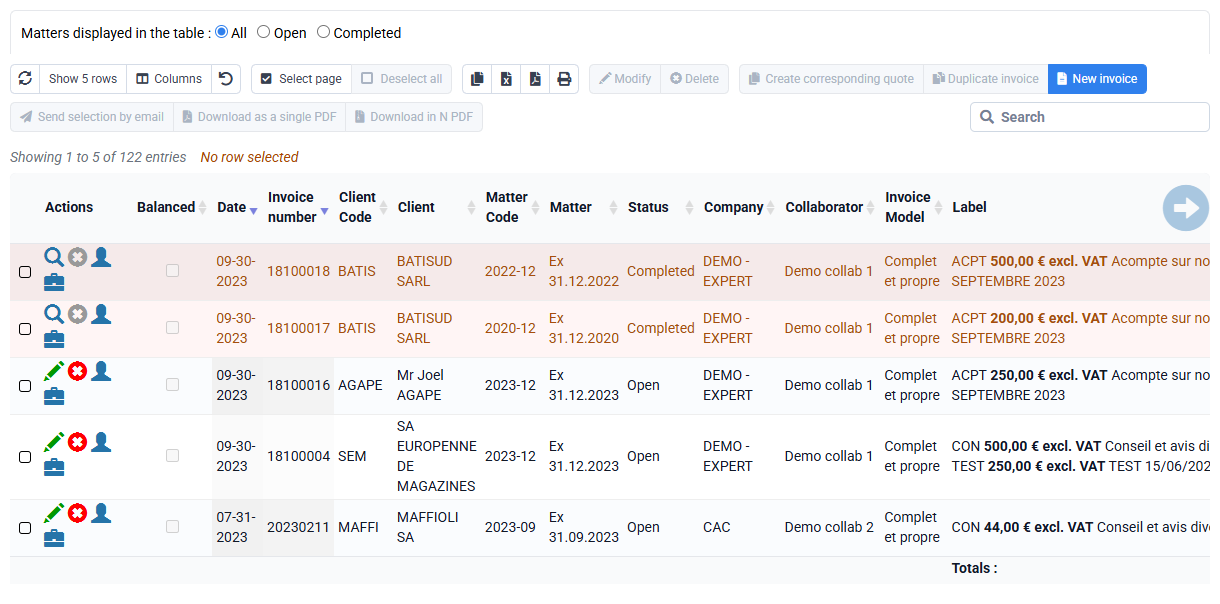
- The electronic signature of the PDF document: it is a mechanism making it possible to guarantee the integrity of an electronic document and to authenticate its author (to ensure that it has not been modified between the moment when the author signed it and when it is viewed).
Tempolia signs all your PDFs with an electronic signature. By default, our signing certificate is applied; you can also send us an SSL signature certificate that you can obtain from a certification body to sign your invoices. Whether it is signed by your certificate or ours is not important for compliance with legal obligations.
The signature that is affixed to PDF documents is not visible on the pages, but Acrobat Reader allows you to view the signature information
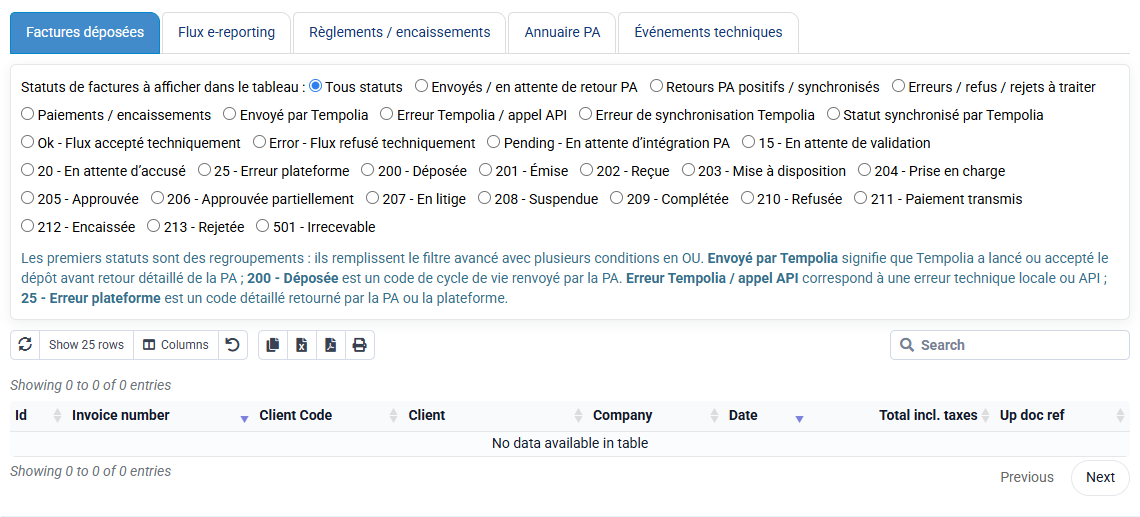
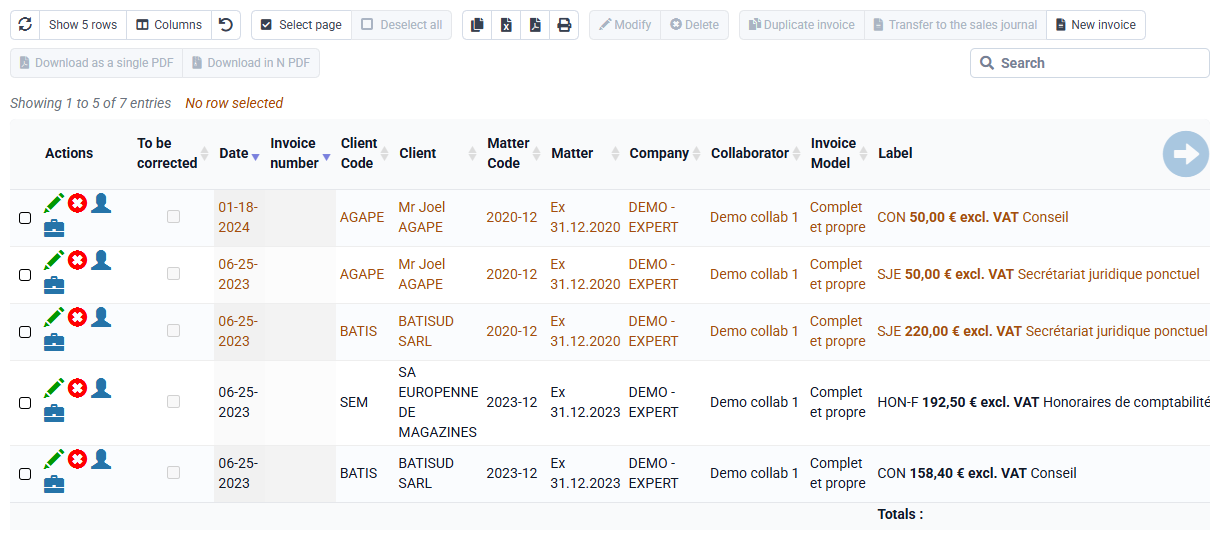
- The fact of including structured information: this is called Factur-X. It is a format that is based on an evolution of the PDF standard, to include a small structured file that contains the invoice information. This information can be processed by your client's accounting software, so no invoice entry is necessary. In your invoice templates, the box checked in the Factur-X column allows you to activate this.
The invoice template contains layout information for the top and bottom of the page, including a logo and legal notices.
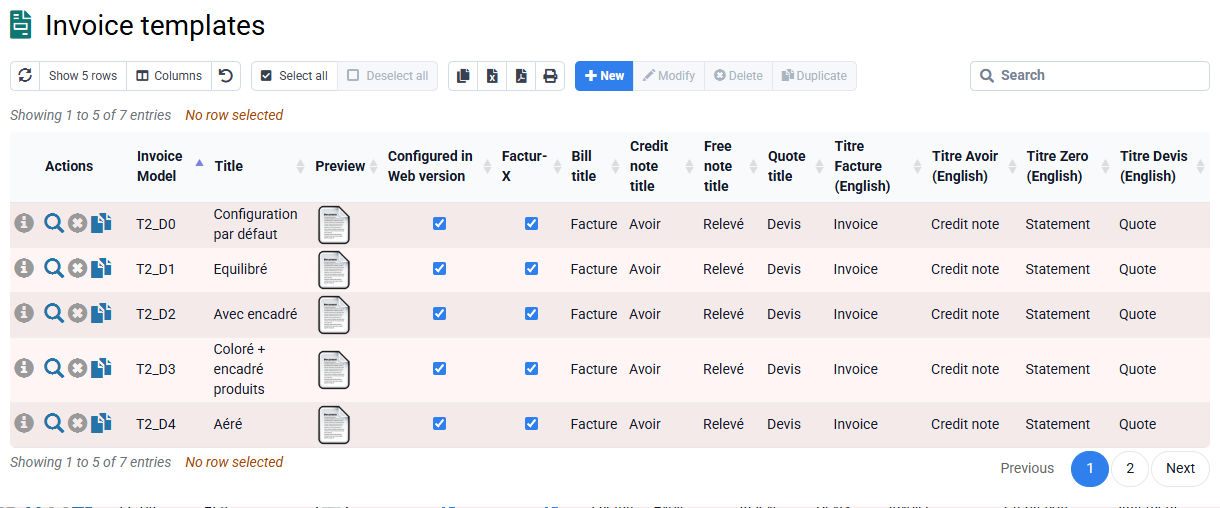
When an invoice is created, the template is inherited from the matter. When a matter is created, the template prefilled in the Billing tab of the new matter is inherited from the company.
If the template shown on an invoice is not suitable, it must be changed on the relevant invoices, whether they are still to be validated or already validated. You can select invoices and modify this information in bulk using the "Edit" button.
If you want to associate some invoices with a template on a one-off basis, you can edit them directly. If you also want changes to apply to future invoice preparations, also modify the templates indicated in your matters via « Clients / Matters > Bulk matter modification », and in « Configuration > Companies ».
Invoice numbering can be managed in two ways :
- Automatic numbering, recommended and enabled by default, which avoids renumbering and guarantees a consistent sequence without errors.
Invoices to be validated remain without a number and carry a "draft" watermark. The final number is assigned automatically when the invoice is transferred to the sales journal.
To enable this mode: go to "Configuration > General options > Billing" and check the option "Number invoices when updating the sales journal". Log out and log back in to apply the change.
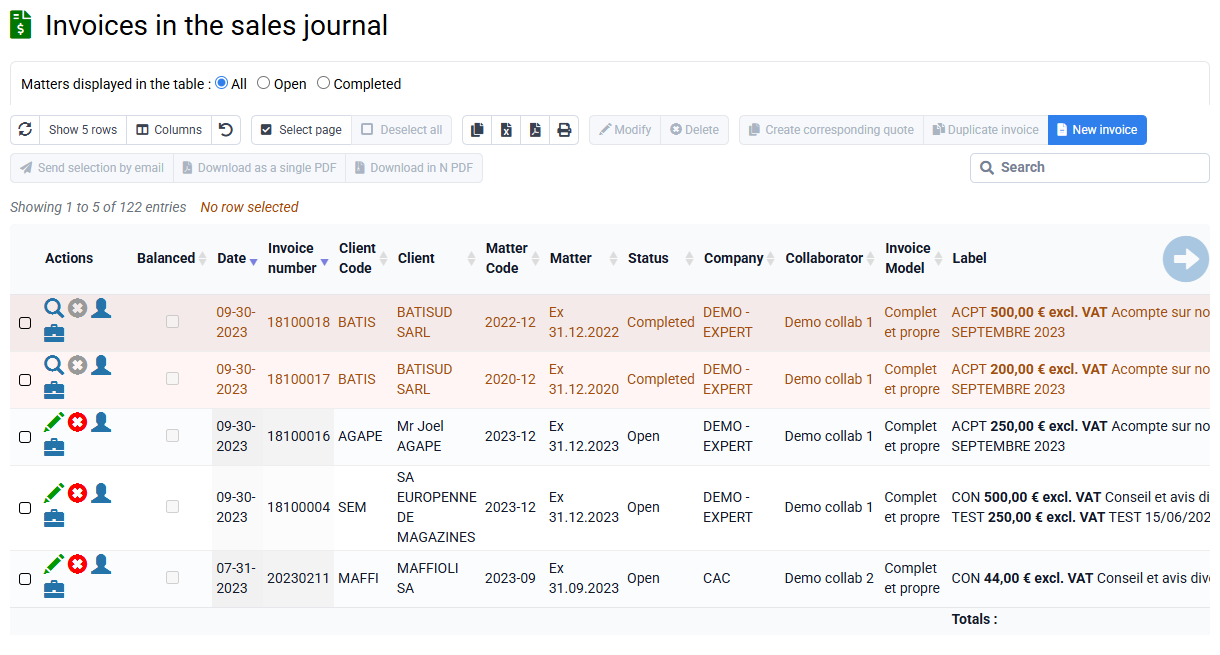
- Manual numbering: each invoice to be validated receives a provisional number. In case of deletion or modification, renumbering is necessary. A "Renumber" button is available on the invoices-to-validate page: it updates the selected invoices and all following invoices.
The invoices-to-validate page has a "Duplicate" column that identifies invoices whose number is already used. If an invoice to be validated has "Duplicate" checked, you must renumber it using the "Renumber" button.
To avoid numbering issues, a check is performed during invoice validation to identify duplicates or gaps in billing.
In both modes, proposed numbering can comply with a custom format, such as yymm0000 for a two-character year and month followed by a number reset every year or every month, or yynnnnnn for a two-character year followed by a number that never resets. You can contact support to set this up.
Numbers of validated invoices are final and can no longer be modified. In case of a billing error, you can issue a credit note and create a new invoice.
Invoices must respect chronological order: you cannot validate an invoice whose date is earlier than that of an invoice already validated and issued by the same company. However, you can prepare invoices with any date; you will simply need to correct invoice dates before validation.
The performance date identifies the date of sale, delivery, or actual completion of the billed service. It does not replace the invoice issue date, which remains the official date on which the document is created and validated, but it indicates when the billed operation actually took place.
This performance date is therefore separate from the invoice issue date: if it is different, it will appear on the invoice to indicate the sale or service performance date.
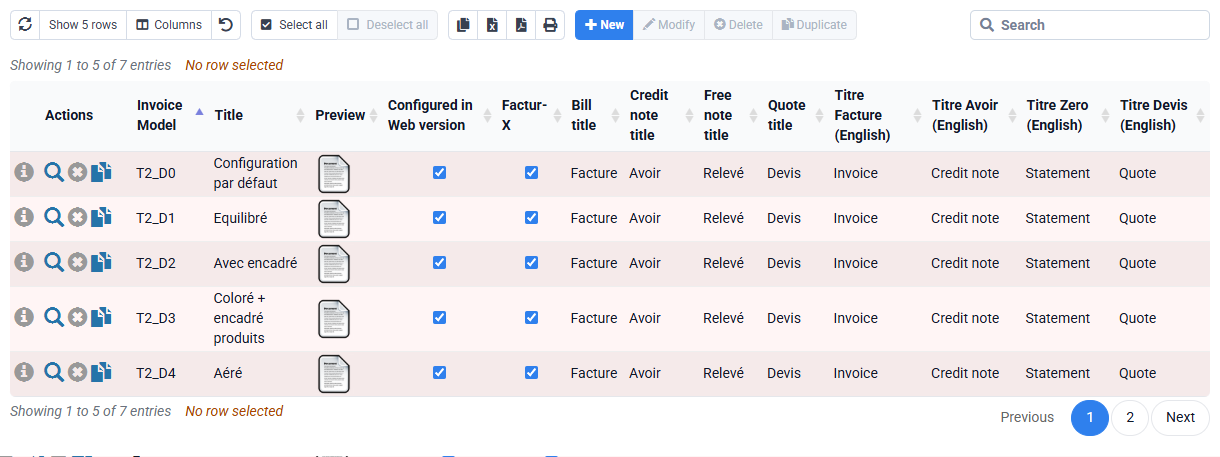
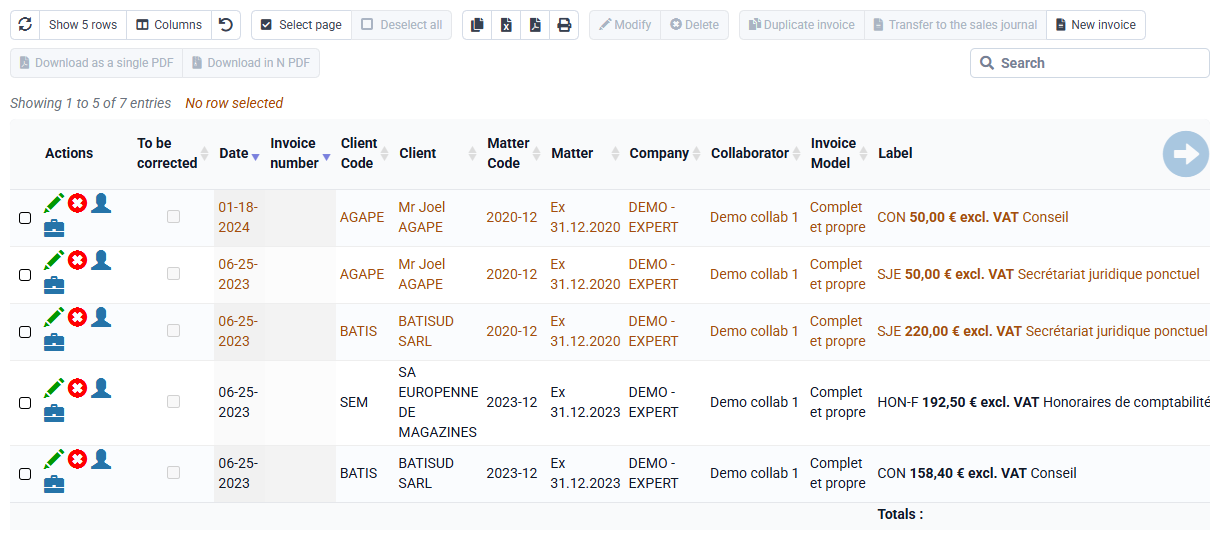
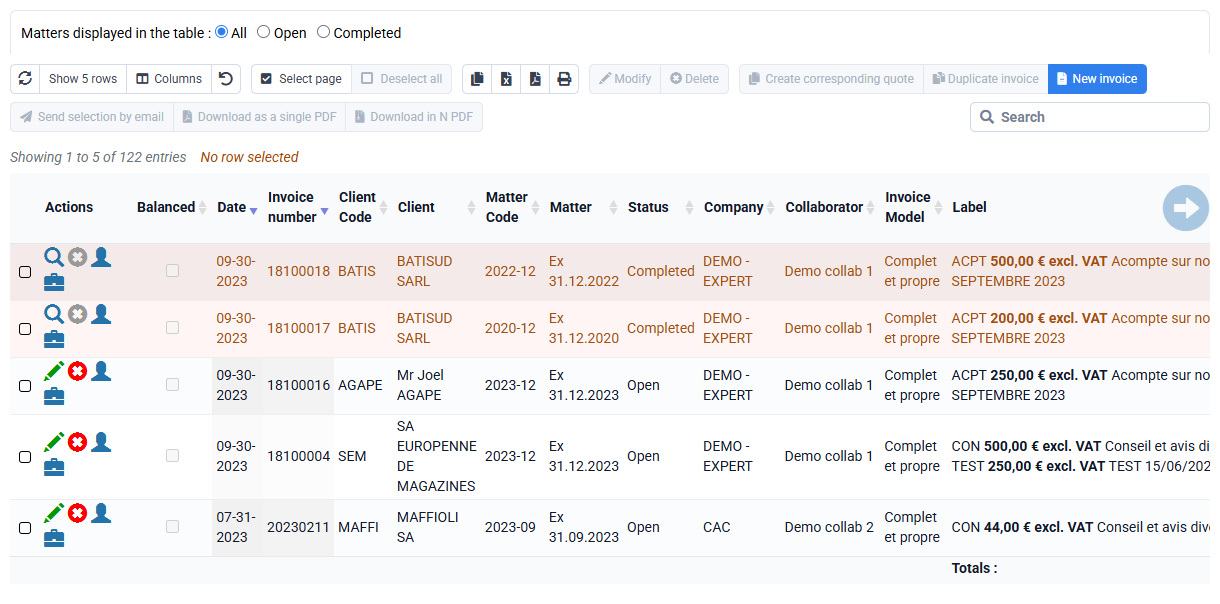
Invoice preparation creates invoices to be validated, which are not yet posted to the sales journal and are not yet taken into account in profitability analysis reports. The corresponding direct debits are not yet created either.
They do not yet have a number: they are only drafts marked with a "Draft" watermark.
They cannot yet be transferred to accounting.
Deleting them automatically removes the "Invoiced" indication next to the budgets, time or expenses that may have been used as the basis for their preparation, allowing automatic preparation again in case of error.
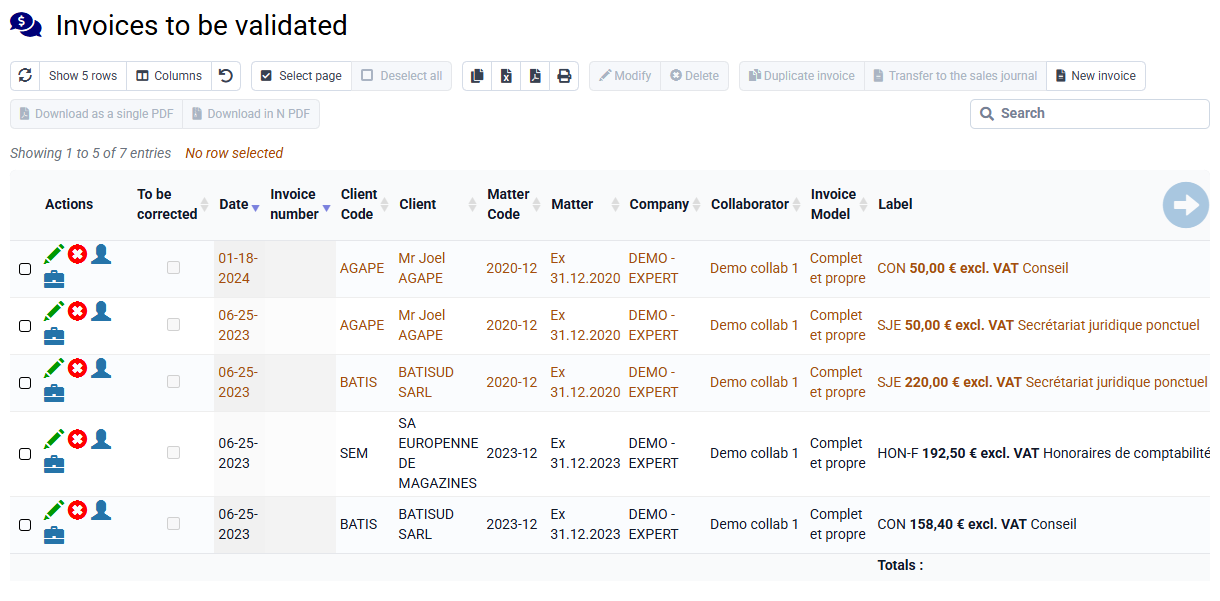
Once invoices to be validated have been reviewed by the person responsible for validation, they can be transferred to the sales journal. They then receive their number, can be sent to clients and exported to accounting, and are included in revenue and the various reports.
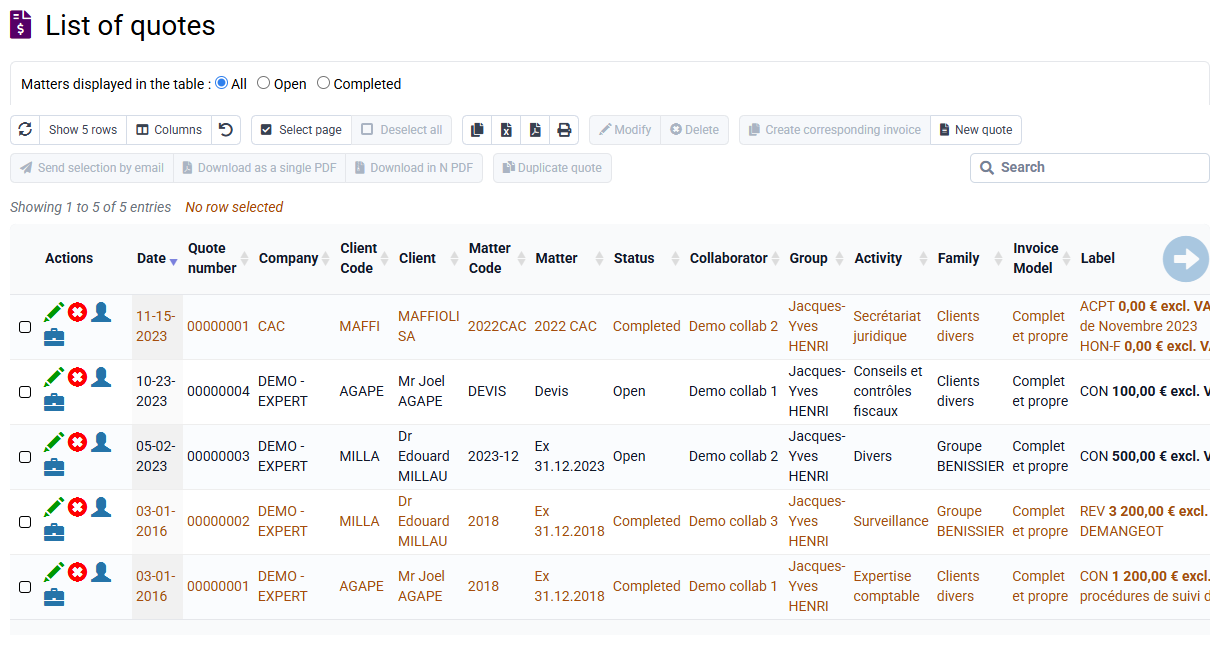
Quotes can be created and then converted into billing budgets or directly into invoices. They can also be transformed into billing budgets to generate invoices later, billing a given amount in a given month, or possibly following a progress-billing logic.
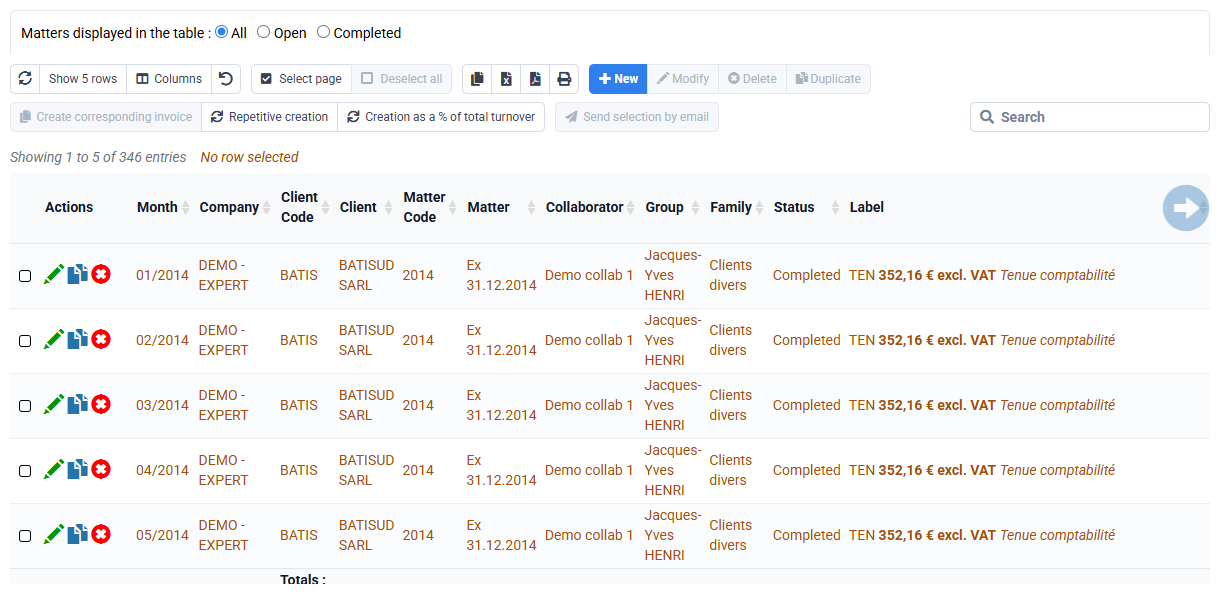
Billing budgets are monthly forecasts of the amounts to be invoiced. They can also be used for automatic fixed-fee invoice generation if the "To invoice" box is checked; in that case they form a billing plan. The automatic billing system can also add the rebilling of actual exceptional time and expenses to invoices generated from billing budgets. When the "To invoice" box is not checked, this makes it possible to budget billing that will be done manually or based on actual work, so that revenue forecasts are not limited to fixed-fee billing.
A purchase order management feature can be activated on request, complementing the quote logic for a complete sales cycle management.