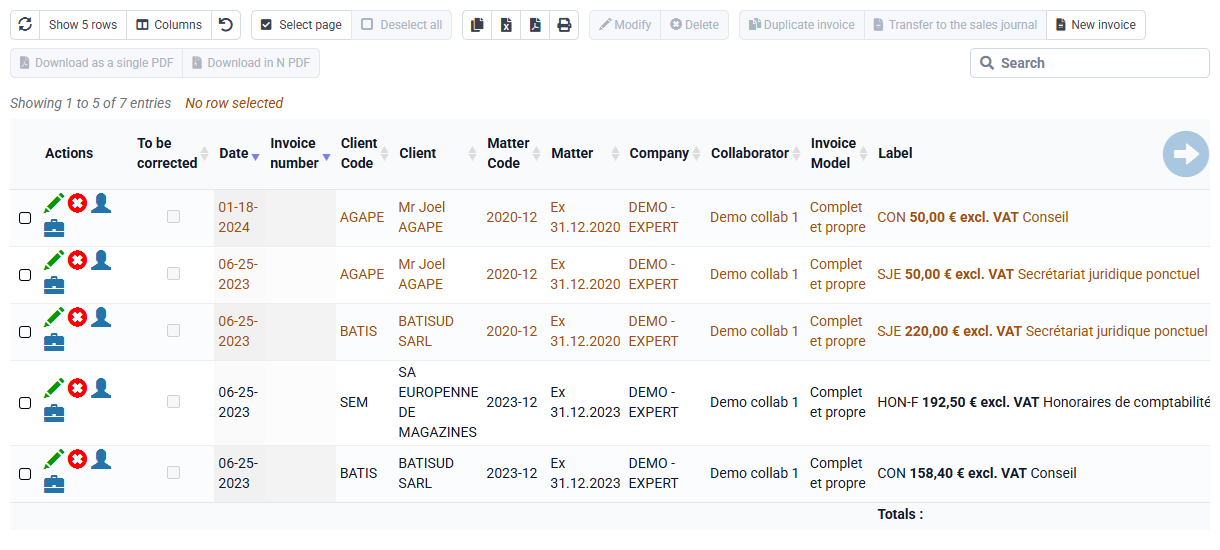


How does progress billing work in Tempolia?
Progress billing lets you invoice according to the completion percentage of each phase. Invoices can be issued based on the percentage completed for each phase. The invoice automatically recalls the total billing budget by sales code, as well as the invoices already issued, which are mentioned automatically at the bottom of the invoice. You can define specific labels by matter for each phase in the billing budgets.

If you first issue a quote and then convert it into a billing budget, your specific labels are kept and can then feed progress billing automatically.
To generate a progress invoice, go to « Billing > Invoice preparation », action « Progress invoice » and select the relevant Client and Matter. A form is displayed with the budget lines, a reminder of what has already been invoiced, and fields where you can enter the percentage completed for each phase. Validate to create the invoice calculated pro rata to the percentages or according to the amounts entered.
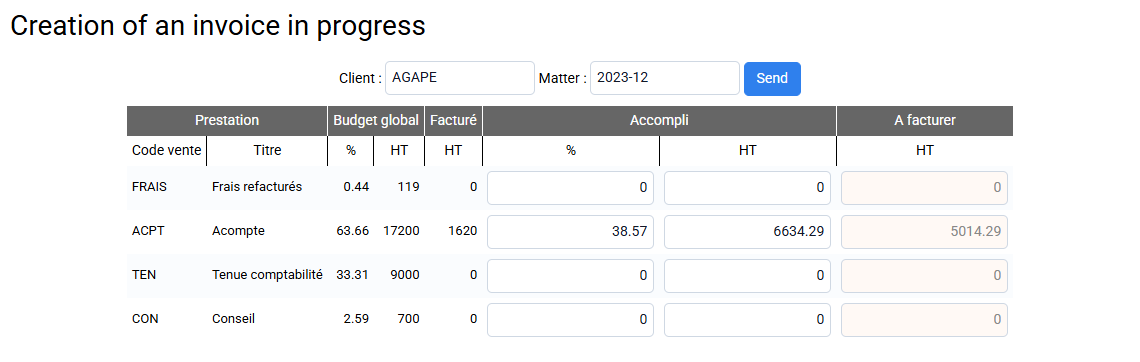
If the progress you enter is lower than the progress previously entered during the earlier progress billing, the remaining "To invoice" amount will be negative. You will therefore issue a partial credit note based on the progress difference. This credit note is handled in the same way as a standard progress invoice, but its title will be Credit note.
In the configuration of your invoice template, you can define whether the columns shown in the invoice PDF are displayed, and set their width. Available columns are: Reference, Service, Service price, Already invoiced, Progress, To invoice.
To adjust the generated columns, several options are available in « Configuration > General options », “Miscellaneous” tab:
- Disable the EUR amount of progress in progress invoice PDFs
- Disable the progress percentage in progress invoice PDFs
- Disable the allocation of the service amount by percentages in progress invoice PDFs