

Help - Questions / Answers
Payments
- How do I display bank details in my invoices?
- What are the various ways to enter payments?
- How do I send a payment schedule to a customer?
- How to properly manage your collections and reduce your customer outstandings?
- Why does the customer follow-up feature not suggest a customer who has not paid an invoice?
- Why are some direct debits not in the SEPA XML file I generated?
- What are the differences between CORE and B2B direct debit mandates?
- How can we group multiple debits for the same client into a single debit?
- Some direct debits are rejected by my bank with codes such as MD01 or AM04. How can I avoid these rejects?
- What happens if a client paying by direct debit changes their bank in Tempolia?
- How to manage a direct debit rejection?
- What is the impact of SEPA direct debit rejects on receivables monitoring?
- How can I have my customers pay by credit card?
In the general context, except for a specific configuration of your invoice template which deactivates the payment information block:
- When an invoice is in "direct debit" payment mode, you must indicate the RUM, IBAN of the customer's account concerned and the mandate date => they are automatically displayed in the invoice, based on the information present in client records. NB: the client does not have to view your IBAN because he must not make a transfer to you, otherwise there will be double payment.
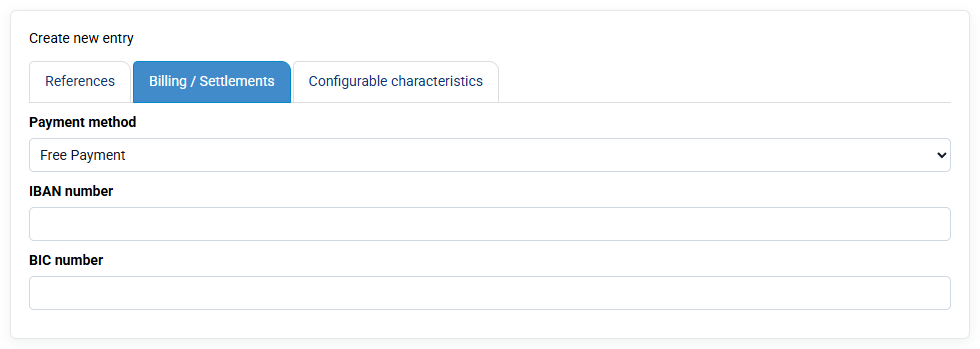
- If the invoice is payable by bank transfer, the IBAN of your bank account linked to this invoice appears. This bank account is inherited from the client file (which is attached to one of your bank accounts) when preparing the invoice. The choice of this bank account can be modified by editing the invoice.
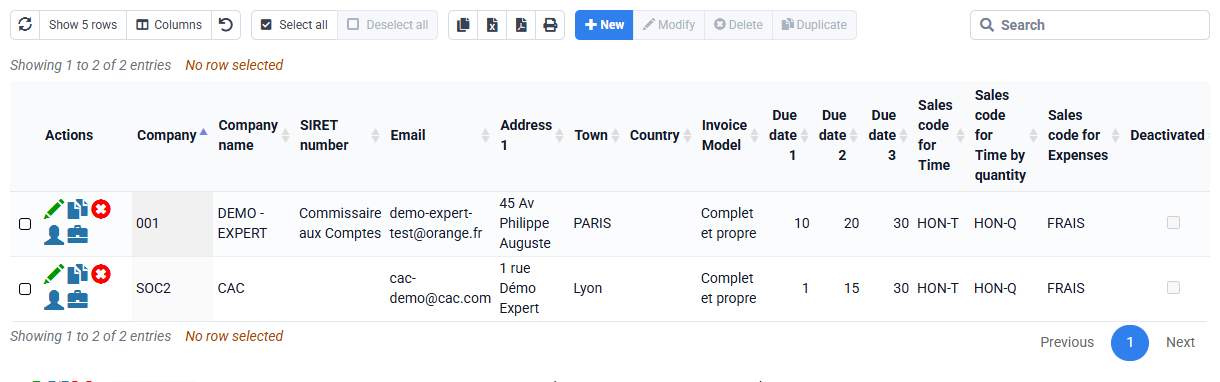
On the Billing > Invoices page, you can add the column "Payment method" which is not indicated by default.
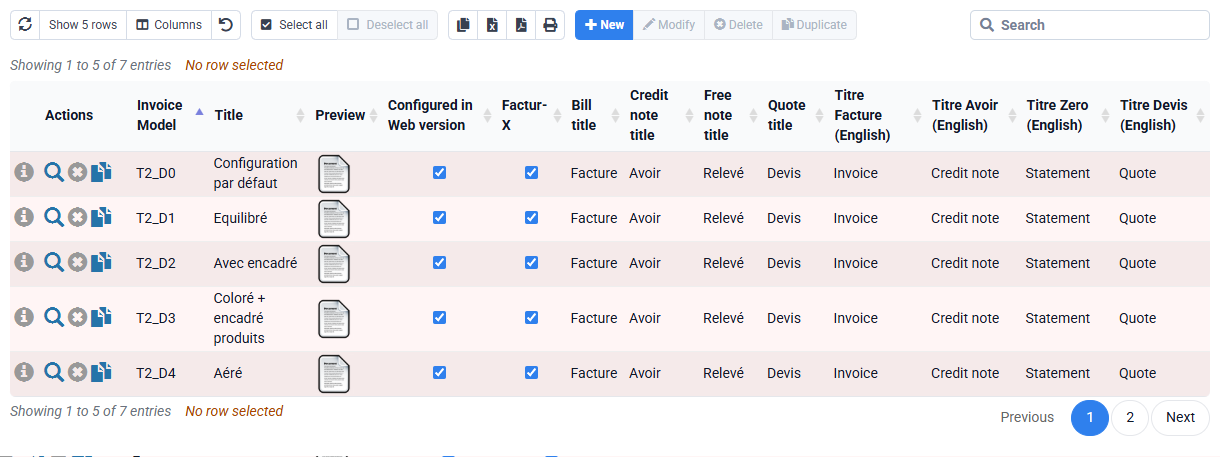
There are several ways to create payments:
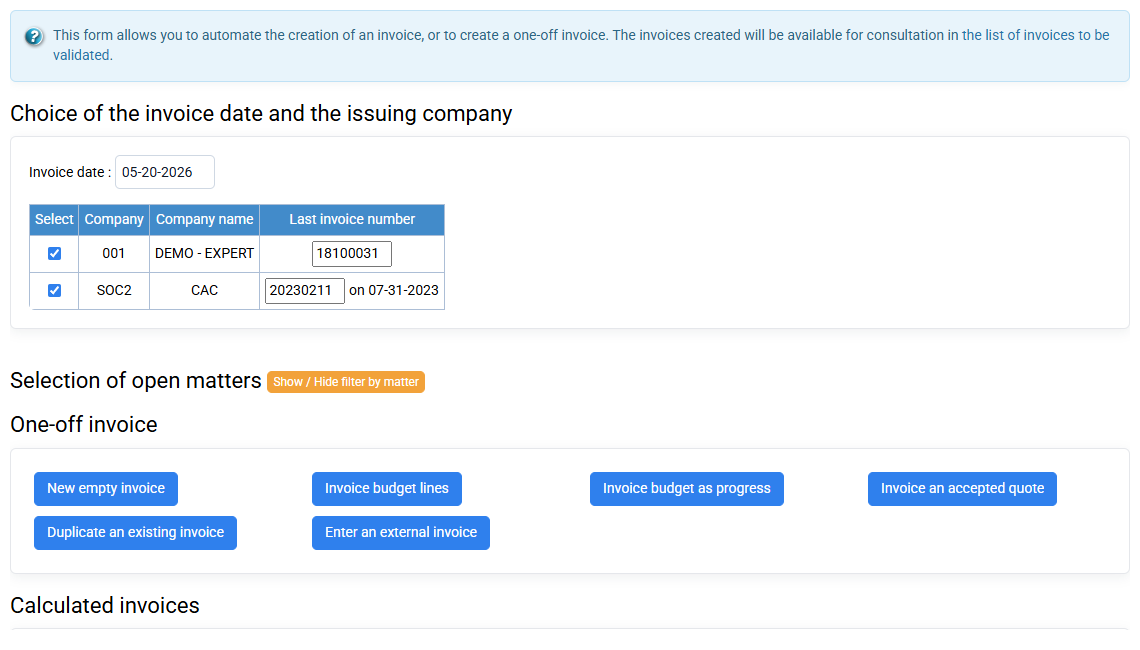
- Payments can be created automatically when preparing invoices, using the option (active by default) at the bottom left of the form "Create payments automatically" with the option "Managed: direct debits, drafts" .
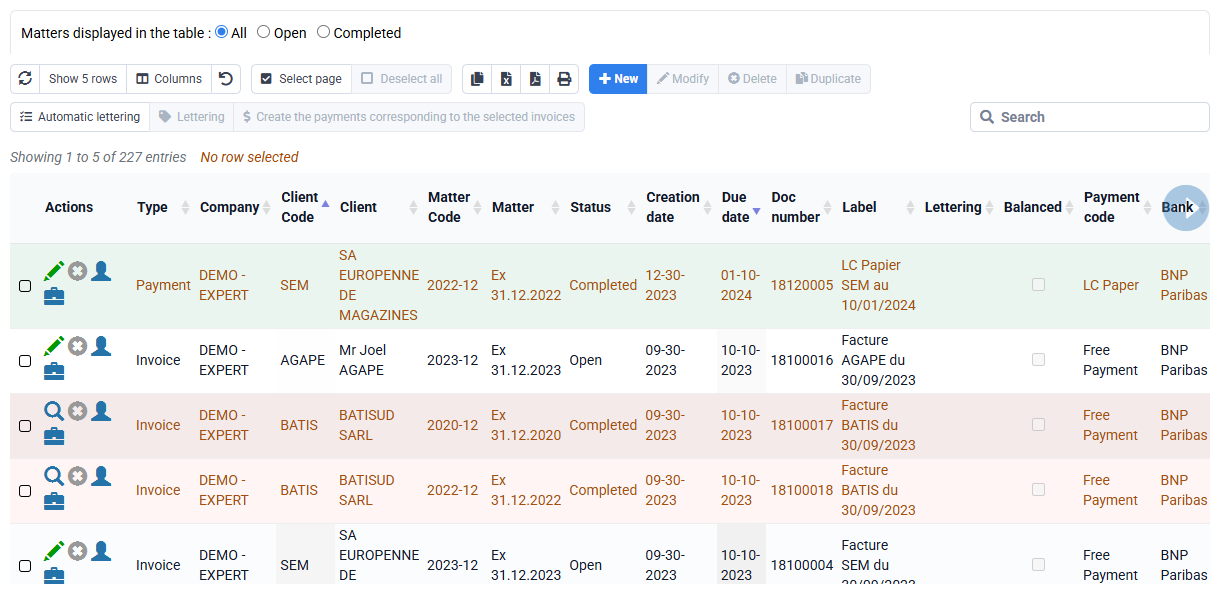
The direct debits corresponding to the invoices are prepared in accordance with the payment method configured for customers, and are actually created when the prepared invoices are transferred to the sales journal. It is in fact the transfer to the sales journal which makes the invoices final and creates the corresponding payments. Subsequently, the planned withdrawals are independent of the invoices and can be modified at your convenience. - On the « Billing > Customer movements », by checking lines and clicking on the "Create payments corresponding to selected invoices" button: checks or transfers received corresponding exactly to one or more invoices.
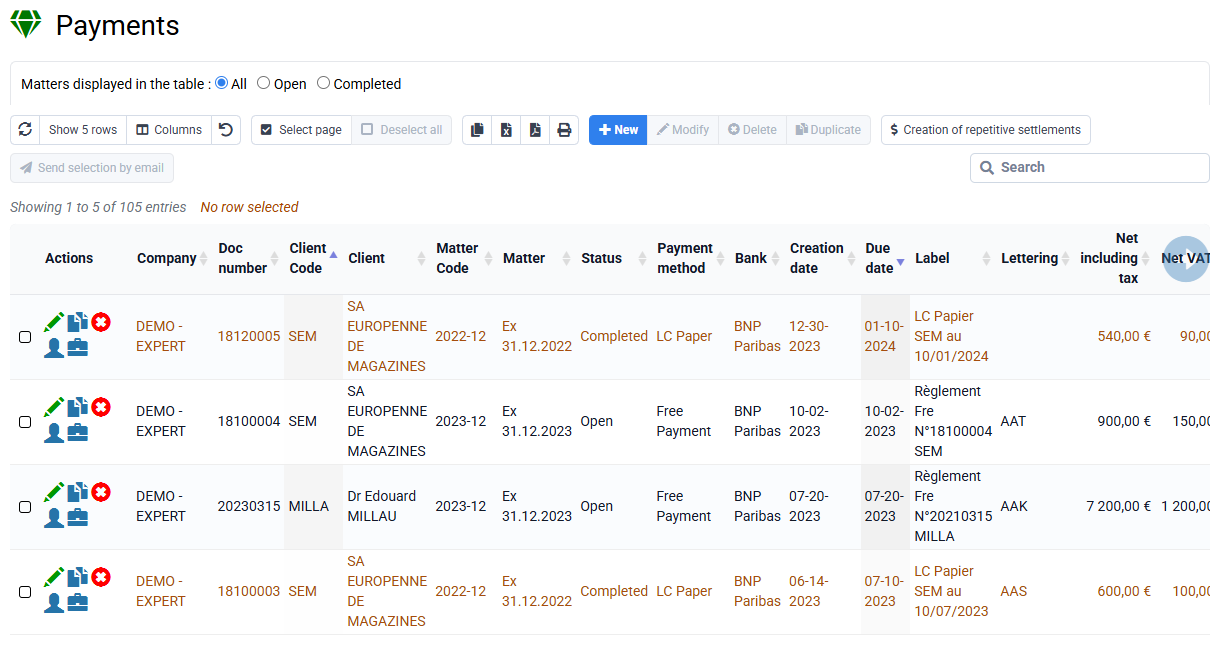
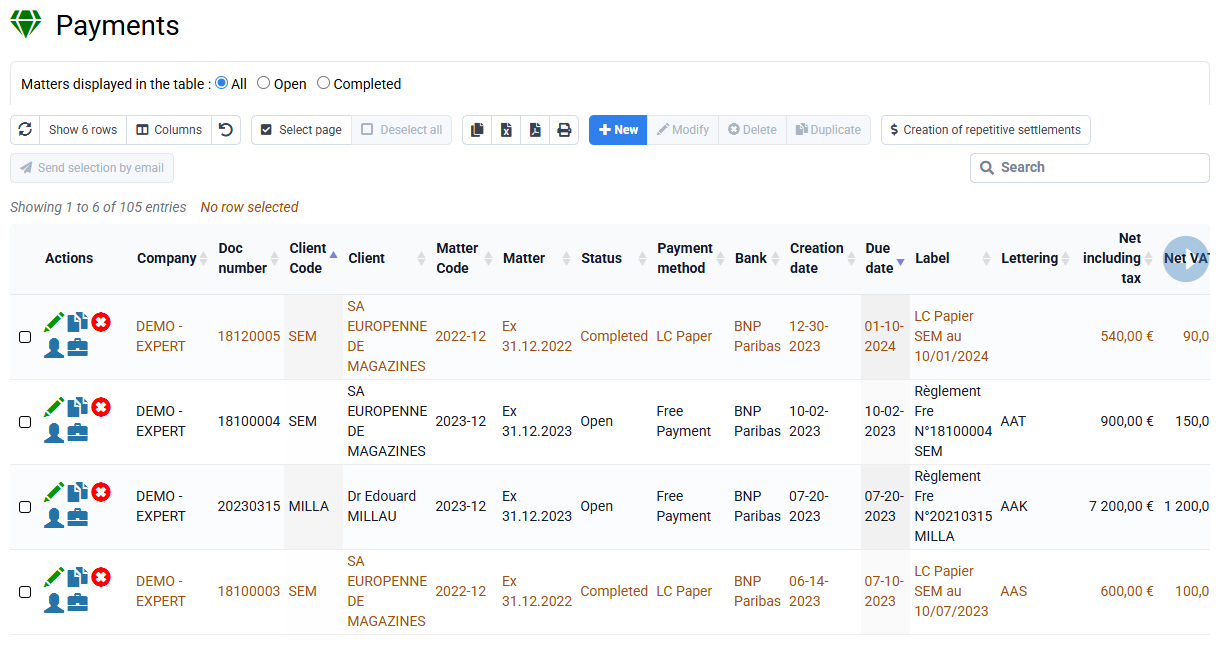
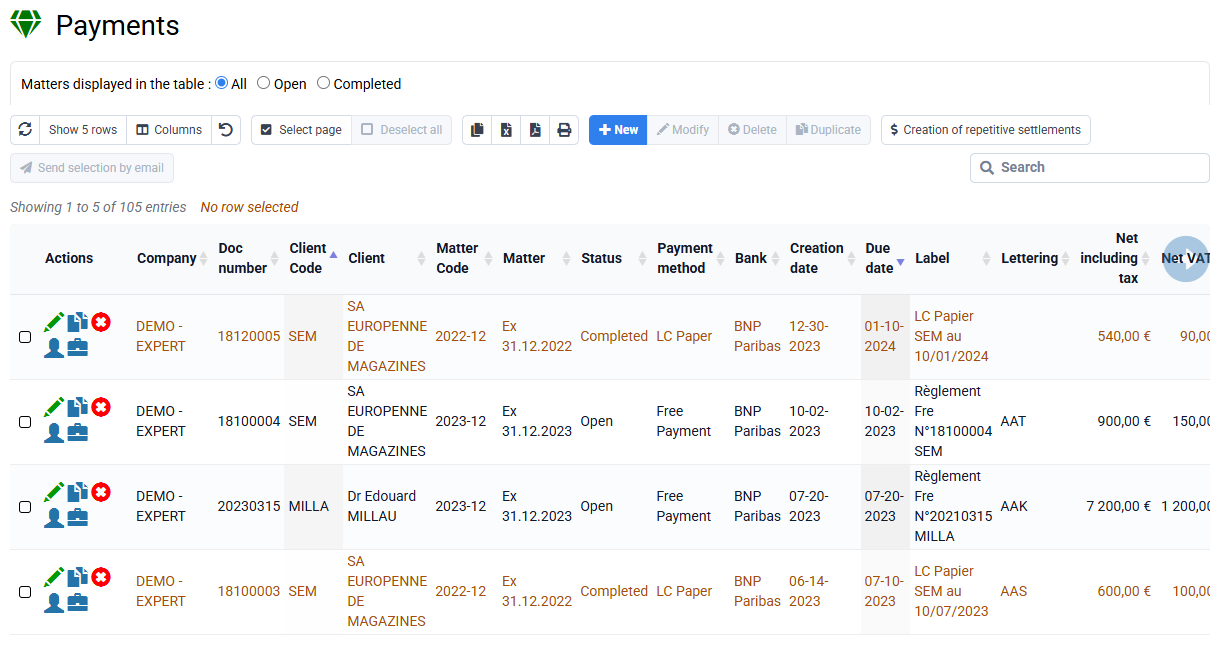
- On the « Billing > Payments », with the "New" and "Repetitive creation" buttons: direct debits to be made later, or checks or transfers received which are entered upon receipt and whose amount does not necessarily correspond to a precise invoice.
Tempolia implements two payment schedule concepts:
- The schedule linked to an invoice: An invoice can be planned with payment in several installments. The payment terms are pre-filled using information from the Billing tab of the customer file, and it is possible to modify these terms in each prepared invoice.
If an invoice is payable in several installments, then an annex is automatically added to the invoice to indicate the dates and amounts that will be paid, whether by direct debit, or if they are transfers or checks expected from the customer.< /p>
- The schedule for future direct debits: The direct debits which are provided for in the list of payments can be created or modified after issuance of the invoice, and be the subject of a sending of email summarizing the new collection methods. When a customer has cash flow problems and you agree on a schedule with them, you can create new suitable direct debits.
To send your direct debit schedule: go to the “Invoicing > Payments" menu, select the lines that correspond to this that you want to send to your client (after applying filters or searching if necessary), and click on the "Send selection by email" button. Then in the email template, select "Payment schedule", and modify it to your liking.
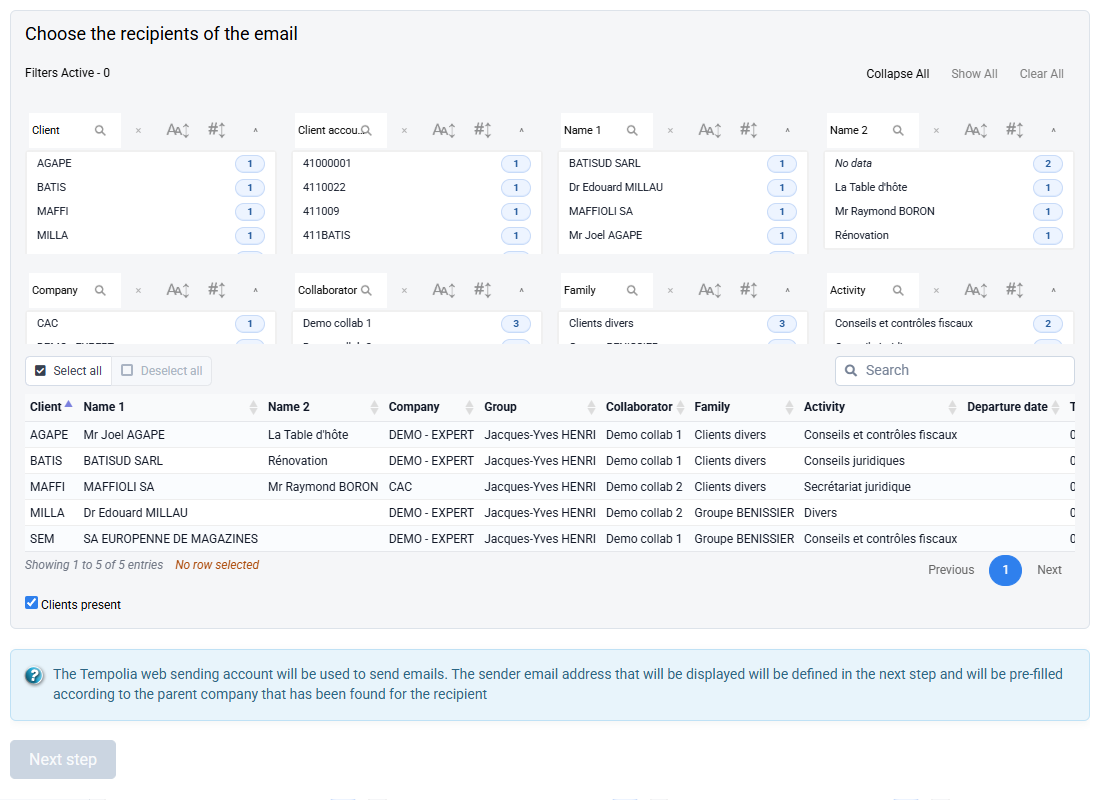
To keep track of your receipts, you can use the Aging balance report, available in « Tools > Reports and Editions > Aged balance ». A help text will be present to explain how to use it. An aging balance is an accounting tool for listing invoices to be collected, showing the number of days past due.
For the aging balance to take into account the invoices already paid, you must first enter your payments and proceed to a lettering.
Lettering consists of making an association between invoices and payments, and possibly with regularization entries called Miscellaneous Operations.
Lettering is done on the « Billing > Customer movements » with the "Automatic lettering" button or after manual selection of certain lines with the "Letter/Unletter" button.
To know how to enter payments, you can consult the following answer: What are the various ways to enter payments?
To follow up with your clients about unpaid invoices, you can:
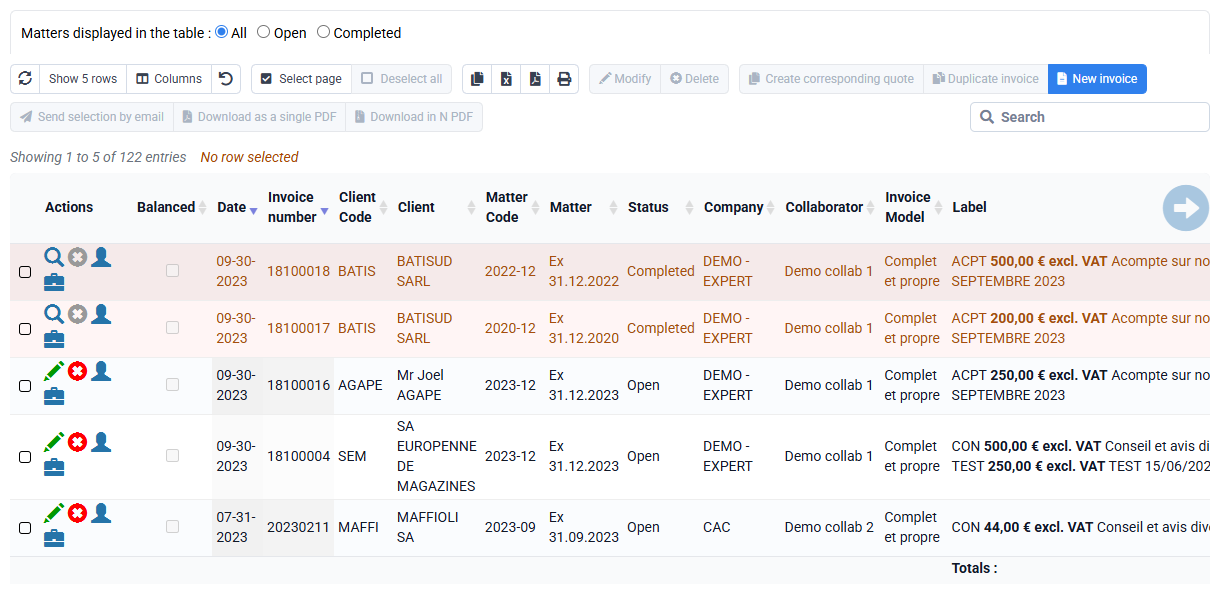
- use the function of sending invoices by email, in « Billing > Invoices » by selecting lines then clicking on the button “Send the selection by email"
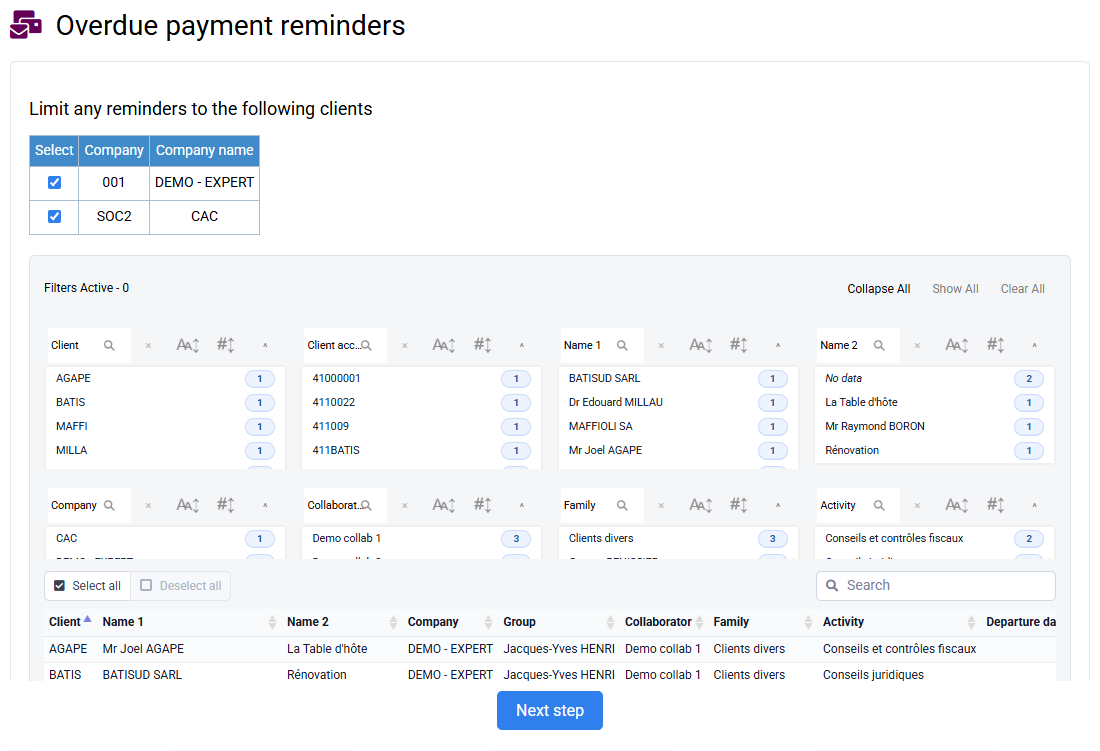
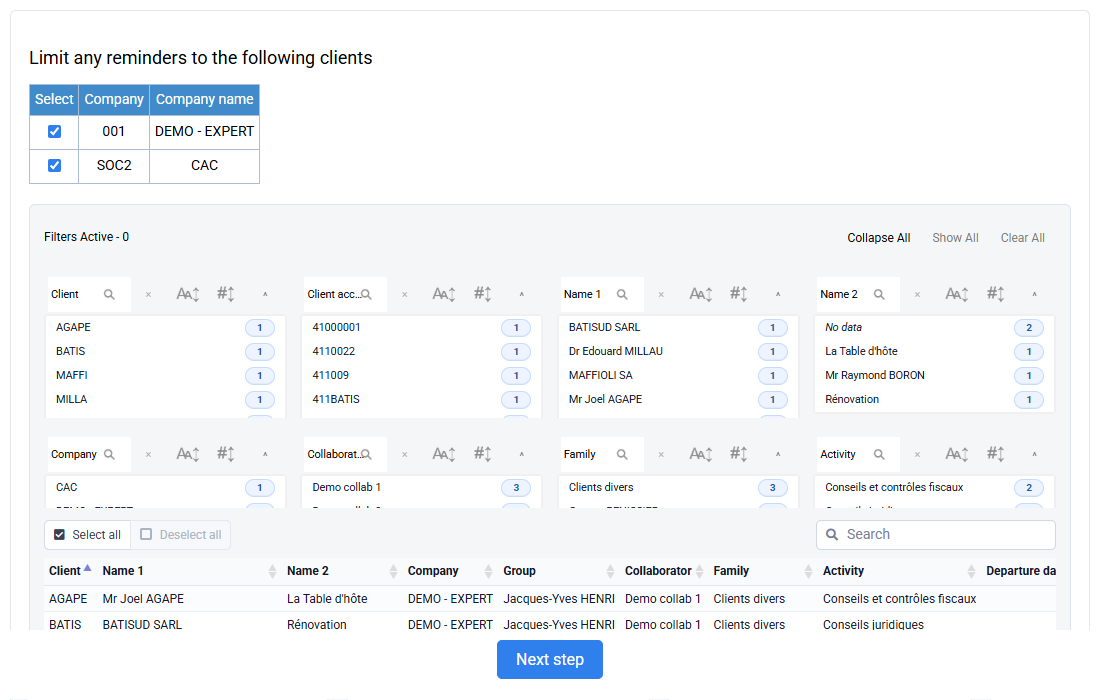
- or use the « Billing > Overdue payment reminders » on your entire customer portfolio or just certain customers, in order to generate PDFs or emails to follow up with your customers who have a non-zero balance on such date.
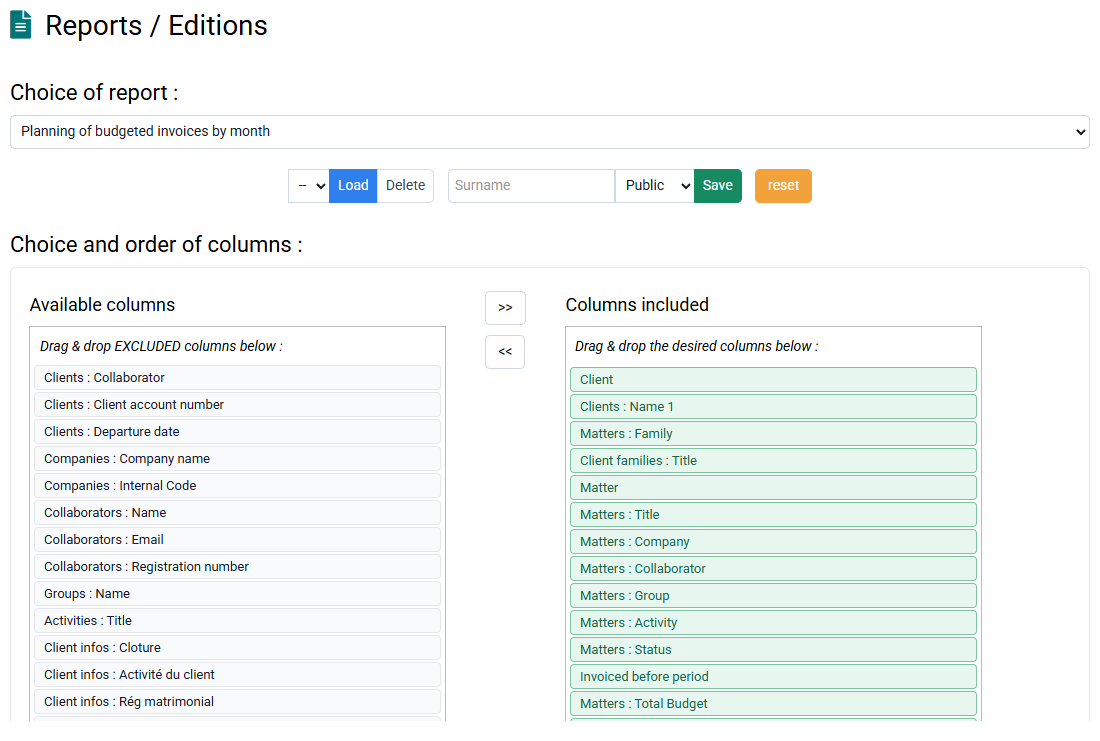
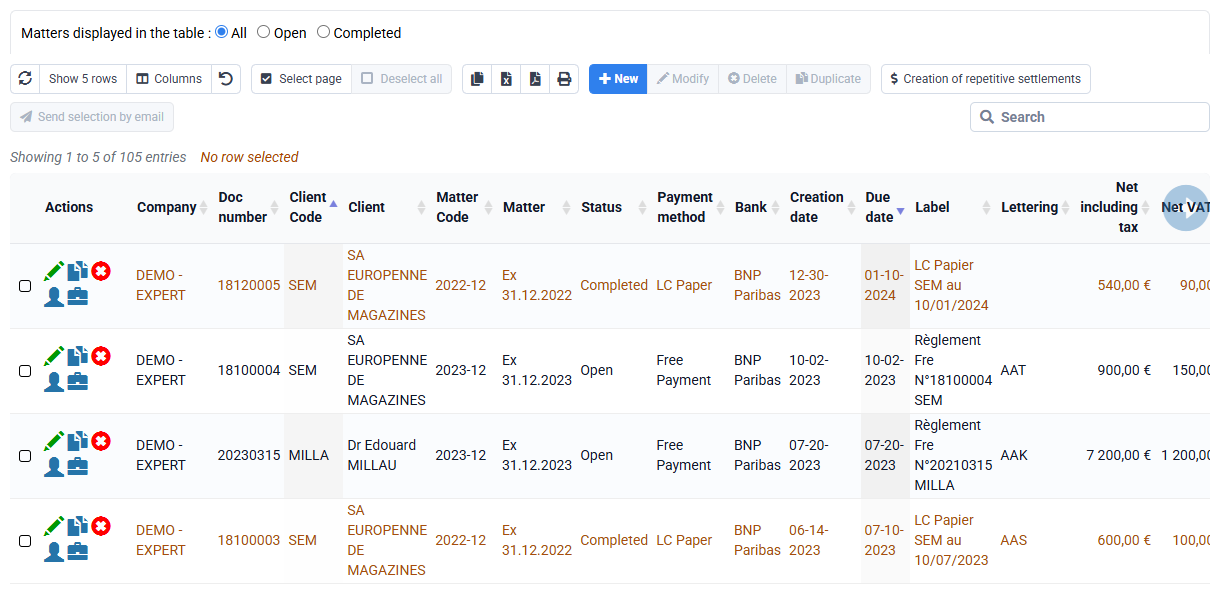
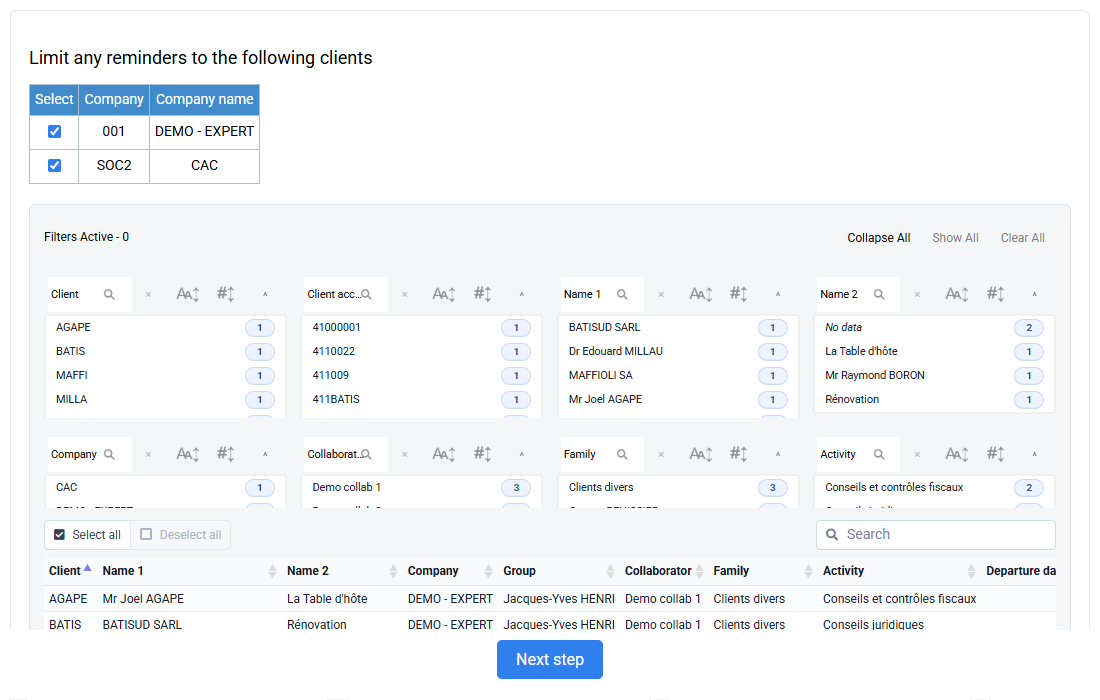
If a customer has not paid an invoice but does not appear in customer reminders, it is because, considering all of their payments and invoices to be paid, they do not owe you any money : his customer balance is negative.
In fact, customer reminders do not consider invoices individually, but are based on a calculation of the customer balance, which is done from customer movements:
- You have this information at the bottom of the statistics tab of the customer file.
- You also find it on the customer movements page by filtering on the customer.
- And you have an aged balance report, available in “Tools > Reports and Editions > Aged balance”, which is the heart of your monitoring of your collections, and a customer balance report.
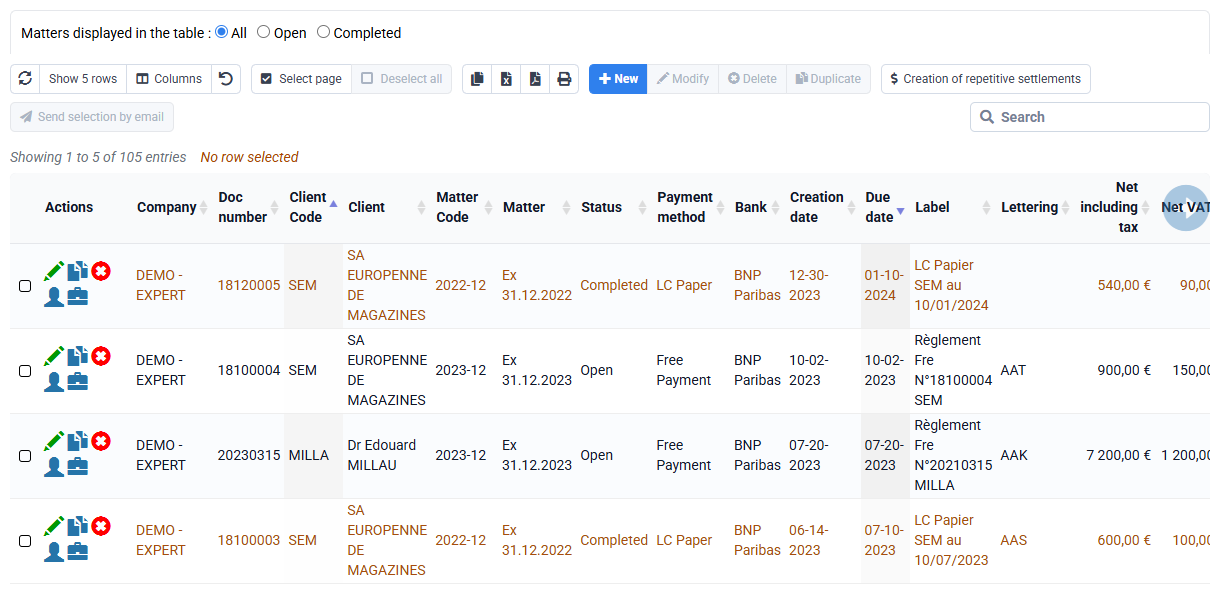
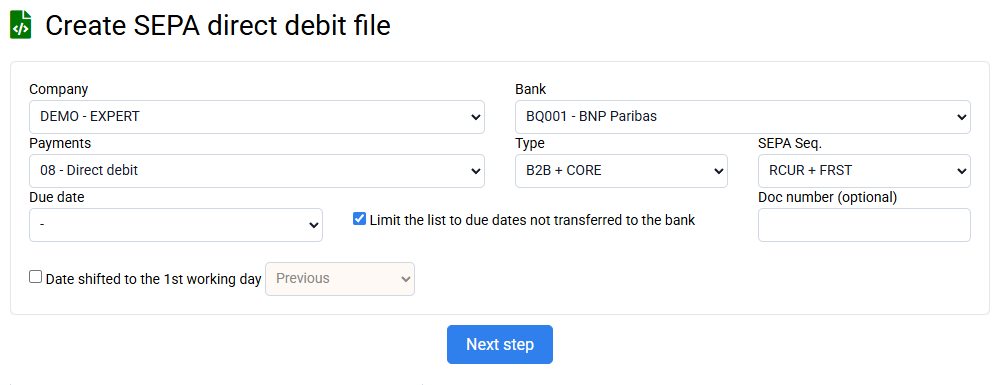
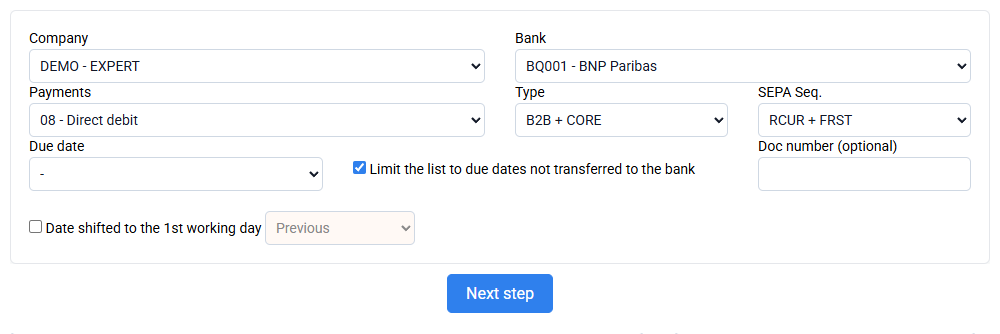
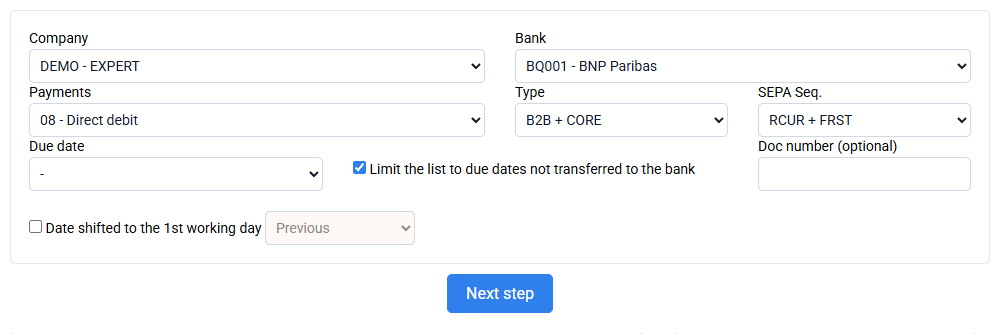
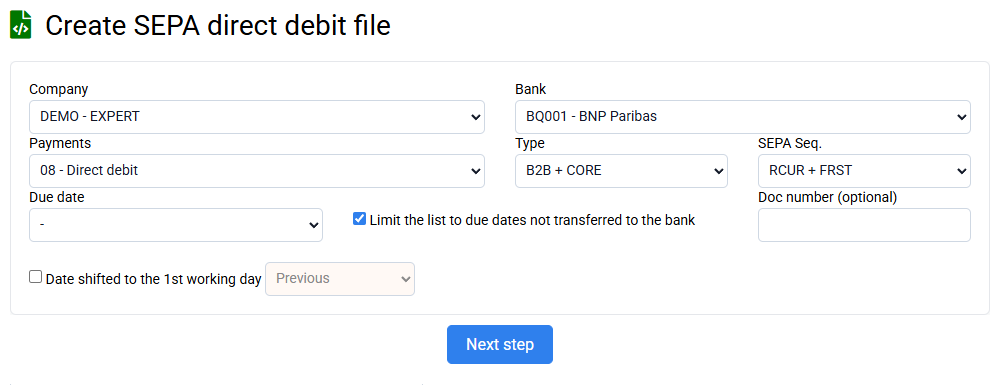
Check that your payment exists on the « Billing > Payments », on the correct due date, on the correct bank, and that it is indeed a direct debit. And that your client has a CORE or B2B mandate in his client file , depending on the filter you apply in your SEPA XML file generation.
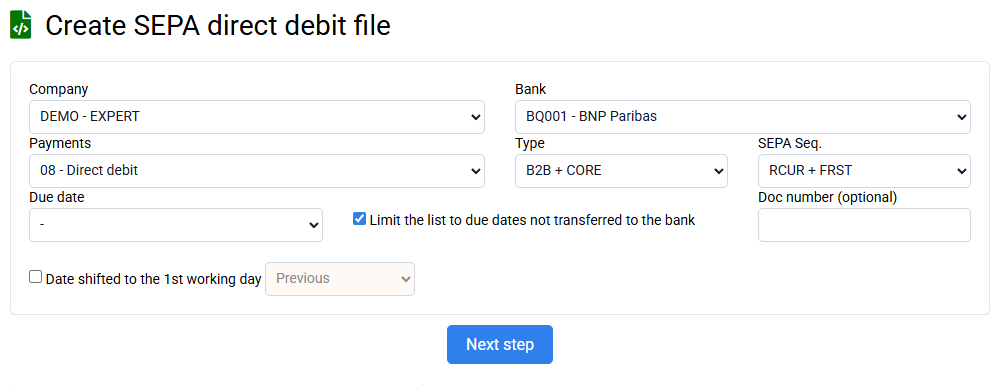
If the payments seem well programmed and everything is consistent, but your XML file generation does not find any direct debit to include, check that the due date in the form is correct, and that the part number is empty or is equal to that of all the samples to be included.
All direct debits that are to be integrated into your SEPA XML file must be present on the « Billing > Regulations », and will have been previously created using the methods indicated in the section: What are the various ways to enter payments?
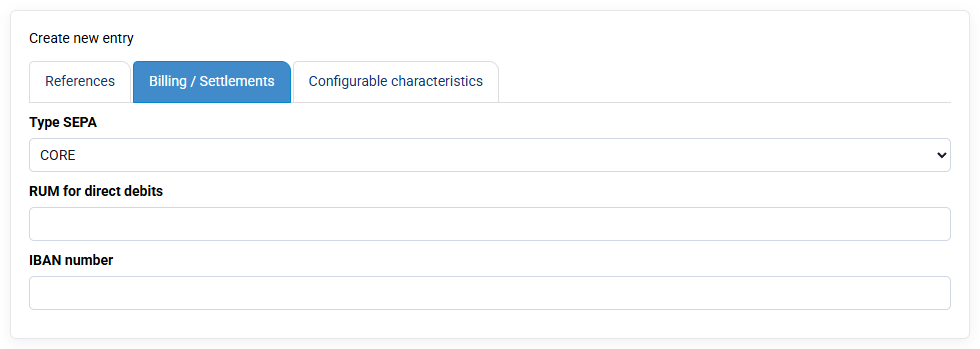
There are two types of mandates defined by the European SEPA standard: CORE and B2B
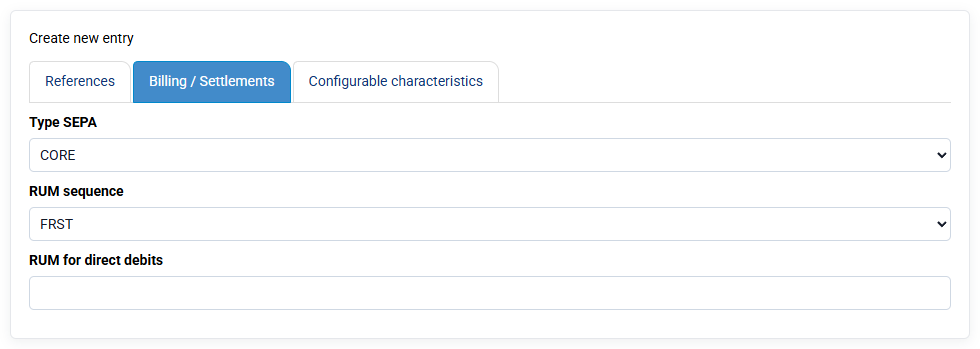
CORE direct debits are refundable within 8 weeks if authorized. It is not necessary to send the mandate to the bank of the person being charged, it is presumed that the customer has given his consent. In the event of a problem, the bank will request the mandate from the issuer of the direct debit, who must be able to send it the signed mandate.
B2B direct debits are exclusively reserved for businesses and are non-refundable. Administrations use this type of mandate to ensure that the flows received will not subsequently be contested. Some large companies also use them, but these mandates are more restrictive. It is mandatory to accept the mandate from the bank which receives the direct debit, otherwise the direct debit will be automatically rejected.
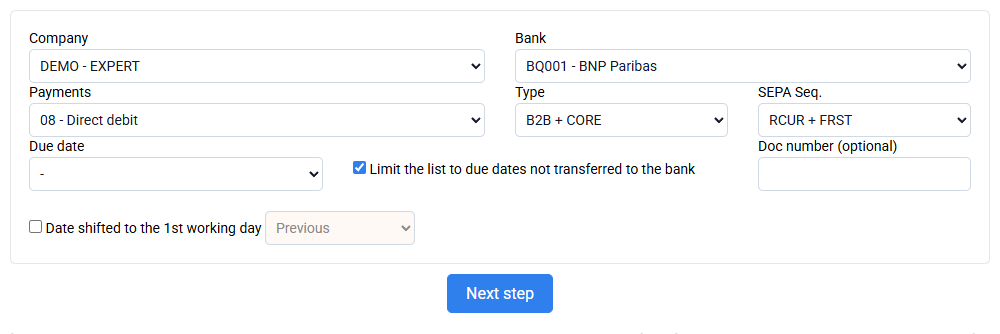
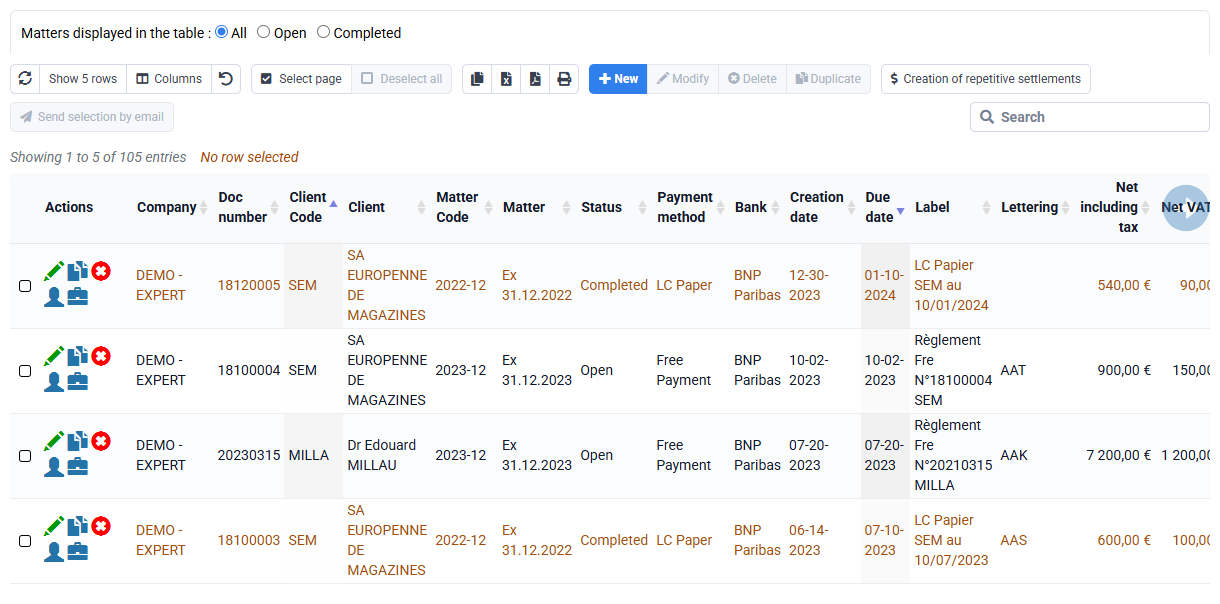
First, to group debits, ensure on the « Billing > Payments » page that the due date is identical for the debits you want to group. If necessary, modify this due date by editing the planned debit lines.
You can group debits for the same client by selecting the option "Group with other debits for the same client." This will create a single debit for the total amount, specifying the sum in the debit description. Grouping debits helps reduce bank fees, which are proportional to the number of debits processed. If only one payment exists for a given date and client, selecting the group option will have no effect. Therefore, you can safely select this option for all debits without distinction.
Reject codes are defined by the SEPA standard and are the same for all banks. The main reject reasons are:
- AM04 – Insufficient funds: the debtor’s account does not have the necessary funds.
- MD01 – Invalid mandate: the SEPA mandate is invalid, missing or not recognized by the bank.
- MD06 – Transaction disputed by the debtor.
- AC01 – Incorrect account number: the IBAN is incorrect, wrongly entered or non-compliant.
- AC04 – Closed account: the debtor’s account is closed.
- AC06 – Account blocked for direct debit: the account is blocked or direct debits are prohibited.
- ED01 – Creditor not recognized: the debtor declares that they do not recognize the creditor.
- RC01 – Incorrect bank identifier: the BIC or bank identifier is invalid or cannot be found.
To avoid AM04 rejects for insufficient funds:
Agreeing the debit date clearly with your clients can help. You can also leave enough time between sending the invoice and the debit date so that the client can make the necessary arrangements.
When you have a SEPA MD01 reject for a missing, inconsistent or invalid mandate:
Only your bank can provide the exact reason, but it is often a problem in the data present in the client record, such as a modified mandate date.
This may be due to a manual client change or a client data import that replaced existing data.
To correct this data, you can look at a SEPA XML file that did not generate a reject, check which mandate date was present and compare it with the mandate date currently in the client record.
If necessary, you can always generate a new UMR and have a new SEPA mandate signed.
When a client paying by direct debit changes their bank, update their IBAN and BIC in their client record. There is no need to modify the direct debits already scheduled, as these will automatically be debited from the new account, and no further action is required.
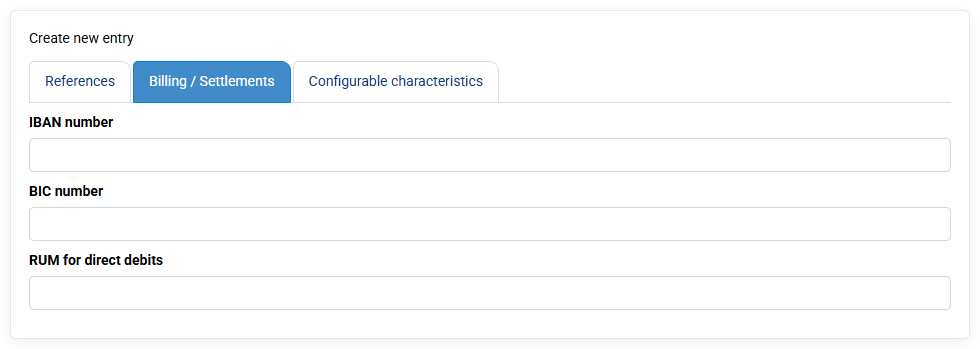
Indeed, the existing mandate remains valid without requiring a new signature, as confirmed by the Banque de France, which stated that the mandate remains valid. The RUM remains unchanged, and an amendment is automatically generated and included in the SEPA XML direct debit file to link the new mandate to the initial record. This automated process ensures compliance with SEPA regulations and prevents errors in future direct debits.
A direct debit rejection is a negative direct debit with the due date being the effective date of the refusal by the bank.
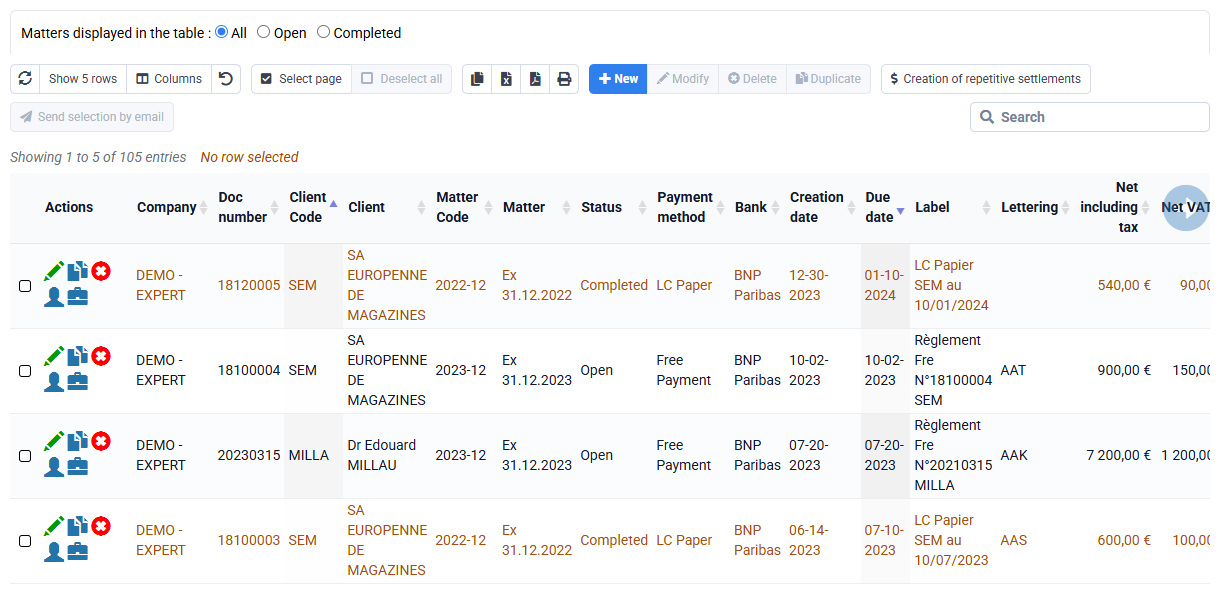
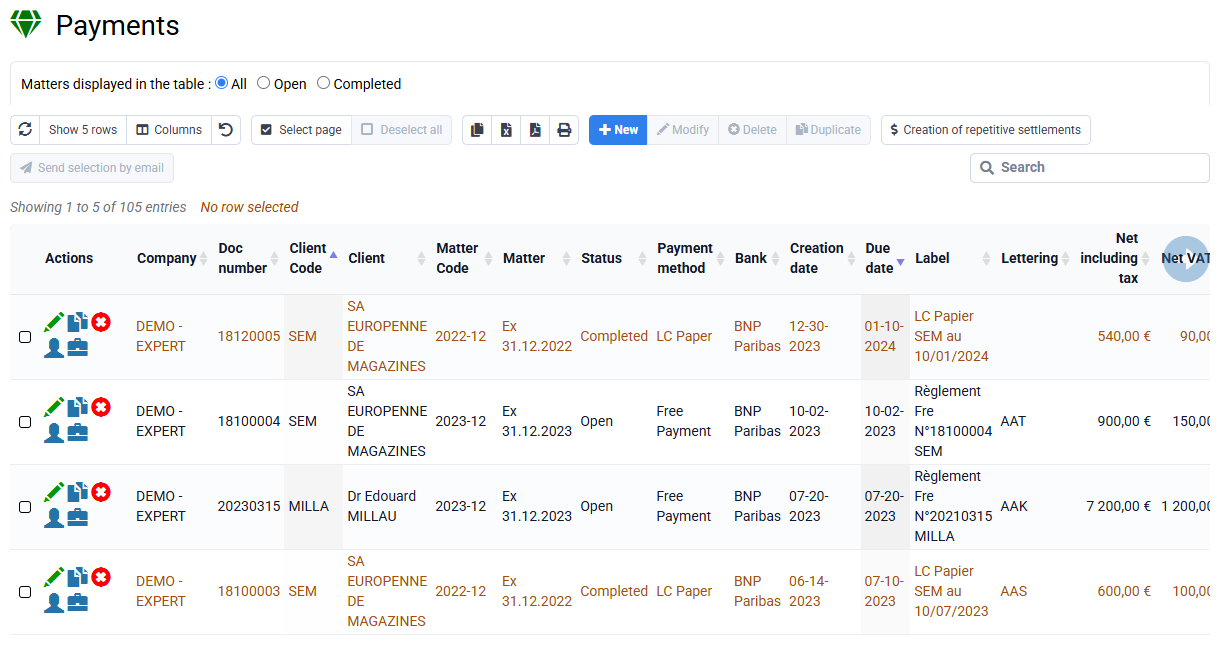
To keep traceability of the bank deposit then the rejection and finally a new bank deposit at a later date, it is not appropriate to simply modify the settlement line to postpone it to another remittance day in the bank. Therefore, to manage a direct debit rejection, you can proceed as follows on the « Billing > Payments » page:
- Duplicate the direct debit line to constitute the direct debit rejection by changing the amount to negative: this line will cancel the amount of your direct debit.
- Duplicate the direct debit rejection line by putting the desired date of the new direct debit, and possibly add rejection fees.
Tempolia provides native SEPA direct debit management, allowing XML files to be generated directly from issued invoices. For accurate monitoring, it is possible to retrieve your bank accounts through our partner Bridge, or to import bank transaction files, and the system will try to automatically match incoming transfers to invoices. An automatic matching tool is integrated to make this reconciliation easier.
In the event of a direct debit reject, a specific feature creates a reject entry. This entry negatively offsets the initially expected collection. The movement is visible in billing statistics for the outstanding balance.
The aged balance then reflects the remaining amount due. The software does not automatically reschedule the direct debit, leaving the user to decide whether to remind the client or plan a new action, because several approaches are possible. Client reminder tools, by letter or email, are available to manage overdue amounts efficiently.
We can put a clickable card or Paypal payment link in your invoices.
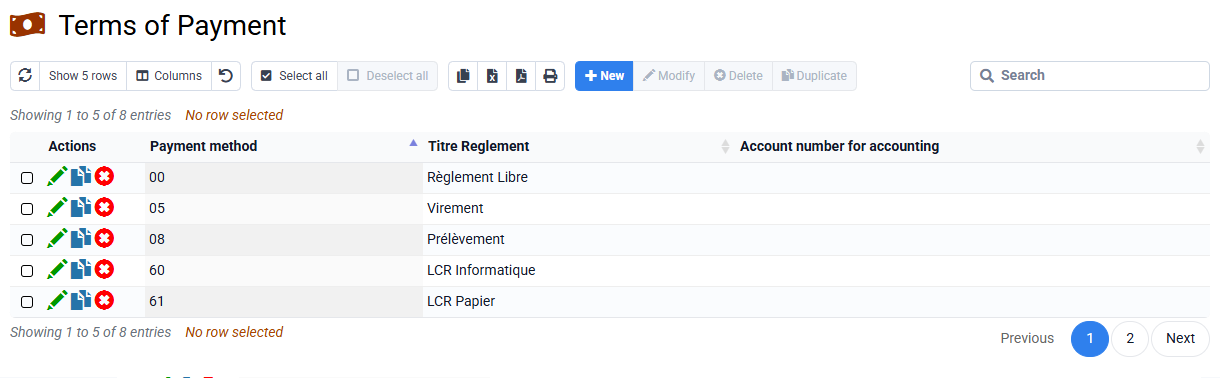
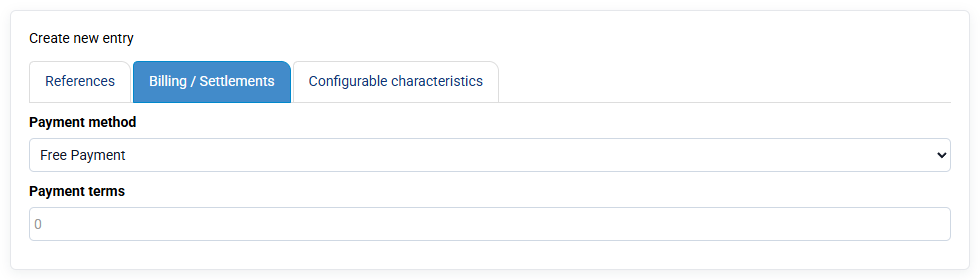
You can put invoices in credit card payment method (to be created in the list of payment methods) or in free payment, and the payment link will appear in the PDF.
You can use bank or Paypal payment solutions:
- If you use Paypal, you will have commissions from Paypal, and no fees on our side. You send us your Paypal account email, and the interconnection is done automatically, everything is managed thanks to a complete integration already in place.
- If you use your bank and a VAD contract and an electronic TPE, you must negotiate with your bank the monthly fees and those applied for each payment. Then, when you have your contract, you send us your identifiers, and we integrate the payment module specific to your bank. This requires fairly cumbersome configurations and production launch procedures; we charge for the implementation depending on the solution chosen, and then we do not charge any fees for collections. We know how to manage credit card payments with all major French banks thanks to our expertise in eCommerce.
Paypal is perfectly suited to small or medium volumes, and a bank VAD+TPE to medium or large volumes.