

Help - Questions / Answers
Events / deadlines
- To properly manage our customer commitments, how can we automate event creation so that an employee knows what they need to do for a given date?
- How are the concepts of deadlines and events linked?
- If I delete an event related to a permanent deadline, why does it automatically recreate itself?
- Can I view permanent deadlines in my forecast calendar?
- How to use the due dates of a typical client to quickly complete those of a client file?
- How to manage events and deadlines when an employee leaves the company?
- How are event viewing rights managed?
- What are the case types and case deadlines for?
- How to define the employee to whom events automatically generated from deadlines by customer will be assigned?
- Can I freely change the permanent deadlines?
Events are an extension of deadlines:
- deadlines are a planning tool: thinking about doing something in the future. For example, thinking about recurring tax and social declarations with an accountant;
- events are a memorization tool to keep track of various actions.
The articulation between deadlines and events follows the following principles:
- permanent customer deadlines (undated, i.e. without a specified year) allow you to automatically create dated events (which can be tracked as to their completion) according to the settings on the « Configuration > General Options », onglet « Events » page. Deadlines and events then live their lives autonomously, i.e. subsequent changes to permanent deadlines or corresponding events are free and without impact on each other.
- the deadlines by business (dated) generate events (capable of monitoring as to their achievement) in real time. The events are the reflection of the deadlines by business, i.e. the labels, dates and planned collaborators can only be modified via the deadlines by business. At the level of these events, only the actual dates and collaborators can be modified.
Events can have different origins:
- be scheduled punctually => use event codes,
- be generated automatically from permanent deadlines per client, X months before a deadline (see « Configuration > General options »),
- be generated automatically from one-off deadlines per case.
Once an event is generated from a permanent deadline, it can evolve without needing to modify the permanent deadline, whether for the scheduled employee, comments, etc.
In "Configuration > General options > Events tab", you have the configuration that defines how the generation of events from permanent deadlines works.
You can activate the option "Create customer events based on permanent deadlines" in the menu and define the months concerned, so that Tempolia automatically creates the missing events based on the scheduled deadlines at each user connection. Indicate how many months before and after you want to process. If the previous months are > 0, then it creates the events related to the deadlines for the recent past (for example, in April you set a deadline in March because you had forgotten it, the idea is to make it decline into an event).
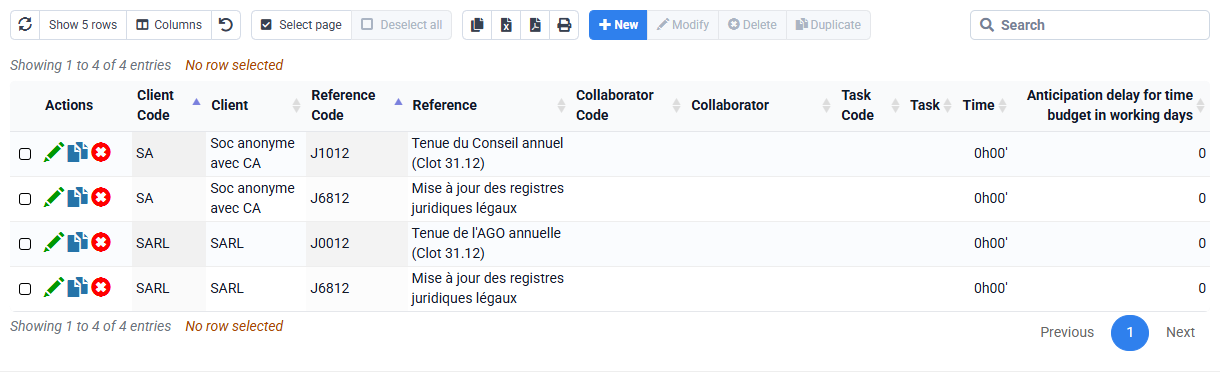
The events created automatically are assigned to a particular employee. By default, the events are attached to the employee attached to a case (the mission manager). It is possible to specify in « Events > Permanent deadlines attached to a client » the employee attached to such and such deadline, and then it will be used to automatically assign events to him instead of the mission manager.

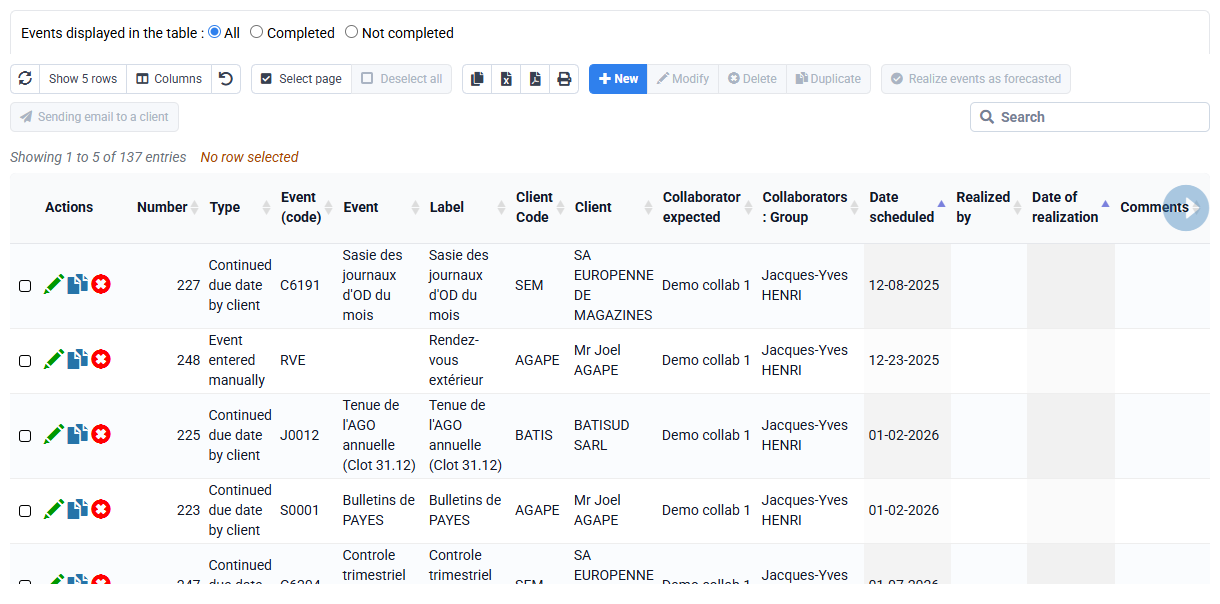
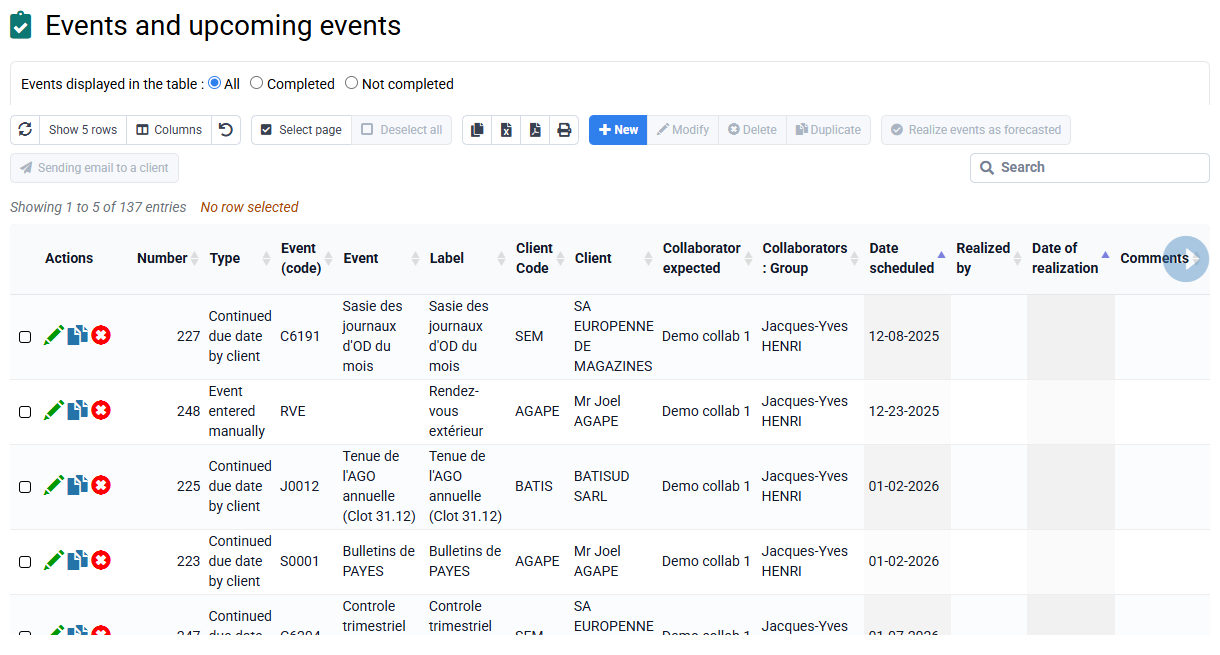
Then, each employee has a list of events that tells him what to do for such and such a date.
The manager can monitor the events of all employees in his group (see setting to be made in « « Employees > Login and employee rights » > Scope of rights: Others ») or of the company.
Events can actually be generated automatically from permanent deadlines if they are missing according to the automatic generation criteria (see « Configuration > General options »).
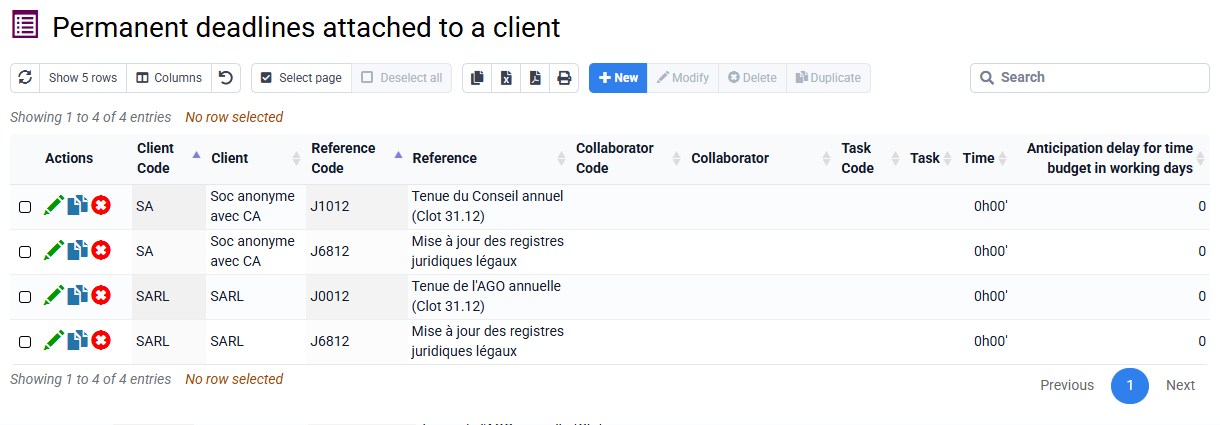
Permanent deadlines are obligations that you have with your customers, which must be managed: for this purpose, events are created and must be managed by a particular employee for a particular date.
If an event is completed, you must use the functionality that allows you to change it to completed, which sets a completion date and a collaborator who completed it.
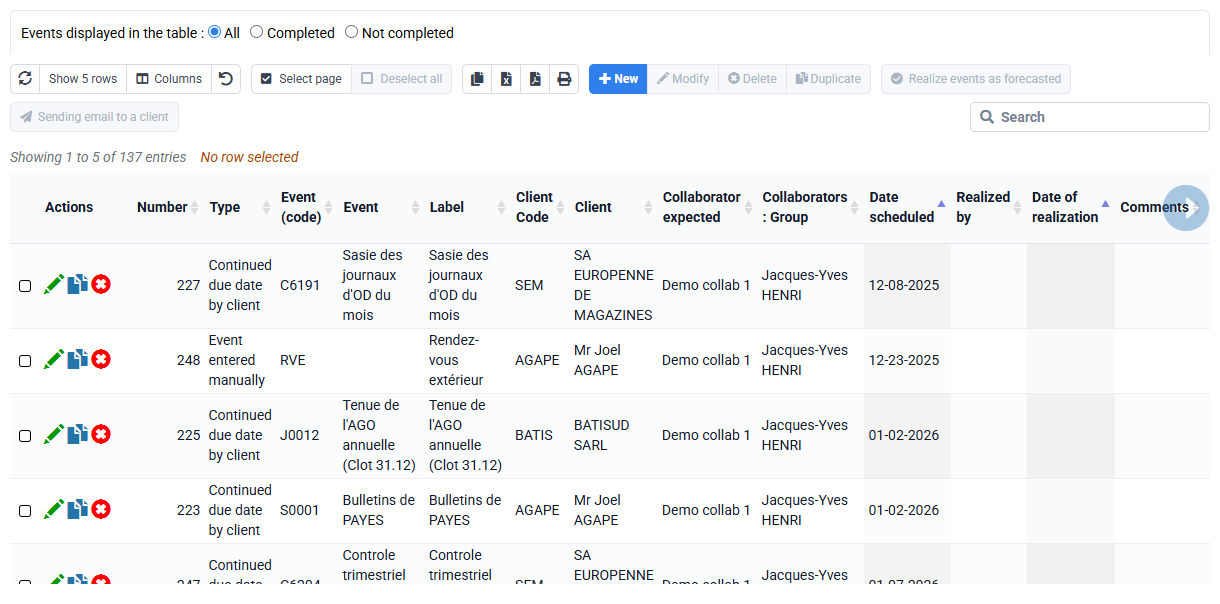
If you delete it, the system will detect an inconsistency with the deadlines, and recreate it within the date range set in the general options, which indicate a number of previous months and a number of subsequent months.
To delete commitments that you have with your customers, you must delete the associations between your customers and your deadlines, and then you can delete possible events that had been planned.
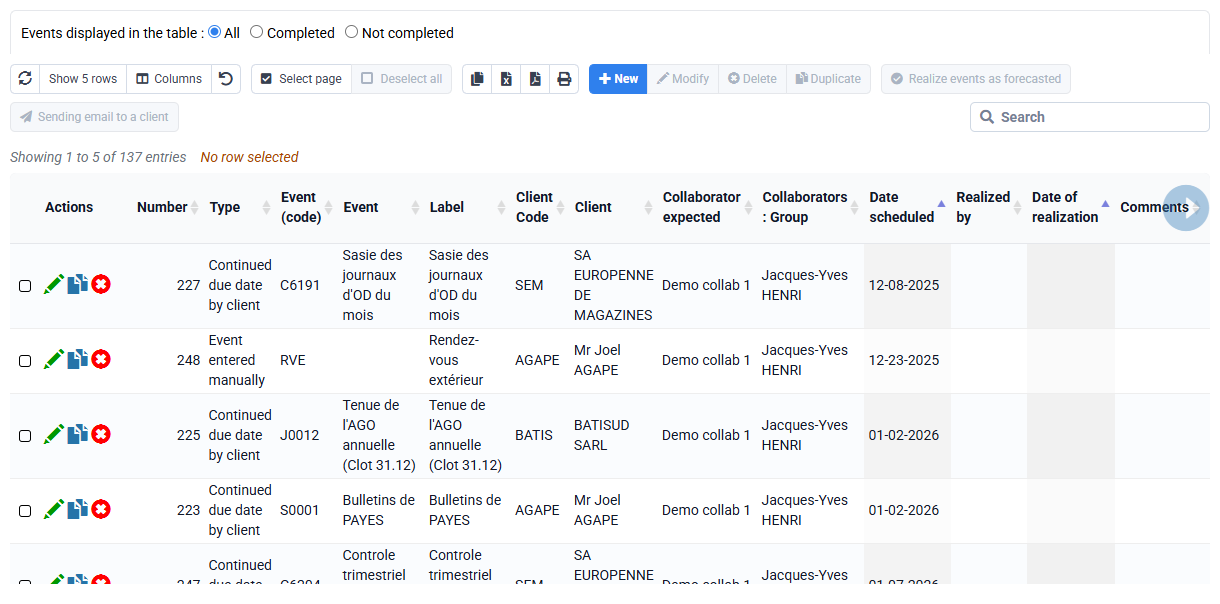
Events are associated with a forecast date, and with a completion date when they are completed.

They appear on the forecast calendar, as well as on the completed calendar.
They can be generated automatically from permanent deadlines per customer, X months before a deadline (see « Configuration > General options »)
Permanent deadlines are monthly commitment patterns, which are reproduced from year to year, hence the name permanent deadline.
Permanent deadlines do not have a notion of date as such, which is why they do not appear in the calendar.
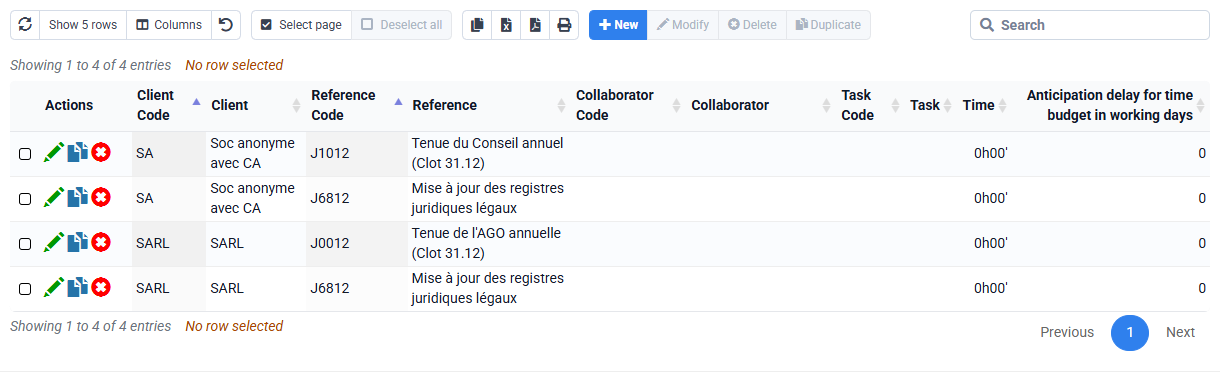
NB: The interest of having two conceptual levels can be seen in long-term management: once an event has been created from a permanent deadline, it can be reallocated to another collaborator, be the subject of comments, ... without this affecting the permanent deadline which remains set for the years to come.
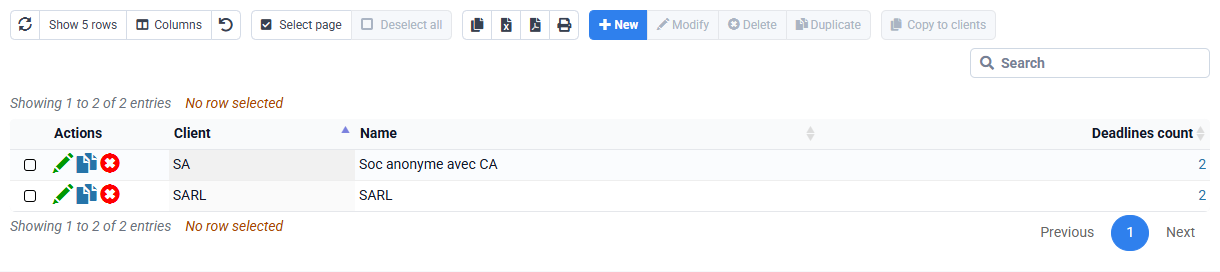
On the "Events > Typical clients" page, you can manage typical clients, which are client models that can support deadlines in order to copy them later to real clients to save time.
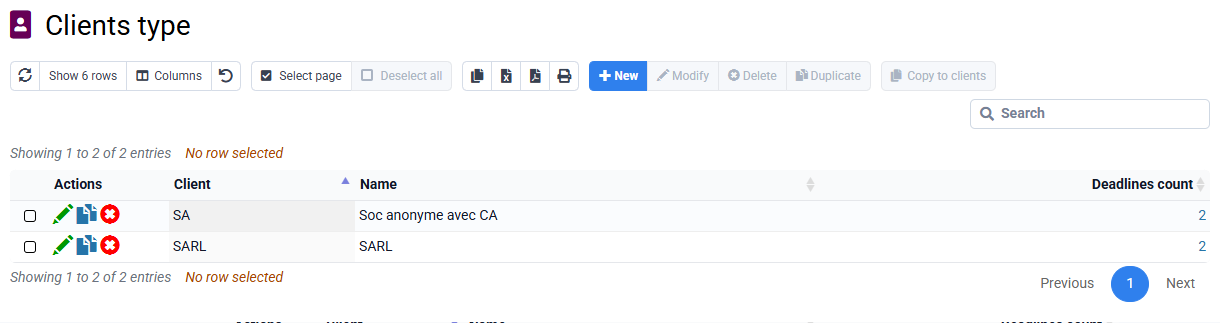
If you check a line, you have the "Copy to clients" button that is activated, then you select the clients to which you want to copy the deadlines.
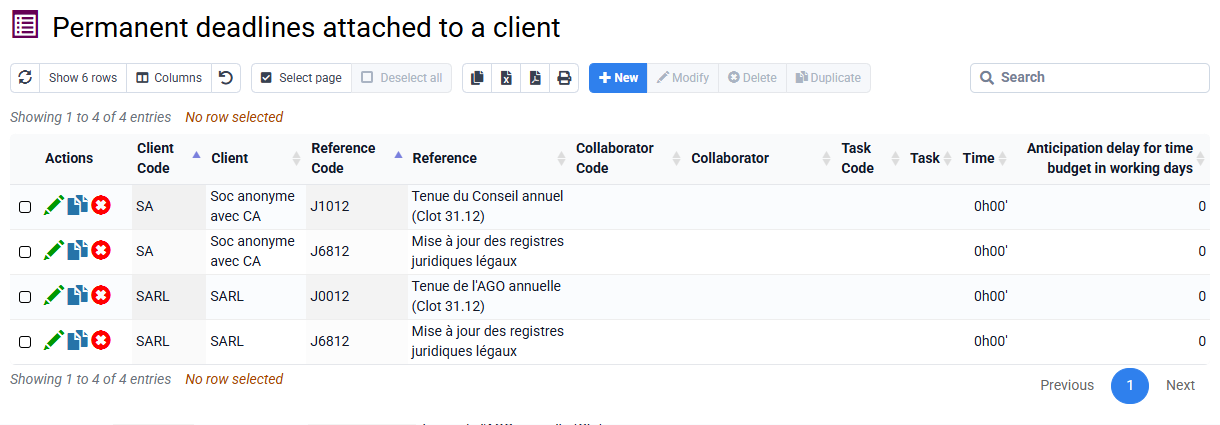
You can go to the « Events > Permanent deadlines by client » page to modify the collaborator assigned to a deadline.
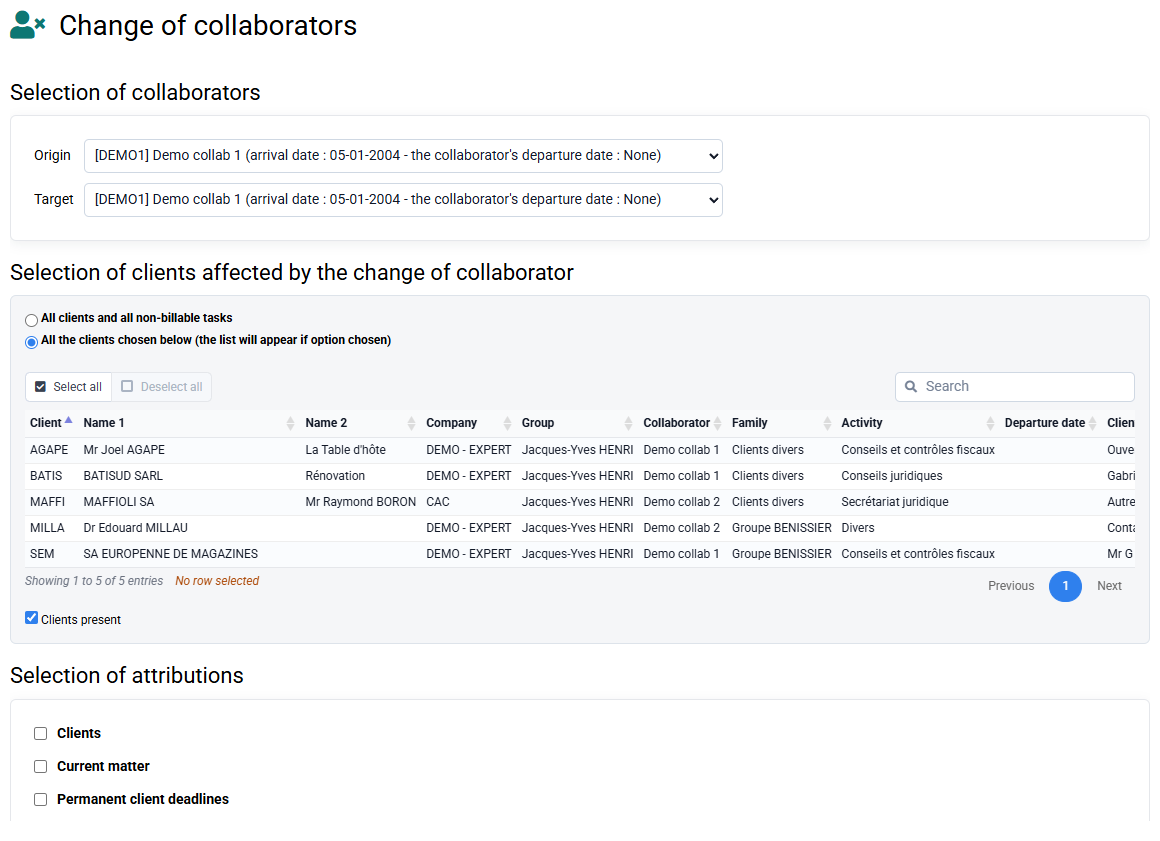
The « Collaborators > Change of Collaborators » page is made to reallocate data when a collaborator leaves.
You also have the possibility to reallocate the permanent deadlines of one collaborator to another with the "Permanent deadlines by client" page.
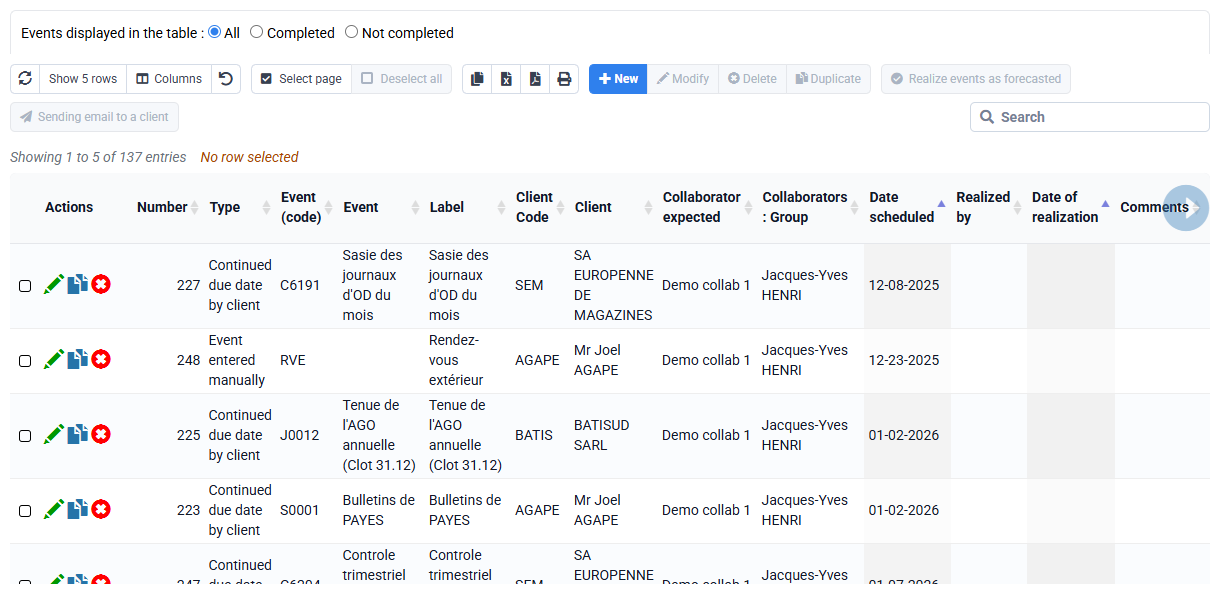
The rights to know if we can see certain events come from the "Scope of rights: Others" setting which are applied to know what we have the right to see in the events.
If we have rights on other people, by default when we arrive the first time after logging in on the events page, an automatic filter is set to see only our own events (if we are the intended collaborator, or the one who carried out)
The bell at the top of the page counts down all the events to be processed for us (date limit according to the general options, and filter on yourselves unless we are an administrator)
Typical cases are only used in the context of case-specific deadlines.
For example, this is to say that there is a series of operations to be processed for a transformation of an SARL into an SAS, and these operations are defined in the case-specific deadlines linked to a typical case of transformation of an SARL into an SAS.
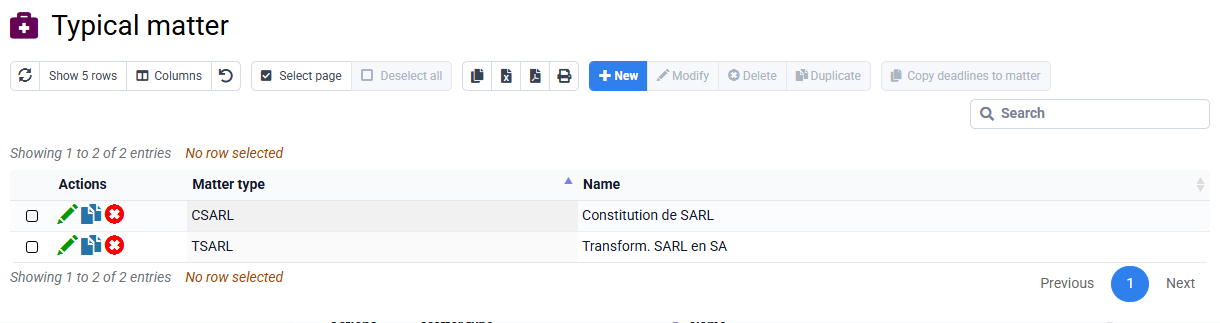
When case-specific deadlines are copied from a typical case to a case of a real client, you specify a start date to start the staggering of the various events to be created. You can then adjust certain dates if necessary in the case-specific deadlines of the new case.
When you go to « Events > Permanent deadlines attached to a client », you can search for the deadlines that interest you and modify the collaborator in charge of the deadline.
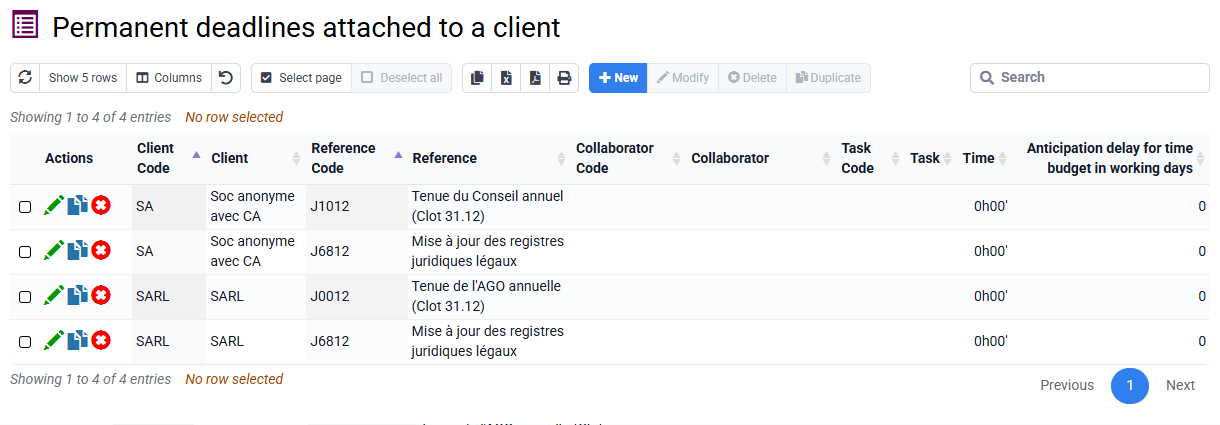
This collaborator is the person to whom the deadline is associated, and it is therefore to them that the event that will be created will be associated, in the "Planned Collaborator" field of the event.
When X months remain before the deadline, an event will be automatically created and will be associated with this collaborator. This collaborator will therefore have this event to complete, it will appear in their calendar, and they will have a popup if it is late.
When copying a deadline with the "Copy to clients" button, in the form on the following page there are options to manage how the collaborator will be modified when copying. There is in particular an option to take the collaborator in charge of the client
When manually creating the association, with the "New" button which opens a form with 3 fields: client, deadline, and collaborator. If the collaborator is not filled in, it will be filled in with the collaborator in charge of the file.
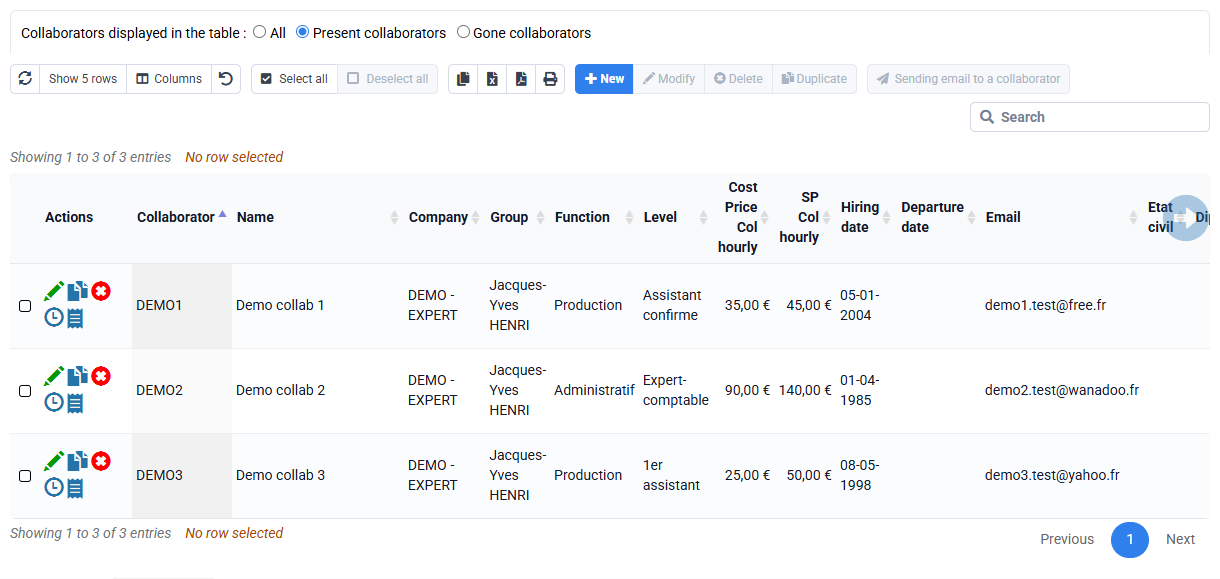
When installing your database, a list of permanent due dates was created.
You can modify all permanent due dates at your convenience. This is your database, filled when installing your account with default data, and that you can change at your convenience.
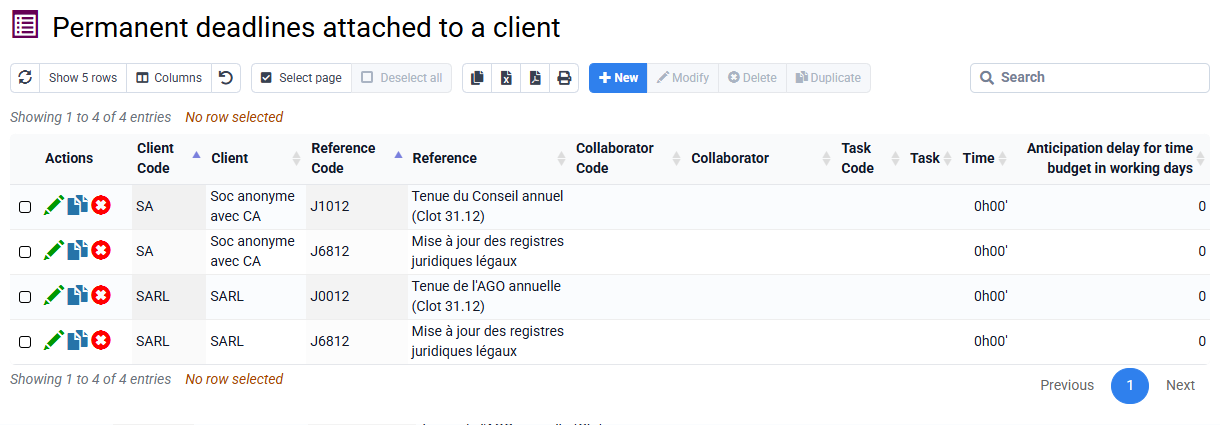
You can keep due dates that you do not currently use but could use. You can delete them if this is more appropriate for your ease of management.
And you can add lines, and modify existing lines at your convenience.
If you modify a due date, it will be modified at the scale of your database, and this will therefore have an impact on all customers who are associated with this due date (already associated, or associated in the future).