


Help - Questions / Answers
General operation
- How can I archive data that I consider too old?
- How do I manage several companies in Tempolia?
- Is the administrator account an employee?
- What should I do when I need help?
- How can I analyze my data for company management and management control?
- How can I use bonus/loss and cost-price margin for detailed mission profitability analysis?
- Why can't an invoice be sent by email?
- How do I invoice foreign clients in English or Spanish?
- How do I generate reports to analyze my activity, for example by client, matter or employee?
- How do I create a pivot table for management control?
- How do engagement letters work in Tempolia?
- What do Tempolia’s cash and client working-capital indicators measure?
- How does multi-currency management work in Tempolia?
- What does NF525 compliance mean in Tempolia?
- Which data does Tempolia trace for NF525?
- What should be done during an audit or NF525 evidence request?
When you no longer provide services for a client, you can assign a departure date to mark that client as gone. The client will no longer appear in the list of current clients and will no longer be proposed for new entries, but previous data remains present and nothing is deleted automatically.
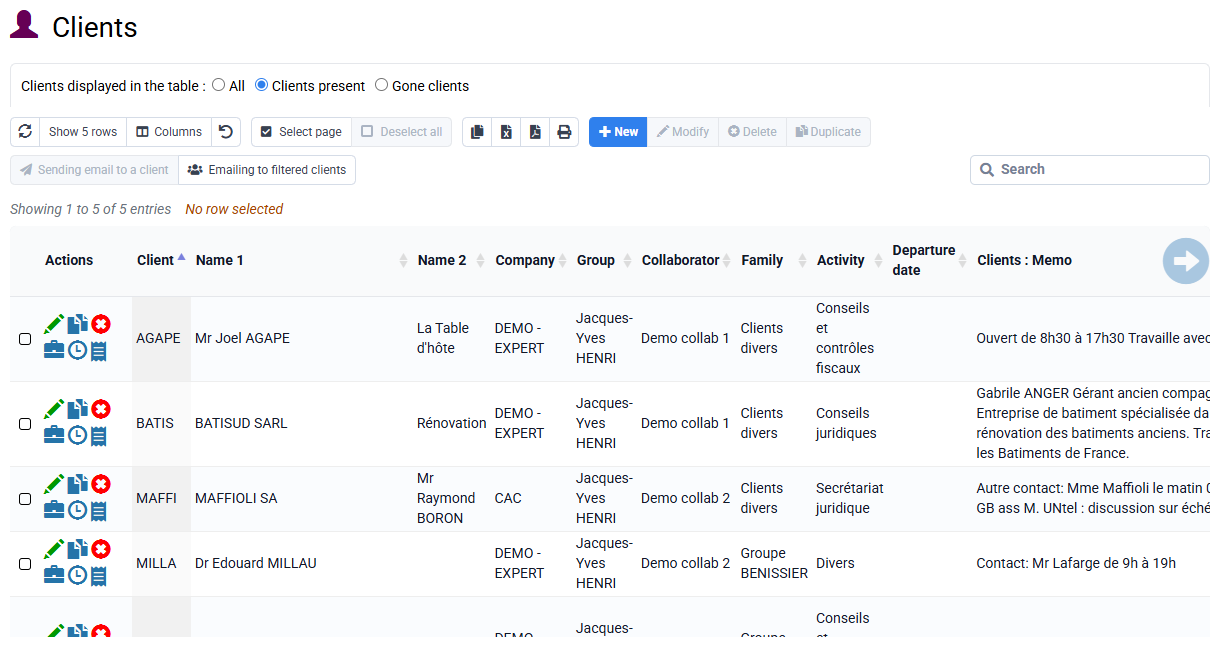
When an employee has left, the same principle applies: you can assign a departure date to the employee.
As part of client management, matters can be marked as completed or closed:
- Completed matters are no longer available for entry, unless they are reopened, and they still contain all their data. They can be reopened later.
- Closed matters have all their related data deleted, such as time, expenses and invoices. Only a trace of the matter’s existence remains. Since everything else is deleted, a matter should typically only be closed after 10 years.
Deleting a matter is only possible if the matter has previously been closed.
It is also possible to delete non-billable time and expenses for a defined period.
Tempolia keeps a history of deletions and closures.
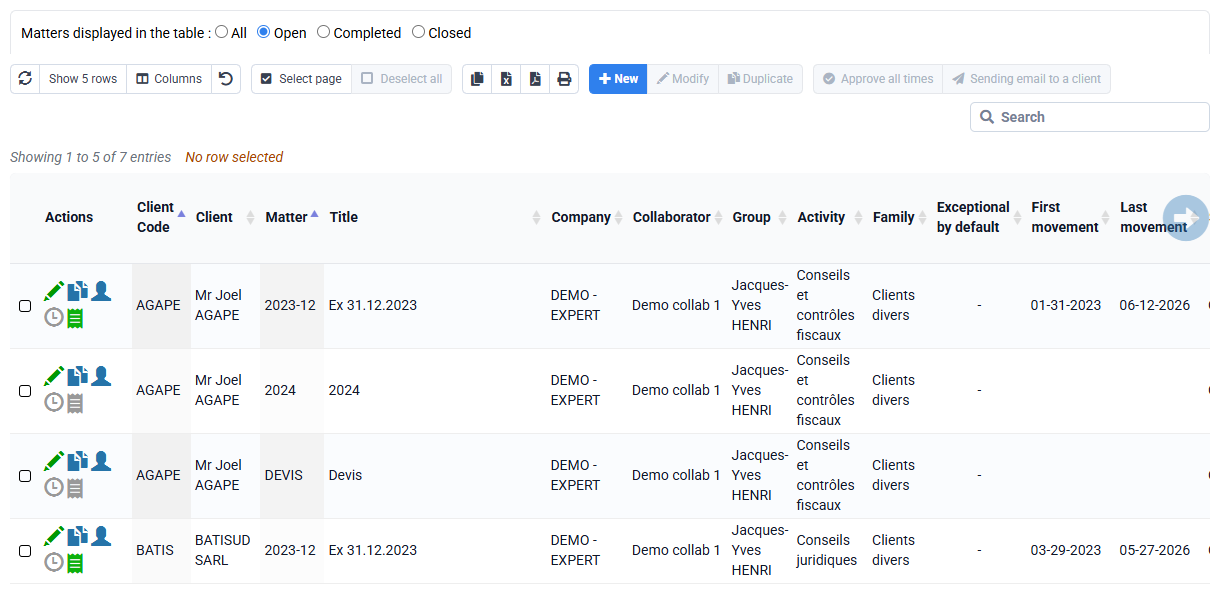
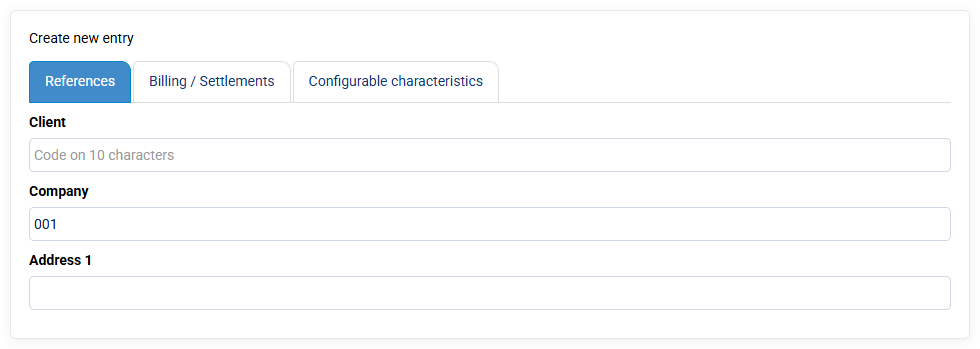
You can manage several companies at the same time with the same Tempolia account, with no impact on billing for our software. Companies configured in Tempolia can be distinct legal entities, but also establishments of the same company. By default, each company has its own invoice numbering sequence. Several companies can also share the same numbering sequence: this setting can be configured by Tempolia support, which will enter in the relevant company the code of the company whose sequence must be reused. Each company can have its own invoice template or use a shared template in which the company details and logo are automatically adjusted.
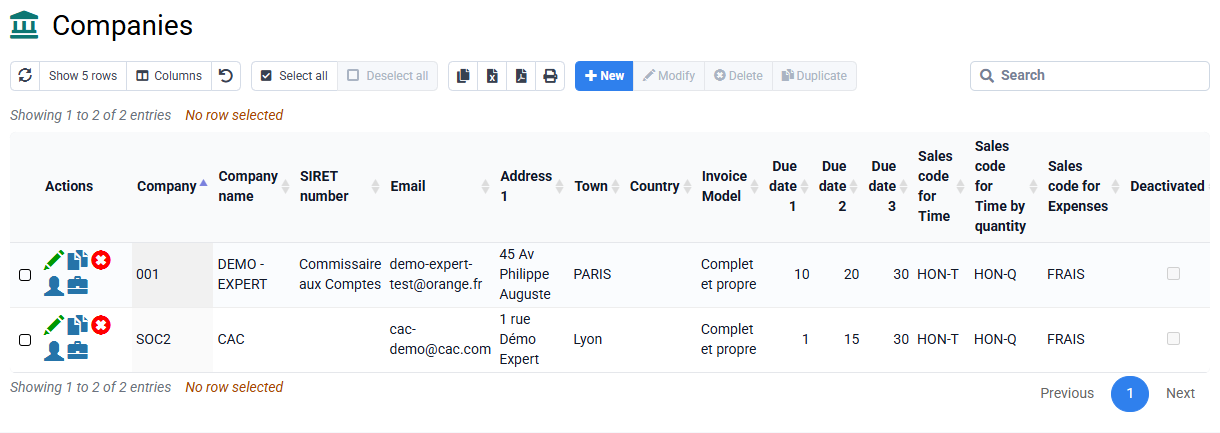
Clients can be shared between several companies. In that case, at least one matter per company must be created to group the services of each company.
Access rights, reports and printouts can easily be limited to one or more companies. Internal services, meaning time or expenses incurred by employees of one company for matters of another company, are covered by a specific report.
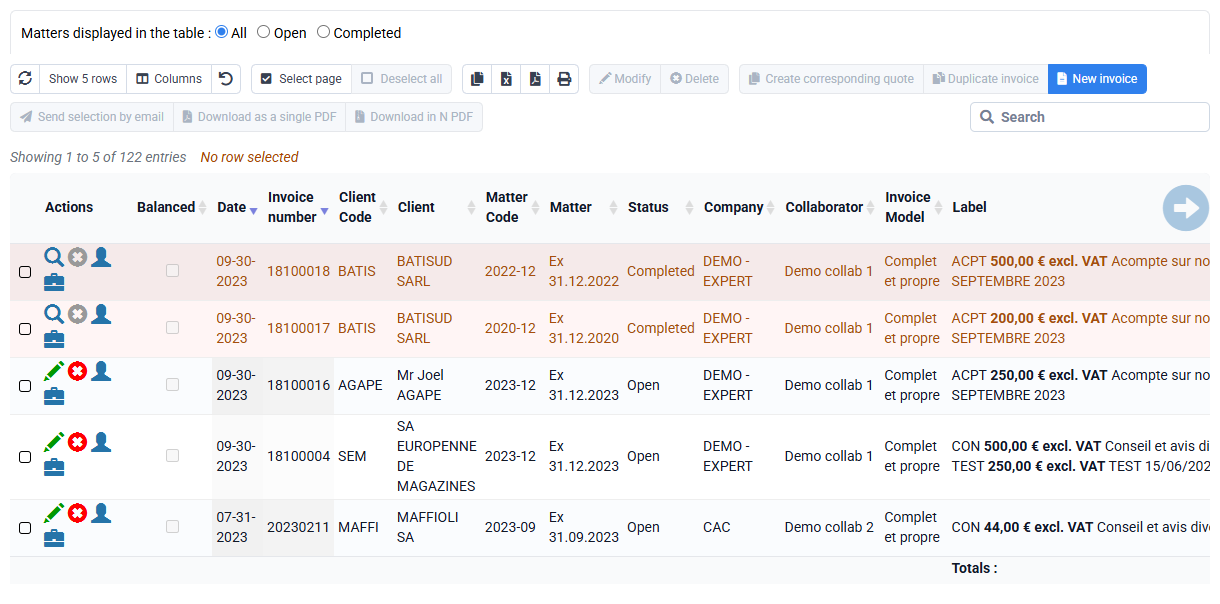
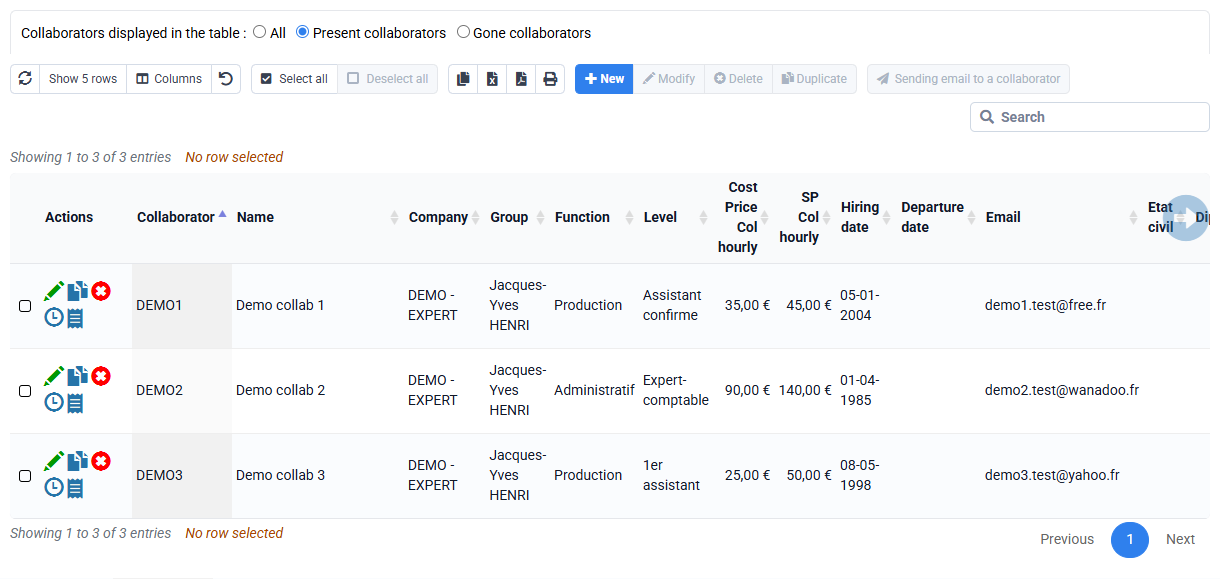
In addition to the employees present in the database, it is possible to log in as Administrator to manage all features without access-right limitations. This Administrator concept is not attached to an employee account: it is a super account, and it necessarily exists.
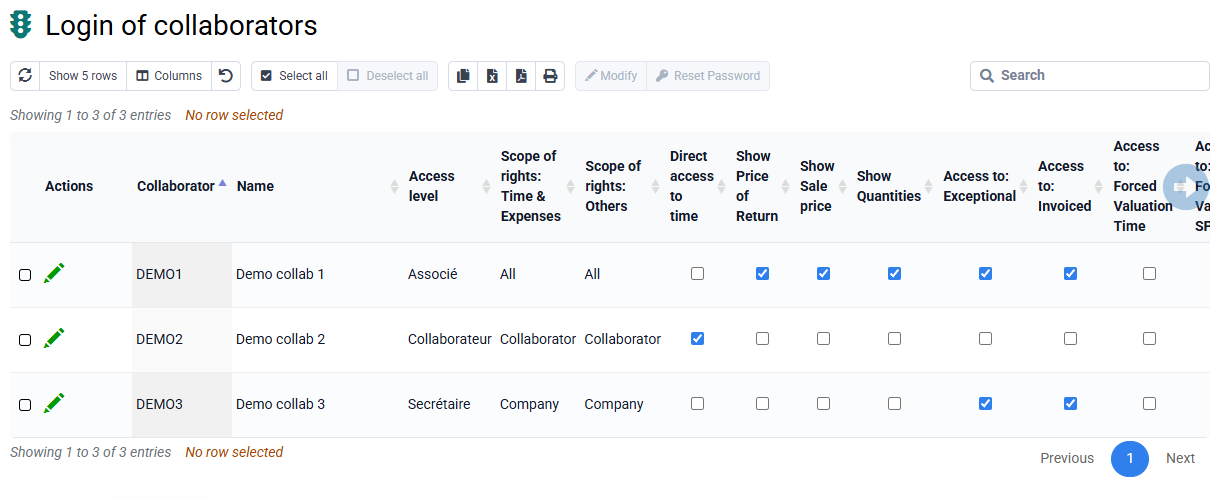
It is possible to create employee accounts with all rights, which you might call for example "Manager" to avoid confusion with the Administrator concept. Some technical configuration options are only accessible to the Administrator for security reasons.
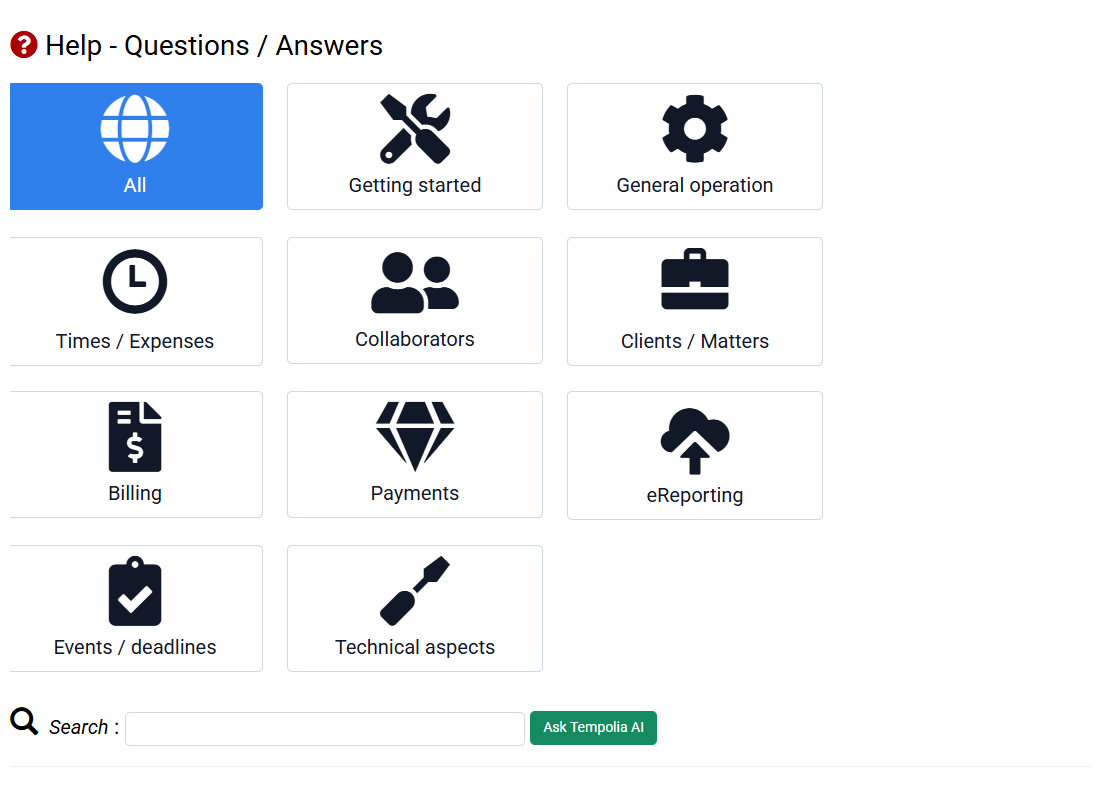
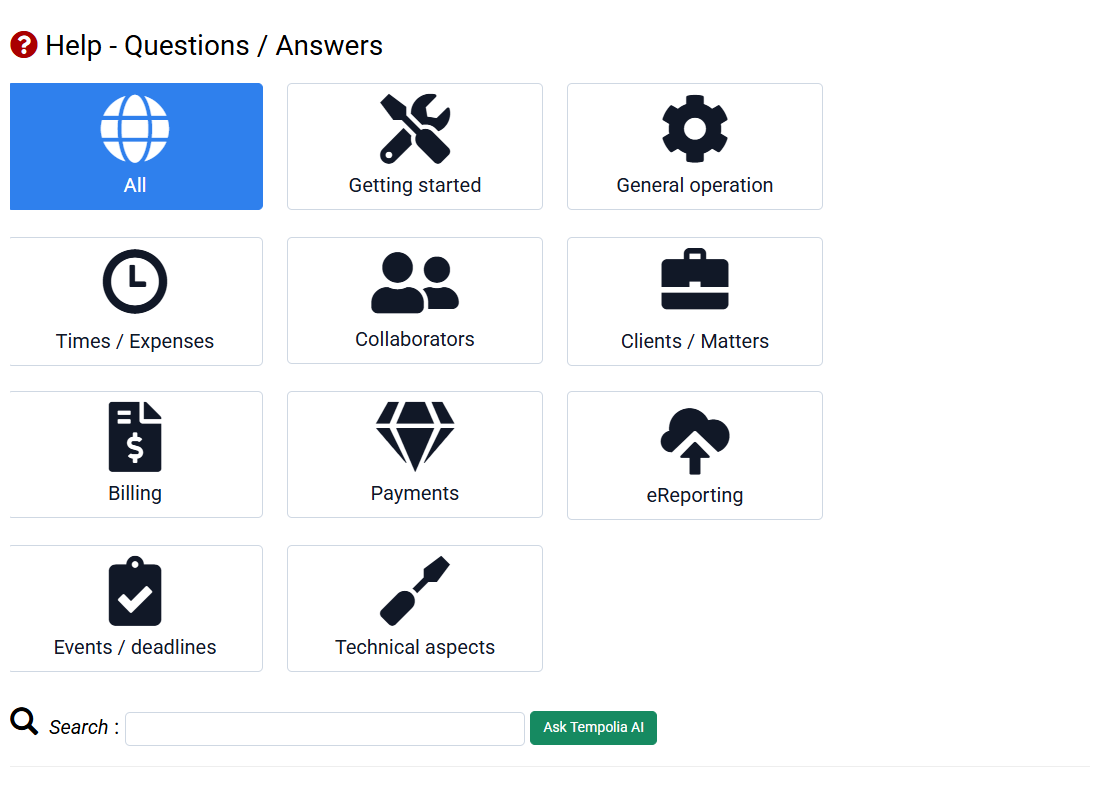
First, the "Help - Questions / Answers" section lets you search by keyword to find information.
As part of support, we can answer any specific question about using the software. You can describe your needs by email, with details and screenshots if useful, or contact us directly so that we can provide a precise answer.
Our support team is available by phone and email during our opening hours. We generally reply within 24 to 48 hours. You can also consult our online help, which includes answers on specific topics as well as assistance panels integrated into the software.
For broader support, we offer training sessions on topics you choose, to help you optimize a working process.
Tempolia offers many analysis options to manage your activity. You can create pivot tables or go to « Tools > Reports / printouts ». In particular, you can use the following approaches:
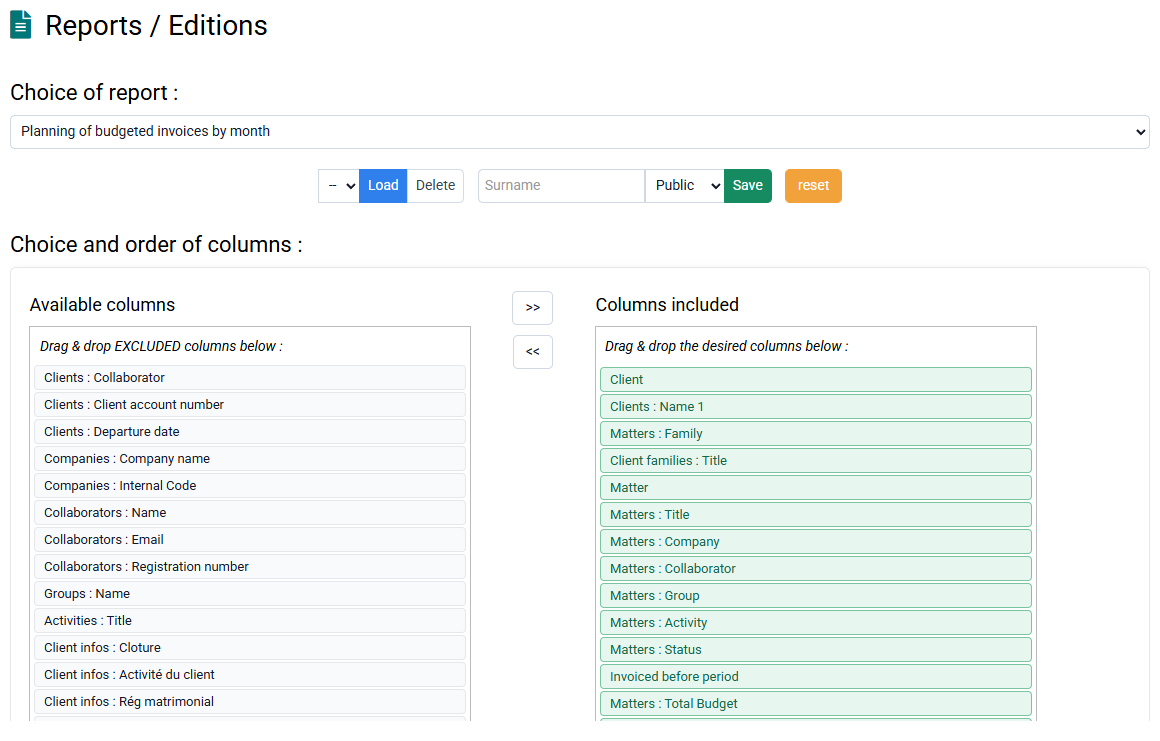
- By client and by matter: summary or detailed reports, limited to actual work or compared with forecasts, etc.
- By employee or group: analysis of time spent, activity control, internal services, etc.
- By task type: time performed by task, average rate applied, etc.
- By month: monthly distribution of employee work, billing budgets, revenue, etc.
- Detailed: pre-billing report with exceptional time to invoice, details of services performed for a client to analyze bonus / loss, etc.
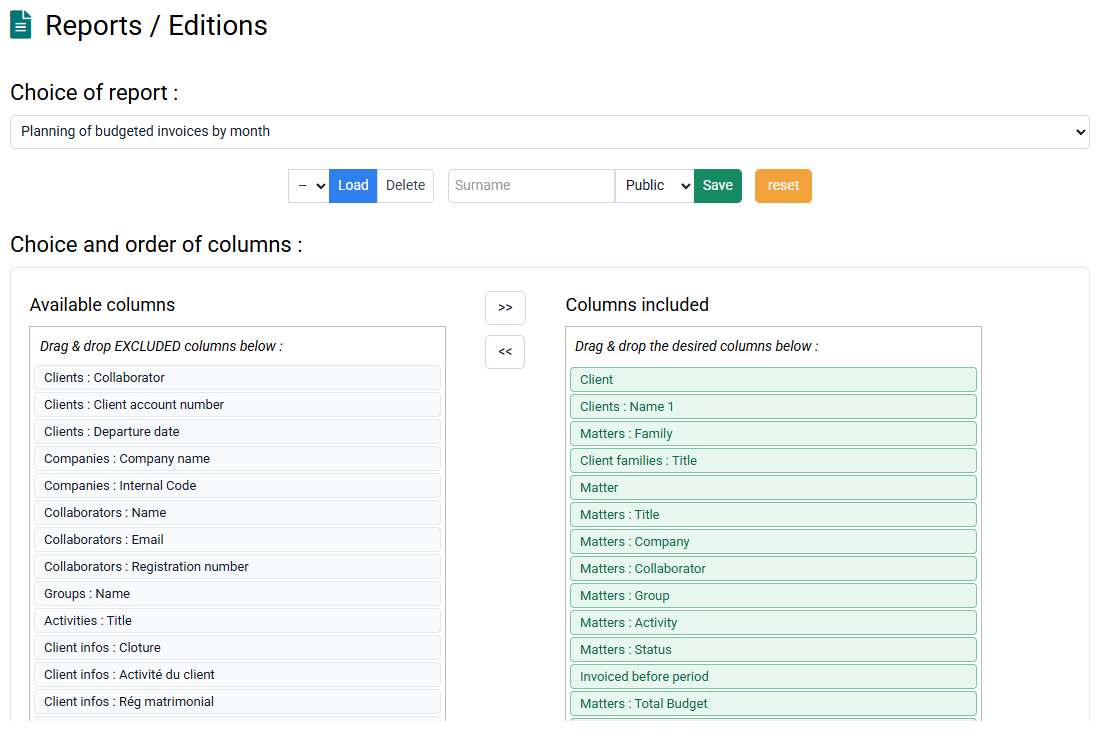
All reports are customizable, exportable to Excel or displayable in your browser, with the columns of your choice. You can therefore print to PDF with a zoom level adapted to the number of selected columns.
Tempolia places profitability at the center of matter management, with two key indicators:
- Bonus/loss is calculated based on the theoretical sales price of the mission, giving a view of performance compared with forecasts.
- Cost-price margin evaluates profitability by considering the actual costs incurred. The employee hourly cost price can be calculated precisely in the tool, including salaries, charges, fixed costs and bonuses, or entered manually.
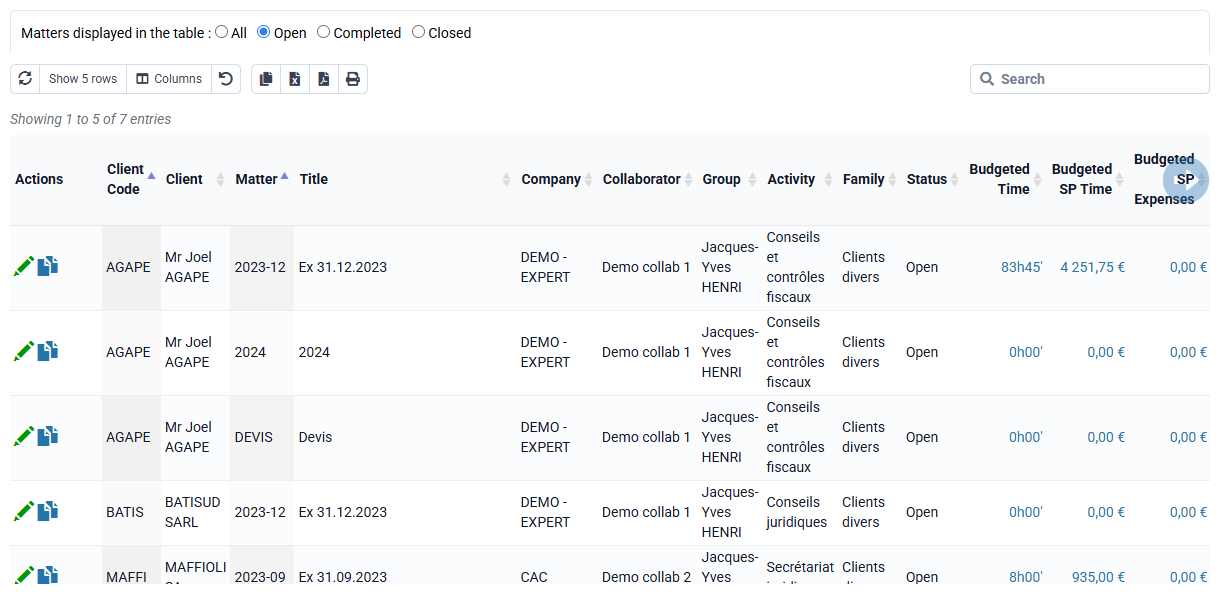
The value of these two indicators lies in how they complement each other: a matter can show a loss on theoretical sales price while retaining a good margin on cost price, and this dual analysis will lead to different management actions. These data are summarized by client and by matter, including time spent, valuation, expenses and billing, making it possible to visualize workload overruns and obtain an overall view of performance.
Any invoice issued by Tempolia can be sent by email as long as the "PDF Teledistribution" option is activated and an email address is entered in the customer file.
The "Download as PDF" option for an invoice is inherited from the information in the customer file when preparing an invoice, and can be modified subsequently. You can also modify this information for all your customers using the « Customers / Business > Group modification of customers » page, which will allow invoices prepared in the future to inherit this information.
On the « Billing > Invoices » page, there are two columns that concern sending by email:
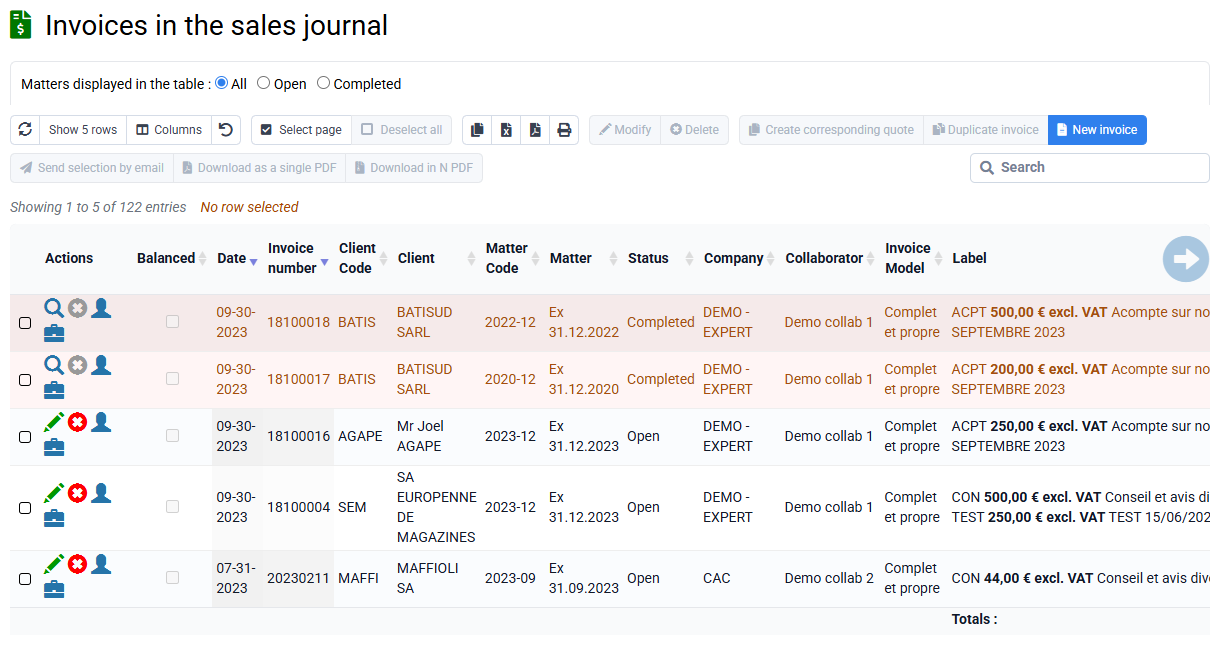
- The “By email” column is checked if the “PDF download” box on the invoice is checked.
- Next to it, the "Sent" column is automatically checked if the invoice was sent via the Tempolia interface.
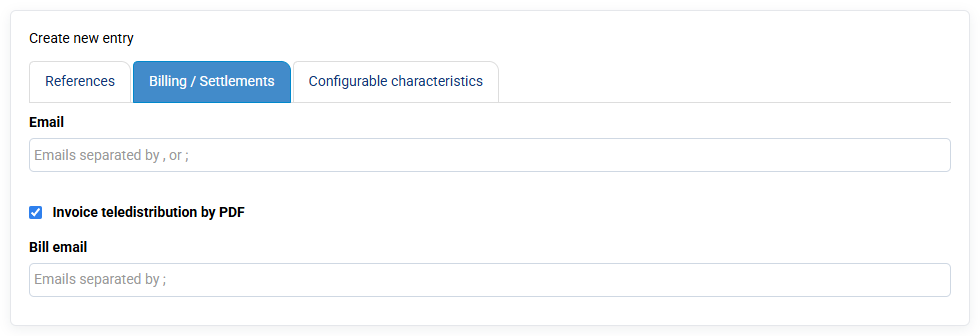
You can indicate the language spoken by your clients in the Client records, under the "Customizable characteristics" tab. This information is then used to determine the language in which invoice PDFs are generated for that client. If your invoice template contains direct text, for example terms shown at the bottom of the invoice, that text must be translated: either duplicate the template to create a template in another language, which is the simple solution, or duplicate configuration variables to specify English values, which is more flexible and more technical.
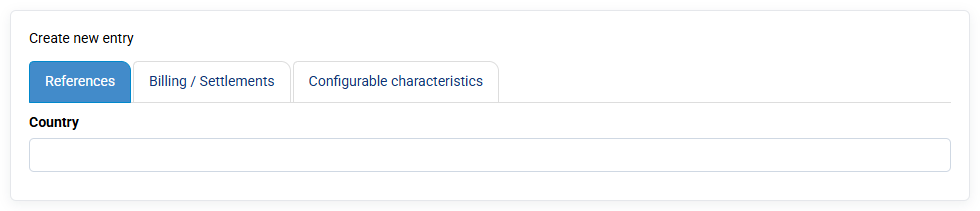
The content of your invoices that comes from labels must be entered by you in the correct language; it is not translated automatically when the PDF is generated. However, the overall structure of the invoice is generated in the requested language.
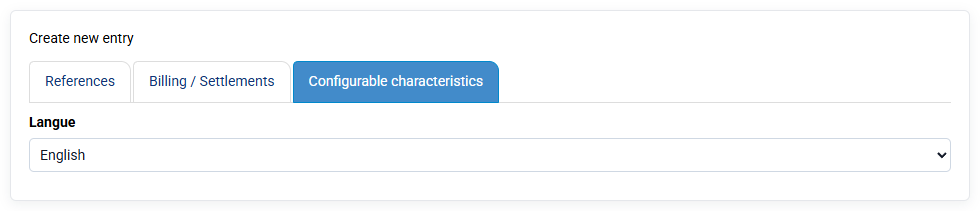
Tempolia’s « Tools > Reports and printouts » feature is a powerful module for producing clear and detailed analyses, essential for managing the activity. Its main purpose is to generate structured and complete documents for in-depth analysis, much more detailed than a simple page printout.
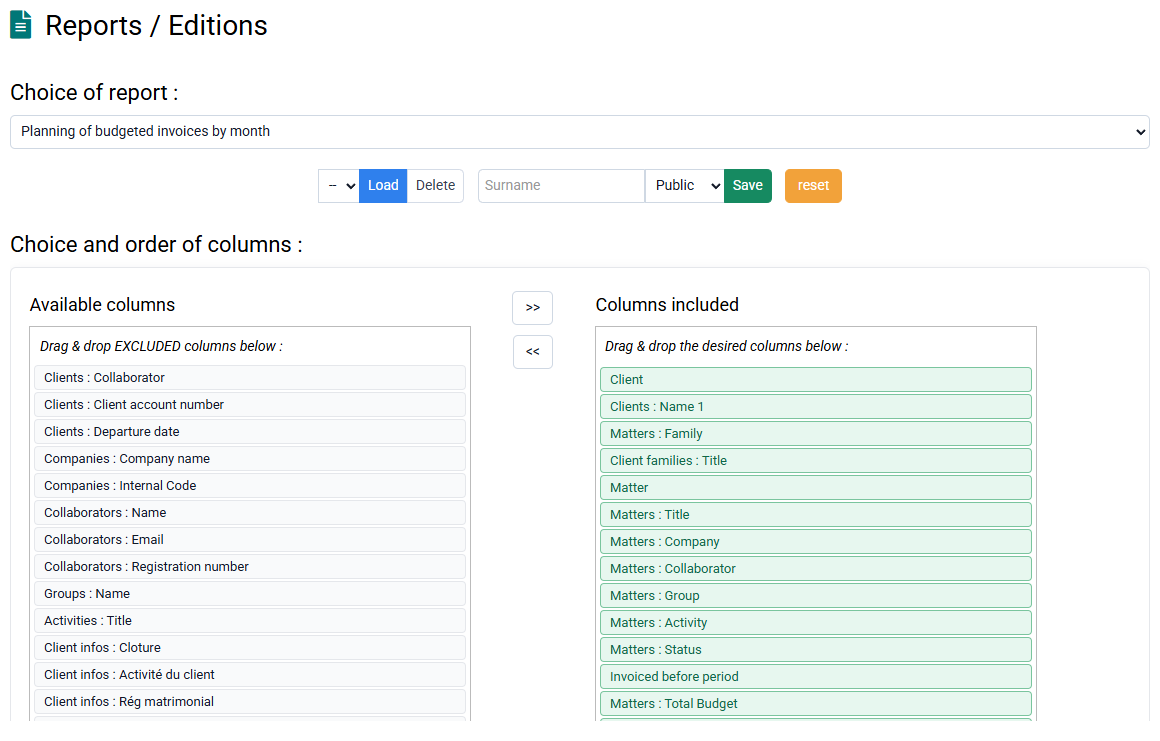
A wide range of reports is available from a drop-down list at the top of the page, such as the "Aged balance" for monitoring client receivables, the "Sales journal", or "Employee activity control" reports to compare time spent with allocated budgets. The most commonly used report is "Summary of actual work by matter", used to calculate margins and bonus/loss by matter.
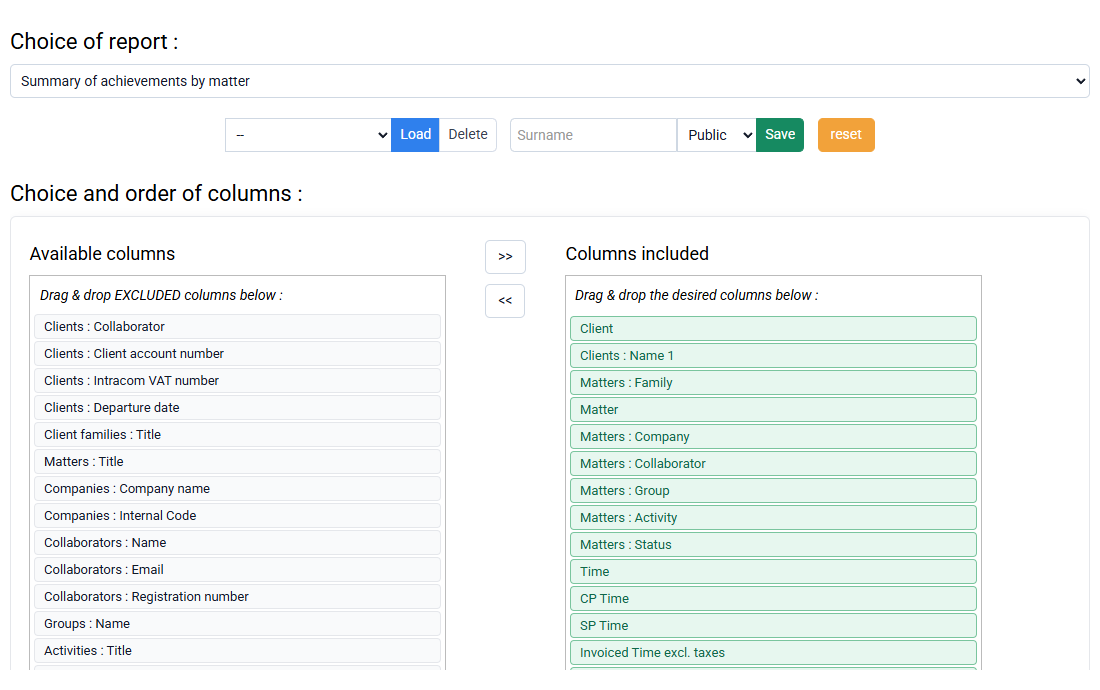
You can precisely select the columns to include in your report by dragging them from the left side, available columns, to the right side, selected columns, or by double-clicking a column name. Advanced filters let you target data, and quick filters in the form of value tables let you restrict a report to specific clients, matters or employees.
You can create groupings and subtotals, for example by client, to improve readability, sort rows in the desired order and limit the analysis to precise dates.
Once you have created a report configuration that suits you, you can save it with a name and indicate whether it is private, available only through your account, or public, available to all accounts with access rights to this type of report.
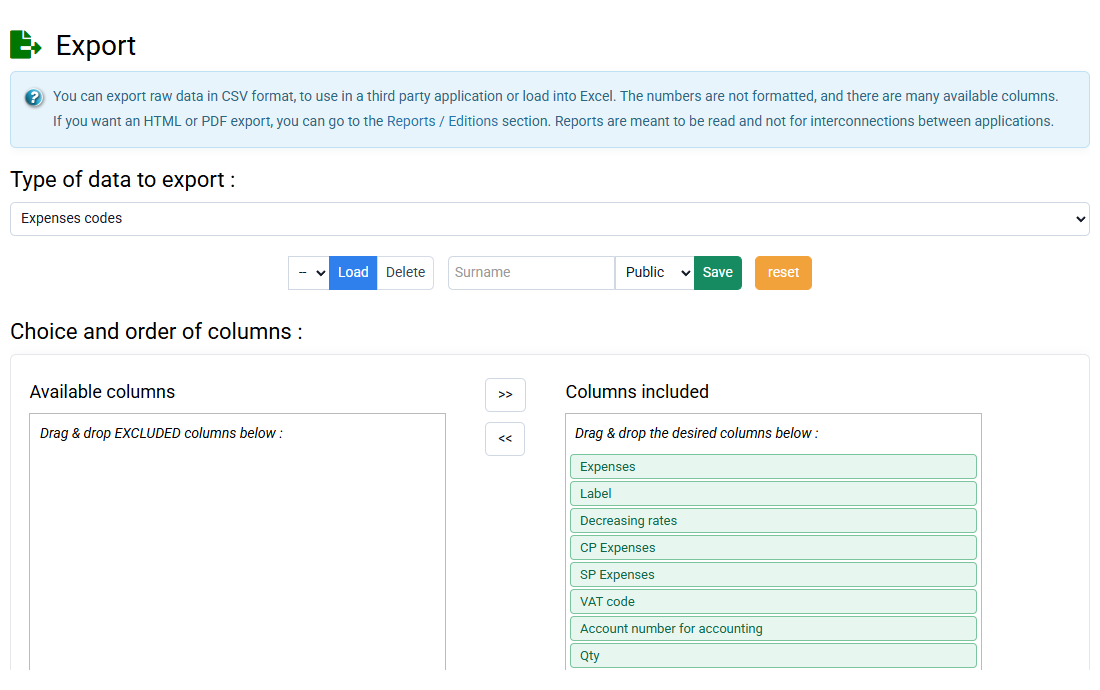
By clicking the link at the top of the page to change format, you can generate reports in HTML format, ideal for printing or PDF conversion, or in CSV format to open in Excel.
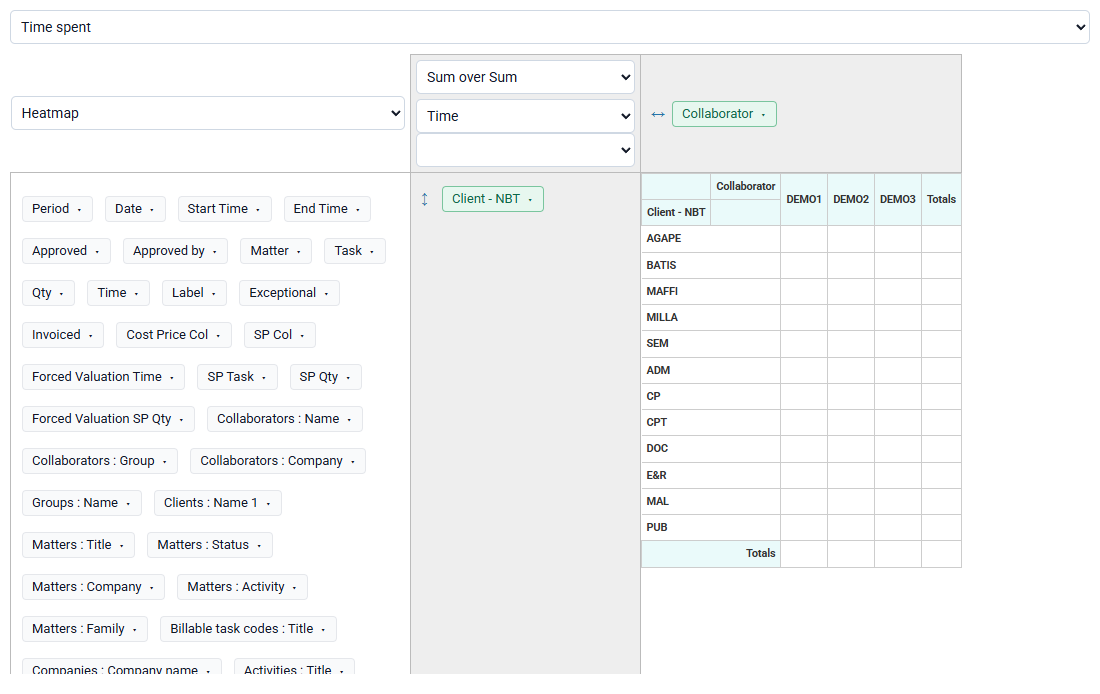
Tempolia’s « Tools > Pivot tables » feature lets you investigate data freely and interactively in real time, like the pivot tables found in Excel. It is ideal for management control and investigations outside standard reports. You can quickly transform raw data into clear, usable multidimensional analyses without leaving the software.
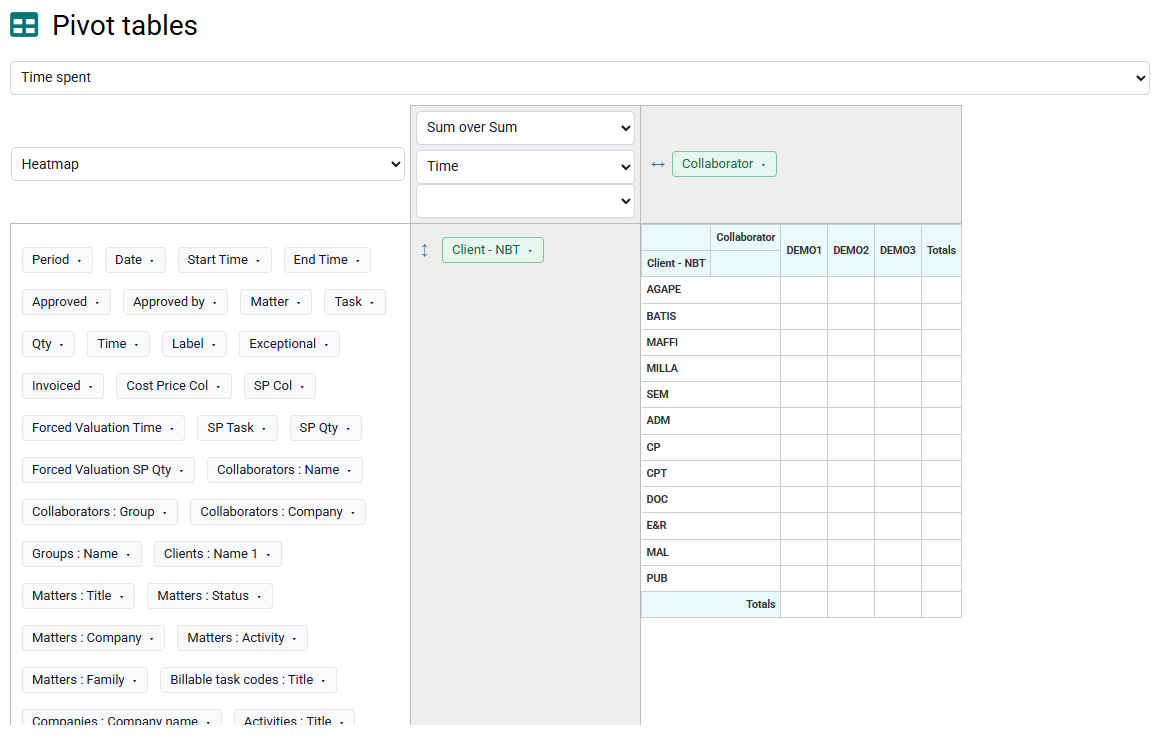
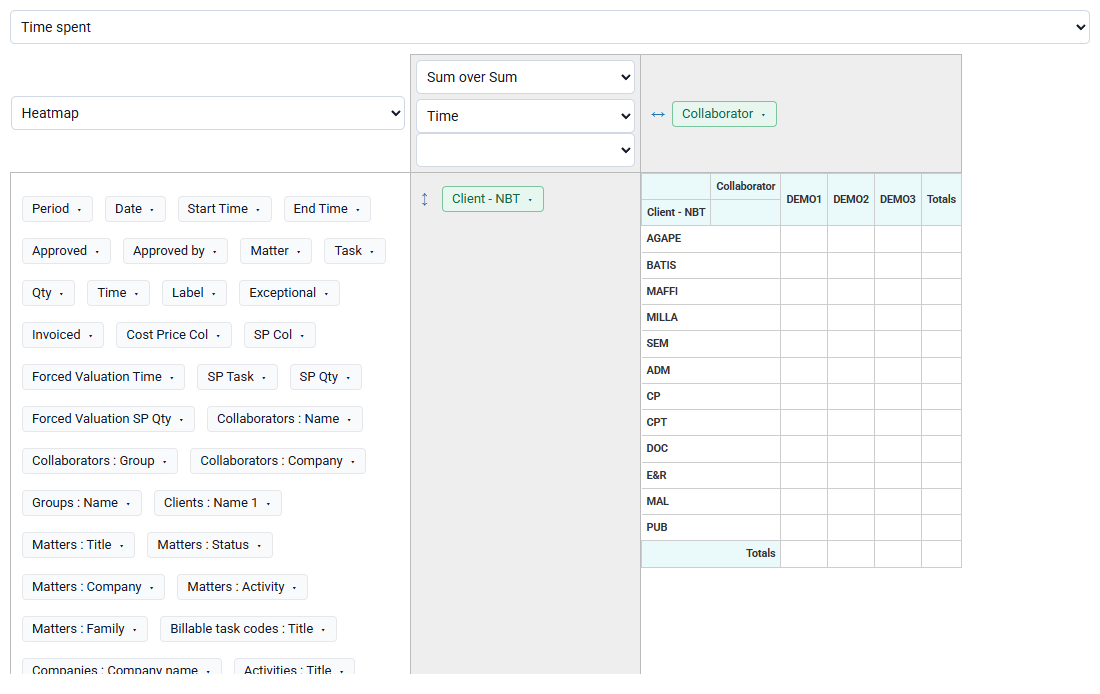
You start by choosing a data source, such as time spent or budgets. You can then work with the data by drag and drop, organizing your analysis by placing the desired fields, clients, matters, employees, tasks, and so on, in rows or columns to create customized views.
This flexibility lets you build real-time custom analyses. You can also choose the value displayed at the intersection of rows and columns: it may be the sum of time, its valuation, sales price, or the cost price. The system automatically calculates totals by row and by column, giving an immediate summary.
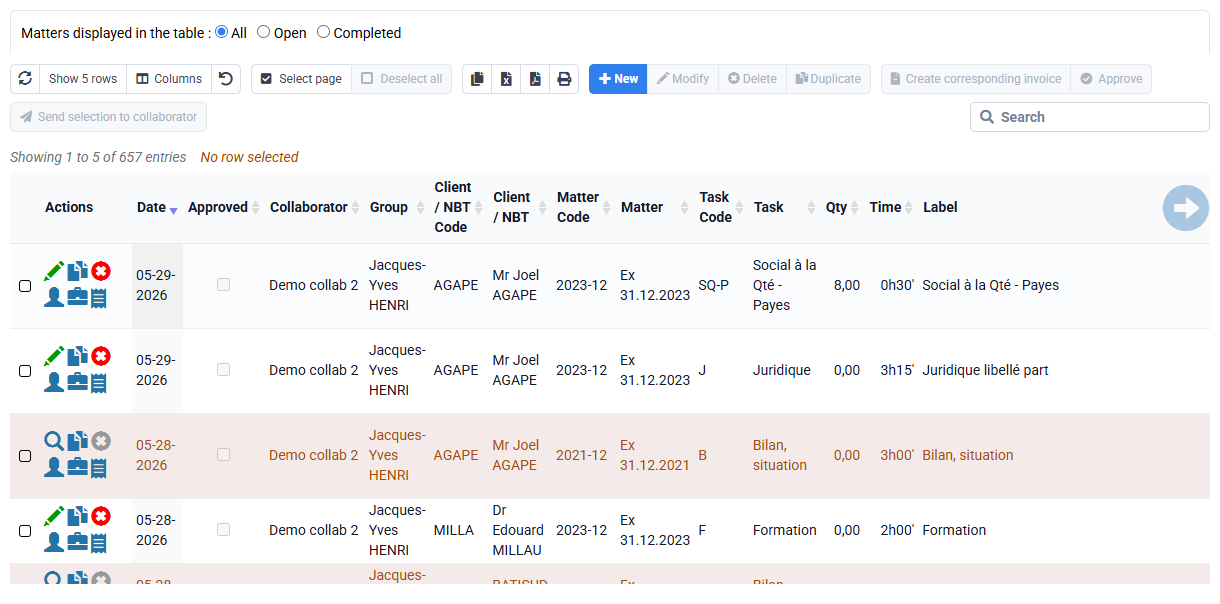
Filters can be applied to refine the results and keep only relevant information. Once you have created a suitable analysis view, you can save this configuration for later reuse, making regular monitoring easier.
Finally, for more advanced processing or to share results, you can export the generated table very easily to Excel: click "Heat map" on the left of the table to change the visualization to "CSV to paste into Excel", then select the data table and paste it into Excel to manipulate and optionally save the data.
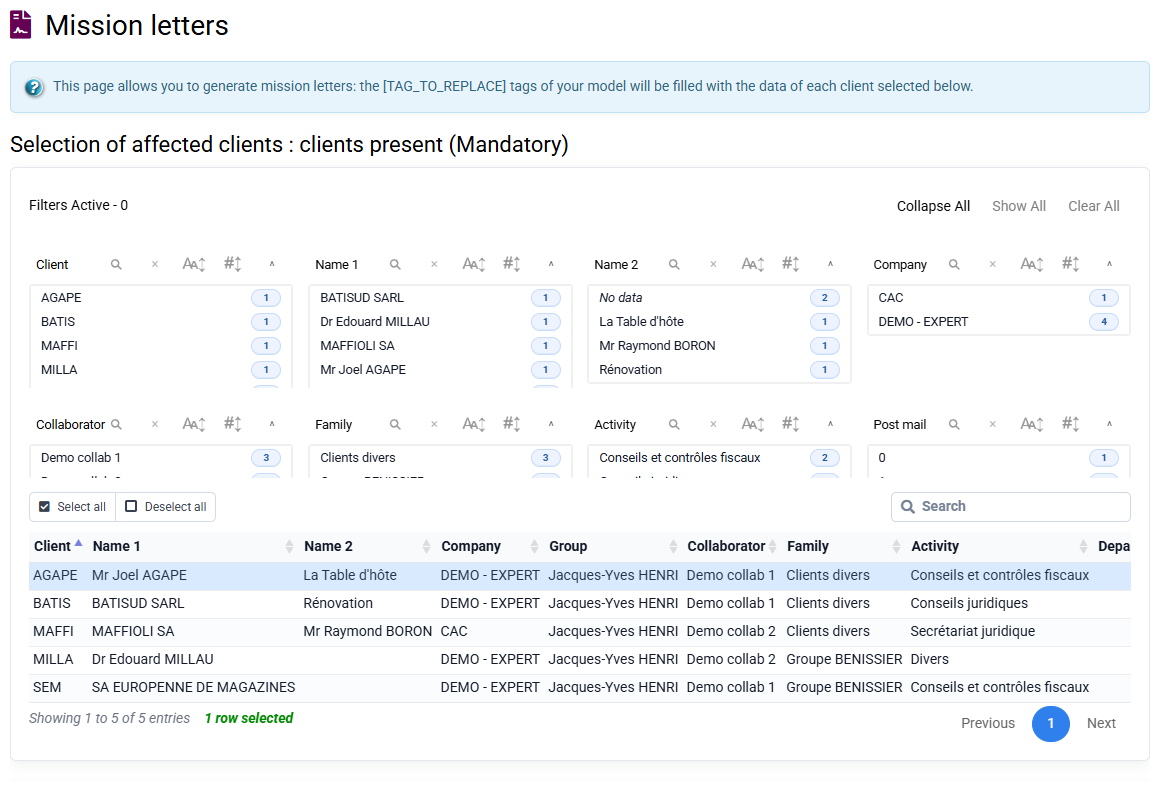
The « Events > Engagement letters » page lets you generate an engagement letter for a client based on a document template. A template is typically an engagement letter, a service offer or a contract. You can prepare as many templates as you need.
It contains tags, equivalent to mail merge fields in Word, such as company name, address, manager name, a table of budgeted amounts for the first year, and a table of deadlines. These tags are replaced in the template by values from the client record and the budgets and deadlines attached to the client, including customizable characteristics that you can personalize to store any information you want to capitalize on at client level in a CRM logic.
Two operating modes exist to manage your templates and then generate engagement letters for a client:
- Solution 1: edit your template as HTML text in « Configuration > Email / engagement letter templates ». You can then generate the personalized client version as HTML, copy / paste it into Word and finalize the layout. You can also generate a PDF directly, although the document is then no longer editable, which is less flexible than the other solutions.
- Solution 2: prepare your template in Word, with your logo, header, footer and font, and upload it into Tempolia through « Tools > Server file management ». Generating the engagement letter for a client lets you download a completed Word document, review it and modify it in Word if necessary. This approach fully preserves the layout you created in your Word template. It saves significant time while keeping full freedom over the wording and presentation of your contractual commitments.
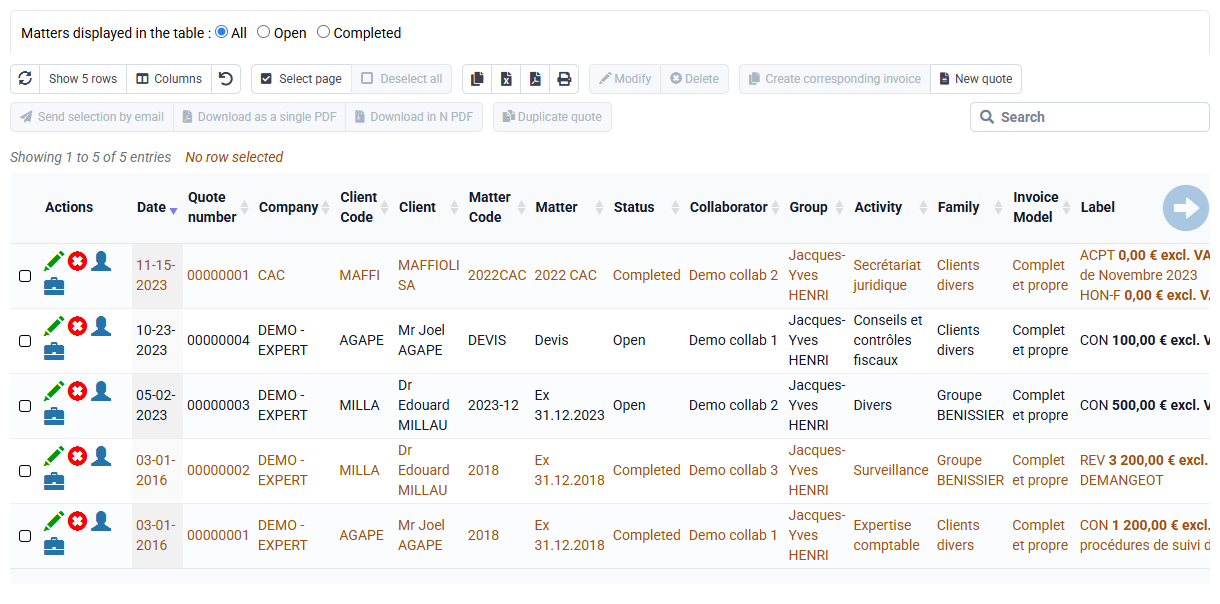
Optionally, Tempolia has an agreement with JeSignExpert to allow electronic signature of your engagement letters: go to « Tools > Electronic signature » to submit your finalized document and have it signed by your client.
The cash-optimisation block follows the cycle from work performed to customer payment. It deliberately separates work still waiting for an invoice from amounts that have already become receivables. This is a management snapshot at the displayed date, not a complete accounting calculation of working capital.
Exceptional-items balance and draft invoices
The first card shows two distinct pieces of information without adding them:
- exceptional time and expense entries waiting to be billed: only entries marked Exceptional, valued at their selling value and not yet included in an issued invoice;
- draft invoices to approve: invoices already prepared but not yet issued.
Within this precise scope, the amount sometimes called WIP is therefore the stock of exceptional items waiting to be billed. It is not all work started, all actual time, or cost-valued accounting work in progress.
The over-30, over-60 and over-90-day buckets and the oldest-item age apply only to exceptional time and expenses. Age starts from the entry date. Draft invoices are kept separate so that they are not counted again in this ageing.
Fixed fees: reconcile work value and invoicing
For fixed-fee work, Tempolia calculates current boni-mali = invoicing issued excluding tax − commercial value of work. A negative amount means work is ahead of invoicing; a positive amount means invoicing is ahead of work.
Current boni-mali + exceptional-items balance = boni-mali after adjustment, if the displayed balance is invoiced at its displayed value. Draft invoices are not added again: they are a preparation status that may overlap with items being processed.
After invoicing: trade receivables
The “After invoicing” card shows open trade receivables including tax, split between overdue and not yet due, together with the number of debtor customers. Once an invoice is issued, it leaves the pre-invoice balance and enters receivables. Recorded and correctly matched payments then remove it from the outstanding balance.
If the amount looks too high, first check that payments have been recorded and matched. The FAQ about collections and aged receivables explains this process.
Indicators expressed in days
- Exceptional items / 12-month invoicing = balance excluding tax ÷ invoicing excluding tax over the last 12 months × 365.
- Boni-mali / annual budget = current boni-mali ÷ the year’s invoicing budget excluding tax × 365.
- Boni-mali / 12-month invoicing = current boni-mali ÷ invoicing excluding tax over the last 12 months × 365.
- Receivables / 12-month revenue = receivables including tax ÷ revenue including tax over the last 12 months × 365.
Boni-mali days remain signed: a negative number means work is ahead, while a positive number means invoicing is ahead. The two bases compare the position with both the annual plan and the actual invoicing pace. Tempolia does not produce an artificial total across these measures because boni-mali, exceptional items, drafts and receivables may overlap or use different tax bases.
Working capital may also include customer advances and other operating needs and resources. The dashboard locates the two main waiting areas in the customer cycle; it does not replace an accounting reconciliation.
How to use the view
Start with the oldest values: check the customer, engagement, Exceptional status, evidence or milestone awaited and the owner of the next action. Then review draft invoices waiting for approval and overdue receivables.
The buttons below the cards open reports for exceptional time waiting to be billed, exceptional expenses waiting to be billed and aged receivables for the same scope. See also the checks that determine whether a time entry is included in billing and reports by customer, engagement or collaborator.
Multi-currency management can be activated from « Configuration > General options », “Miscellaneous” tab, in the section: "Enable multi-currency management in billing. The database will remain in your main currency, as will your statistics and accounting exports. Invoices will allow currency selection and a field to enter the exchange rate. This changes invoice presentation, while all other amounts remain in your main currency for invoice amount lists, payments, etc."
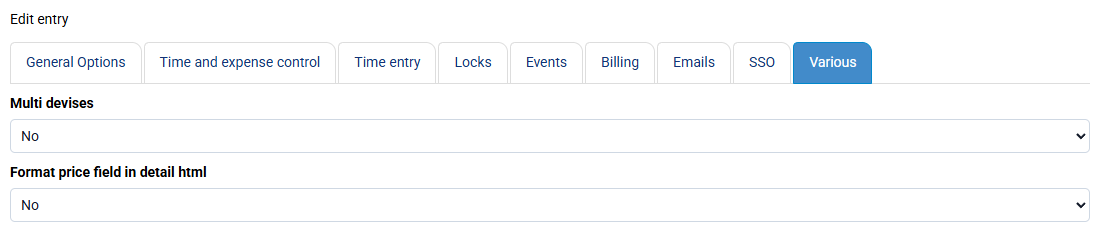
Once this option is activated, Tempolia adds fields to specify a currency and exchange rate, especially on invoices and expenses. This feature makes it possible to present certain documents in a different currency, but it does not change the main storage currency of the database.
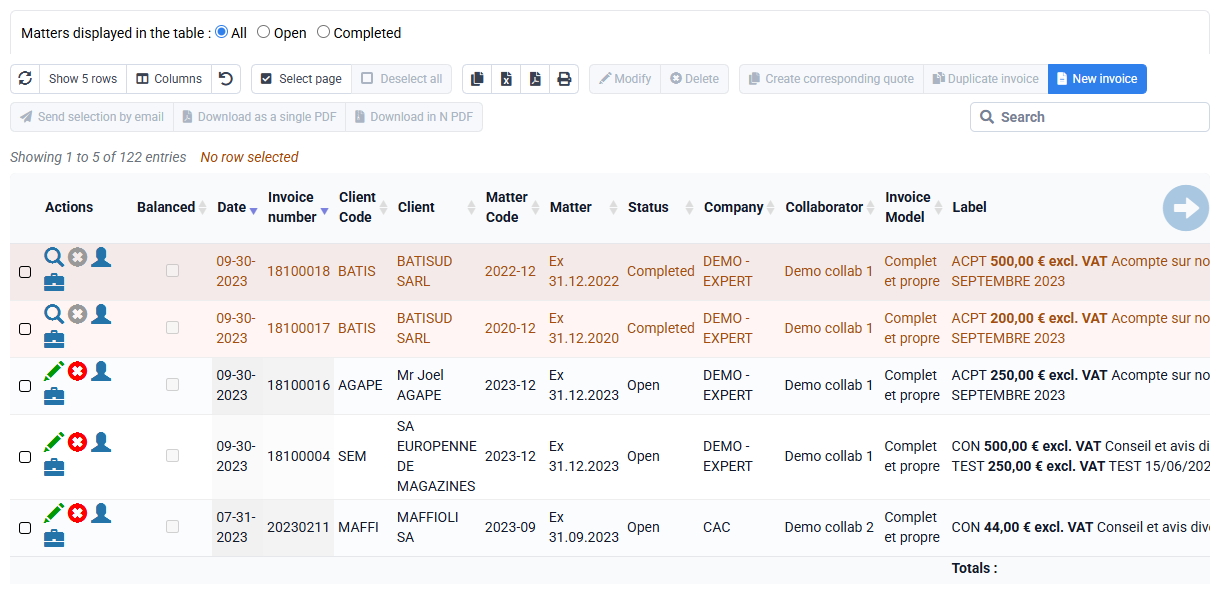
By default, Tempolia’s reference currency is the euro. All financial data, statistics, amount lists, payments, accounting exports and internal calculations therefore remain expressed in this reference currency.
You can contact support to change the main currency across your database.
It is important to understand that amounts must be entered in your main currency. The exchange rate is then used to establish the correspondence with the currency displayed on the relevant document. For example, if your reference currency is the euro and an invoice must be presented in a foreign currency, amounts are entered in euros, then Tempolia uses the indicated exchange rate to display equivalents in the selected currency.
Note: it is technically possible to enter expenses corresponding to a foreign currency without correctly entering the exchange rate, but this is not recommended. In that case, features that add, compare or use amounts may produce inconsistent results, because Tempolia will consider those amounts as if they were expressed in the reference currency.
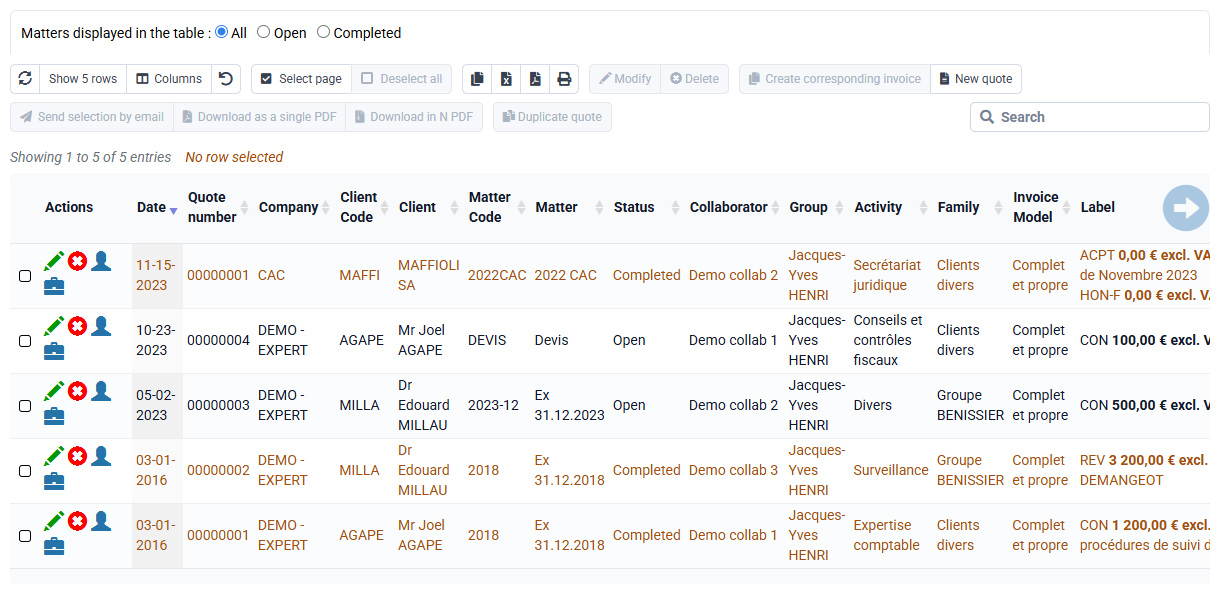
NF525 is a French certification delivered within the AFNOR Certification framework for software used to invoice and collect payments. It helps demonstrate that tax-sensitive information is protected: it must be traced, retained, archived and verifiable in case of an audit.
In Tempolia, this mainly concerns invoices, payments, exports, fiscal archives and some sensitive changes. You do not have to manage technical settings every day: Tempolia adds the necessary traces in the background. The NF525 compliance page gathers the information needed to understand the certified scope.
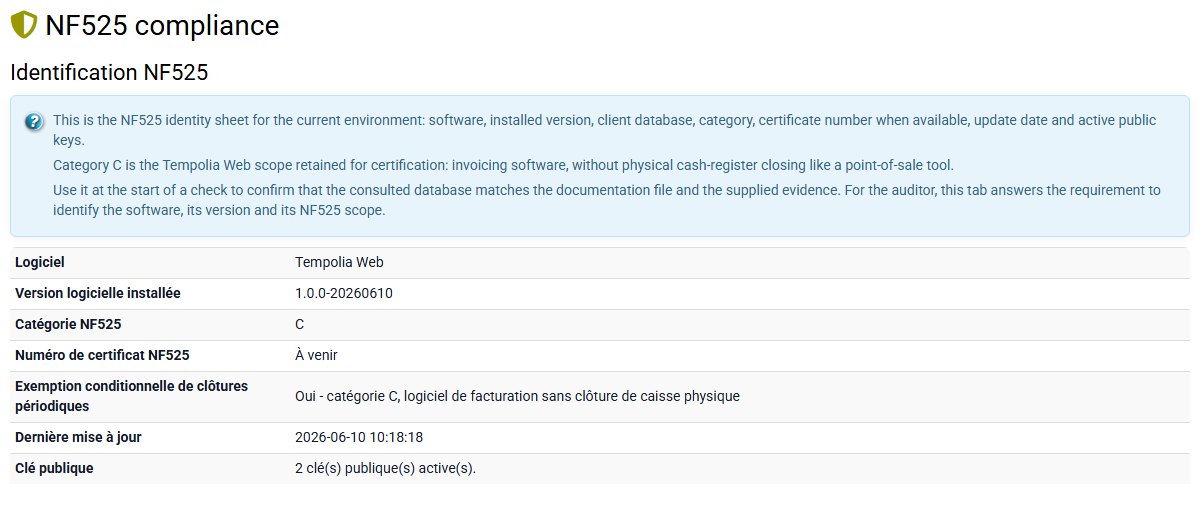
NF525 compliance is not a button used in daily work. It accompanies sensitive actions: invoice validation, payment, export, reprint, archive, tax parameter change or maintenance operation. The goal is to be able to explain afterwards what was produced, by whom, when and in which context.
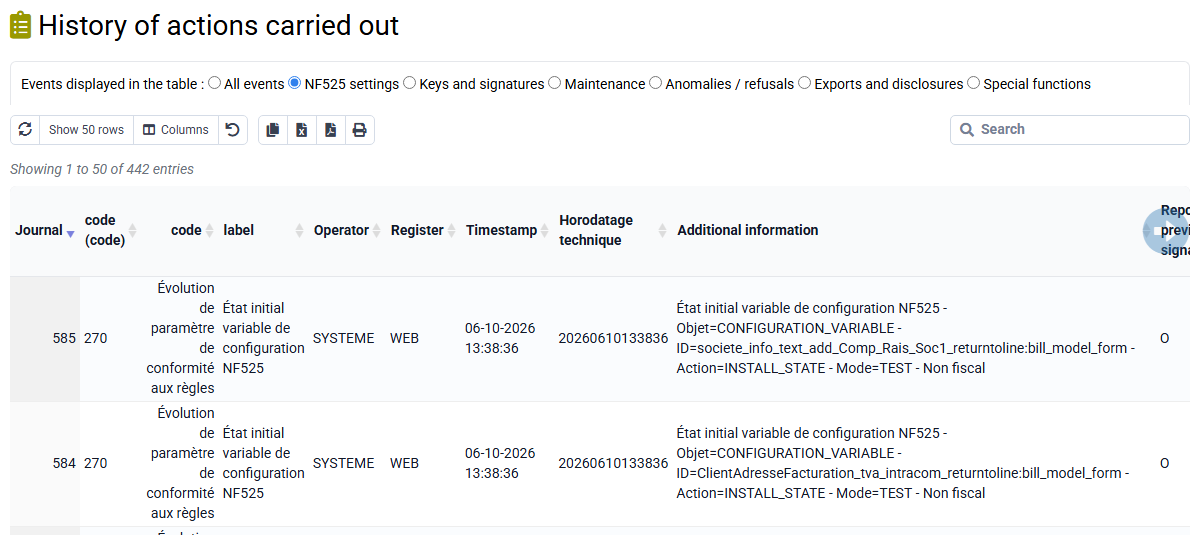
For NF525 compliance, Tempolia records important actions related to invoices, payments, exports, archives, tax settings and maintenance interventions. This journal shows when the action occurred, who triggered it, which business item is concerned and which information helps understand the operation. It can be viewed from Action history, tab NF525 events.
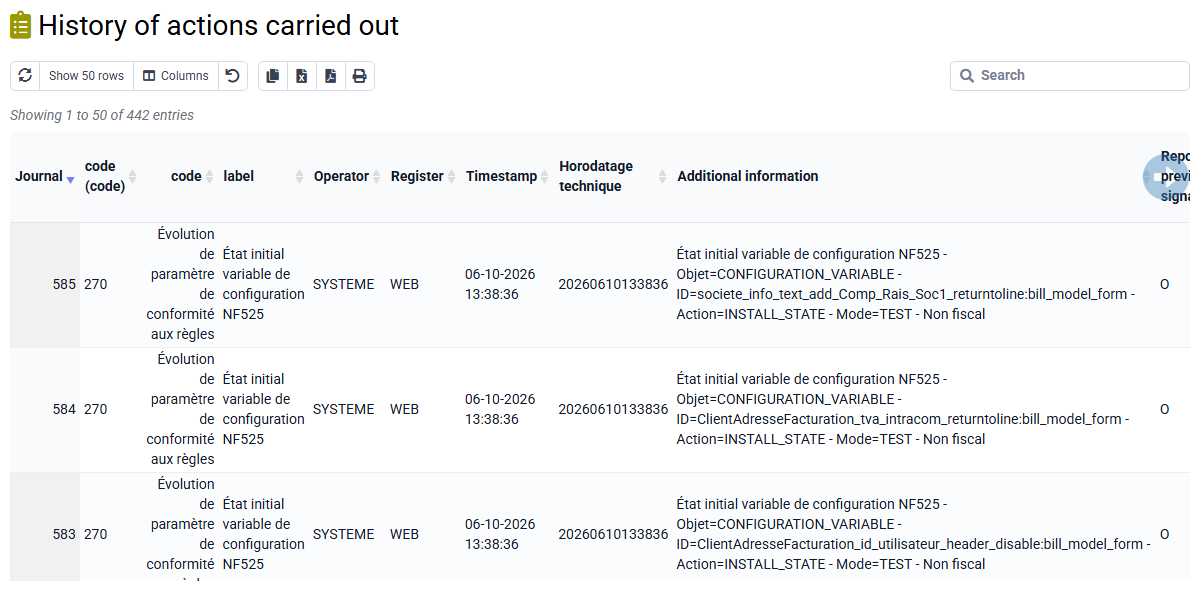
This traceability helps avoid silent changes after issuance. A validated invoice or sealed payment must be corrected through a traceable business flow: for example a negative invoice for a credit note in Tempolia, or a reversing entry for a payment. An exceptional maintenance operation must also leave an explicit trace.

If a control reports a chain break, a KO status or a signature that cannot be verified, the database must not be corrected manually. Keep the report, identify the period and contact Tempolia support so the cause can be analysed and the recovery documented.
During an audit, start with the NF525 compliance page. The Exports tab groups the usual evidence: full or period-filtered event journal, verification information, latest control report and user rights list. These actions only read or download evidence; they do not change business data.

For a requested period, also check Fiscal archives. A fiscal archive groups the necessary files, a content description and related controls. It is used to provide a coherent package rather than an isolated screenshot.

The right habit is to note the period, company, document or payment concerned, then provide the requested exports with the matching control report. If an anomaly appears, keep the report and request support analysis before any correction.