


How to set up two-factor authentication to secure accounts?
Double authentication is protection with a code sent by email, either each time, or if the connection IP is unknown at the level of the employee or the global account, as desired.
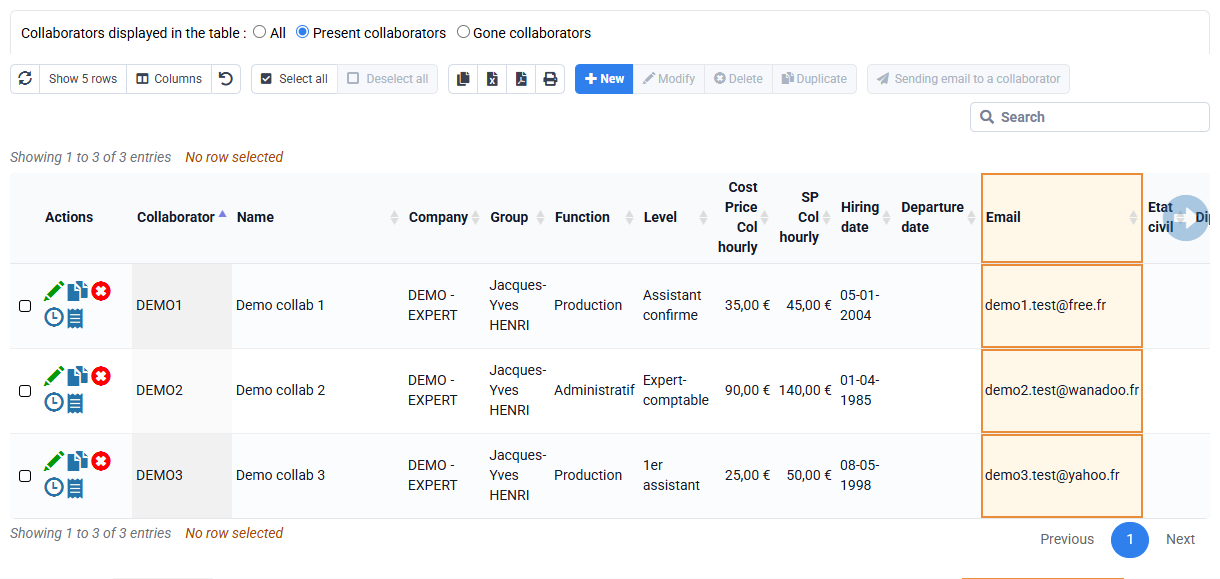
1st step: fill in all the email addresses in “Collaborates > Collaborators” as this is necessary to send them the connection code.
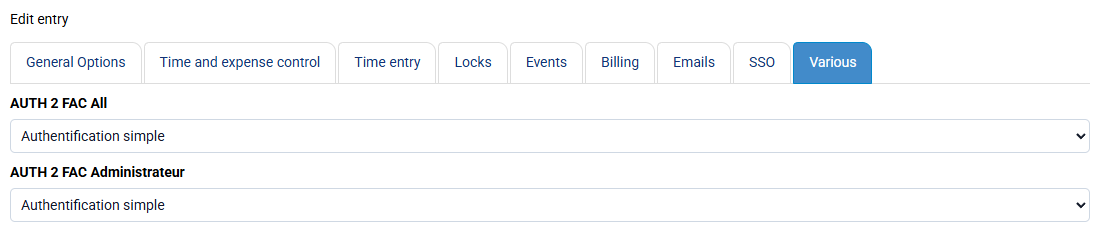
2nd step: you can have double authentication with several settings:
- is forced across your entire account, so that it applies without any exemptions. This settings can be made by the Administrator only in “Configuration > Configuration variables”, find the line “AUTH2FAC_All” and follow the explanation to know what value to put.
- either with a setting per employee: in “Collaborates > Collaborators” > edition of a collaborator > Configurable characteristics tab > “Double authentication” field, you have a possible setting per employee. You can select your collaborators and click on the Edit button, and set your setting for all these selected collaborators.
- either for the Administrator account. These settings can be made by the Administrator only in “Configuration > Configuration variables”, find the line “AUTH2FAC_Administrator” and follow the explanation to know what value to put.
