


Enter, review and use time and expenses
Objective. Record time and expenses accurately, approve them through the expected workflow and reuse the validated data for billing, productivity analysis and profitability reporting.
What you will learn
- Enter time and expenses against the correct client, matter and activity code.
- Understand approval, billable status and the supporting-document workflow.
- Use detailed entries in billing and management reports without losing traceability.
Recommended workflow
- Select the date, employee, client, matter and task or expense code before entering values.
- Add a precise description and attach the required receipt for each expense.
- Review incomplete, inconsistent or exceptional entries before approving them.
- Reconcile approved entries with budgets, invoice preparation and activity reports.
Before continuing
- Duration, quantity, amount, tax and billable status are internally consistent.
- Receipts and descriptions are sufficient for review and reimbursement.
- Corrections are made before invoicing whenever possible and remain traceable.
Before you begin
Choose an employee, open matter, billable task and receipted expense in your subscription. Enter or review one time record and one expense, then follow their effect on budget and invoice preparation. For example, you can control 1 h 30 of work and a €48 gross expense on the same date.
Prerequisites
- Have an employee, open matter, billable task and expense code accepting receipts in your subscription. Save only if you are authorised to modify those records.
- Prepare a fictitious receipt without personal data and establish the expected VAT treatment before entry.
- If approval is enabled, use the employee’s account and the approver’s account; otherwise inspect status without changing configuration.
- Before entry, note date, employee, matter, task or expense code, duration or amount and expected state. After an authorised save, find those exact values; otherwise perform the control on two existing records.
Suggested schedule — 1 h 10
- 5 min: qualify the two records.
- 10 min: enter and review time.
- 10 min: check monthly completeness and approval.
- 10 min: enter expense, VAT and receipt.
- 10 min: compare unit and volume entry controls.
- 10 min: verify budget, valuation and billable status.
- 10 min: reconcile and diagnose a variance.
- 5 min: step back on data quality.
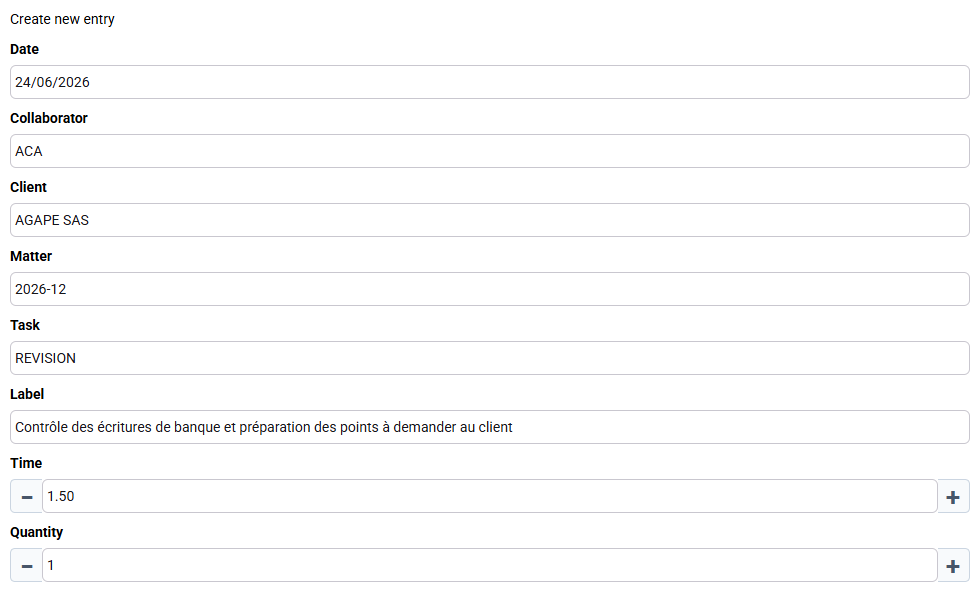
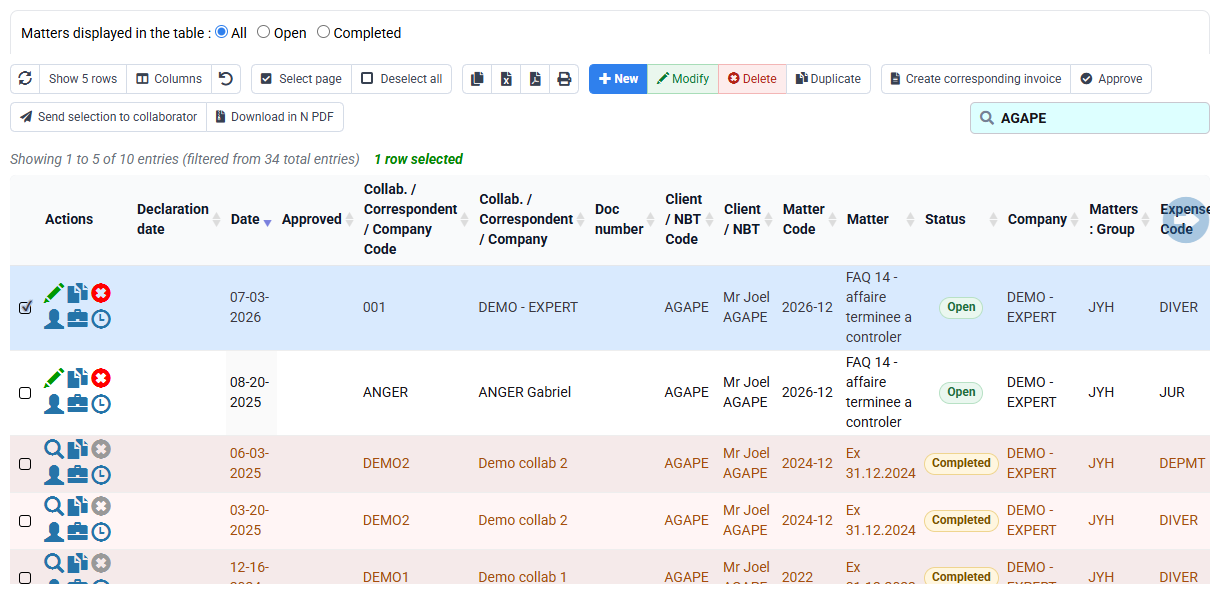
1. Enter a time record that another person can understand
Open Time / Expenses > Time detail and create or open an authorised line. Use your date, employee, client, matter, task and duration. Write an operational description such as “reviewed bank entries and prepared questions for the client”. It should explain delivered work without exposing irrelevant internal information.
Review all fields before saving. Client without matter, generic task, wrong date or vague wording makes the record hard to approve and invoice. If your selected matter is absent from the selector, inspect active status, rights and dates instead of choosing another matter merely to continue.
2. Check completeness, approval and locking
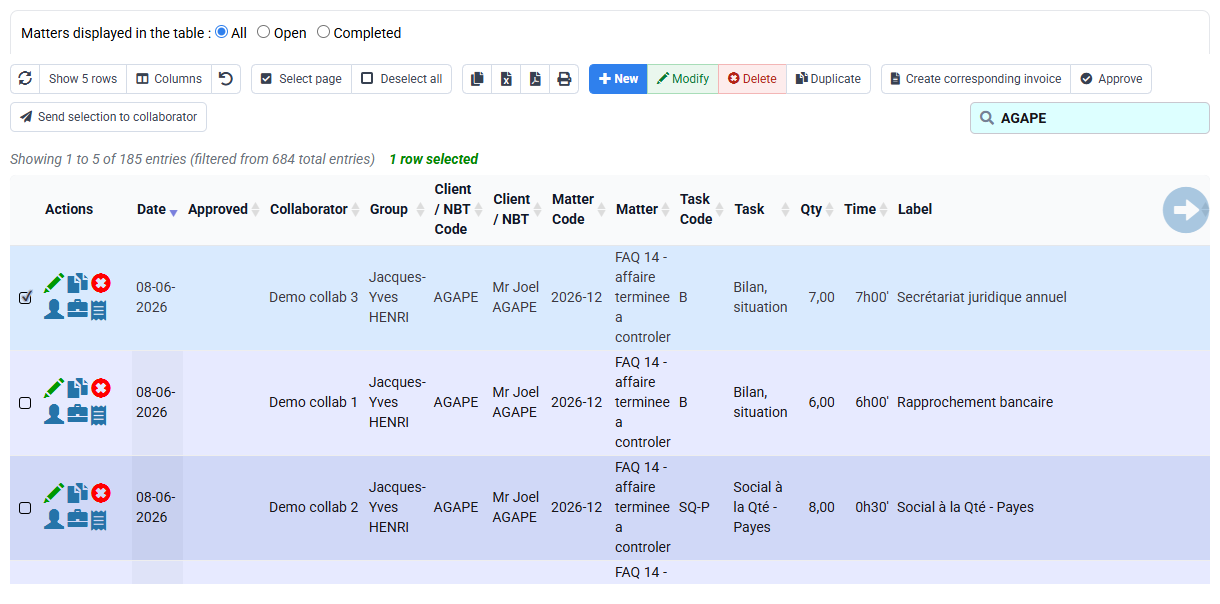
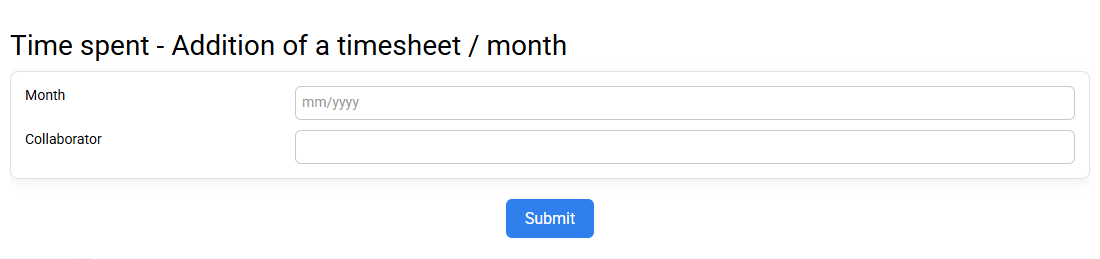
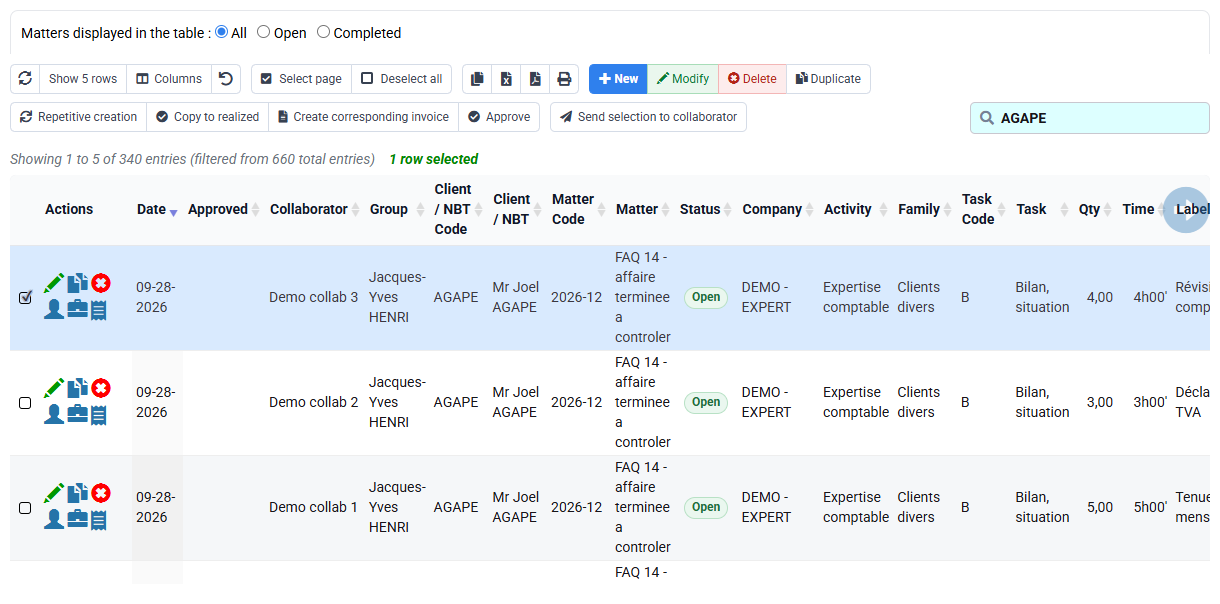
Open the monthly timesheet and compare expected working time with entered totals. This first check highlights missing days or implausible quantities; then open the detail to verify the entries themselves. Inspect approval state and the approver’s scope as well. The entrant and approver should see the same underlying line, with actions appropriate to their roles.
Test an open and a locked period without forcing a change. A closed record should remain readable and protected. If it disappears, review filters and rights; if it is editable, review cut-off date, company and effective profile. Corrections should occur before billing whenever possible. After billing, use the correction procedure provided for that record.

3. Use stable tasks and explicit billable logic
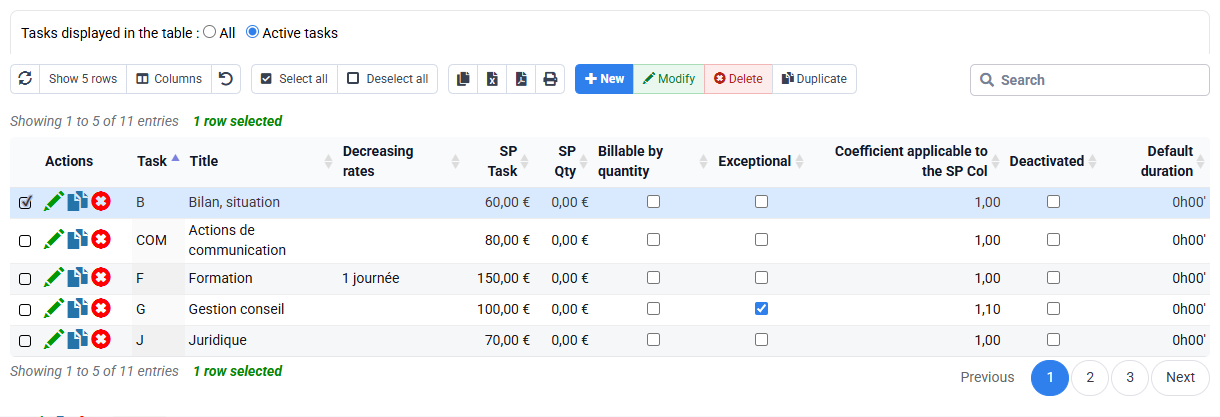
The selected task must be active, billable and mapped to the intended commercial rule. Non-billable tasks record training, internal administration or other work that should not enter invoice preparation. Do not change billable status merely to make a line appear or disappear; determine the business nature first.
Check the task reference, allowed employees and any default price or sales-code mapping. A task is shared reference data: changing it can affect many matters and future entries. Preserve historical meaning by making obsolete codes unavailable for new use rather than renaming them to another activity.
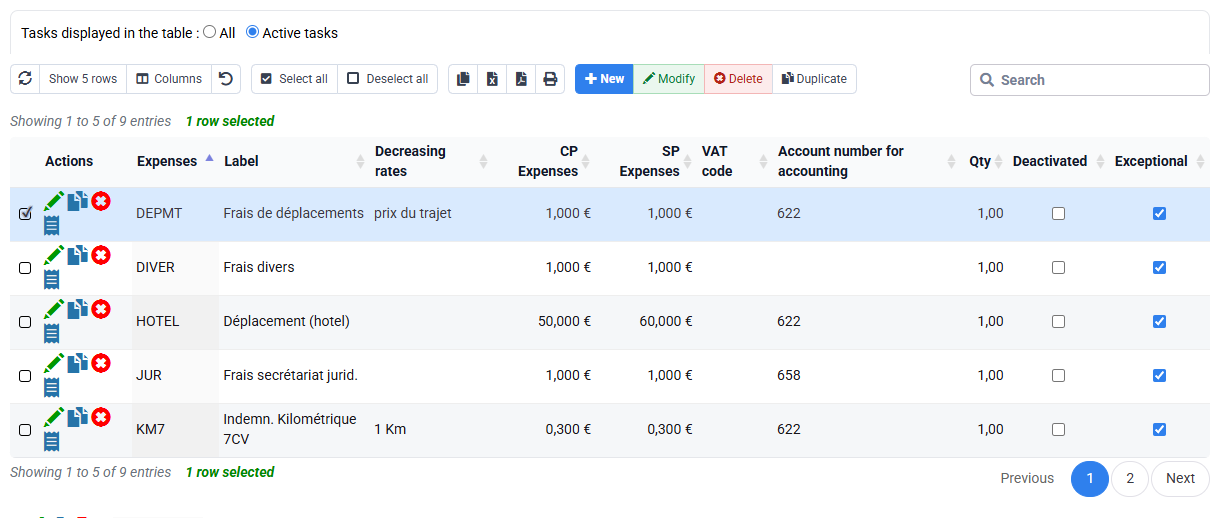
4. Enter an expense with its receipt and tax treatment
Create or review a receipted expense for the selected employee and matter. For a worked calculation, take a €48 gross receipt; when using your own data, keep the receipt's actual amount and VAT treatment. Select the intended expense code, add a precise description and attach a document without unnecessary personal data. Distinguish reimbursement to the employee, accounting treatment and possible re-billing to the client: these are related but not identical decisions.
Open the attachment after saving and check that it is readable and linked to the correct expense. Gross, net and tax must reconcile, the receipt must match the amount and the billable status must follow your organisation's rule. If VAT or amount differs, return to the receipt and code settings; do not balance the fields by guesswork.
5. Reconcile entries with budget and valuation
Compare your time and expense records with the selected matter’s budgets and the forecast agenda. Confirm period, task, employee and matter. A budget variance may reflect extra work, a missed forecast or an entry error; it is not automatically a fault.
Check the effective cost and selling-value rules for the selected employee and task. Duration is the operational fact; cost and selling value are derived. If valuation is wrong, correct the dated source rule rather than changing the duration. Record whether the expense is included in the fee or separately re-billable.
If pvcolaff or pvqaff contains no row, no matter-specific override is defined there. Identify the ordinary dated rule separately before calculating the selling value or margin.
6. Follow eligible records into billing and reporting
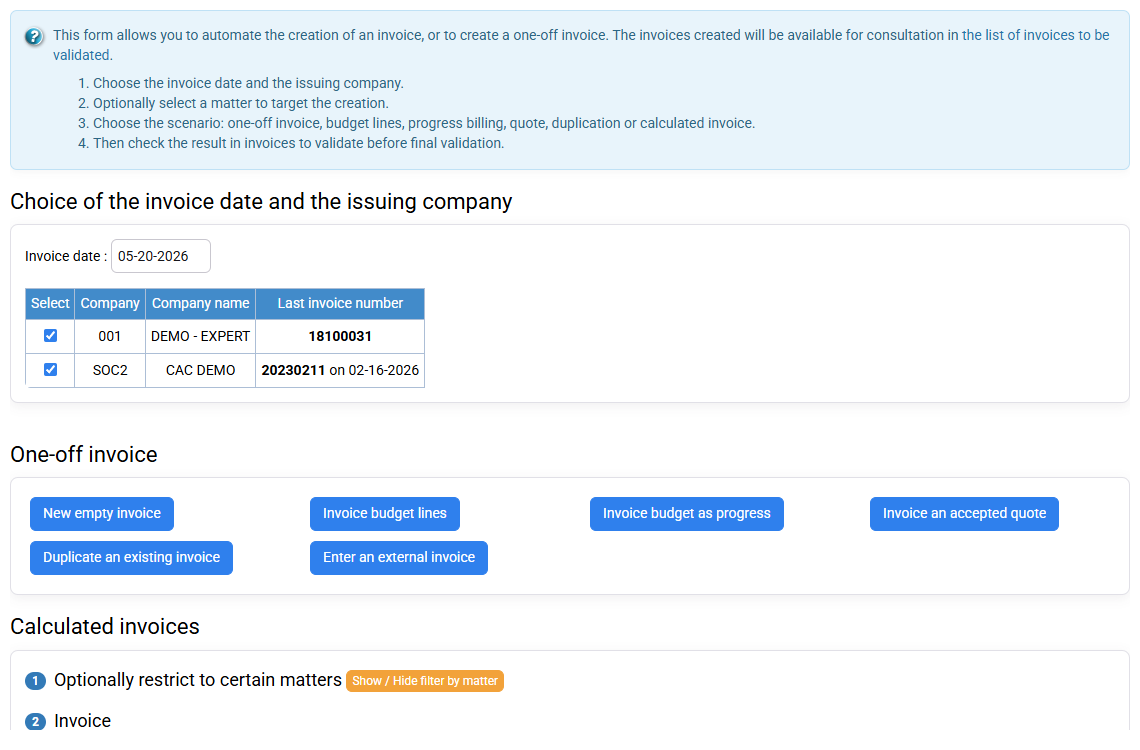
Open invoice preparation on the same company, client, matter and period without issuing. Identify whether the time and expense are proposed, excluded or already invoiced. Eligibility depends on billable status, approval, period, source mapping and previous billing. Do not toggle flags until the cause is known.
Finish with an activity report showing date, employee, matter, task, duration, expense and statuses. The detail and report totals should agree. When they do not, compare filters and status logic first. Keep the company, client, matter, period and statuses with the report, and separate operational activity from commercial billing.
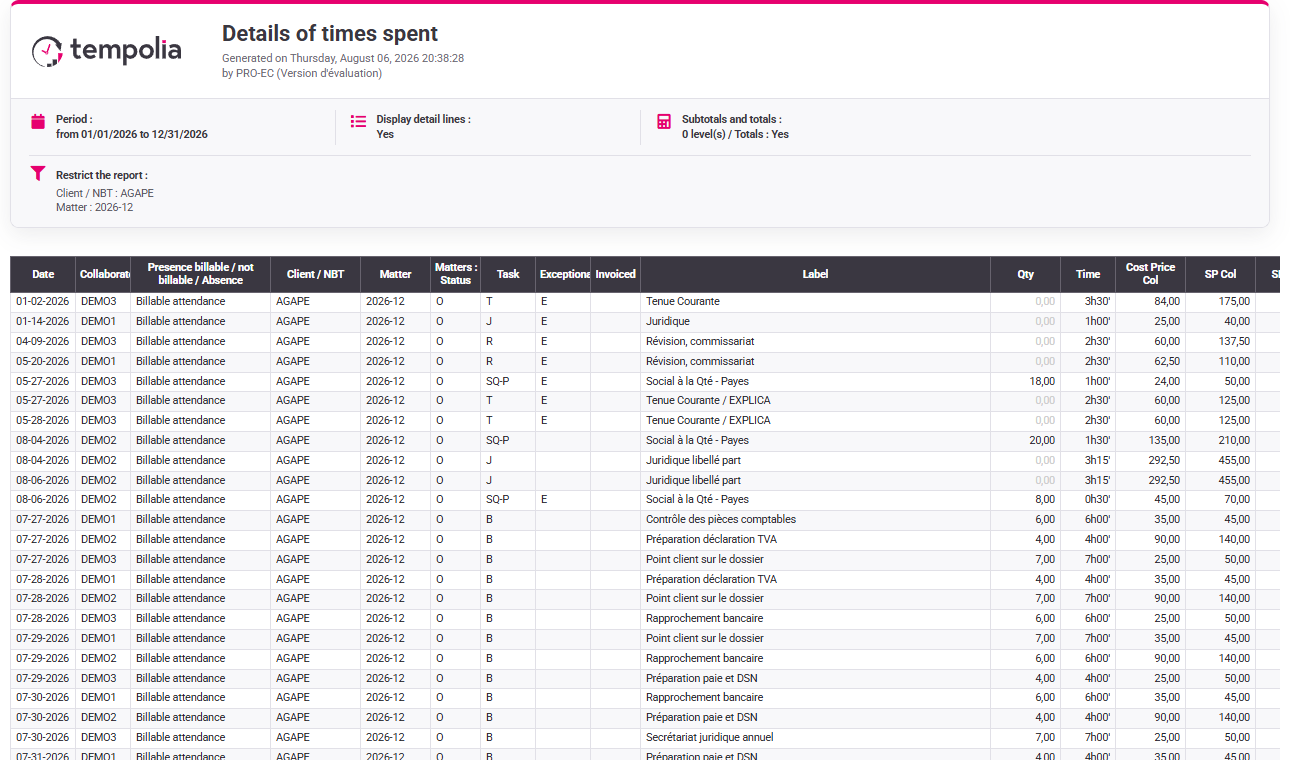
Hands-on reconciliation
- 1. Create or select your time line, then find it in detail with exact filters.One precise record appears on the correct date, person and matter.If not, check active company, date, matter, task and rights.
- 2. Enter or review your expense amount, VAT and description, then attach and reopen the receipt if authorised.The amount and VAT agree with the receipt, and the re-billing rule is clear.If not, compare receipt, expense code, VAT and gross/net entry.
- 3. Check completeness, approval, lock and billable status with the appropriate account.Each line has one intelligible state and authorised next action.If not, identify whether entry rights, approver scope, lock or configuration is responsible.
- 4. Compare budget, invoice proposal and activity report without issuing.Inclusion or exclusion of each record is explainable.If not, align period, approval, billable and already-invoiced filters.
Quality failures to avoid
- Using generic descriptions that cannot support review.
- Selecting another matter because the correct one is not visible.
- Approving totals without reading exceptional lines.
- Attaching an unreadable or unrelated receipt.
- Changing duration to repair a valuation rule.
- Confusing reimbursable, billable and already invoiced.
Step back
A clear entry avoids reconstructing its context during billing. Client, matter, task, date, duration or amount and description should therefore be correct from the start.
If the same mistakes recur, review the task or expense reference data and the approval workflow. This corrects the cause instead of editing records one by one.
Check another time and expense pair
Choose one time line and one expense from the same matter and period. Record their source values before opening a report or billing preparation.
- 1. Before opening Tempolia, write down date, employee, matter, task or expense code, duration or amount, tax treatment, billable state and approval state.
- 2. Move from the editor to detail, approval and billing preparation without changing the filters. Mark clearly whether each line is editable, approved, billable and already billed.
- 3. Investigate one practical issue: missing time, incorrect expense tax, unavailable approval or the same line proposed twice. Correct the source only when you are authorised to change the selected data in your subscription, then repeat the original check.
- 4. Close every tab and repeat the route, checking both lines again with the same filters.