


Correct a draft invoice or resolve a billing block
Objective. Diagnose and correct a draft invoice or billing block at the appropriate source while preserving its history and using a credit note when an issued document must be corrected.
What you will learn
- Identify whether the problem concerns source data, the draft, invoice settings or an external rejection.
- Know which elements remain editable before validation.
- Choose the appropriate correction once an invoice has been issued.
Recommended workflow
- Record the exact message, document status, client, matter and preparation method.
- Check source records, sales codes, VAT, customer identifiers, invoice template and period locks.
- Correct the source or draft, regenerate the document and repeat the control that originally failed.
- For an issued invoice, use the appropriate credit note and replacement-document workflow instead of deleting or overwriting it.
Before continuing
- The correction addresses the root cause and not only the visible symptom.
- The original issued document and every corrective document remain traceable.
- The corrected invoice passes the same business, tax and transmission checks as a new invoice.
Before you begin
Choose a draft awaiting validation in your subscription with a difference between its prepared amount and the commercial source. Identify the document state and trace the amount to its source. If authorised, correct that source and review the regenerated draft without issuing. For example, an €850 line against a signed €900 budget requires tracing the €50 difference to its source.
Prerequisites
- Have a draft awaiting validation, its source, sales code and one-character VAT code in your subscription. If you cannot correct it, perform a read-only diagnosis; never modify an issued invoice.
- Record draft identifier, period, initial amount and consulted source before acting.
- For the post-issue branch, observe a historical invoice without changing it.
- Keep the draft identifier, state, period, observed amount, expected amount and source identifier together. These six values must remain unchanged throughout diagnosis.
Suggested schedule — 55 min
- 5 min: describe the anomaly without proposing a fix.
- 10 min: establish state and authorised actions.
- 10 min: trace line to client, code, actual record or budget.
- 10 min: correct the authorised source and regenerate the selected draft.
- 5 min: choose the route if already issued or rejected.
- 10 min: perform the workshop and compare the values before and after the correction.
- 5 min: step back on traceability and responsibility.
1. Identify the document and its current state
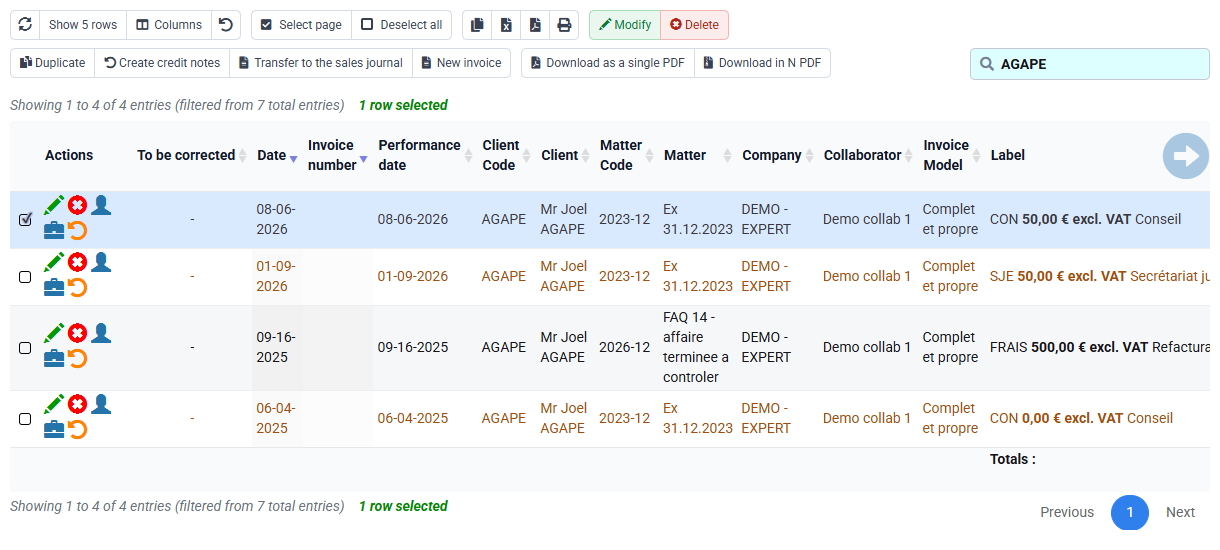
Open Invoices awaiting validation and the sales journal. Determine whether the document is prepared, awaiting validation, issued, sent, transmitted, rejected, exported or paid. Record exact message, identifier, company, client, matter, period, amount and preparation method.
An editable draft and an issued invoice do not permit the same action. Before issue, source or draft can be corrected and regenerated. After issue, preserve the original and use the authorised credit-note or corrective-document flow. Never use deletion to make an issued discrepancy disappear.
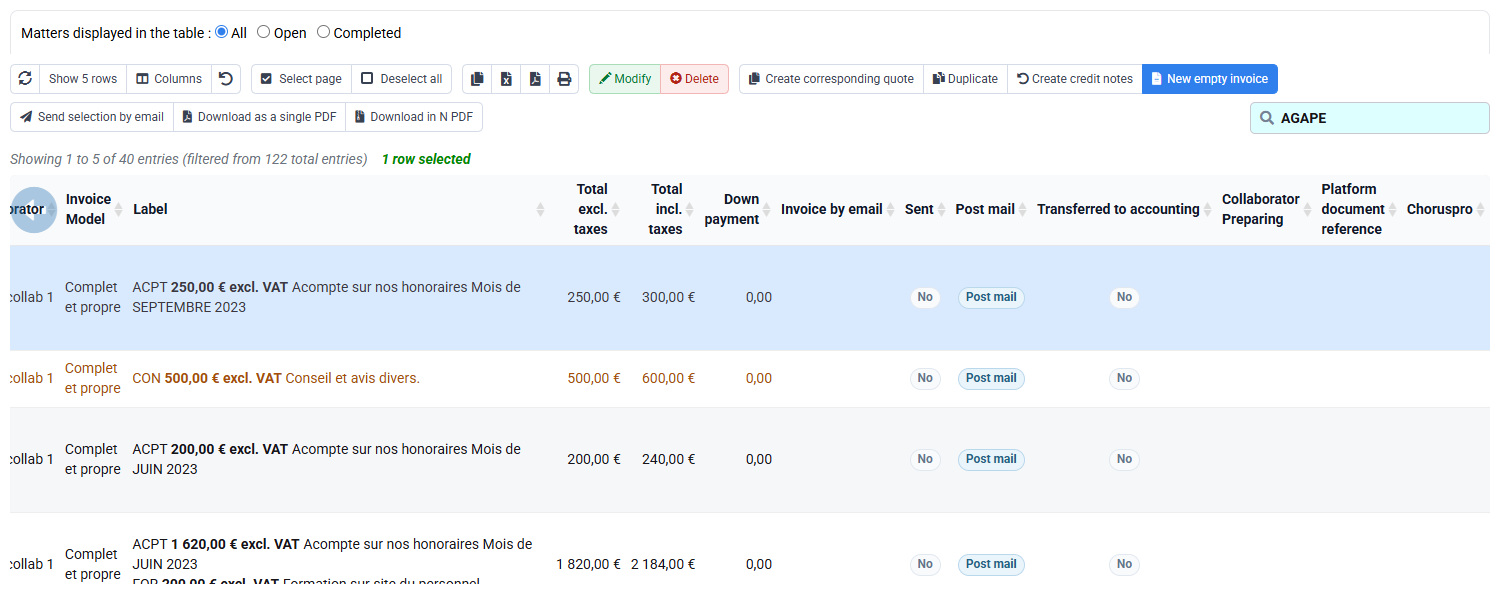
Search the same identifier in pending invoices and in the sales journal. If it appears only in the first list, the draft is still editable; if it appears in the journal, it has been issued and its history must be preserved.
2. Find the source of the difference
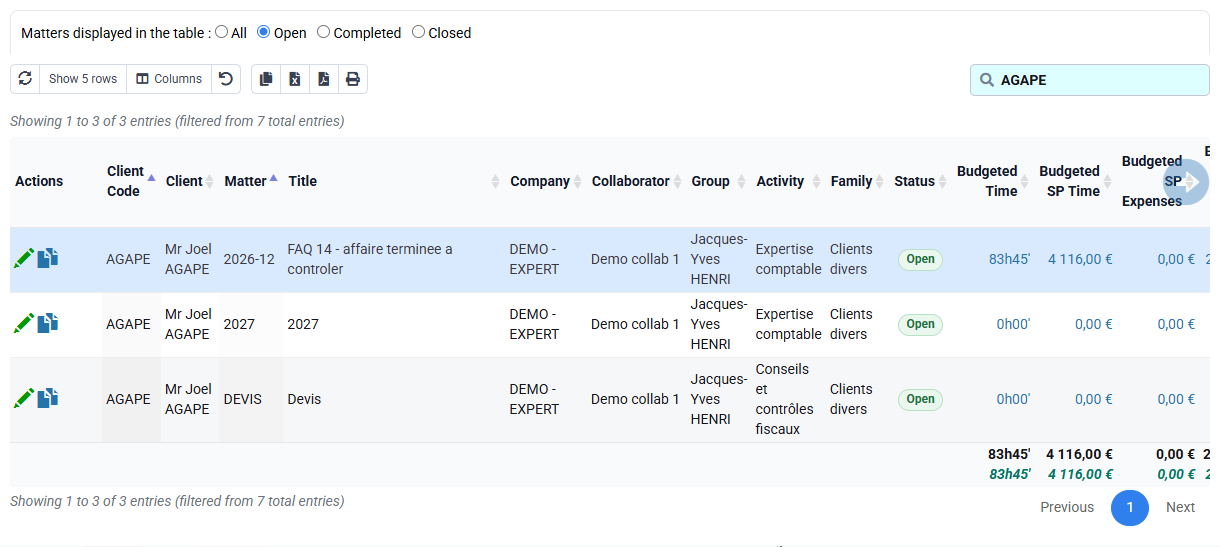
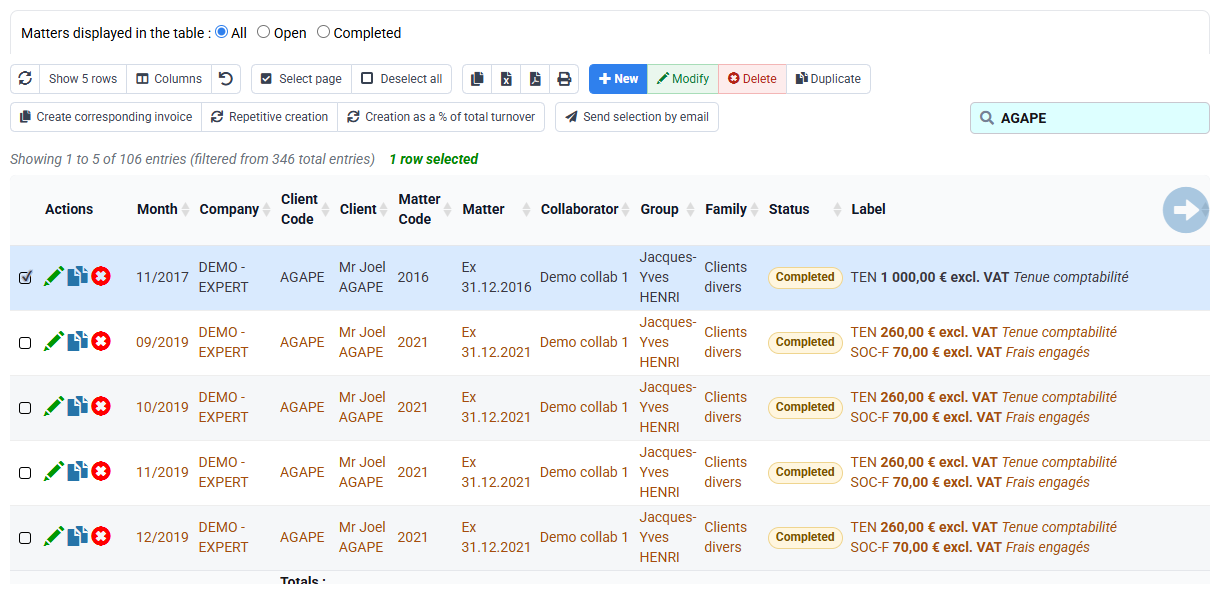
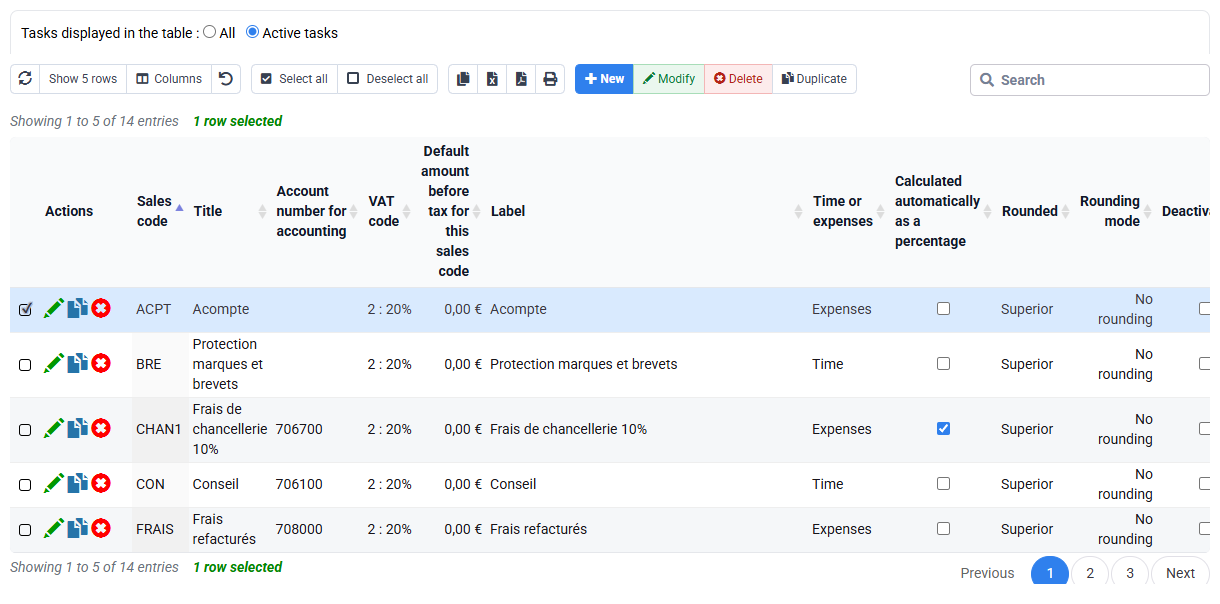
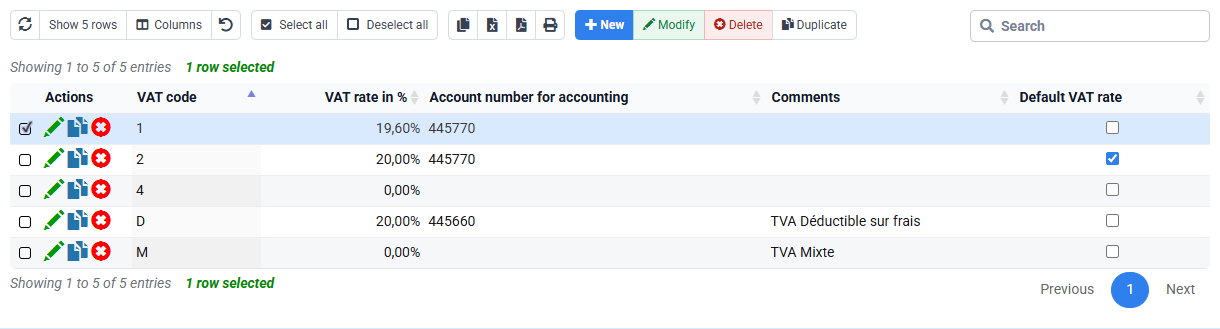
Start from the observed line in your selected draft and identify whether it came from a billing budget, time, expense, quantity, subscription or manual entry. Open that source and compare its documented amount, period, client and matter. Inspect the selected sales code, its one-character VAT code and the template only if the discrepancy concerns wording, tax or presentation.
Work back from the field that is wrong: company or client for identity, matter for scope, source, budget or rate for amount, sales and VAT codes for tax, template for presentation, and statuses or period for eligibility. Change only the source that explains the discrepancy. Do not modify several values at once, because the successful correction would become impossible to attribute.
3. Correct and repeat the same failed control
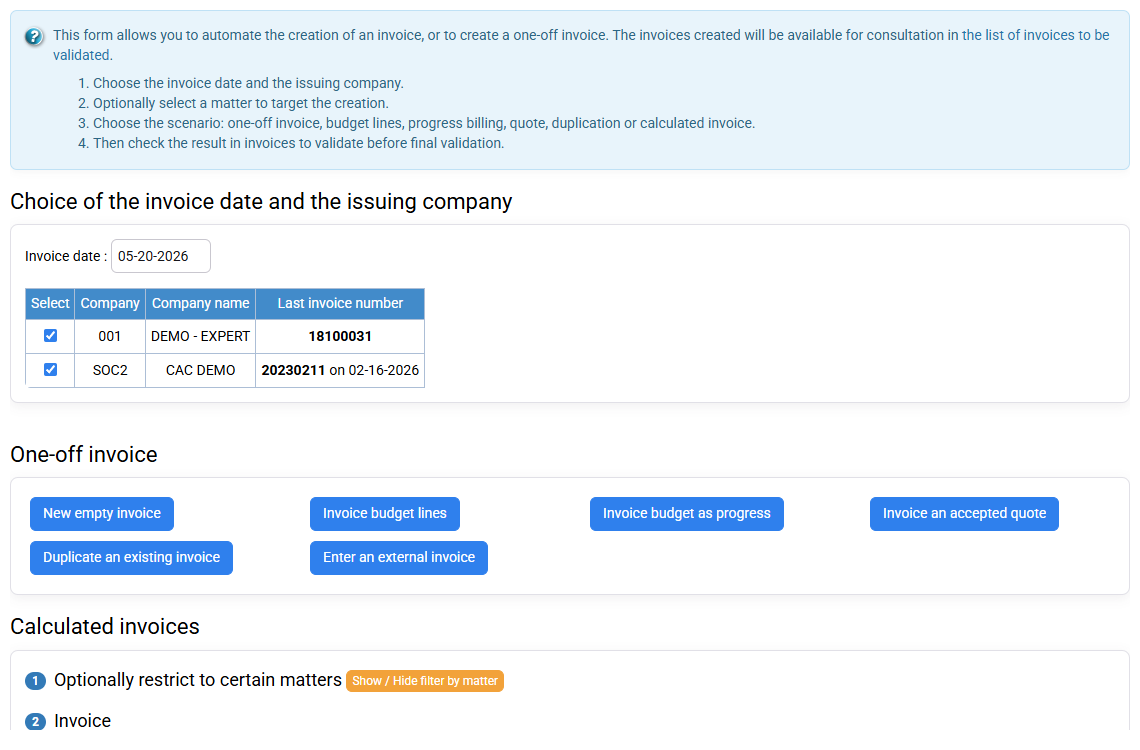
If authorised, correct the selected source from its observed amount to the documented amount only after confirming the signed commercial basis. Regenerate the draft on the same company, client, matter, period and method. Compare before and after identifiers, line amount, VAT and total. The documented amount must appear once, with no duplicate and no unrelated source.
Repeat the exact control that found the problem. If only the total is reread, a secondary error may remain. Review line source, selected sales code, one-character VAT code, client terms and PDF. After regenerating, check the source, amount, VAT, client terms and PDF again.
4. Diagnose reference, client and presentation blocks
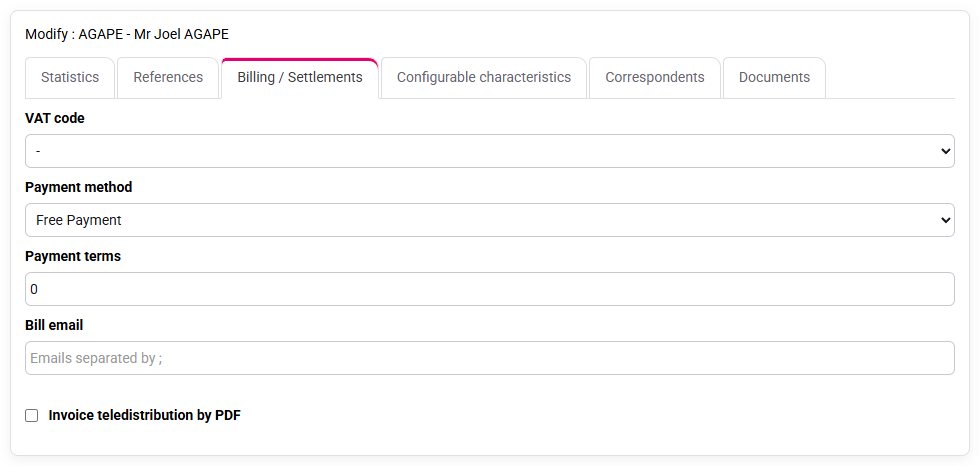
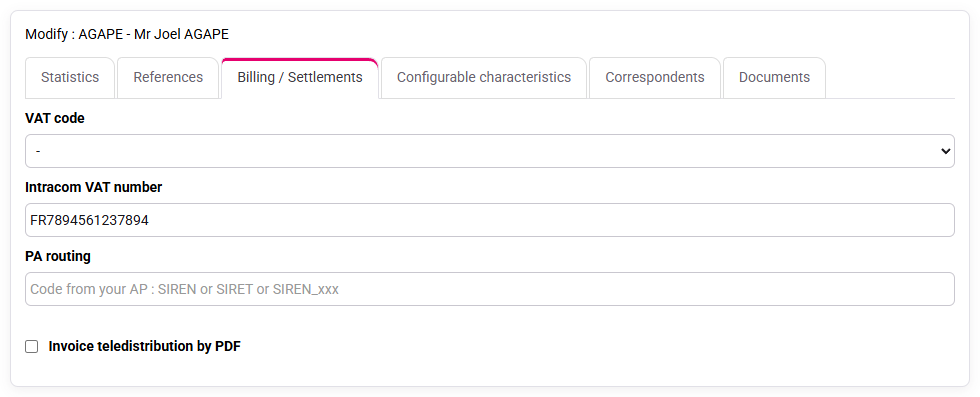
A missing sales code, incompatible VAT, client identifier, billing address, invoice model or locked period can block preparation or validation. Read the exact message and check the corresponding source. Do not bypass a control by selecting an unrelated code.
For electronic invoicing, check client PA/eReporting data and issuing-company identifiers. If the history has no transmission row, nothing can be checked yet; it may simply mean that nothing was sent. Correct missing source data, regenerate and rerun business and technical checks.
5. Choose the traceable route after issue
If the invoice were already issued, first assess whether the error affects identity, amount, VAT, payment or only non-fiscal presentation. Do not edit the issued record. Prepare the appropriate credit note, then a corrected invoice when required, linking references and reasons so the customer account remains understandable.
Check payments and customer movements before correction. An invoice can be partially paid or exported; the corrective chain must preserve balance and accounting consequences. Record who authorised the correction and why. Afterward reconcile original, credit note, replacement, payments and exports.
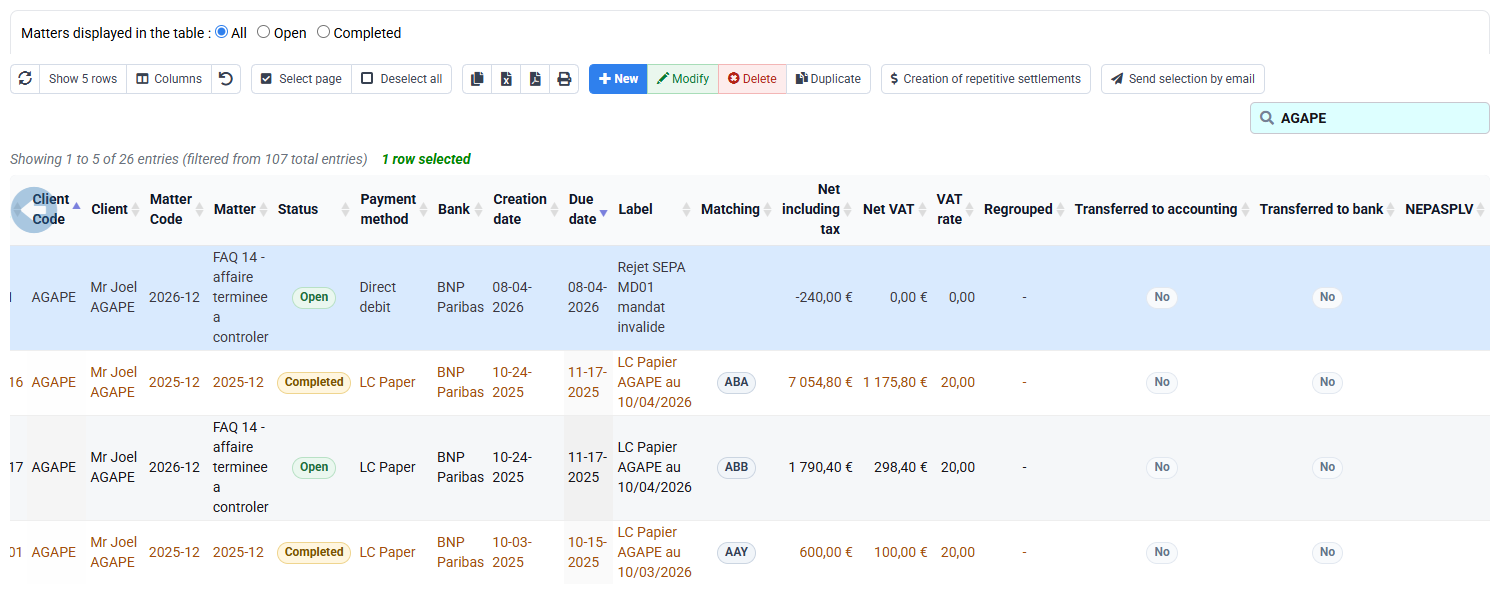
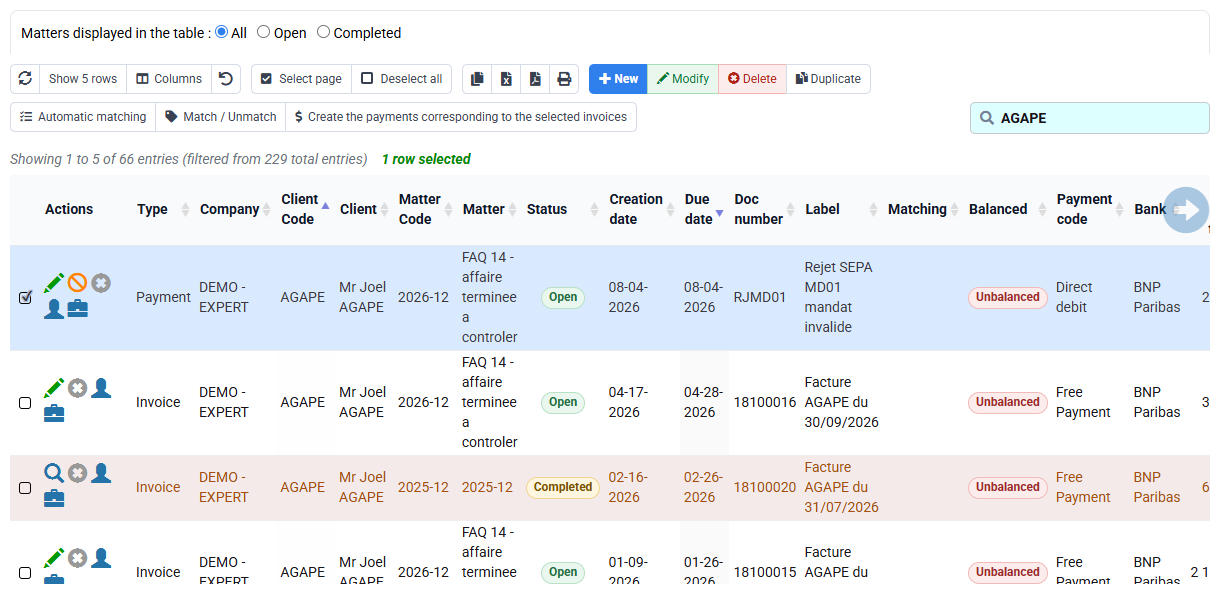
In Payments, check client, matter, method, dates, amount and rejection wording, then open the detail or customer movements to verify the matched invoice number.
6. Read and correct an external rejection
A PA/eReporting or accounting rejection does not erase issuance. Record the exact status, timestamp, platform message and affected document. Classify whether the cause is missing master data, invalid structured content, transmission configuration or temporary external condition.
Correct only what the rejection requires, preserve the failed attempt and resubmit through the supported action. Verify the new status rather than assuming success from clicking. An empty history does not mean the transmission succeeded. After sending, look for the transmission line and its accepted status.
Hands-on correction
- 1. Record the draft identifier, state, period, displayed amount and amount expected from the commercial document.The difference to be corrected is clear.If the expected amount is unknown, confirm the billing rule before changing anything.
- 2. Open the relevant budget, time or expense record, then the sales code, one-character VAT code and client record.You have found the record that explains the amount difference and left unrelated settings unchanged.If several issues exist, begin with the one that explains the amount.
- 3. If authorised, correct the source and prepare again for the same client, matter and period.The new draft contains one line at the correct amount with the expected sales code and VAT.If it is duplicated, check the period, already-invoiced state and selected sources.
- 4. For an issued invoice, do not act during training. Decide whether the normal route is a credit note followed by a new invoice when needed, or a data correction before a new transmission.The original invoice, payments and exports remain unchanged.Obtain accounting or tax approval before taking the real action.
Dangerous shortcuts
- Correcting before classifying document state.
- Editing several sources at once.
- Deleting or overwriting an issued invoice.
- Bypassing a block with an unrelated sales or VAT code.
- Ignoring payment or export before a credit note.
- Treating an empty transmission history as success.
Step back
Start with the document state. A draft awaiting validation can be corrected at its source and prepared again. An issued invoice remains in history: the usual correction is a credit note followed by a new invoice when needed.
After the correction, repeat the check that revealed the difference and review the customer account, payments and export whenever they are affected.
Use the correction route on another anomaly
Choose a second billing anomaly and identify the document state before deciding what can still be changed.
- 1. Before opening Tempolia, write down document number, state, source, amount before correction, amount after correction and the trace that must remain.
- 2. For a draft, correct the source and recalculate. For an issued invoice, use the authorised credit-note or replacement route. For an external rejection, correct the rejected data and resubmit through the approved process.
- 3. Choose a second symptom, such as incorrect VAT, customer data or document state. Identify the allowed correction route from the state, not from the easiest visible button.
- 4. Close every tab and repeat the route, checking that the selected correction preserves the issued invoice and leaves the customer balance understandable.