


What is the “Send to PA / eReporting” page used for?
The Send to PA / eReporting page is used to launch a specific deposit to a PA at a given time. It is accessed from Tempolia export tools, through the Send to PA / eReporting page. This page lets you choose the approved platform used by the firm: JeFacture/Banqup, Sage Network, Pennylane, Inqom, Iopole, B2BRouter, Billit, Storecove, Pagero, Avalara, Basware or SUPER PDP depending on the configured connectors. After the PA is selected, Tempolia displays the introduction text corresponding to that connector.

The user then checks the operations to launch:
- invoice deposit;
- e-reporting and payment sending;
- status synchronization;
- one-off directory lookup;
- technical connection test with the platform.
The checked operations are executed in a stable order to avoid omissions: technical check if requested, directory lookup if requested, invoice deposit, e-reporting and payments, then status synchronization.
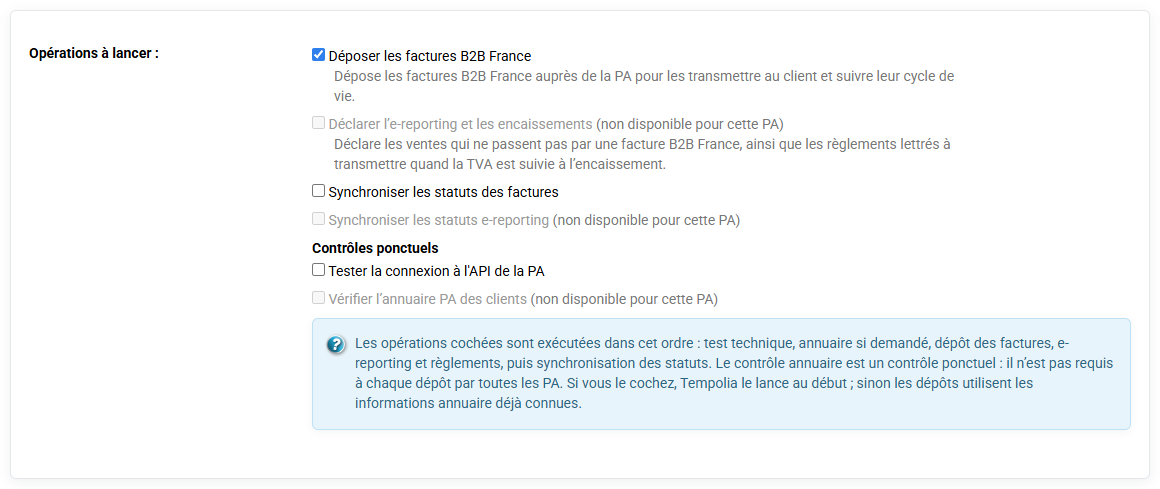
The directory check is not required for every deposit. It is used to refresh routing information when you want to check the clients for the period.
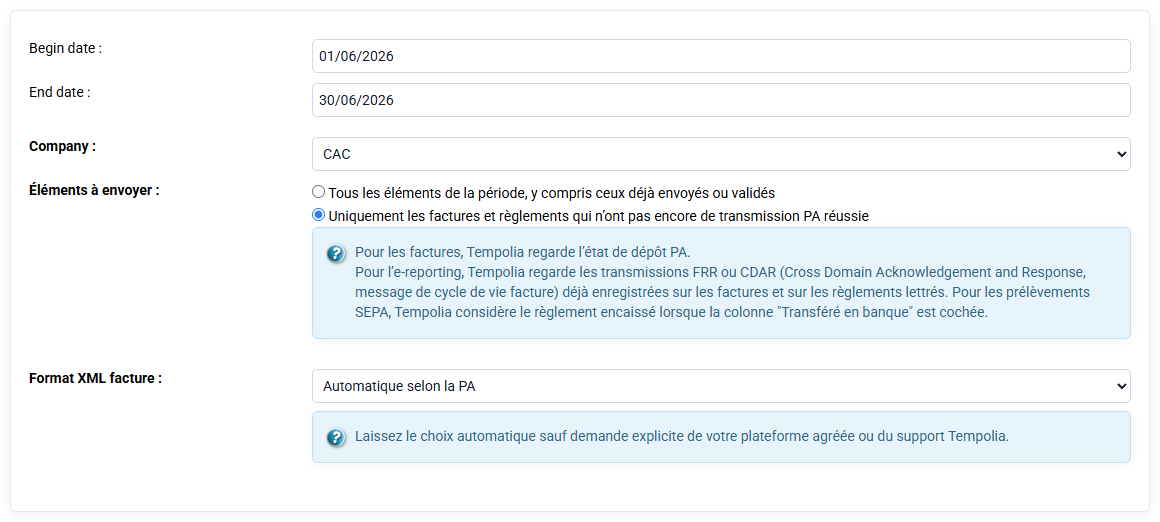
The form also lets you select a company, a period, the format expected by the platform and a differential option. The differential option is used to send only items that are not already traced as transmitted.
This page is not a historical analysis page: it is used to execute an operation. To consult what happened before or understand an error, use the PA history page. In practice, the right reflex is therefore: launch deposits from Send to PA / eReporting, then check traces in PA management and history.