


How do I prepare a SEPA mandate for electronic signature?
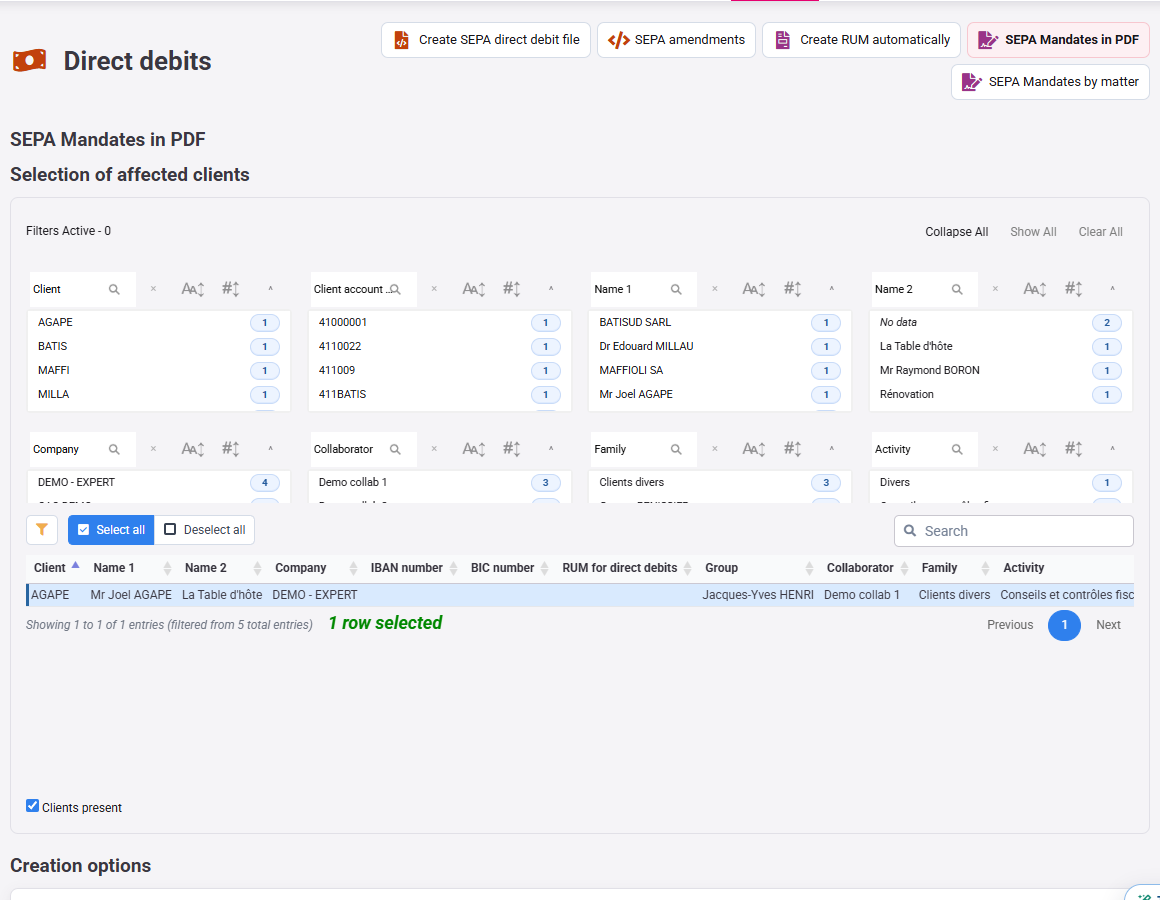
The mandate page can prepare a separate PDF for each selected customer or matter, then open signature tracking. This preparation does not yet send an invitation to the debtor.
Check the mandate to prepare
Open Billing > SEPA mandates. Choose customer or matter mode according to your payment terms, then the selection, issue date and contract options. Check the creditor company details, debtor account, unique mandate reference and CORE or B2B type. See the CORE/B2B distinction.
Prepare the documents and complete the signers
Click the page’s electronic signature button. Tempolia prepares the PDFs and opens Document signature. Each mandate retains its own copy and customer/matter association.
In tracking, review the PDF and complete each signer’s first name, last name, email and mobile number. Available contact details may be suggested, but must be checked. The mandate remains awaiting signature until you trigger sending from tracking. Then follow the general signature workflow.
Check the result and any refusals
Read the summary: prepared documents and refused items may differ. Do not repeat the entire batch without checking what already exists in tracking.
- Button missing: have signature activation and your access to mandates and signature documents checked.
- Bank details refused: correct the source record, then prepare the affected mandate.
- No invitation received: distinguish document preparation, sending and the provider’s result; verify the recipients in tracking.