


How do I install the Tempolia mobile app and sign in?
The mobile app and browser interface use your Tempolia workspace and account access rights. Available workflows depend on the app and the features enabled for your subscription.
Choose the app or browser
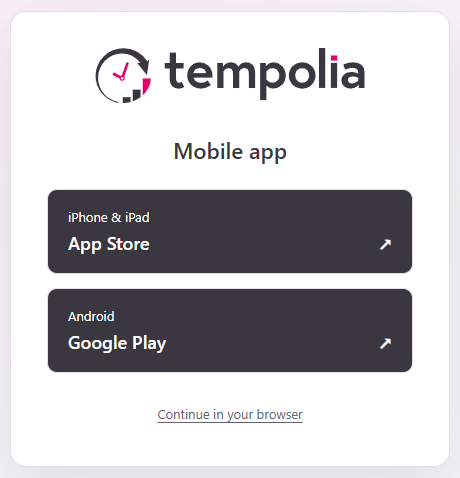
From your Tempolia site’s login page, use the download QR code or open the download choices. Choose the store appropriate for your phone. “Continue in the browser” opens the simplified interface without installing the app.
Sign in to the correct workspace
In the app, enter your Tempolia customer code and account details. Use the email address or identifier requested by the form and your Tempolia password. If Microsoft or Google is configured for this workspace, use the available SSO button; see SSO login.
Complete the requested second factor. Some workflows continue in the browser: check the account, confirm the device, then return to the app. Wait until the app displays the expected workspace and employee before entering time or expenses.
Resolve login and missing access issues
- Account not found: check customer code, email, active employee record and duplicate email addresses.
- SSO button missing: first check the selected workspace and its settings; a personal Microsoft account does not enable Tempolia SSO.
- Expired approval: start login again and use the new request.
- Matter or action missing: check your rights and available mobile features; signing in does not grant additional access to customers or prices.
For a lost phone or a device to remove, use the devices tab in Employee login and access rights, according to your permissions. See also two-factor authentication, forgotten passwords and time entry.
