

A customer says he has not received his invoice, how do I know if my email has been sent?
You can check an email send from two complementary places: the event history and the issued invoice list.
When sending, Tempolia contacts your email server. If that server returns an error, it is displayed or recorded to make the check easier.
What you can check
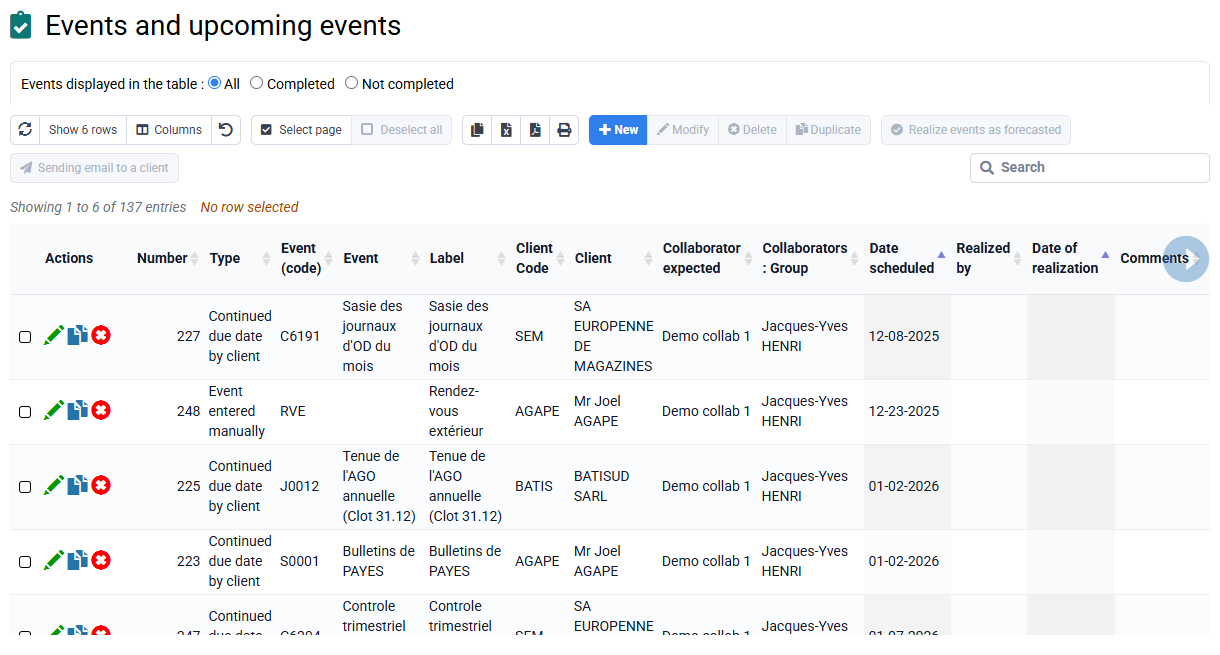
- The events recorded for each send, available from Events > Completed and upcoming events.
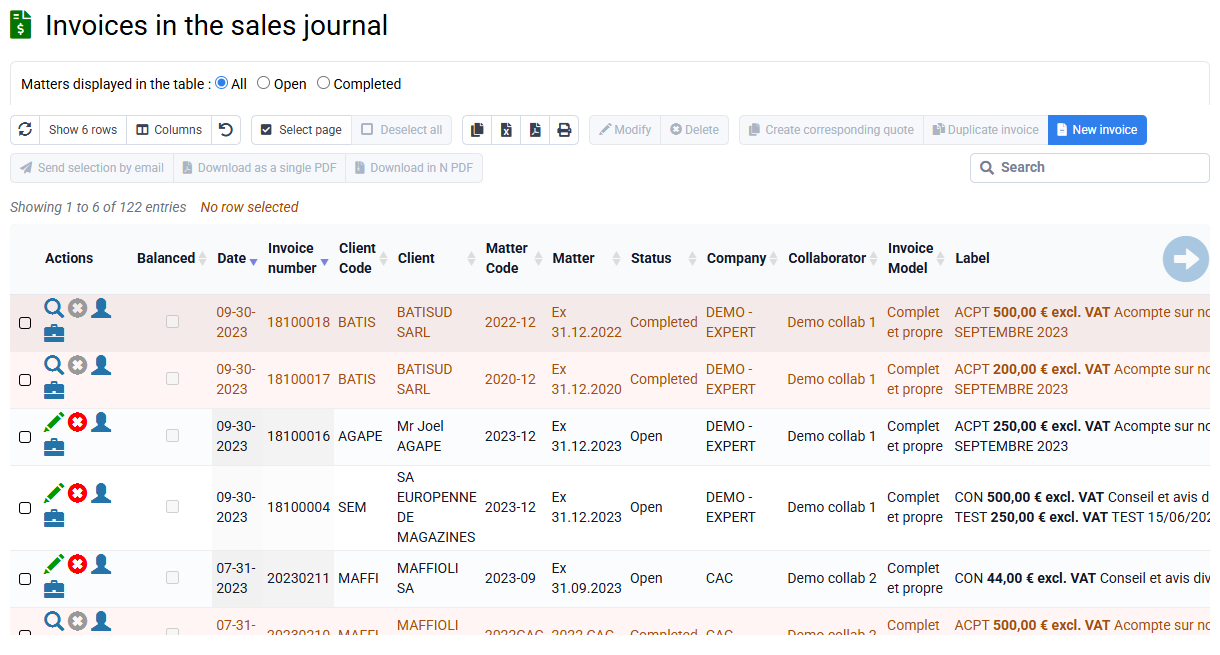
- The issued invoices: the email send column or indicator lets you check that the invoice email was transmitted.
- Your own mailbox, because Tempolia offers by default to copy you on sent emails.
If the email lands in spam or if the sending server is incorrectly configured, the issue depends on the email server used. In that case, contact the provider who manages that server.
1
Check the sending history
Use client events to find the send date, recipient, status and context.
2
Check the issued invoice
In the invoice list, the email send indicator confirms that the invoice was transmitted from Tempolia.
Still unsure?
Compare this information with the copy received in your mailbox. You can see exactly what was sent, to whom, and when.
Compare this information with the copy received in your mailbox. You can see exactly what was sent, to whom, and when.