


Export to accounting and verify entries
Objective. Export invoices, payments, expenses and customer movements within a clear scope, trace every debit and credit to its source and prevent omissions, unexplained manual edits and duplicate accounting imports.
Before you start: choose an invoice from your subscription
Use your own Tempolia data throughout this training. You will follow one existing invoice through the real screens, then use a small fictional example to check debit-credit logic without mixing the two.
Prerequisites
- Select an issuing company that you are authorised to view.
- Select a customer and an issued invoice that includes VAT; if a payment exists for that invoice, use it as well.
- Make sure you can view the sales journal, payments, sales codes, VAT codes and accounting-export screens.
- Before changing screen, record the invoice number, date, customer, net amount, VAT, gross amount, payment status and accounting period.
- If your role does not allow file generation, or if a download would trigger an automatic accounting import, remain read-only and record the parameters. The exercise is still valid without running the export.
A small numerical example to understand balance
On paper, use the fictional ALPHA CONSEIL case. Invoice F2026-201 contains EUR 1,000.00 net consulting, EUR 200.00 VAT and EUR 1,200.00 gross. Its sales entry is debit 411ALPHA EUR 1,200.00, credit 706100 EUR 1,000.00 and credit 445710 EUR 200.00. Fictional payment VIR-201 is debit 512000 EUR 1,200.00 and credit 411ALPHA EUR 1,200.00. Account 445710 in this example assumes VAT is due on invoice/debit. For cash-basis VAT, VAT is recognised at a different time and may use different accounts: follow the VAT code and accounting setup of your company rather than copying 445710.
Both entries balance and the combined 411ALPHA balance is zero. These references and amounts only teach the calculation: do not search for ALPHA, F2026-201 or VIR-201 in Tempolia, and never replace your invoice values with the example values.
60-minute schedule
- 8 min: select the invoice and record its sources, accounts and period.
- 12 min: identify the sales-export settings and generate the file only if authorised.
- 12 min: read or reconstruct the selected invoice entry line by line.
- 12 min: read or reconstruct its payment entry, when one exists.
- 10 min: reconcile journal, report, payment and any genuinely available file.
- 6 min: diagnose a wrong account and formalise the checks.
Checks to repeat
- On paper, F2026-201 and VIR-201 each total EUR 1,200.00 on both debit and credit sides, and the combined 411ALPHA balance is zero.
- In your subscription, you can trace the selected invoice to its customer, sales code, VAT code and export settings while keeping its actual amounts.
- You distinguish configuration screen, source document, generated file and import feedback; none substitutes for another.
Understand the source-to-entry chain
An accounting export is the consequence of operational data: issued invoices, payments, expenses, movements, companies, customers, sales codes, VAT codes and banks. The export format translates this data into the structure expected by the accounting package; it should not redefine its meaning.
Sales and payment exports answer different questions. The sale recognises customer receivable, revenue and VAT. The payment transfers value between bank and customer account. Expenses and miscellaneous customer movements have their own workflows and accounts. Keeping families separate makes totals and rejections explainable.
Balance is necessary but not sufficient. A file can balance while using the wrong customer, account, period or duplicate piece. Control therefore covers scope, source identity, debit-credit equality, account allocation, counts and transfer history. Correct the sales code, VAT code or customer record that caused the error and regenerate. Do not edit the output file unless your accounting procedure explicitly requires it.
Capabilities acquired
- Choose the accounting format and set company, period, journal and options explicitly.
- Trace customer, revenue, VAT and bank accounts back to active source reference data.
- Export sales, payments, expenses and movements through separate screens.
- Read an entry line by line and check that debits equal credits for each piece.
- Reconcile piece count, net, VAT, gross and payment totals with Tempolia.
- Diagnose a rejected or missing line without repairing only the exported file.
- Record the export and import status before running the same period again.
1. Freeze the source perimeter and accounts
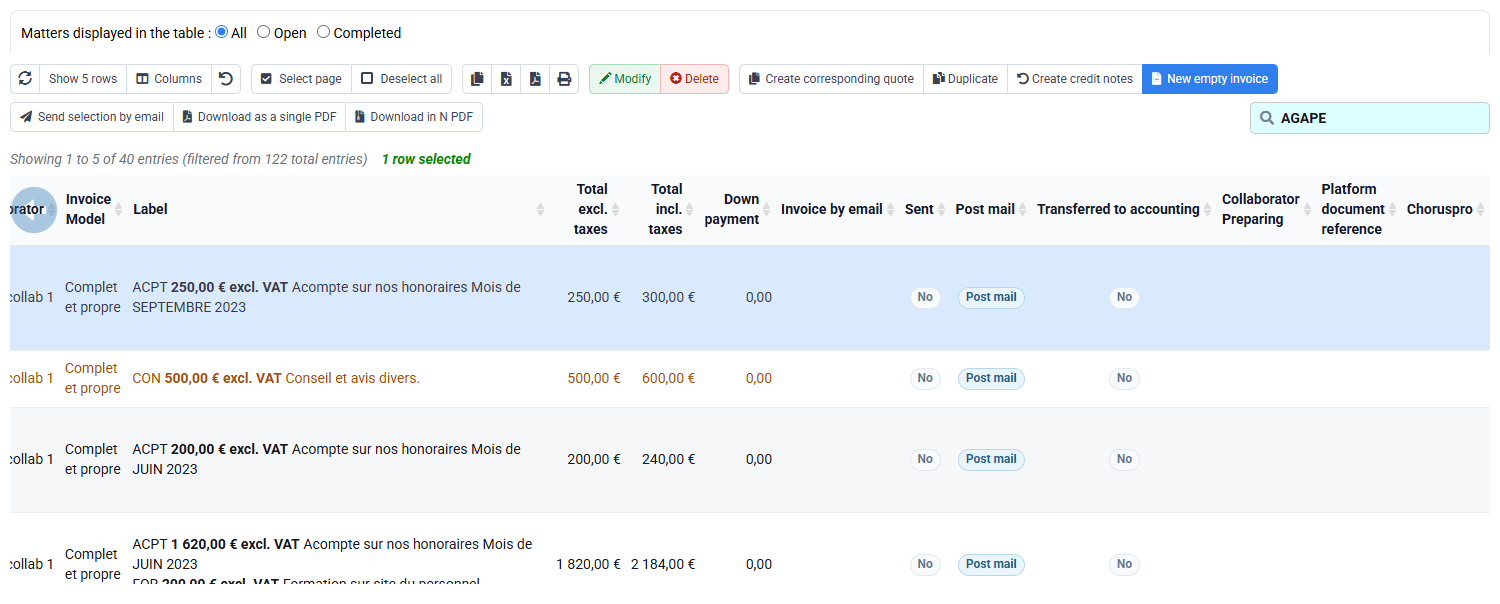
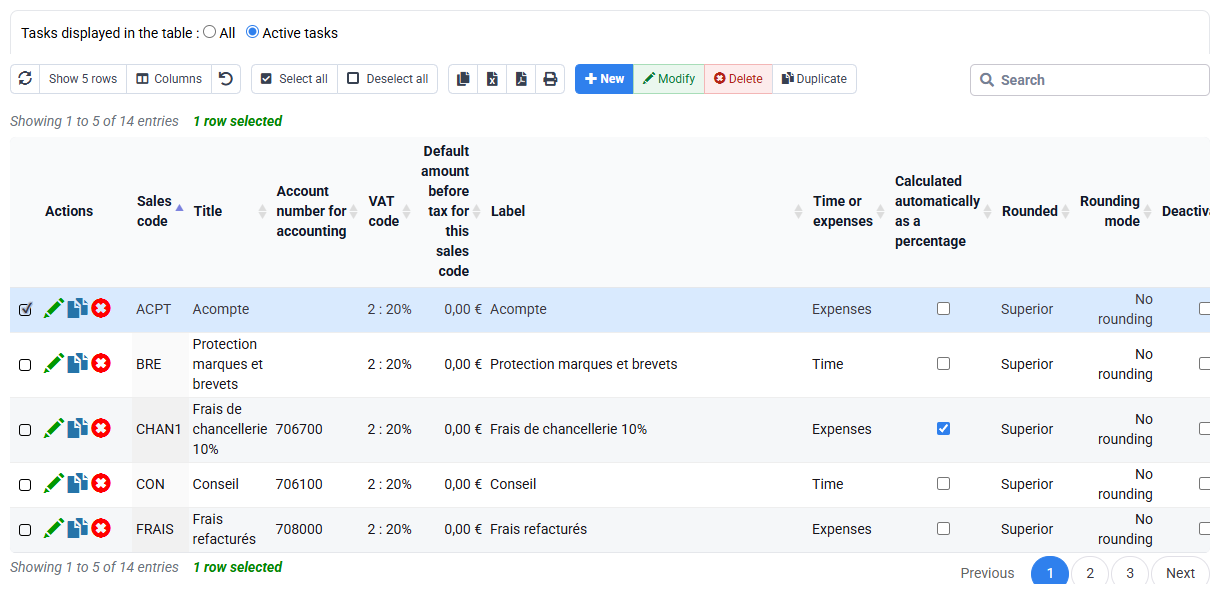
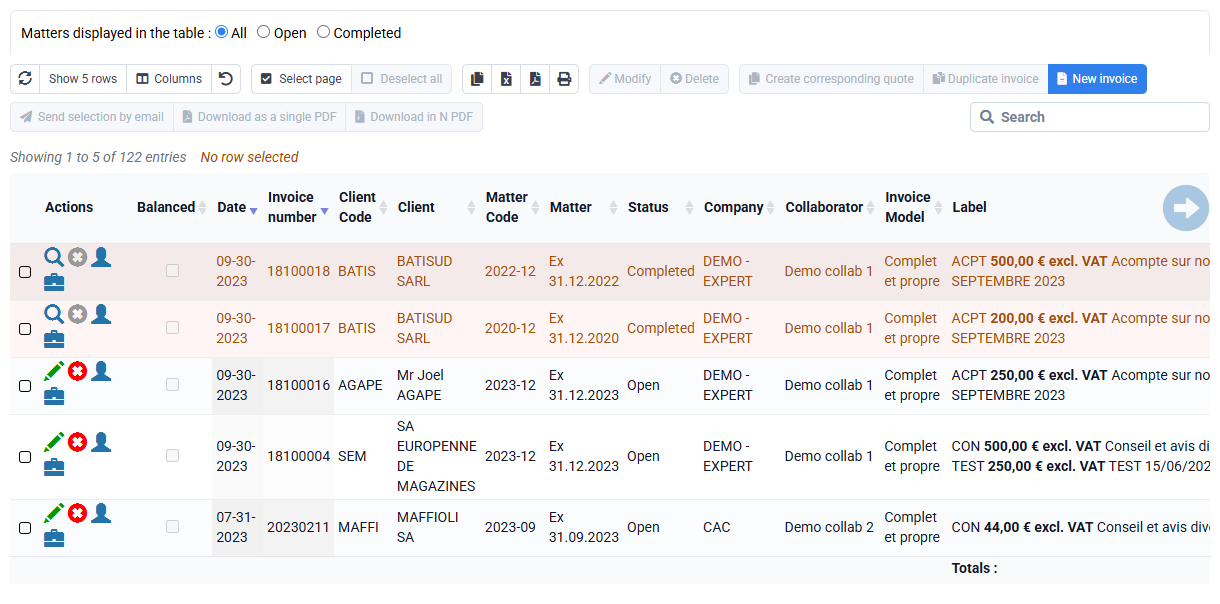
Keep F2026-201 and VIR-201 on the ALPHA worksheet. In Tempolia, filter the sales journal to the invoice selected in your subscription and record its customer, date and actual net, VAT and gross values. Inspect the visible customer, sales-code, VAT and bank references without claiming that they belong to the synthetic entry. Do not create or search for the fictional references in Tempolia.
Do not continue if a source account is blank or if invoice remains awaiting validation. A prepared invoice is not an issued sale. Record the target software format and whether pieces have previously been marked transferred.
2. Produce and read the sales export
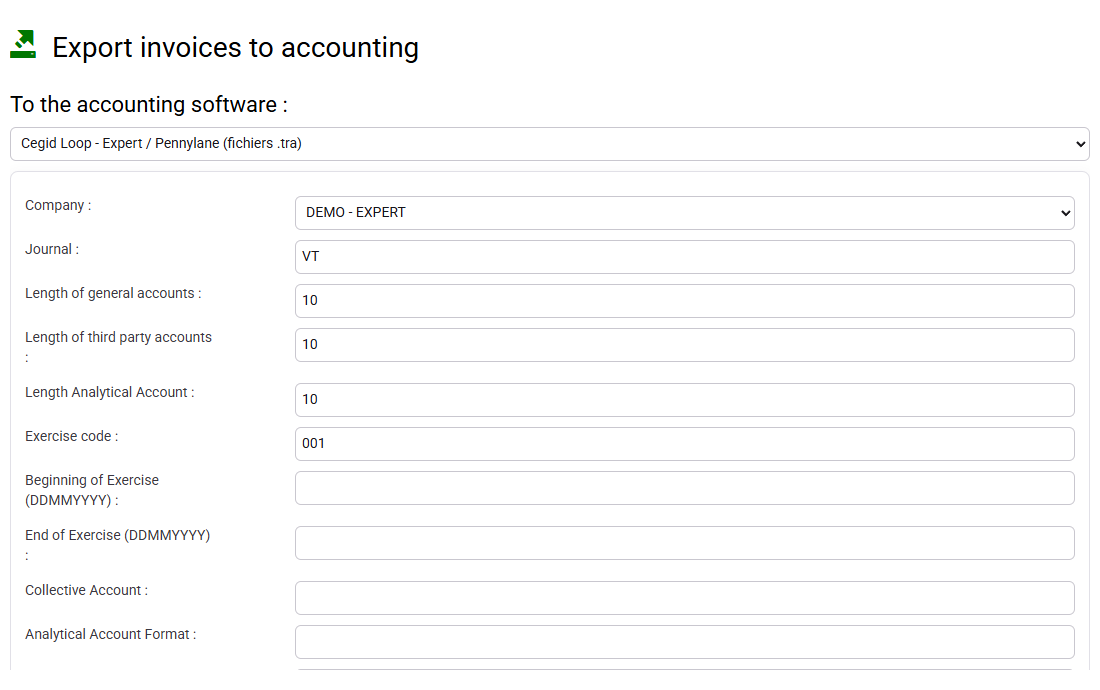
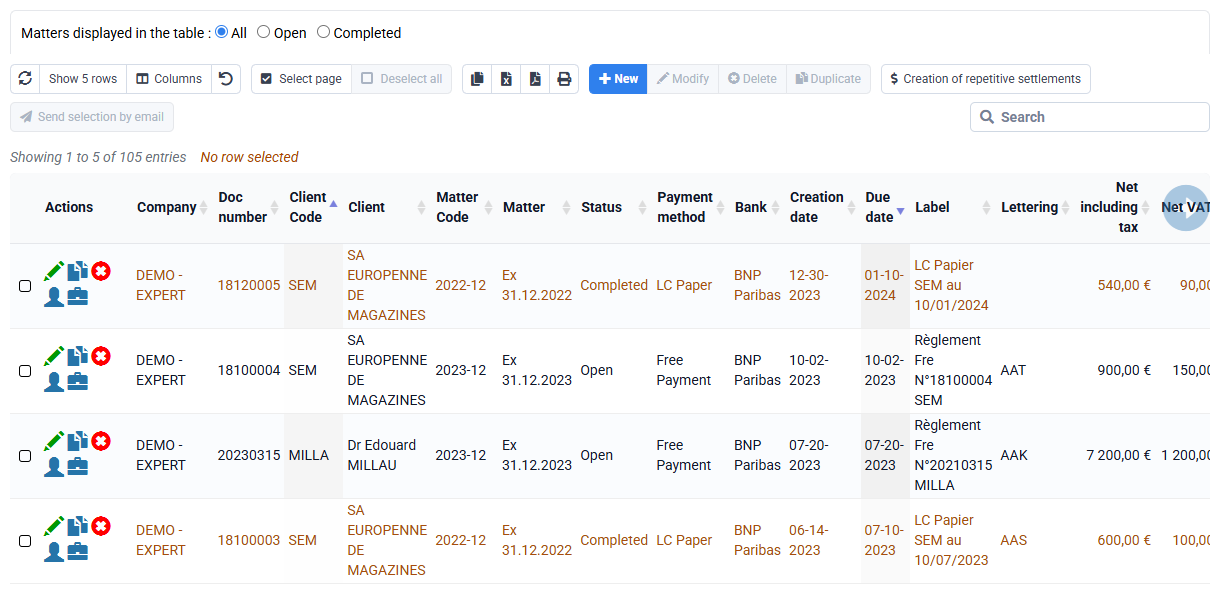
Path: Tools > Export invoices to accounting.
Use the form to set the approved format, company, period and sales journal; keep F2026-201 on the worksheet and use the selected invoice for the on-screen controls. On the worksheet, prepare the expected three-line entry. Generate a file only when your rights and accounting procedure allow it; isolate the lines of the invoice selected in your subscription. Before any download, compare piece count and net, VAT and gross totals. A generic form shows the available settings but not the lines produced for the selected invoice.
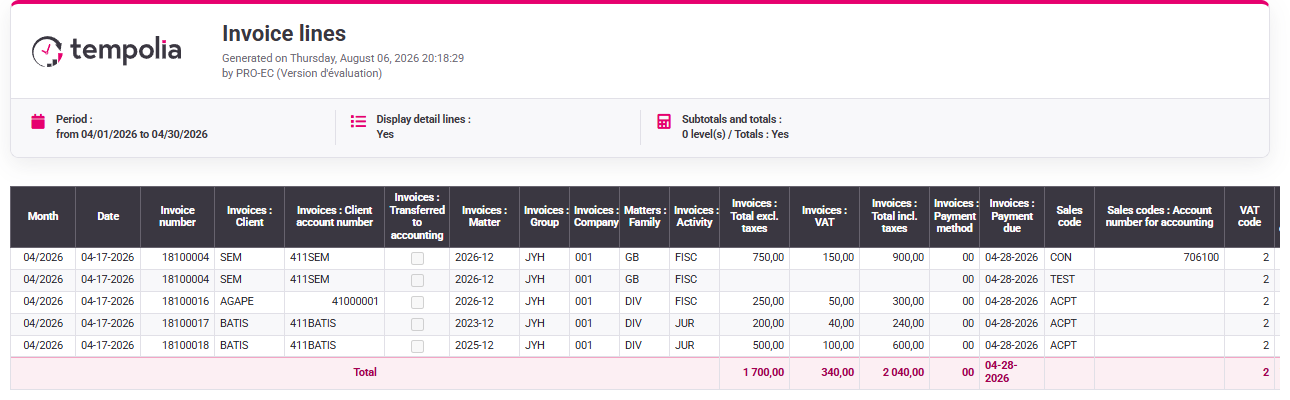
Reconstruct the three lines on the worksheet. On the worksheet, read the same three fictional lines. Debit 411ALPHA for EUR 1,200.00 establishes the receivable. Credit 706100 for EUR 1,000.00 recognises revenue. Credit 445710 for EUR 200.00 recognises VAT. Compute totals independently. If the product reaches another account, correct the sales code and regenerate a test export rather than changing the line manually.
3. Produce and read the payment export
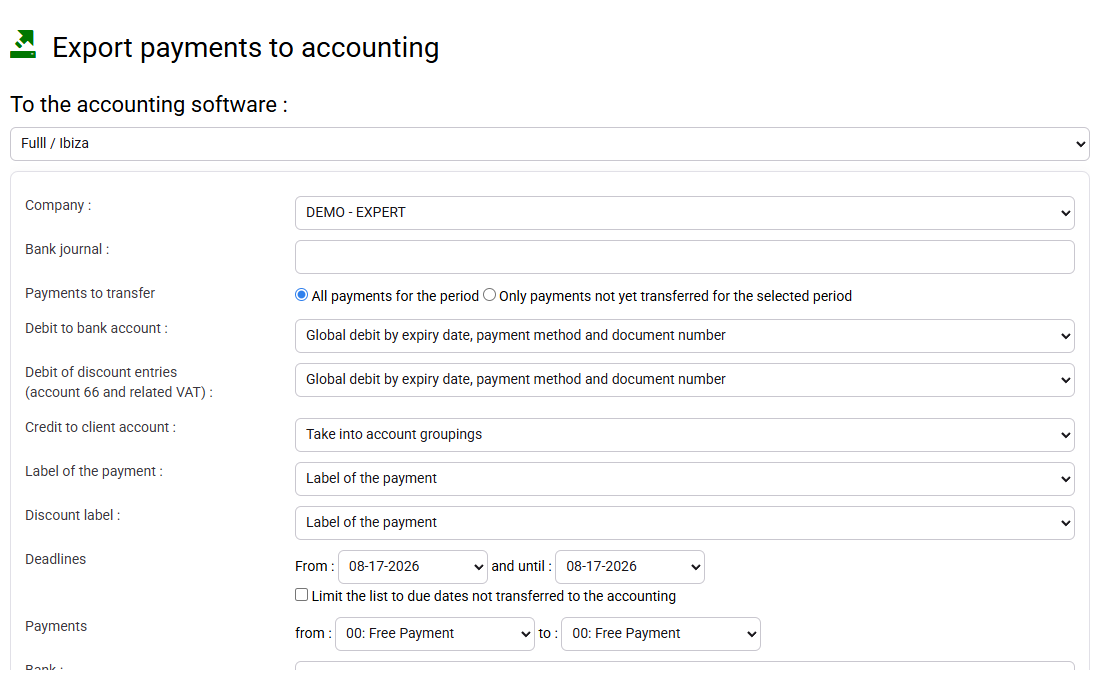
Path: Tools > Export payments to accounting.
On the worksheet, reconstruct VIR-201: debit 512000 EUR 1,200.00 and credit 411ALPHA EUR 1,200.00. In Tempolia, use the selected payment to identify company, period, bank journal, customer, reference and date controls. Export it only when authorised, then calculate both sides from the generated file. Keep VIR-201 as the separate worksheet example.
Combine the sale and payment only for reconciliation: 411ALPHA debit and credit cancel, while revenue, VAT and bank remain in their proper accounts. Matching supports the customer reconciliation but does not replace export control. If 411ALPHA does not cancel, inspect customer identifier, amount, sign and matching.
4. Reconcile the file and prevent a duplicate import
Compare generated record count and totals with the journal, payments and a Tempolia report. Record file name, company, period, format, journals, operator, generation time and control totals. If the accounting test import returns a rejection, retain line and message before correcting the Tempolia source and regenerating.
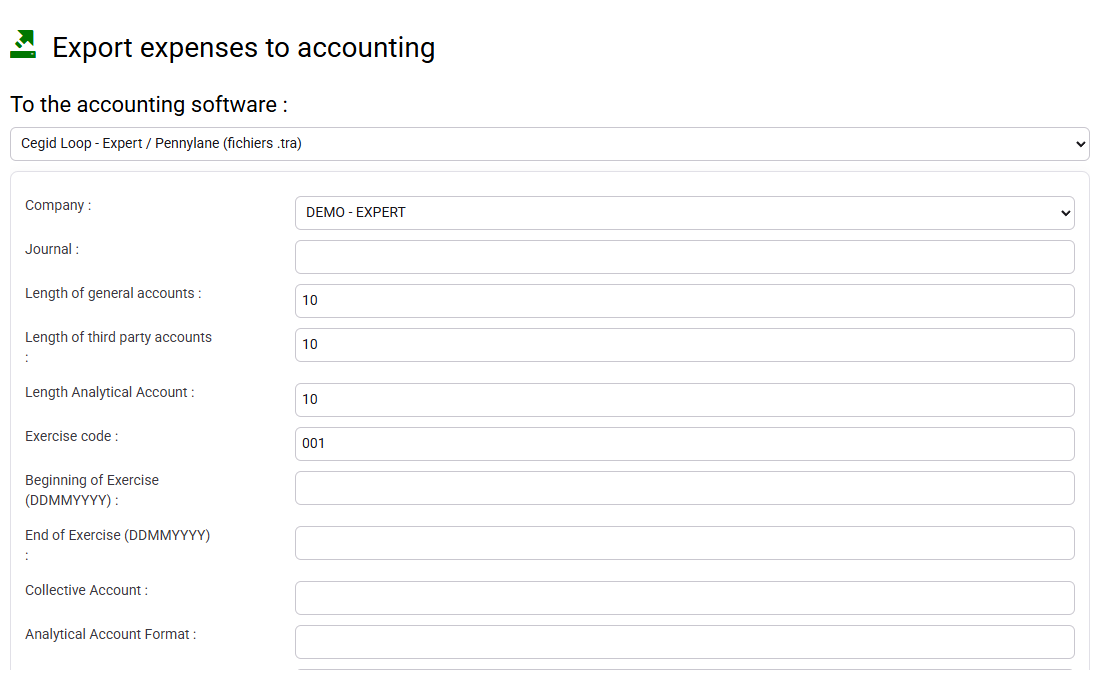
Do not re-export the whole period until you know whether the first file was imported and how the receiving system detects duplicates. A rejected export is visible; a successful duplicate may be harder to detect. Expenses and customer movements are exported through their own screens and must undergo the same source, balance and duplicate controls.
Work through the selected data
Keep two columns: the calculated ALPHA worksheet and the values read from the invoice and payment selected in your subscription. Compare an accounting file only when it has genuinely been generated for the selected records.
- 1. Reconstruct F2026-201, VIR-201 and all four accounts on the worksheet; separately retrieve your selected invoice and payment and record their actual values.
- 2. Generate separate test exports only when your rights and accounting procedure allow it; otherwise balance the worksheet entries and stop before export.
- 3. Reconcile the file, journal and report, then record the transfer status.
- Sale totals EUR 1,200.00 debit and credit.
- Payment totals EUR 1,200.00 debit and credit.
- Combined 411ALPHA balance is zero and neither piece is duplicated.
Diagnosis
- Unequal sides indicate a rejected line, wrong sign or missing VAT line.
- Wrong revenue account points back to the sales-code source.
- Non-zero customer account requires checking party, payment amount and matching.
- A missing or duplicated piece requires checking validation status, period and export history before regenerating.
Common mistakes
- Exporting invoices still awaiting validation.
- Fixing the generated file without fixing the source data.
- Changing an already-used sales-code account without historical analysis.
- Mixing sales, payments, expenses and movements into one convenient but unexplained file.
- Re-exporting an imported period without first checking how duplicates are handled.
Before you finish
Recheck the source references, parameters, generated entries and debit-credit calculations. The worksheet must show EUR 1,200.00 on each side and a zero combined 411ALPHA balance; the generated file must contain each selected piece once.
Apply the method to your selected invoice
ALPHA CONSEIL, F2026-201 and VIR-201 form a calculation worksheet; they are not records to search for in Tempolia. Keep their EUR 1,200.00 balanced-entry exercise because it teaches debit and credit logic, and keep them clearly labelled as a calculated example. For the on-screen exercise, locate the issued invoice chosen in your subscription. Record its actual net, VAT, gross amount, customer, revenue and tax accounts from the source and any generated lines that are genuinely available.
Recalculate debit and credit from those values. If the export screen is empty, no file is available or an account cannot be traced, check the settings and stop before comparing the export. A configuration screen shows where an account is maintained, not which line a particular export produced. The training succeeds when the learner can perform the synthetic arithmetic and then repeat the method with the selected invoice’s real values without mixing the two columns.
Step back
An accounting export is built from reference data and issued documents. Check balance, source references, scope and duplicates. Automate arithmetic and required-account checks where possible, and decide any reopening, source correction or re-export with the accounting team.
What to keep with each export
Attach to each export its recorded scope and filters, source totals, generated file, independent debit-credit calculation, test-import report and transfer decision. Use a unique batch name containing company, transaction family and period. Recalculate the worksheet entries once, then follow the selected invoice from source to any genuinely generated entry and retain the completed reconciliation. When accounting rejects a line, preserve the original rejection before correction; when it accepts the file, preserve the import identifier so a future operator can detect a duplicate attempt.
For month-end, reconcile four populations separately: issued sales eligible for export, payments eligible for export, records generated and records accepted by accounting. Give every difference a status or a known reason. This makes “nothing is missing” a verifiable statement rather than an assumption.