

How to configure the sending of emails?
You can send emails with Tempolia, for example invoice emails to your clients.
Emails will come from your email server to avoid any spam issues. You can send us an existing address, or create an email address specifically for Tempolia.
It is important that you regularly check for emails to this address, for example to click on links from antispam platforms asking you for a captcha.
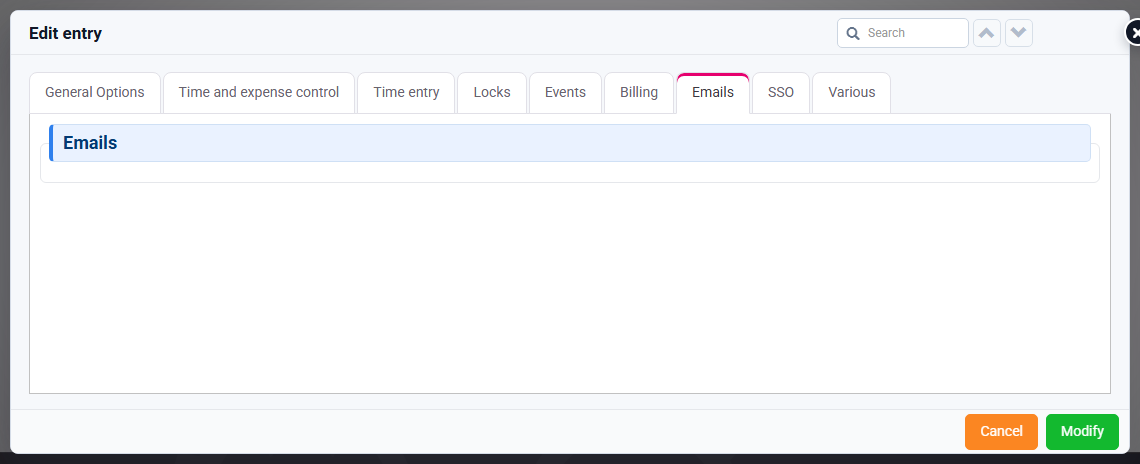
The necessary information is: SMTP server (example: smtp.gmail.com), email address, password, port (25, 465 or 587), name to display.
If you have multiple companies, by default a single SMTP account can be used, and you can also duplicate configurations per company.
You can configure yourself by being logged in as an administrator and going to « Configuration > [ADMIN] Configuration Variables »: search for "email_configuration" to find the variables configuration concerned.
For example, you can enter:
- nom_expediteur_forced (name to display): Name of person, or Billing Department for example
- mail_smtp (SMTP server): smtp.yyy.zz
- default_email_from (email address): xxx@yyy.zz
- mail_smtp_username (SMTP login, often identical to email): xxx
- mail_smtp_password (password): .......
- mail_smtp_port (SMTP port): 587
- mail_smtp_auth: true
- forced_sender_email: true
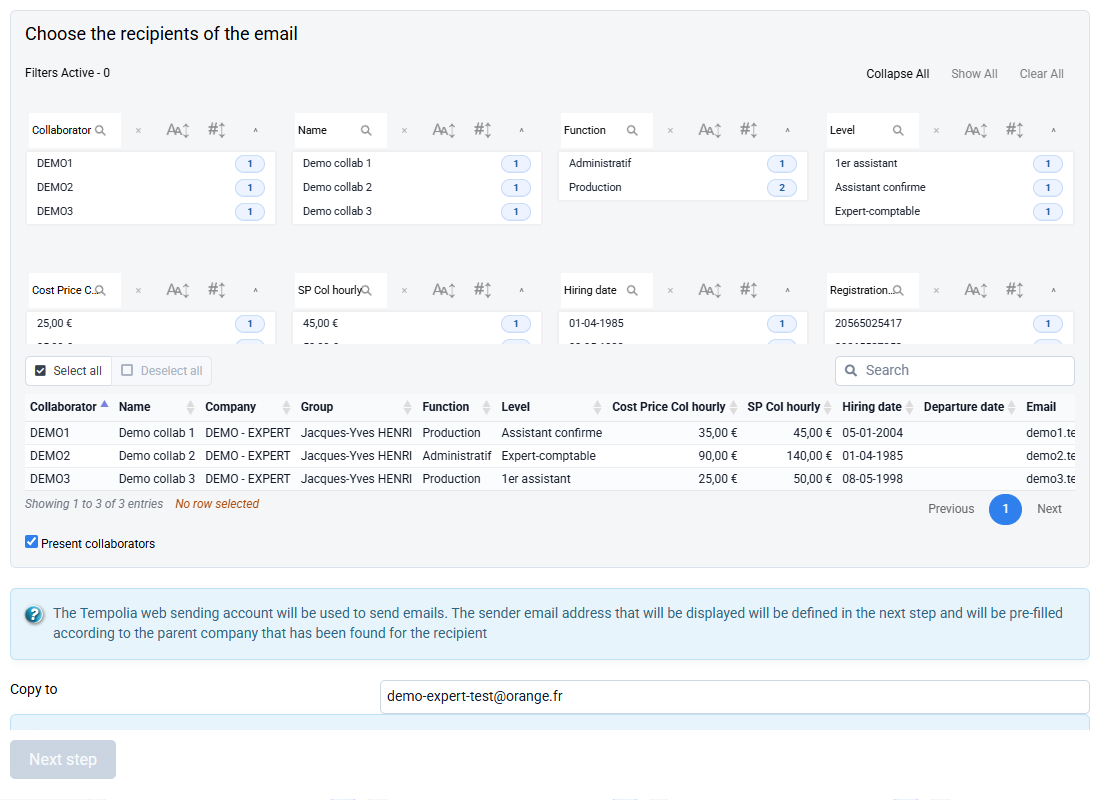
To test your configuration, in « Collaborators > Send email to a collaborator »
- Select a collaborator, a priori yourself
- Choose an email template and/or fill in a message
- Modify the recipient email if necessary
- Validate by clicking on "Send"
- Check your email that your email has been received correctly
In the event of an error message, read what is written in English in red: this is what is returned by your email server, and allows you to know what to correct in your configuration.