

How to configure the access rights of collaborators?
Collaborator, login and rights: one record
The “Collaborators > Collaborator logins and rights” page is not a separate account list: it displays the same collaborators stored in Tempolia. As soon as a collaborator is created, their row therefore appears there automatically. Leaving the password empty or restricting access rights may prevent that person from signing in, but it does not remove the collaborator record from this page or from the present-collaborator count.
To link actual or budgeted time or expenses to a person, the collaborator record must already exist and the person must be present on the line date, between the hire date and departure date, inclusive. There is no collaborator “outside the login and rights list” that can bypass this rule.
There are several ways to configure employee rights:
- the visible pages, thanks to the "Access rights by profile",
- the visible lines, thanks to the "scope of access rights",
- the visible columns, thanks to the activation or not of the display of cost prices, selling prices, etc.
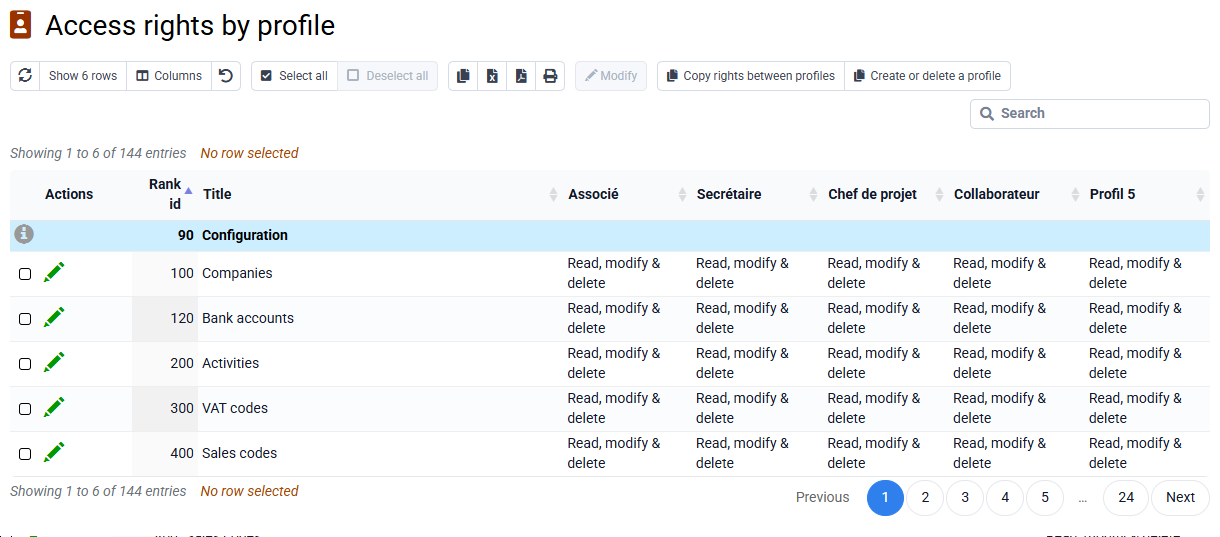
The “Collaborators > Access rights per profile” allows you to define the access rights for each profile (update, consult only or prohibited) for each page of the menu and certain sub-pages. You can create and delete rights profiles, in addition to those created by default.
The features prohibited for the employee's profile automatically disappear from the menus, simplifying access to other features.
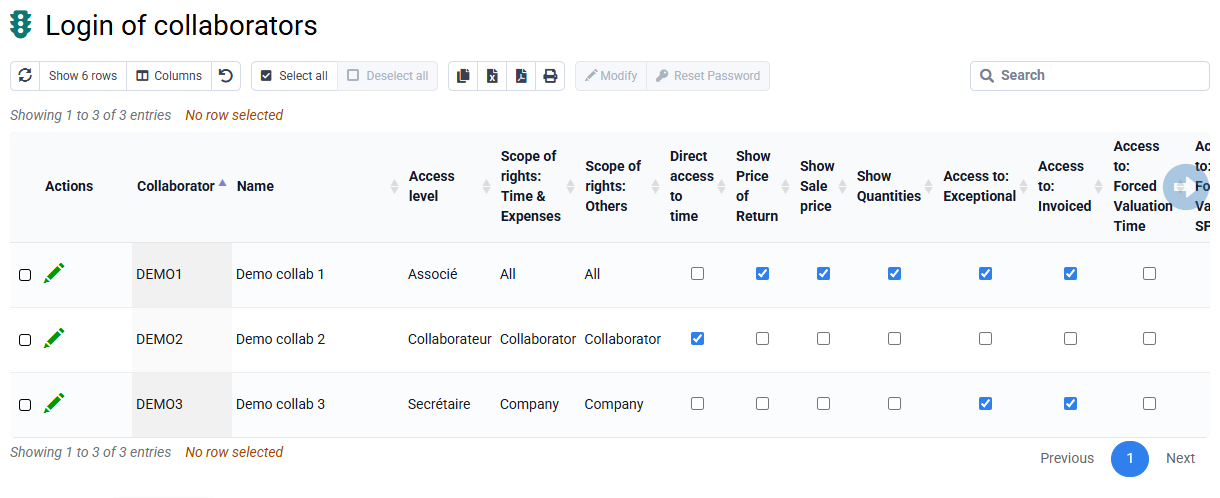
The “Collaborators > Collaborator logins” allows you to assign a profile of access rights to each collaborator, as well as words password.
You can give rights to columns such as "Visible cost price" and "Visible sales price".
You can also define the scope of rights by separating two fields of action: "Time and expense entry" (depending on the employee who is attached), and "Other" (clients and matter attached to such collaborator, client or Company). Possible values are:
- Collaborator: access to only information concerning the collaborator,
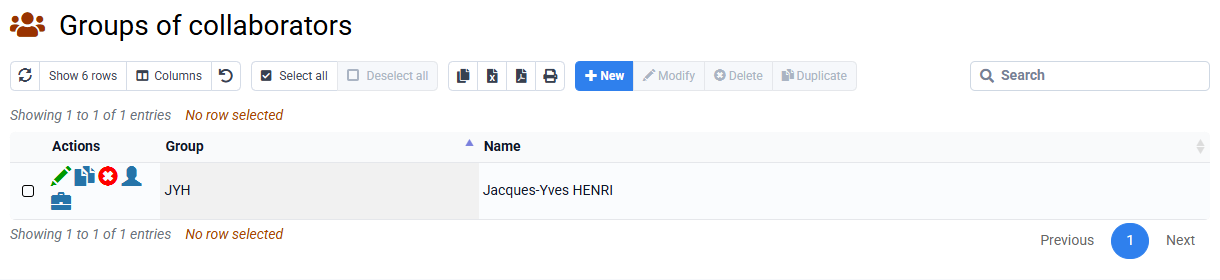
- Group: access to information about their working group (configurable in "Collaborators > Collaborator groups"),
- Company: access to information about your company (configurable in "Configuration > Companies"),
- All: access to all information in the database.