

How do engagement letters work in Tempolia?
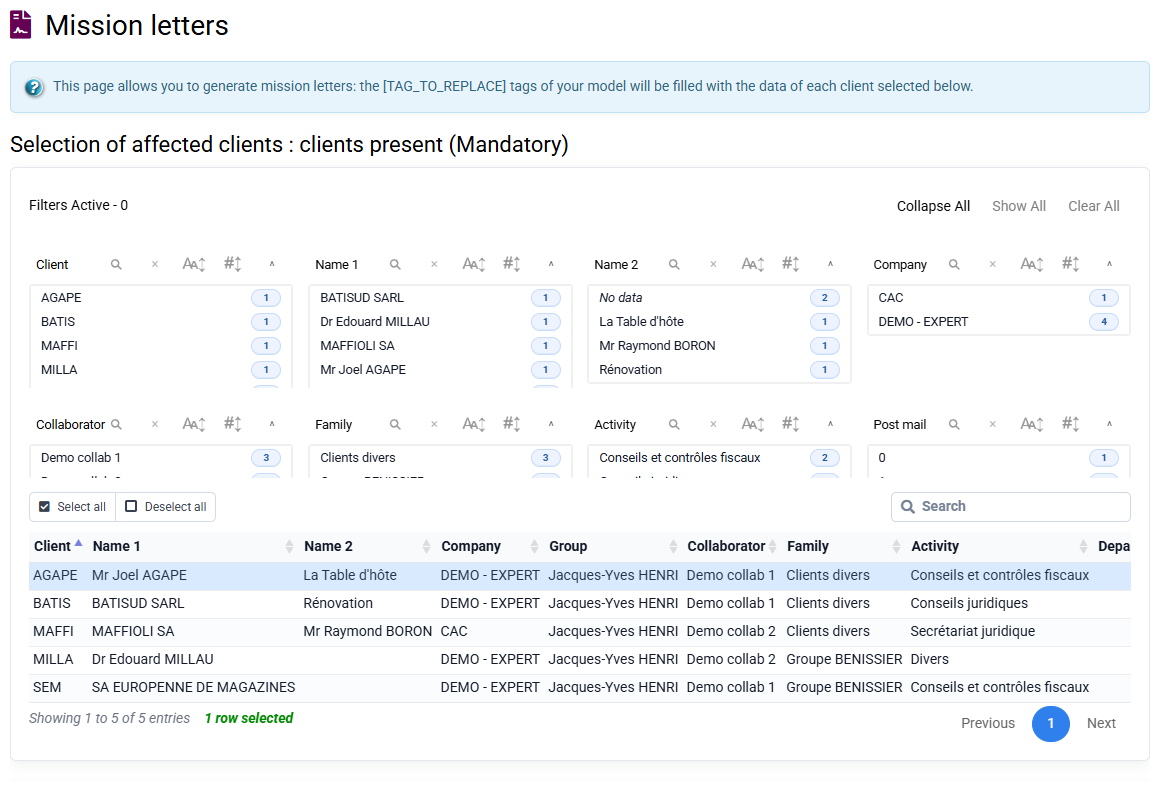
The « Events > Engagement letters » page lets you generate an engagement letter for a client based on a document template. A template is typically an engagement letter, a service offer or a contract. You can prepare as many templates as you need.
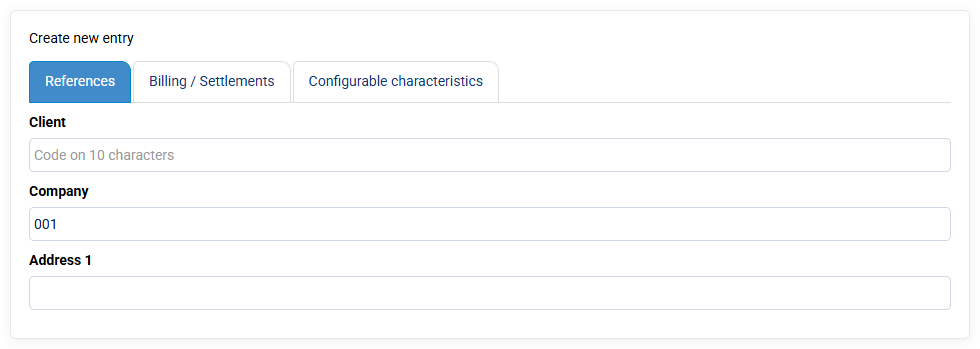
It contains tags, equivalent to mail merge fields in Word, such as company name, address, manager name, a table of budgeted amounts for the first year, and a table of deadlines. These tags are replaced in the template by values from the client record and the budgets and deadlines attached to the client, including customizable characteristics that you can personalize to store any information you want to capitalize on at client level in a CRM logic.
Two operating modes exist to manage your templates and then generate engagement letters for a client:
- Solution 1: edit your template as HTML text in « Configuration > Email / engagement letter templates ». You can then generate the personalized client version as HTML, copy / paste it into Word and finalize the layout. You can also generate a PDF directly, although the document is then no longer editable, which is less flexible than the other solutions.
- Solution 2: prepare your template in Word, with your logo, header, footer and font, and upload it into Tempolia through « Tools > Server file management ». Generating the engagement letter for a client lets you download a completed Word document, review it and modify it in Word if necessary. This approach fully preserves the layout you created in your Word template. It saves significant time while keeping full freedom over the wording and presentation of your contractual commitments.
Optionally, Tempolia has an agreement with JeSignExpert to allow electronic signature of your engagement letters: go to « Tools > Electronic signature » to submit your finalized document and have it signed by your client.