


How do I use the Tempolia MCP server with my own AI, such as Claude, ChatGPT, Gemini or Grok?
The Tempolia MCP server, Model Context Protocol, allows an external AI, such as Claude, ChatGPT, Gemini, Grok or any other MCP-compatible agent, to interact directly with your Tempolia database to read or perform actions, such as creation or modification. The use of a robot, automated agent or web-interface scraping is not authorized. For any automated or AI-driven use of the data present in Tempolia, it is appropriate to use MCP, which is the official interface allowing your AI to manipulate your data and perform actions. However, to interact with your Tempolia data through third-party software other than an AI engine, our API is appropriate and requires development work.
Using MCP is independent from Tempolia AI: you can connect any MCP-compatible AI to your Tempolia server to automate actions, query your data or integrate Tempolia into your intelligent agents.
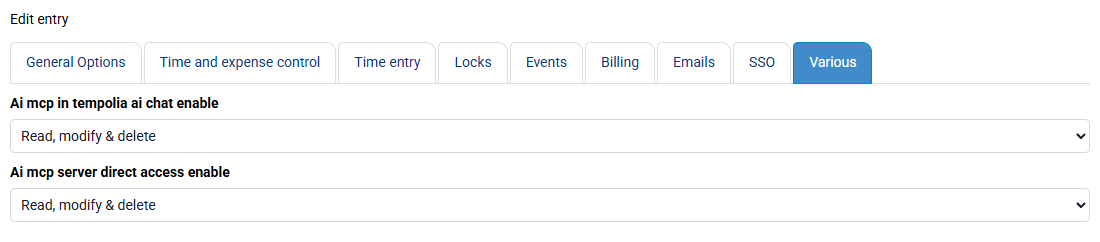
To use the Tempolia MCP server, you must first activate it at no additional cost: « Configuration > General options », “Miscellaneous” tab. Once activated, MCP server access is available for each employee.
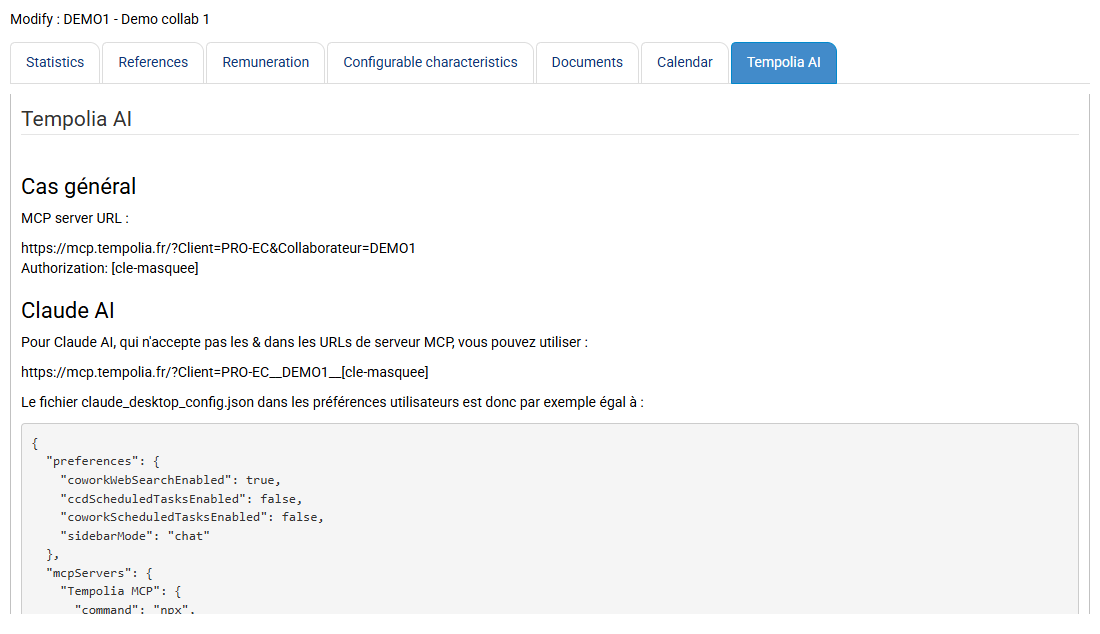
In the employee record, a new "Tempolia AI" tab appears on the « Employees > Employees », employee record, “Tempolia AI” tab page.
This tab shows:
- the customized MCP server URL
- the authentication key
- explanatory information
A specific section for use with Claude is also present.
Each MCP server is associated with an employee and their rights. The AI therefore acts exactly like that user in Tempolia: all business rules and access restrictions apply in the same way as in the web interface.
To connect your AI, simply declare this MCP server in your AI tool by providing the URL and authentication key, according to the procedure expected by the LLM being used. Once connected, the AI automatically queries the MCP server to discover the available features, tools, parameters and data formats. This autodiscovery is part of the MCP standard and depends on the rights of the employee being used.