Help - Questions / Answers
Search :
Technical aspects
- What should I do if I get an error message when sending emails from Tempolia?
- Why is my table column configuration on various pages not persistent?
- A customer says he has not received his invoice, how do I know if my email has been sent?
- How to set up two-factor authentication to secure accounts?
- How do I use the Tempolia MCP server with my own AI, such as Claude, ChatGPT, Gemini or Grok?
- What actions are possible with the Tempolia MCP server, through Tempolia AI or my own AI?
To send emails from Tempolia, configuring your SMTP server is mandatory.
Thus, Tempolia will transmit to your mail server the content of your emails to be sent, and the emails actually go from your email server to your correspondent. These settings are managed in "Configuration > General options", Emails tab.
When Tempolia displays an error message related to sending, it is because this message was sent by your mail server. You must read carefully to understand the message and resolve the problem with the person who manages your email server.

For example, if this message indicates in particular "user password has expired" this means that the password of the email account used for sending has expired:
- you must modify it on your mail server.
- and you must update the "SMTP password" field in Tempolia, in "Configuration > General options", Emails tab; see How to configure the sending of emails?
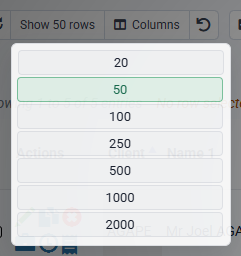
Tempolia Web stores display preferences in your browser for each table: visible columns, their order, and the number of rows displayed.
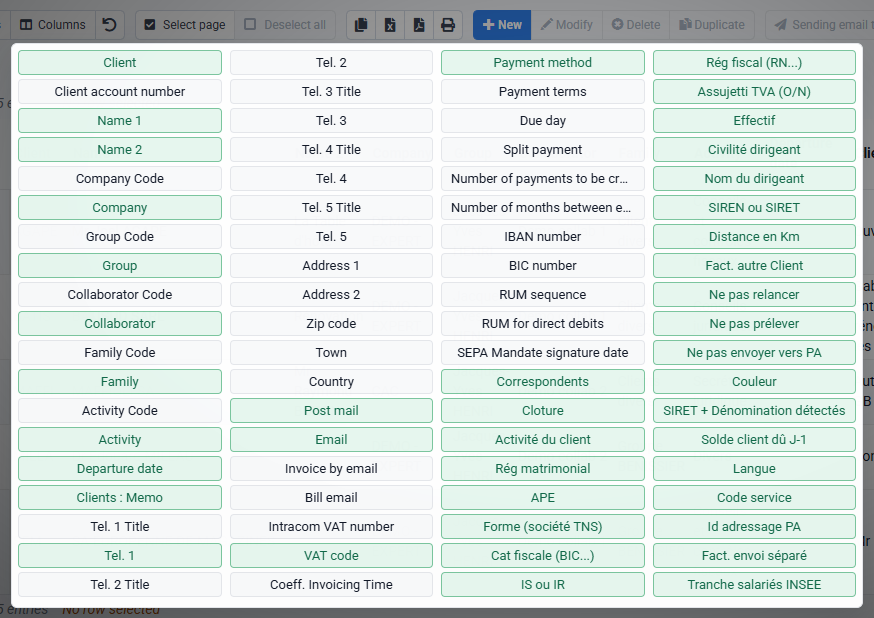
These settings are stored locally by the browser, for your user and workstation. If the same columns or row count keep returning to their default values, check privacy settings, cookies, and whether private browsing is being used.
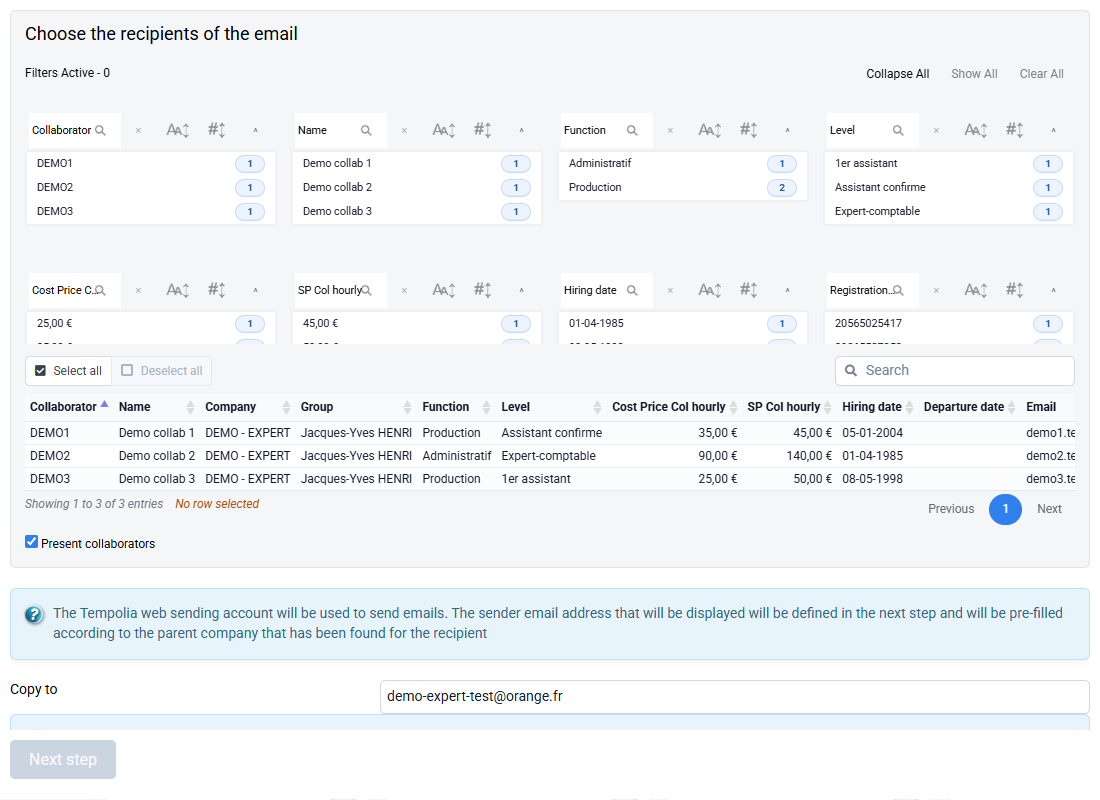
You can check an email send from two complementary places: the event history and the issued invoice list.
What you can check
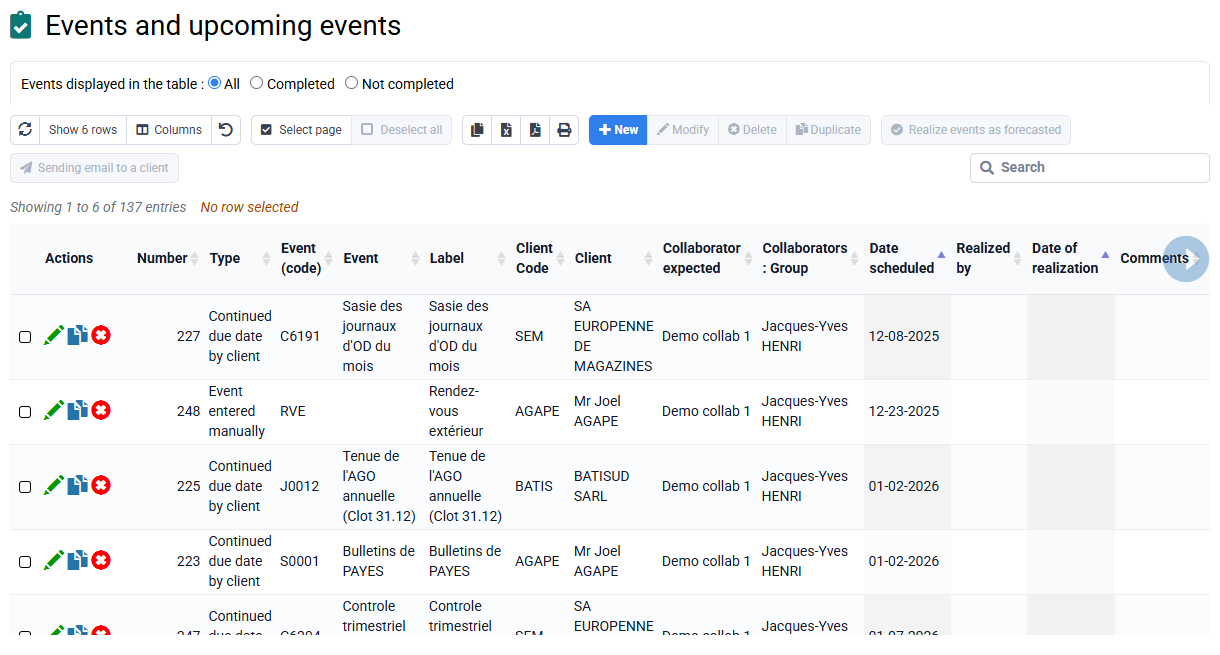
- The events recorded for each send, available from Events > Completed and upcoming events.
- The issued invoices: the email send column or indicator lets you check that the invoice email was transmitted.
- Your own mailbox, because Tempolia offers by default to copy you on sent emails.
Check the sending history
Use client events to find the send date, recipient, status and context.
Check the issued invoice
In the invoice list, the email send indicator confirms that the invoice was transmitted from Tempolia.
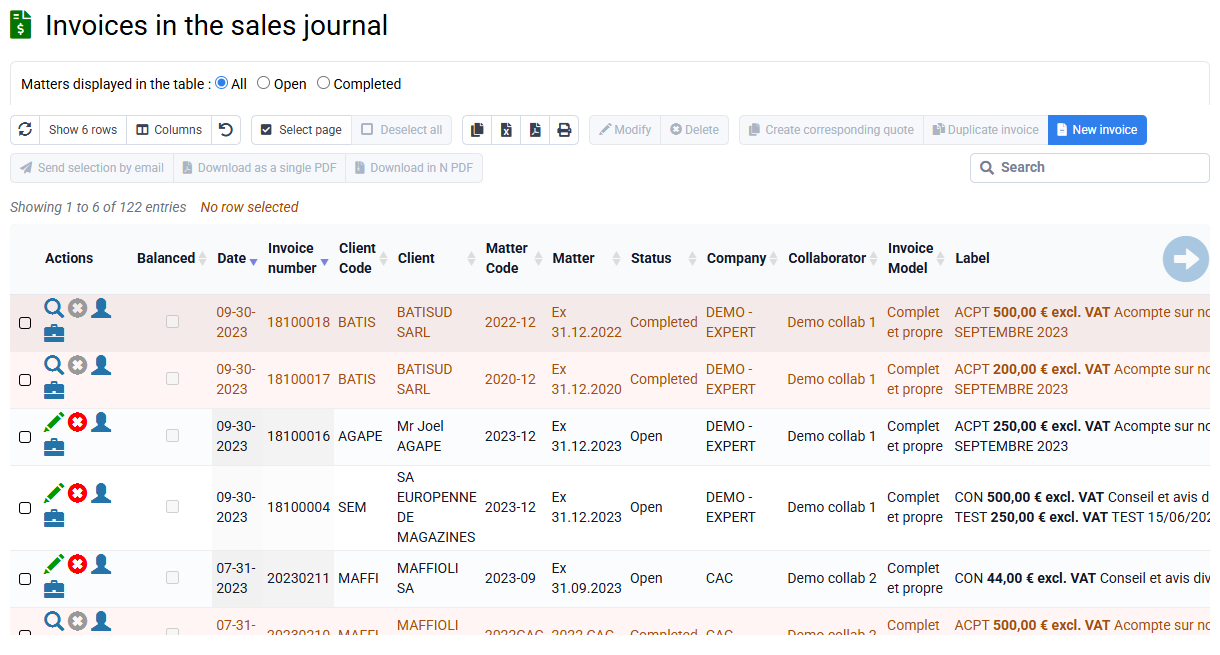
Compare this information with the copy received in your mailbox. You can see exactly what was sent, to whom, and when.
Double authentication is protection with a code sent by email, either each time, or if the connection IP is unknown at the level of the employee or the global account, as desired.
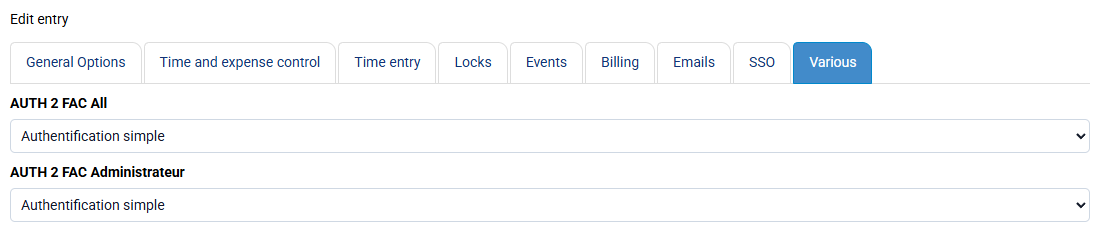
1st step: fill in all the email addresses in “Collaborates > Collaborators” as this is necessary to send them the connection code.
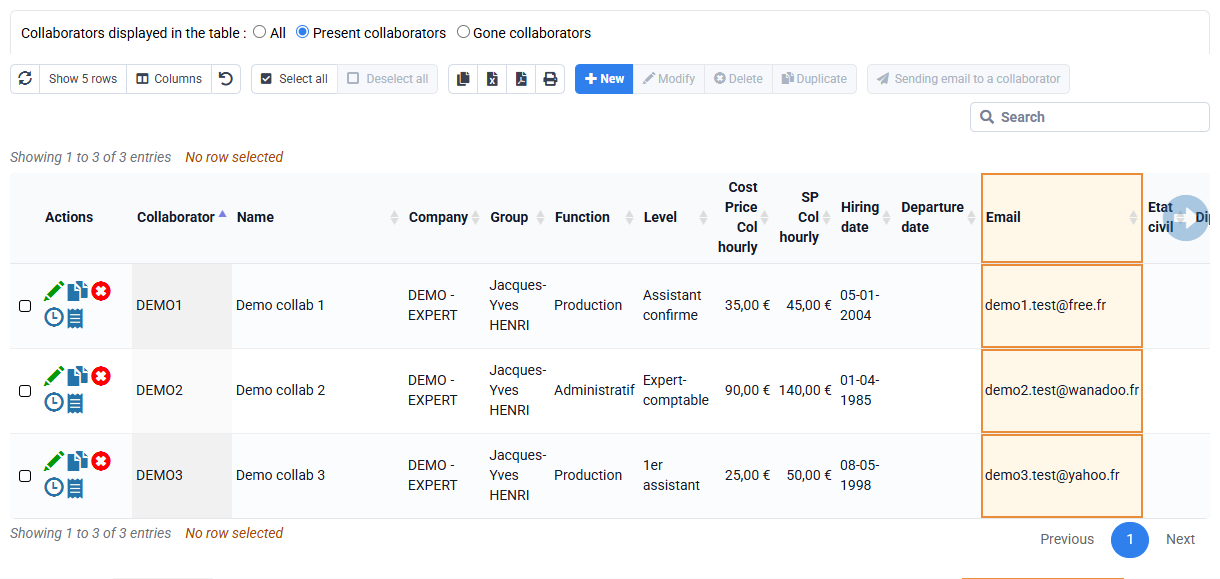
2nd step: you can have double authentication with several settings:
- is forced across your entire account, so that it applies without any exemptions. This settings can be made by the Administrator only in “Configuration > Configuration variables”, find the line “AUTH2FAC_All” and follow the explanation to know what value to put.
- either with a setting per employee: in “Collaborates > Collaborators” > edition of a collaborator > Configurable characteristics tab > “Double authentication” field, you have a possible setting per employee. You can select your collaborators and click on the Edit button, and set your setting for all these selected collaborators.
- either for the Administrator account. These settings can be made by the Administrator only in “Configuration > Configuration variables”, find the line “AUTH2FAC_Administrator” and follow the explanation to know what value to put.

The Tempolia MCP server, Model Context Protocol, allows an external AI, such as Claude, ChatGPT, Gemini, Grok or any other MCP-compatible agent, to interact directly with your Tempolia database to read or perform actions, such as creation or modification. The use of a robot, automated agent or web-interface scraping is not authorized. For any automated or AI-driven use of the data present in Tempolia, it is appropriate to use MCP, which is the official interface allowing your AI to manipulate your data and perform actions. However, to interact with your Tempolia data through third-party software other than an AI engine, our API is appropriate and requires development work.
Using MCP is independent from Tempolia AI: you can connect any MCP-compatible AI to your Tempolia server to automate actions, query your data or integrate Tempolia into your intelligent agents.
To use the Tempolia MCP server, you must first activate it at no additional cost: « Configuration > General options », “Miscellaneous” tab. Once activated, MCP server access is available for each employee.
In the employee record, a new "Tempolia AI" tab appears on the « Employees > Employees », employee record, “Tempolia AI” tab page.
This tab shows:
- the customized MCP server URL
- the authentication key
- explanatory information
A specific section for use with Claude is also present.
Each MCP server is associated with an employee and their rights. The AI therefore acts exactly like that user in Tempolia: all business rules and access restrictions apply in the same way as in the web interface.
To connect your AI, simply declare this MCP server in your AI tool by providing the URL and authentication key, according to the procedure expected by the LLM being used. Once connected, the AI automatically queries the MCP server to discover the available features, tools, parameters and data formats. This autodiscovery is part of the MCP standard and depends on the rights of the employee being used.
MCP lets you interact with your Tempolia database as if you were logged in as a given employee: the rights, restrictions and business rules applied in the interface also apply through MCP. You must therefore pay attention to the rights of the profile being used.
Read actions can be performed directly. Actions that modify the database, creation, modification or deletion, require confirmation before execution when called by Tempolia AI.
If you use the MCP server through your own AI, you must instruct your AI to request your confirmation and limit the operations you want it to perform.
| Domain | Operations possible through MCP | Usage examples |
|---|---|---|
| Companies | Search, read, create, modify, delete | Update an address, IBAN or status |
| Clients | Search, read, create, modify, delete | Correct an address, enter a billing email, modify settings |
| Matters | Search, read, create, modify, delete | Create a matter, change its status or settings |
| Employees | Search, read, create, modify, delete | Update group, function or associated information |
| Reference data | Search, read, create, modify, delete | Manage client families, groups, sectors or activities |
| Codes | Search and read | Find a sales code or a billable or non-billable task |
| Time | Search, read, create, modify, delete | Consult, correct or enter actual or budgeted time |
| Expenses | Search, read, create, modify, delete | Consult or enter incurred or budgeted expenses |
| Billing | Search and read | Consult issued invoices and invoice lines |
| Invoices to validate | Search, read, create, modify, delete | Prepare or modify invoices before validation |
| Quotes | Search, read, create, modify, delete | Consult or manage quotes and quote lines |
| Payments | Read | Consult certain payment-related information |
| Reports | Read | Run printouts such as aged balance, client balances or sales journal |
| SIRET / SIREN search | Read | Retrieve a company name and address |
MCP is the official interface for interacting with Tempolia from an AI. For any request, simply indicate the employee concerned and the desired action.