

Help - Questions / Answers
Collaborators
- How to configure the access rights of collaborators?
- I forgot my password. How can I reset it?
- How do I add a collaborator when my subscription does not provide for it?
- What process to follow for the departure of an employee?
- How to calculate employee overtime?
- How to manage employees' compensatory time off?
- How do I manage employee absences?
Collaborator, login and rights: one record
The “Collaborators > Collaborator logins and rights” page is not a separate account list: it displays the same collaborators stored in Tempolia. As soon as a collaborator is created, their row therefore appears there automatically. Leaving the password empty or restricting access rights may prevent that person from signing in, but it does not remove the collaborator record from this page or from the present-collaborator count.
To link actual or budgeted time or expenses to a person, the collaborator record must already exist and the person must be present on the line date, between the hire date and departure date, inclusive. There is no collaborator “outside the login and rights list” that can bypass this rule.
There are several ways to configure employee rights:
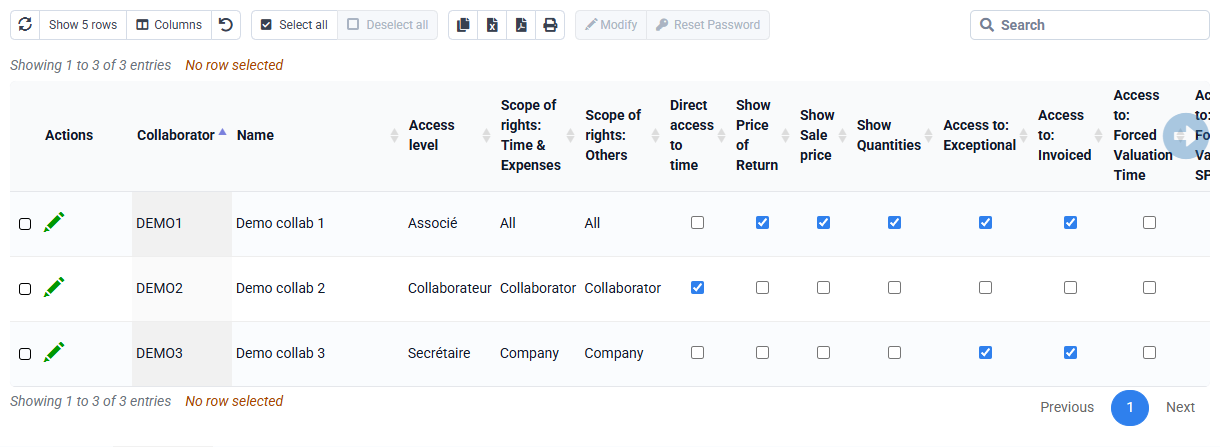
- the visible pages, thanks to the "Access rights by profile",
- the visible lines, thanks to the "scope of access rights",
- the visible columns, thanks to the activation or not of the display of cost prices, selling prices, etc.
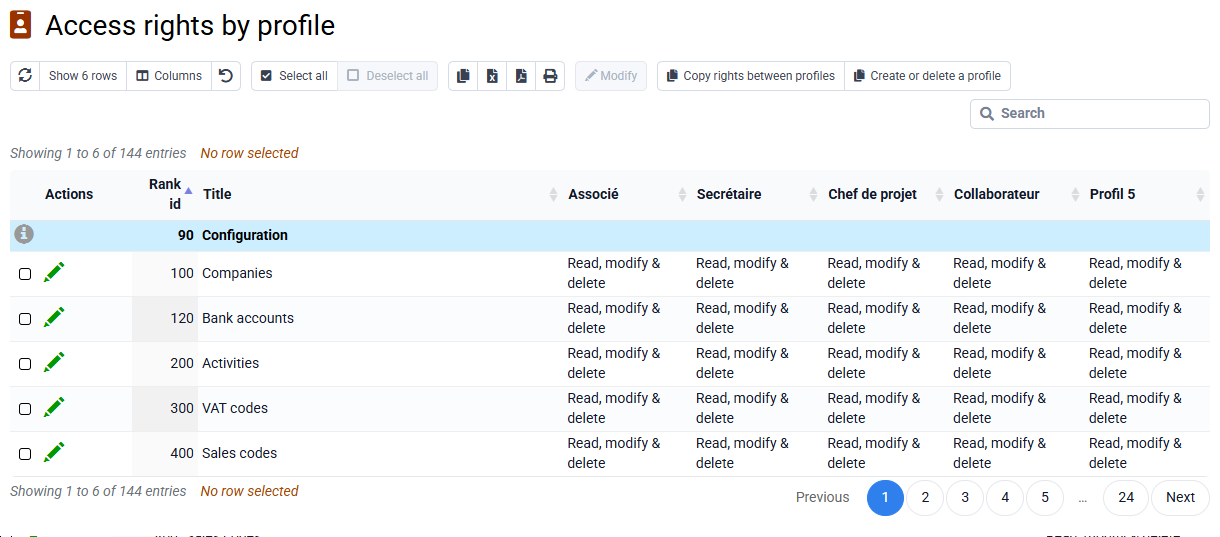
The “Collaborators > Access rights per profile” allows you to define the access rights for each profile (update, consult only or prohibited) for each page of the menu and certain sub-pages. You can create and delete rights profiles, in addition to those created by default.
The features prohibited for the employee's profile automatically disappear from the menus, simplifying access to other features.
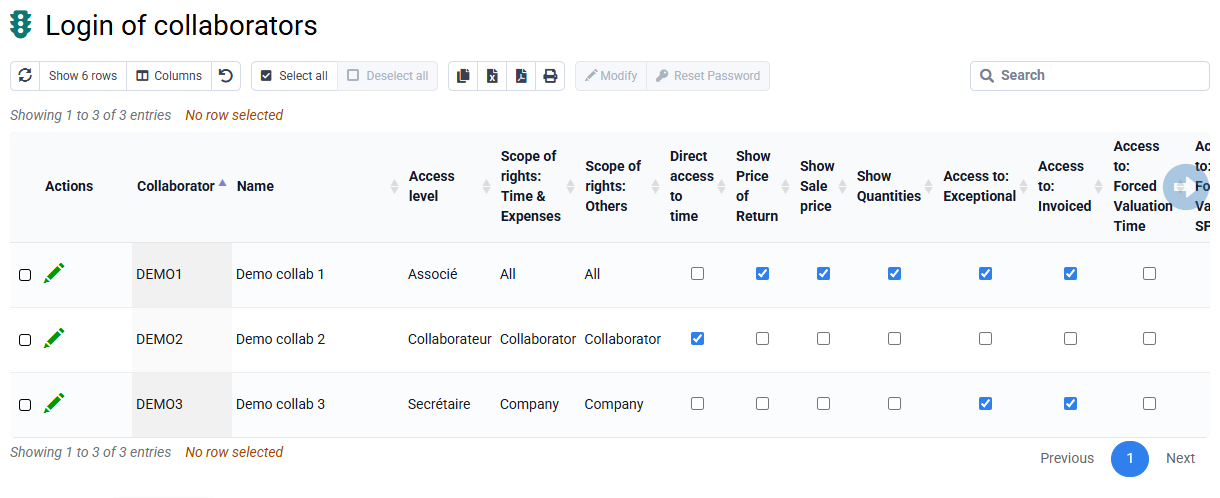
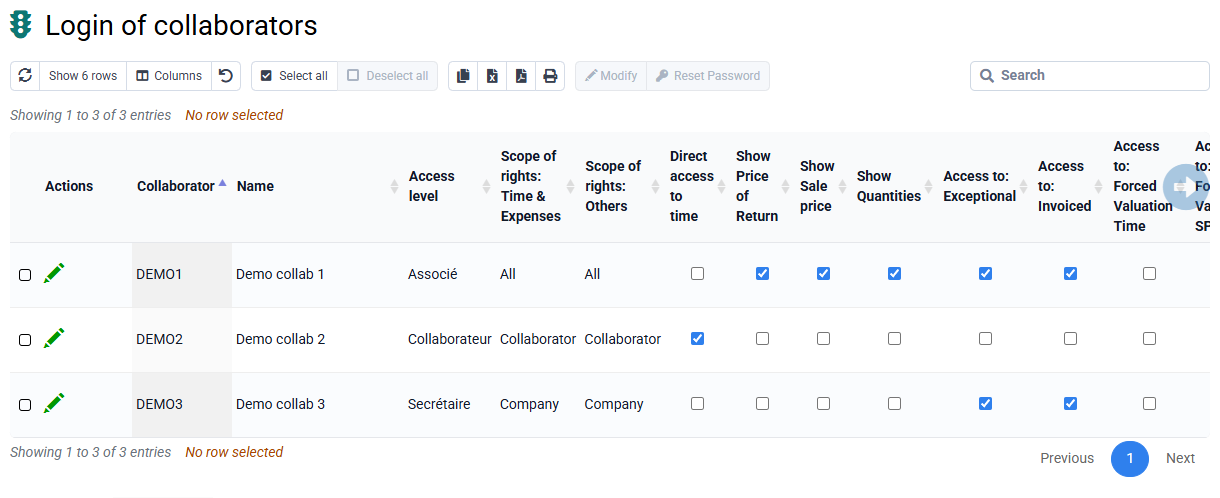
The “Collaborators > Collaborator logins” allows you to assign a profile of access rights to each collaborator, as well as words password.
You can give rights to columns such as "Visible cost price" and "Visible sales price".
You can also define the scope of rights by separating two fields of action: "Time and expense entry" (depending on the employee who is attached), and "Other" (clients and matter attached to such collaborator, client or Company). Possible values are:
- Collaborator: access to only information concerning the collaborator,
- Group: access to information about their working group (configurable in "Collaborators > Collaborator groups"),
- Company: access to information about your company (configurable in "Configuration > Companies"),
- All: access to all information in the database.
For optimal security, you cannot request a password reset with a "forgotten password" button. A person with rights on your account must give you a new password.
If you have lost your employee password, ask the person who manages access within your company. If you are Administrator and have lost your password, you must ask support to reset it.
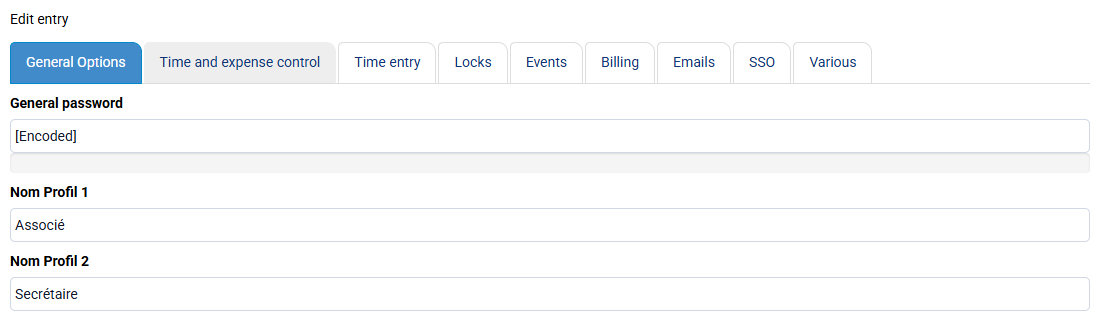
If you are logged in, you can change passwords as follows:
- For the Administrator password, go to « Configuration > General options » and change the "General password".
- For an employee password, first make sure the employee has been created. Then, on the « Employees > Employee logins and rights » page, you have two options: enter a password directly and send it yourself to the employee, or select one or more rows and click "Renew password" to automatically send an email starting the password-definition procedure for the employee.
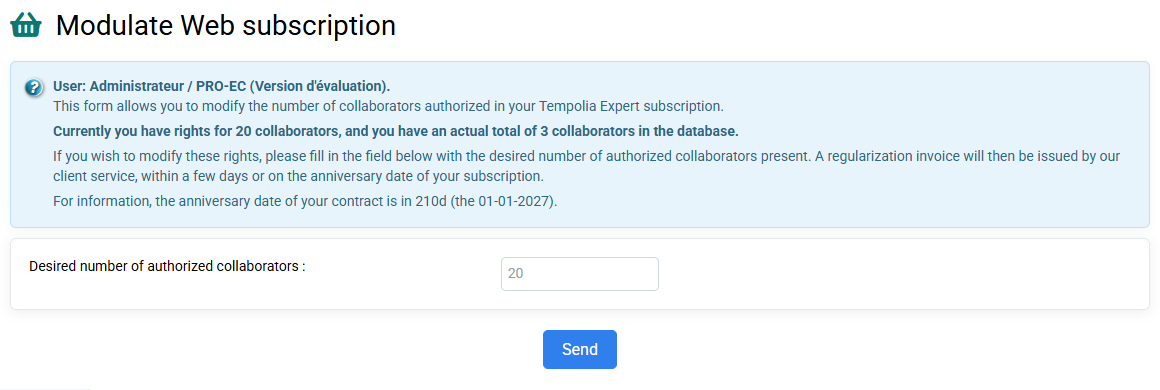
On the “Collaborators > Modulate Web subscription” page, it is indicated to you the number of employees authorized as part of your subscription, and how many employees you have in your database.
NB: The employees present are those whose departure date is not indicated or not yet reached.
What is counted in the subscription
The count depends on whether the collaborator is present in the database and on their departure date, not on whether a password or an access-rights profile has been assigned. Every collaborator created automatically appears under “Collaborators > Collaborator logins and rights”: this page displays collaborator records and is not a separate account list. Leaving a password empty may prevent sign-in, but it does not hide the record or exclude a present collaborator from the subscription count.
A collaborator to whom actual or budgeted time or expenses are linked must already have been created and must be present on each line date. Creating a generic “UNASSIGNED” collaborator does not bypass the rule: it is a real collaborator and, while present, is included in the subscription count.
If you want to add new collaborators, you can:
- Either make employees leave by giving them a departure date: you can look at the help which explains how to do it “What process to follow for the departure of an employee? »,
- Either adjust your subscription on the page: “Collaborators > Modulate Web subscription » . Everything is explained in the help area in blue, and you put your new number in the field and click "Submit", and then it is taken into account without delay. Additional or fewer employees will be added or removed pro rata from your next annual fee invoice, which is your usual maintenance due date.
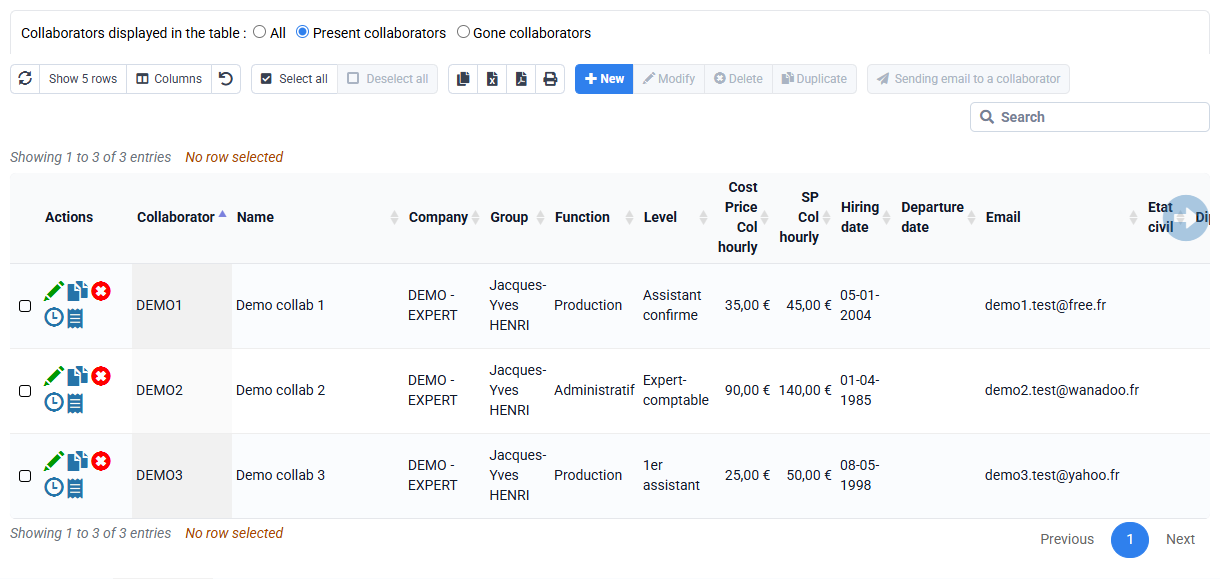
After the subscription has been updated, create the collaborator from “Collaborators > Collaborators”, then assign access rights from “Collaborators > Collaborator logins and rights”.
If an employee is no longer part of the company, you can give them a departure date and then modify your web subscription.
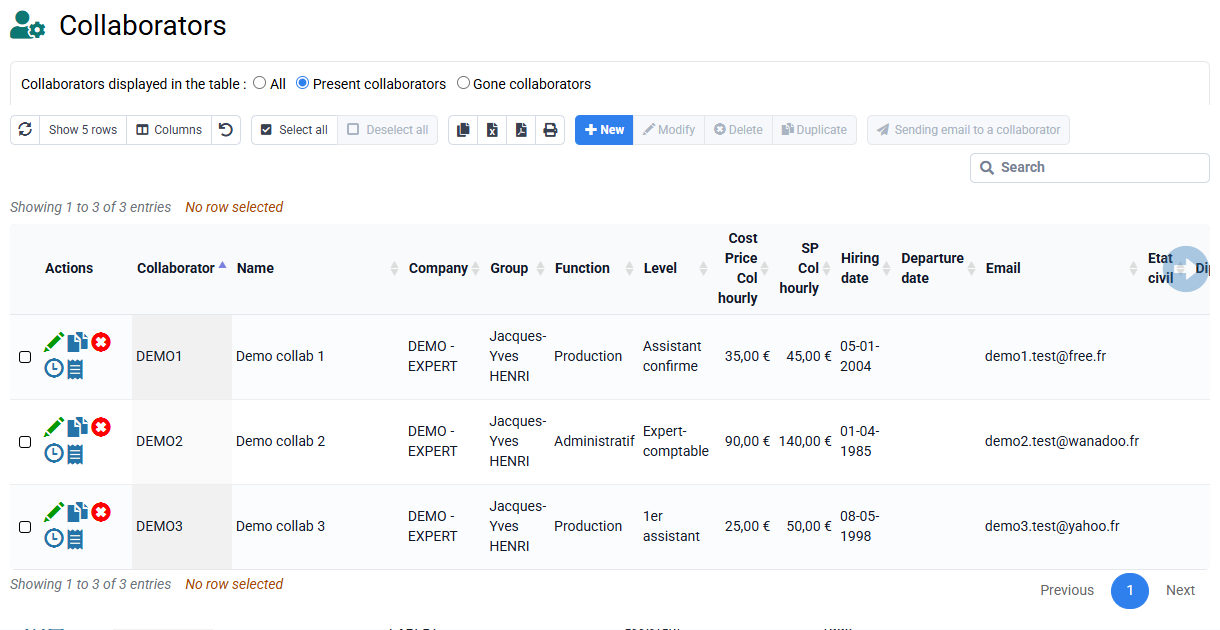
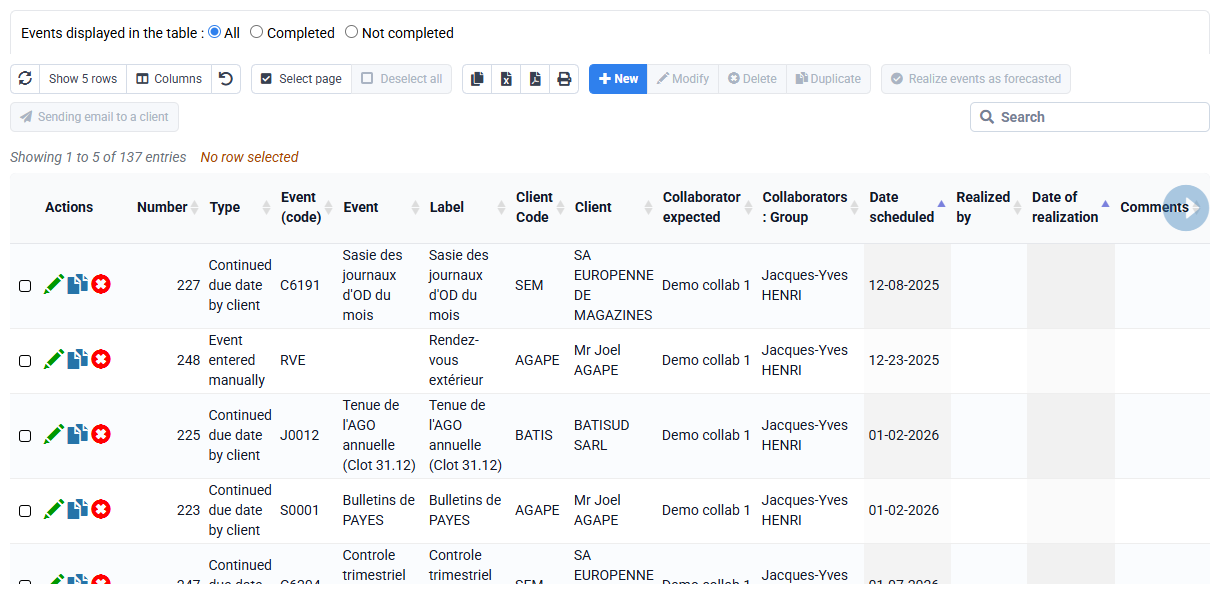
To remove an employee, there must no longer be any associated elements (matters, clients, events except past time).
To assign clients, cases, deadlines, events and budgets to one or more other collaborator (s), you can go to « Collaborators > Change of collaborators ». On this page you can change collaborator for the assignments of your choice:
- You just have to choose the collaborator to replace in the "Origin" field, and the new collaborator in the "Destination" field.
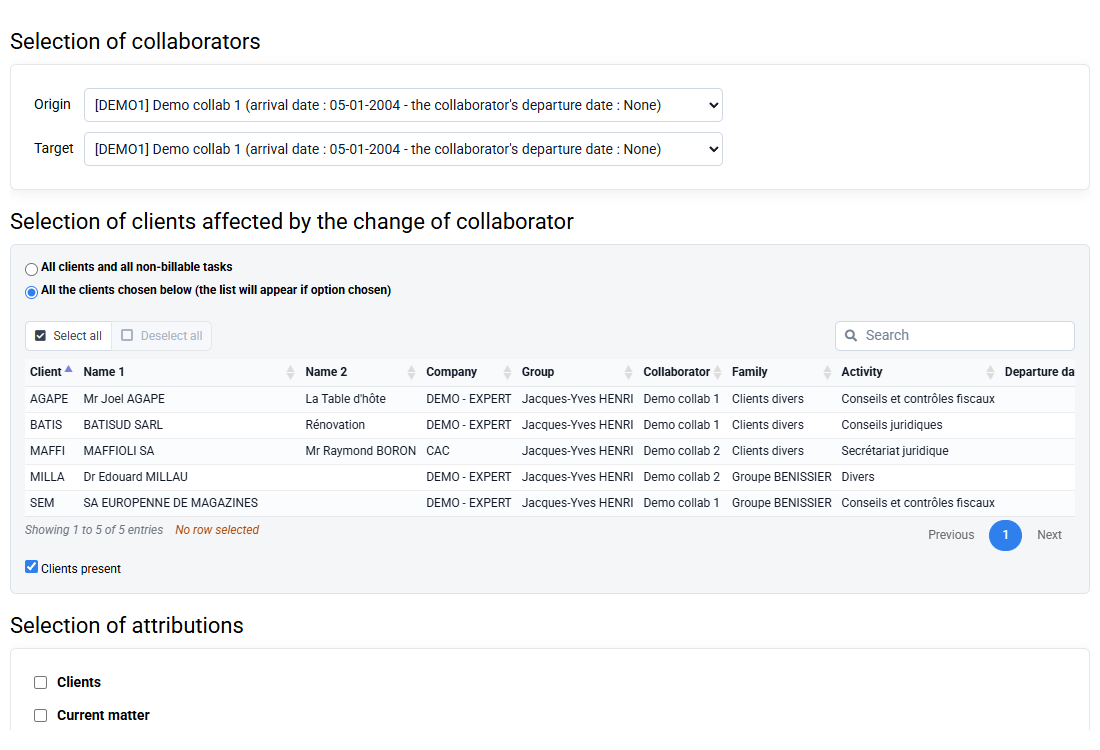
- You can then choose all non-billable clients and tasks or choose specific clients from the list.
- Then choose an assignment or several assignments in the area where the change of employee must be made, then enter the date from which the change (s) must / must apply.
- Once these changes have been made, you can add the departure date in the employee's file> "departure date".
- You can finally adjust your Web subscription on the page provided for this purpose in the collaborator menu.
- On the « Employees > Employees » page, in the “Remuneration” tab of the employee files, there are two fields “Extra Hour Threshold 1” and “Extra Hour Threshold 2” which must be filled in and used then for the calculation of overtime. For a full-time employee in France, the values to indicate are generally 35 and 43 hours in these two fields.
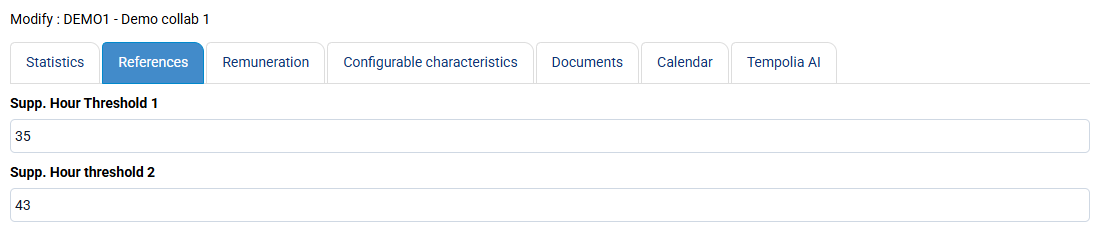
This information is used for the “Employee activity control by month and/or week” report, which allows you to automatically have “Overtime” and “Increased overtime” calculated lines. The calculation is done as it should, per week, taking into account good weeks over the month according to accounting rules.
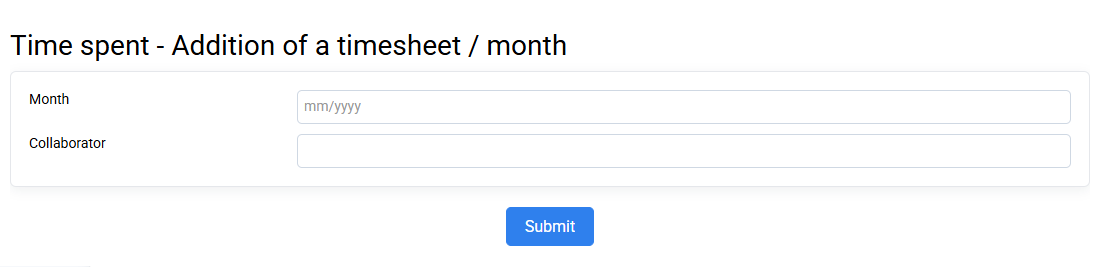
We do not have an automated process for managing overtime catch-up, and you can decide internally whether to pay or recover these hours.
You can create a non-billable task categorized as Absence which corresponds to this overtime catch-up so that employees can enter them for traceability.
Preamble: you must first create a non-billable “Compensation Rest” task in « Configuration > Non-billable Tasks ».
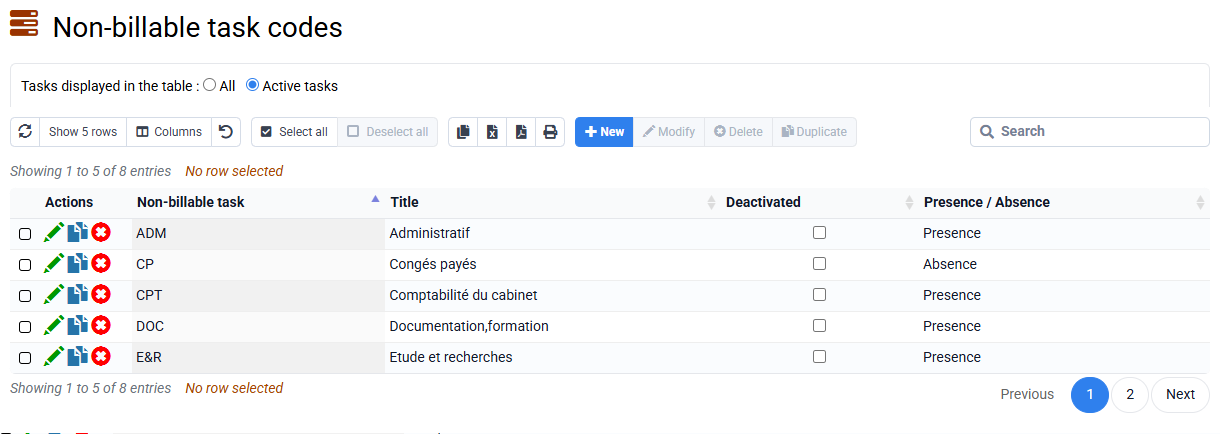
There are several types of compensatory rest, with rules that may be specific to each agreement and each company. The calculation methods and events triggering compensatory rest must therefore be managed internally within the company, based on time entries made by employees.
Once compensatory rest has been calculated, you can enter time associated with the non-billable "Compensatory Rest" task in past times:
- negatively: the hours worked during the day, week or month, which will be subject to compensatory rest,
- positively (like usual leave) on this same non-billable task: absences linked to the recovery of these hours of compensatory rest.
If you then look at the time statistics associated with this non-billable task, via reports or the specialized « Employees > Absences » page, by looking at the balance of time linked to this task you will know if compensatory rest remains to be taken or not for the employee.
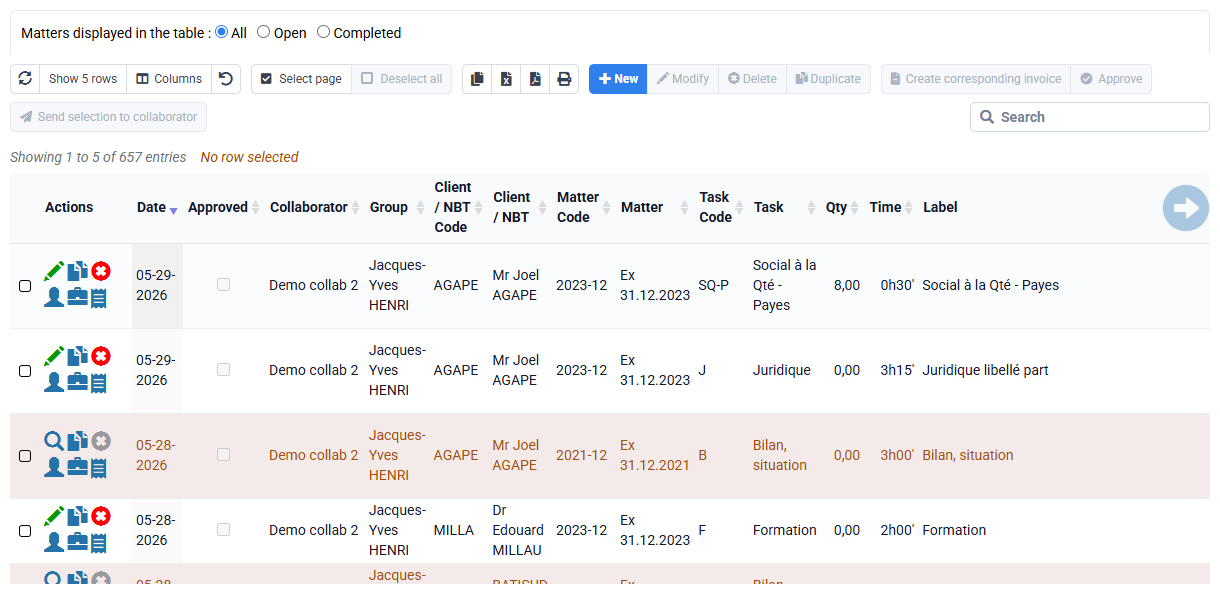
Absences can be entered in actual or budgeted time using non-billable tasks.
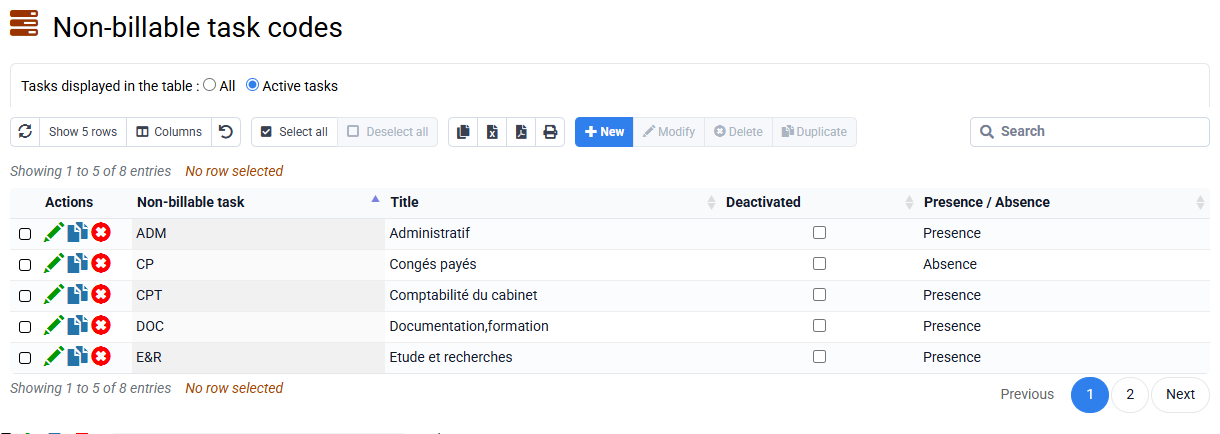
Non-billable tasks can distinguish absences from other internal activities thanks to the "Presence or Absence" property.
Examples of non-billable absence tasks include: sick leave, RTT, paid leave, maternity leave, external training and miscellaneous absences.